How to Record a Google Meet Call (Host or Guest, 2026)

Quick Answer: How to Record a Google Meet Call
- ShareRec — best when your account can't use Meet's recorder: run Meet in Chrome or Edge, share the Meet tab with tab audio, and get a shareable link moments after you stop.
- Google Meet's built-in recorder — best for organisers on an eligible paid Google Workspace edition or a Google One plan with 2 TB or more, saving to the organiser's Drive.
- Grain — best for automatic notes: a bot joins the call as a visible participant and records video with a transcript.
- Descript — best for recording a call and then editing it like a document.
- Loom — best for teams already on Loom: its Notetaker bot can record Meet calls on every plan, including free.
Whichever method you use, tell everyone on the call you are recording before you start. ShareRec requires an account on every tier, and its free plan caps recordings at 5 minutes and 720p, so a full meeting needs Pro (30 minutes) or Business (2 hours). Meet's own recorder needs no extra tool but only works on paid Google plans.
Comparison: Recording Methods at a Glance
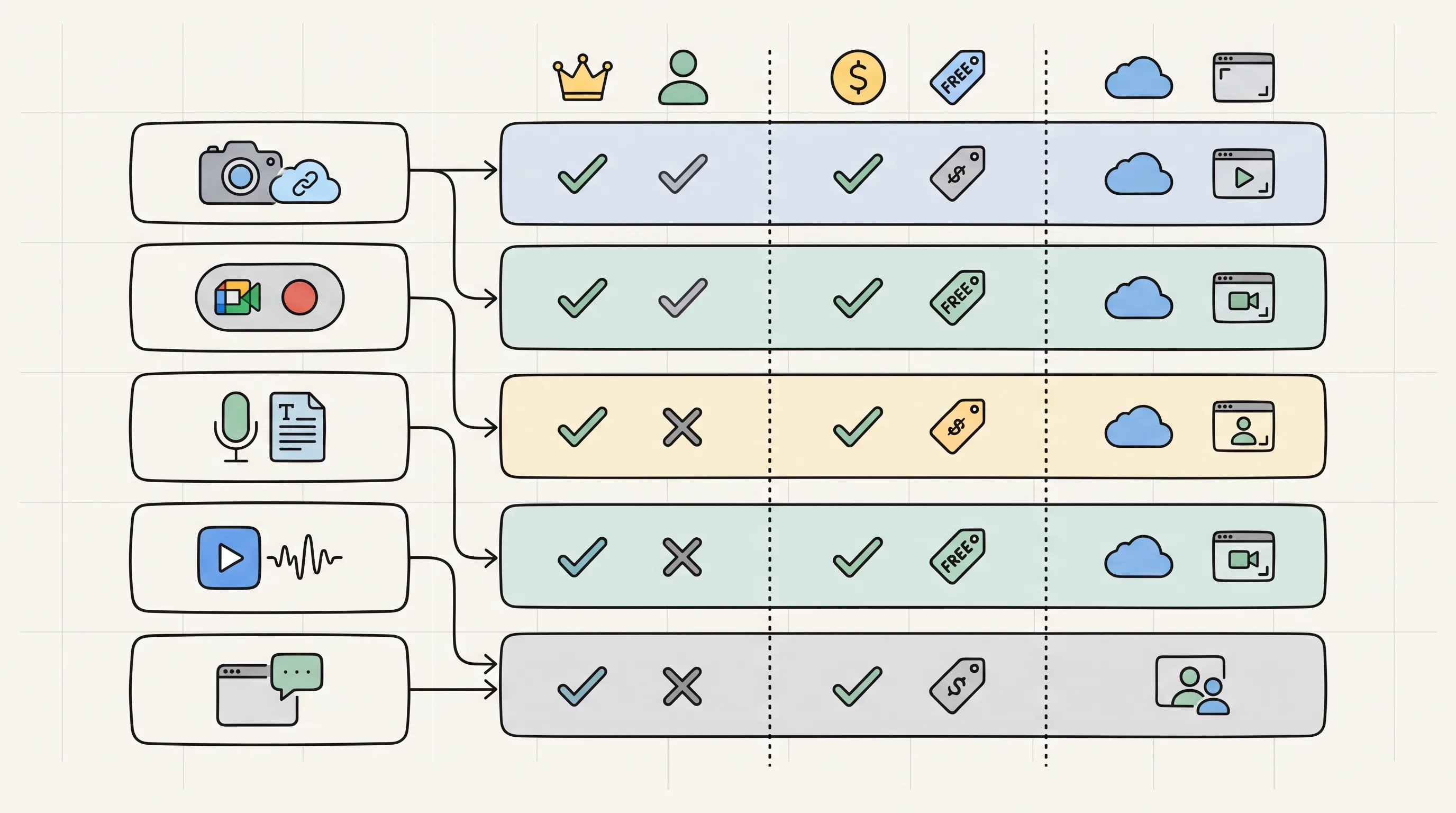
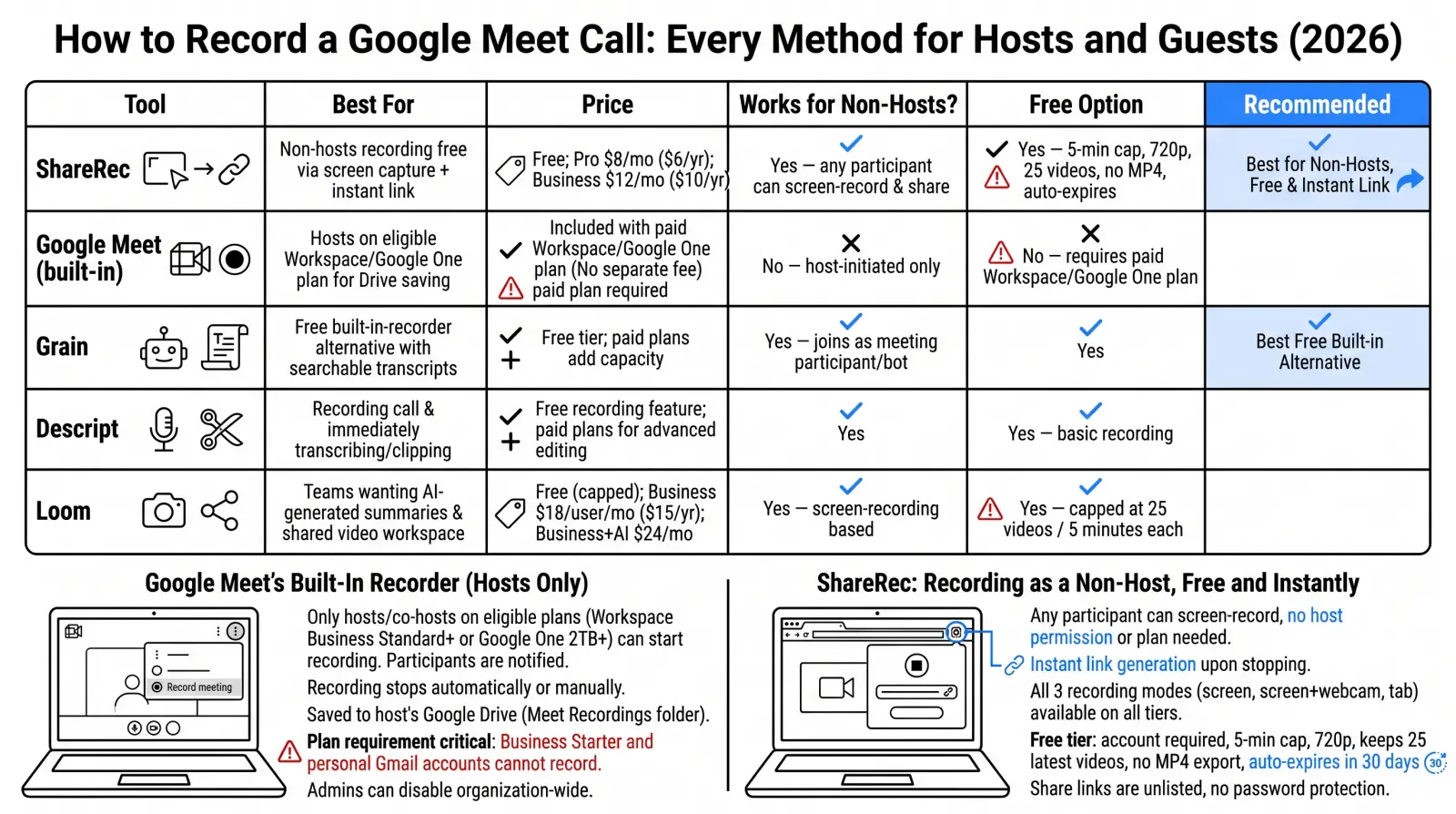
ShareRec, Google Meet's built-in recorder, Grain, Descript, and Loom cover the main ways to record a Meet call, whether or not your account can use Meet's own Record button. They differ in who can start a recording, how attendees find out, and what you get afterwards.
| Tool | Best For | Price | Needs Meet recording rights? | Free Option |
|---|---|---|---|---|
| ShareRec | Recording when your account can't use Meet's recorder, then sending a link | Free; Pro $8/mo ($6/mo billed annually); Business $12/mo ($10/mo billed annually) | No — records the Meet tab in your own browser | Yes — account required, 5-min cap, 720p, keeps 25 most recent videos, no MP4 download, auto-expires in 30 days by default |
| Google Meet (built-in) | Organisers on an eligible paid Google plan who want the file in Drive | Included in eligible Workspace editions (e.g. Business Standard, Business Plus, Enterprise) or Google One 2 TB+ | Yes — organiser, co-hosts, or people allowed by the meeting's settings | No — free Gmail accounts can't record |
| Grain | Automatic recording, transcripts and AI notes | Free plan; paid per-seat plans | No — a bot joins as a visible participant | Yes |
| Descript | Recording a call and editing it like a document | Free (60 media minutes/mo, 720p export with watermark); Hobbyist $24/mo ($16/mo annual); Creator $35/mo ($24/mo annual) | No — desktop screen recorder | Yes |
| Loom | Teams on Loom that want meetings in their video library | Free Starter; Business $18/user/mo; Business + AI $24/user/mo | No — Notetaker bot joins and announces itself | Yes — meeting recording is on every plan |
Google Meet's Built-In Recorder (Organisers and Co-Hosts)
Google Meet's recorder works only on eligible paid Google plans — Workspace editions such as Business Standard, Business Plus, Enterprise and Education Plus, Workspace Individual, or a Google One plan with 2 TB or more storage — and free Gmail accounts can't record at all. Business Starter is not on Google's list.
To start a recording on a computer, click Meeting tools at the bottom right, choose Recording, then Start recording. Participants get a notification when recording starts and stops. You can record from a computer or an Android device, but not from an iPhone, and a recording stops automatically after 8 hours.
Who can press the button depends on the meeting: by default the organiser and co-hosts can record, and when host management is off, people in the organiser's organisation can too. Your Workspace admin also has to allow recording.
The file is saved in the meeting organiser's Google Drive, in the "Google Meet" folder, with a sub-folder for each meeting. Google emails the link to the organiser and to whoever started the recording, and attendees get shortcuts in their own Drive. If you just need a quick overview of recording other video-chat apps too, see our guide on how to record a video chat.
ShareRec: Record a Meet Call When Your Account Can't
ShareRec records a Google Meet call from your own browser — open Meet in Chrome or Edge, share the Meet tab, and turn on tab audio — so you can record even when your Google account has no Record button. It is browser-based: there is nothing to install, and no extension or desktop app is involved.
Step by step: join the call in Chrome or Edge, start a recording in ShareRec, pick the Meet tab in the browser's share dialog, and tick "Also share tab audio" so the other participants' voices are captured. ShareRec mixes the tab audio with your microphone, so both sides of the conversation end up in one recording. When you stop, there's no separate upload step — you get a link you can paste into chat or email moments later.
Recording is a social act, not just a technical one. ShareRec doesn't announce itself to the call the way Meet's recorder or a notetaker bot does, so say out loud that you're recording and get agreement before you start. In many places recording a conversation without consent is illegal.
All three recording modes (screen, webcam, and screen plus webcam) work on every tier, including Free. The Free tier requires an account and caps each recording at 5 minutes and 720p, keeping your 25 most recent videos — fine for a short stand-up, too short for most meetings. Pro ($8/mo, $6/mo billed annually) raises the cap to 30 minutes at 1080p, and Business ($12/mo, $10/mo billed annually) to 2 hours. MP4 download is the one paid-only feature: it's available on Pro and Business, not Free.
Every new recording auto-expires 30 days after it's made unless you change it to Never, 24 hours, or 7 days — a sensible default for meeting recordings. Share links are unlisted, so anyone with the URL can watch; there is no password or SSO layer. ShareRec also has no transcripts, so pick Grain or Loom if written notes matter more than the video.
Grain: Automatic Recording and AI Notes
Grain records Google Meet calls by sending a bot that joins as a visible participant, then gives you the video, a transcript and AI notes. Connect your calendar and Grain can join your meetings automatically, though in meetings you don't organise the host may have to admit it; it shows up in the participant list, so attendees can see the call is being captured.
Grain also offers desktop capture that records your meetings without a bot, producing a transcript and AI notes but no video. There is a free plan; paid plans are priced per seat, so check Grain's pricing page for current limits.
Because the bot is listed as a guest, Grain is a transparent way to record — but you still need the meeting's other attendees to be comfortable with a notetaker in the room.
Descript: Record, Then Edit Like a Document
Descript records a Google Meet call with its desktop screen recorder and then transcribes it, so you can cut the video by editing the text. Choose your screen, microphone and computer audio as sources before you start, so the other participants are captured as well as your own voice.
The free plan includes 60 media minutes a month and exports at 720p with a watermark. Hobbyist ($24/mo, or $16/mo billed annually) removes the watermark with 1080p export, and Creator ($35/mo, or $24/mo annually) adds 4K export and more media hours. That makes Descript the strongest pick for turning a recorded call into a podcast segment or training clip rather than just archiving it.
The trade-off is weight: Descript is a full editing suite with a learning curve, not a quick record-and-send tool.
Loom: Notetaker Bot for Teams on Loom
Loom can record Google Meet calls with its Loom Notetaker, which joins meetings on your calendar and saves the recording to your Loom library — on every plan, including the free Starter plan. Like any bot, it may have to be admitted by the host. The Notetaker announces its arrival and intent to record in the meeting chat, so attendees are told.
Recordings and transcripts are included on all plans. AI meeting recaps, summaries and notes require Business + AI ($24/user/month) or Enterprise; Business ($18/user/month) has no AI features. Separately, Loom's ordinary screen recordings on the free plan are capped at 25 videos and 5 minutes each.
Loom fits teams that already keep their async video in Loom and want meetings in the same library.
Key Takeaways
- ShareRec: record the Meet tab in Chrome or Edge with tab audio when your account can't use Meet's recorder; tell everyone first; free is 5 min/720p, Pro 30 min, Business 2 hours.
- Google Meet (built-in): needs an eligible paid Workspace edition or Google One 2 TB+; Meeting tools > Recording; saves to the organiser's Drive.
- Grain sends a visible bot that records video, a transcript and AI notes, with a free plan.
- Descript records with a desktop screen recorder and lets you edit the call by editing its transcript.
- Loom: Notetaker records Meet calls on every plan, including free; AI recaps need Business + AI at $24/user/mo.
Frequently Asked Questions
How do I record a Google Meet call if I am not the host?
Ask the organiser to record or to make you a co-host — in many meetings co-hosts can record, and when host management is off, people in the organiser's organisation can too. If your account can't record at all, record the Meet tab yourself with a browser recorder like ShareRec (share the tab with tab audio), or use a bot such as Grain or Loom's Notetaker. Either way, tell the other participants first. Meet may hold a notetaker bot in the waiting room until the host admits it.
Can I record a Google Meet call with a free Gmail account?
Not with Meet's own recorder — free Gmail accounts don't include recording. You need an eligible paid Workspace edition or a Google One plan with 2 TB or more. Free alternatives include ShareRec's free plan (5-minute cap), Loom's Notetaker on its free Starter plan, Grain's free plan, and Descript's free plan.
Why is there no Record button in Google Meet?
Usually your account isn't on an eligible plan (free Gmail and Business Starter can't record), you aren't the organiser or a co-host, your Workspace admin has turned recording off, or you're on an iPhone — Meet recording only works on a computer or Android device.
Where do Google Meet recordings go?
Into the meeting organiser's Google Drive, in the "Google Meet" folder, with a sub-folder per meeting. Google emails the link to the organiser and the person who started the recording.
Do participants know when a Google Meet call is being recorded?
With Meet's recorder, yes — everyone is notified when recording starts and stops. Bots like Grain and Loom's Notetaker appear in the participant list (Loom's also posts in the chat). A screen recorder such as ShareRec does not notify anyone, so announce it yourself and get consent before recording.
Is it legal to record a Google Meet call?
It depends on where you and the other participants are. Some places require everyone's consent to record a conversation. The safe rule: tell everyone you're recording and get their agreement before you start. This isn't legal advice — check your local rules.
How long can a Google Meet recording be?
Meet's recorder stops automatically after 8 hours. ShareRec recordings are capped at 5 minutes on Free, 30 minutes on Pro and 2 hours on Business.
Can I download a Google Meet recording?
Yes — Meet recordings are ordinary files in Drive and can be downloaded like any other file. In ShareRec, MP4 download is available on Pro and Business, not on Free.
Try it free
Record your first walkthrough free — no install needed
No install, no watermark — share a link instantly.
Start Recording Free