How to Record a Video Chat: 5 Methods That Work (2026)
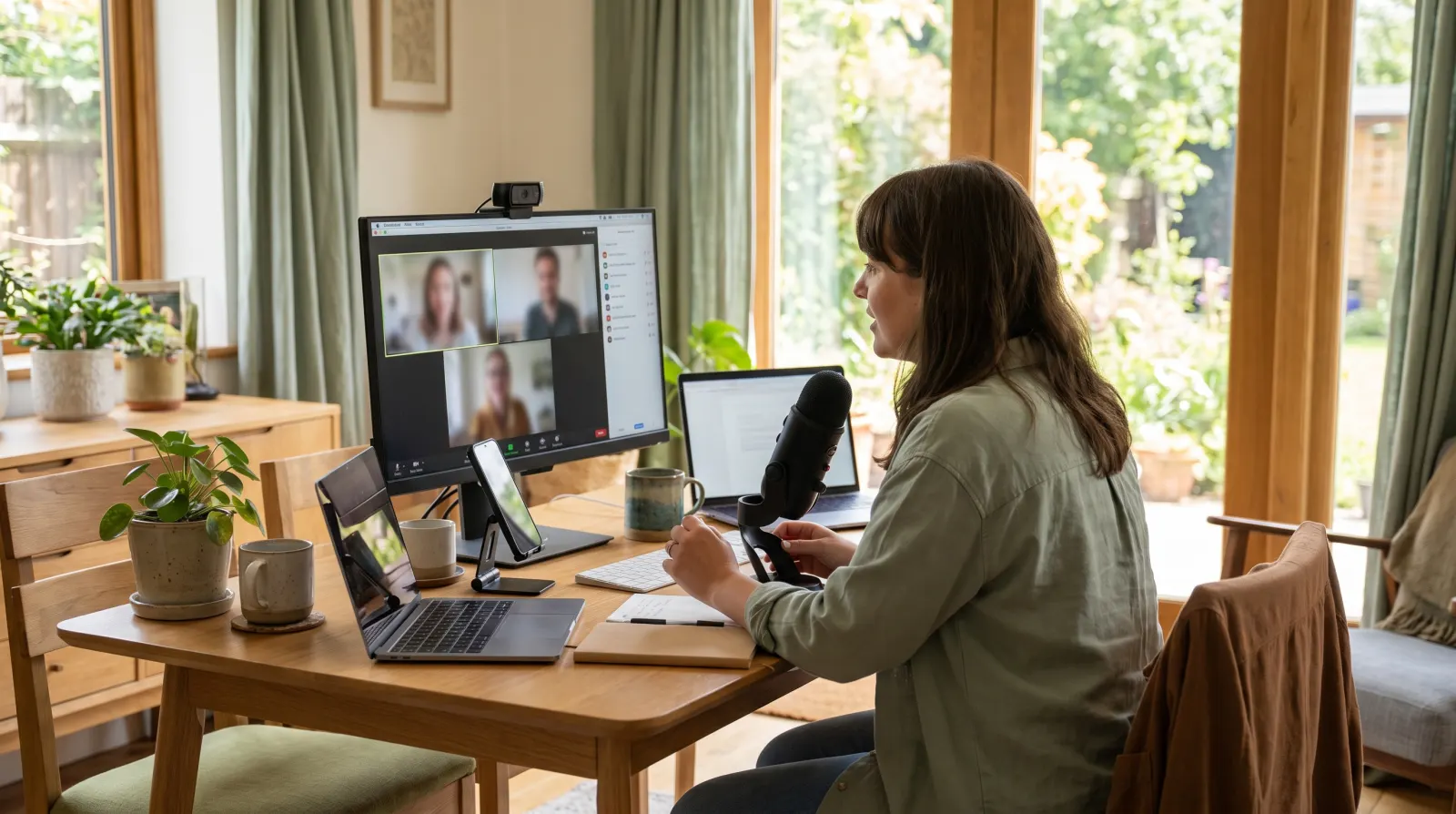
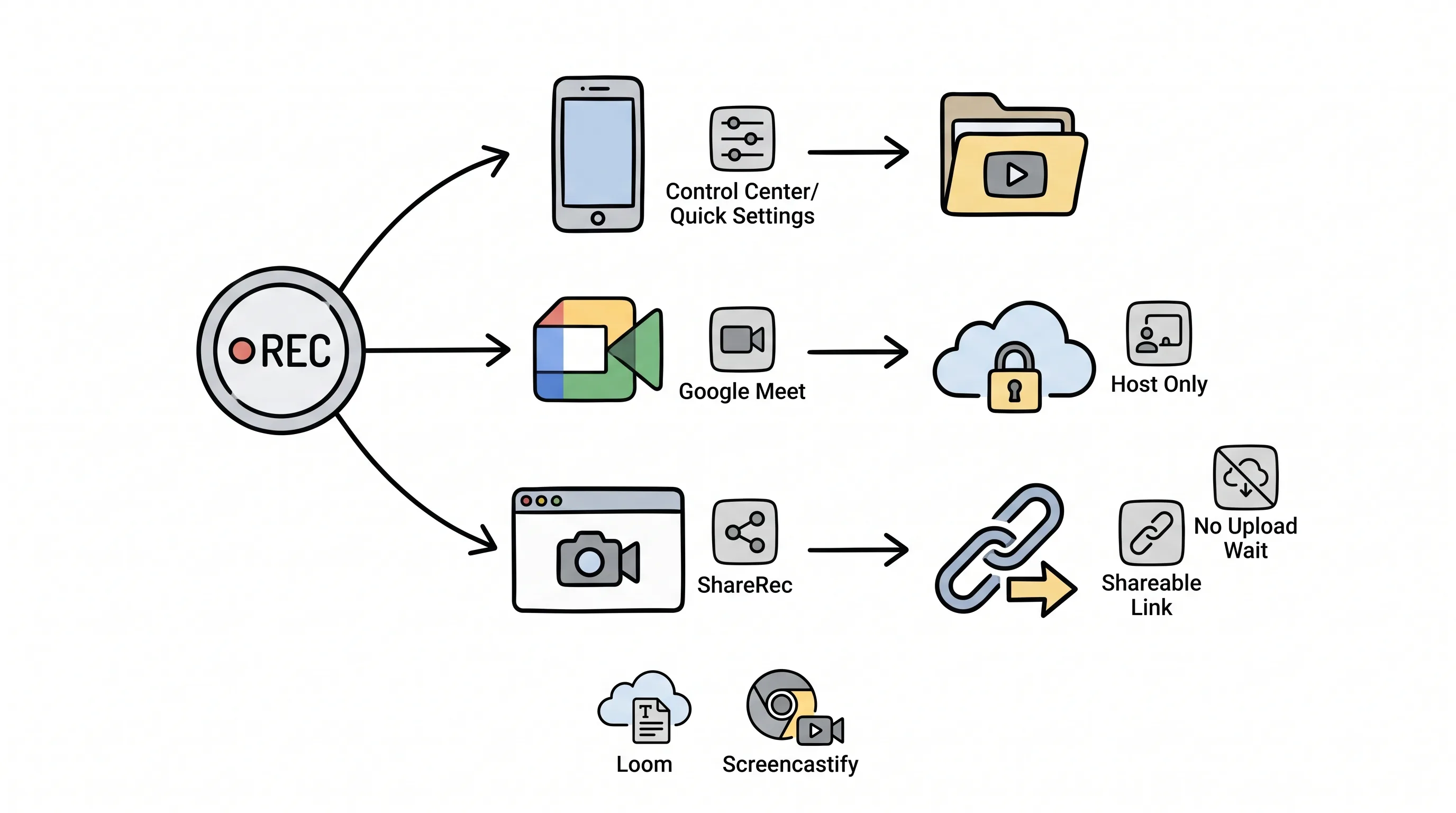
ShareRec is the best tool for recording a video chat in your desktop browser and sending it as a link the moment you stop, especially on a locked-down work laptop that blocks desktop app installs. On a phone, the free screen recorder built into iPhone (Control Center) and Android (Quick Settings) captures any call app, including WhatsApp, which has no recorder of its own, but it usually can't capture the other person's voice. Google Meet has its own recorder, but only on paid Google Workspace plans (or Google One 2 TB and up), and only for the host or permitted participants. Loom's free plan includes transcripts and a Notetaker bot that joins and records Zoom, Google Meet and Teams calls. Screencastify records from a Chrome or Edge extension, built for schools and Chromebook teams.
Zoom, Google Meet and Microsoft Teams all have record buttons of their own, but they are often limited to the host, to paid plans or to permissions an admin sets. When the button isn't there for you, a screen recorder is the fallback. Whichever method you use, tell everyone on the call before you record. Some places legally require every participant's consent.
ShareRec: Record a Browser Call and Send the Link Instantly
ShareRec records your screen and voice in the browser and turns the recording into a shareable link the moment you stop, with a Free tier at $0/month and Pro at $8/month ($6/month billed annually). There's no separate upload step, and it runs entirely in the browser, which matters on corporate laptops where IT blocks desktop recorder installs.
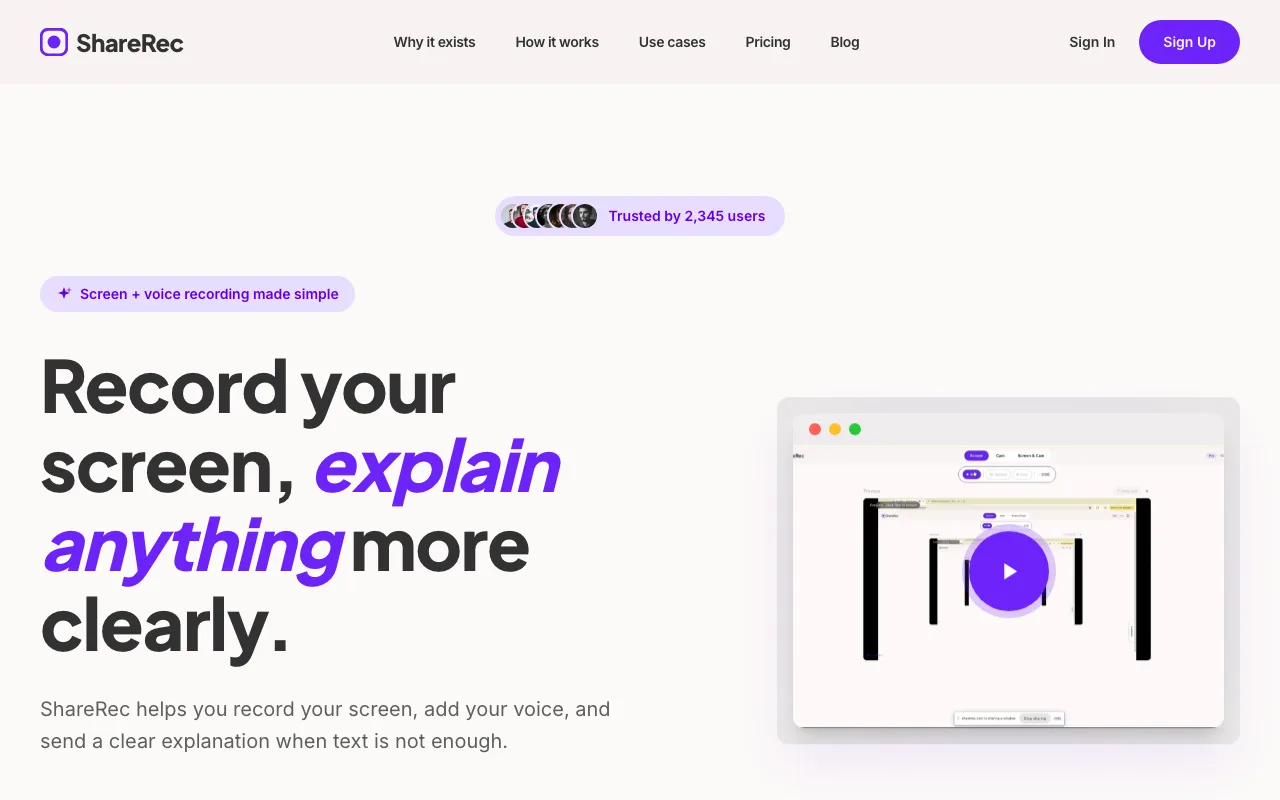
Best for: Recording a desktop video call and sending it as a link right away, on locked-down work laptops.
To record a call, choose the browser tab or screen the call is running in. To capture the other people's voices, tick the browser's share-audio option in the picker. ShareRec mixes that audio with your microphone, so both sides end up in one recording.
The Free tier requires an account (as do all tiers) and includes 5-minute recordings, 720p resolution, storage for the 25 most recent videos, and no watermark, though it can't download MP4 files. Five minutes covers a short call or a recap, but not a full meeting. Pro raises recordings to 30 minutes at 1080p with unlimited videos, for $8/month or $6/month billed annually. Business goes to a 2-hour cap at 1080p for $12/month or $10/month billed annually.
Every tier has the same recording modes, webcam bubble, and trim editing. The paid tiers differ only on duration, resolution, retention, MP4 download, and price. Every video auto-expires after 30 days by default, and you can keep any video forever in one click.
The trade-offs: recording needs a desktop browser, so ShareRec can't record calls on a phone. Share links are unlisted public URLs rather than password-protected or SSO-gated, so anyone with the link can view the recording.
Native Screen Recording: The Free Way to Capture a Call on Your Phone
iPhone's Control Center and Android's Quick Settings both include a free screen recorder that captures any call app on screen, including WhatsApp, which has no recorder of its own. The big catch is audio: phones often won't record the other person's voice.
Best for: Zero-cost video capture of any call app on a phone, including WhatsApp.
On iPhone: swipe down from the top-right corner to open Control Center, touch and hold the Screen Recording button, tap Microphone to turn it on, then tap Record and wait for the three-second countdown. The recording saves to the Photos app. On Android (most phones running Android 11 or later): pull down Quick Settings, tap Screen record, choose whether to record audio, then start.
The audio limit is by design. iOS does not record the other person's audio on FaceTime or regular phone calls, and many calling apps block audio capture on both platforms. Expect to get the video plus your own voice, not a clean recording of both sides. On a computer, the equivalents are Shift-Command-5 on a Mac and Xbox Game Bar (Win+G) on Windows.
Google Meet's Built-In Recorder (and Why It Sometimes Says 'Unavailable')
Google Meet's recorder is built into paid Google Workspace plans (Business Standard and up, among others) and Google One plans with 2 TB or more of storage. Free Gmail accounts can't record. On a computer, click Meeting tools at the bottom right, then Recording, then Start recording. The file saves to the organizer's Google Drive in a "Google Meet" folder.
Best for: Recording inside a paid Google Workspace meeting, auto-saved to Drive.
Recording is limited to the host and, depending on the organization's settings, co-hosts or participants from the host's organization, and the admin must allow recording at all. Everyone in the call is notified when a recording starts or stops.
"Recording unavailable" usually means one of two things: the account is on a plan without recording, or it isn't allowed to record in that meeting. The fix is to ask the host to record, or to use a screen recorder (native OS tools, ShareRec, Loom, or Screencastify) that runs independently of Meet's own controls.
Loom: Free Transcripts and a Meeting Notetaker
Loom has a free Starter plan and paid Business plans at $18/user/month, with Business + AI at $24/user/month; there is no Loom Pro tier. Starter allows 25 videos with a 5-minute cap per recording, and includes transcripts in 50+ languages.
Best for: Teams that want calls recorded automatically by a bot, with transcripts.
For video chats specifically, Loom has a Meeting Recording feature on every plan, including free Starter. After you connect Google Calendar or Outlook, the Loom Notetaker joins your Zoom, Google Meet or Teams meetings, announces itself in the chat and records the call to your Loom library. The Starter plan lists unlimited meeting recording length. AI meeting recaps, summaries, and chapters require Business + AI (titles are free on every plan).
The trade-offs: a bot visibly joins the call, recording ordinary screen videos on a computer needs the Loom desktop app or Chrome extension, and paid plans are priced per user.
Screencastify: Chrome and Edge Recording for Schools and Chromebook Teams
Screencastify records a tab, your desktop, or your webcam from a Chrome or Edge extension, with Starter at $7/user/month billed annually ($19/month monthly) and Pro at $10/user/month billed annually ($25/month monthly). The free tier allows up to 10 videos with a 30-minute cap per recording. Starter raises the cap to 60 minutes and Pro to 180 minutes.
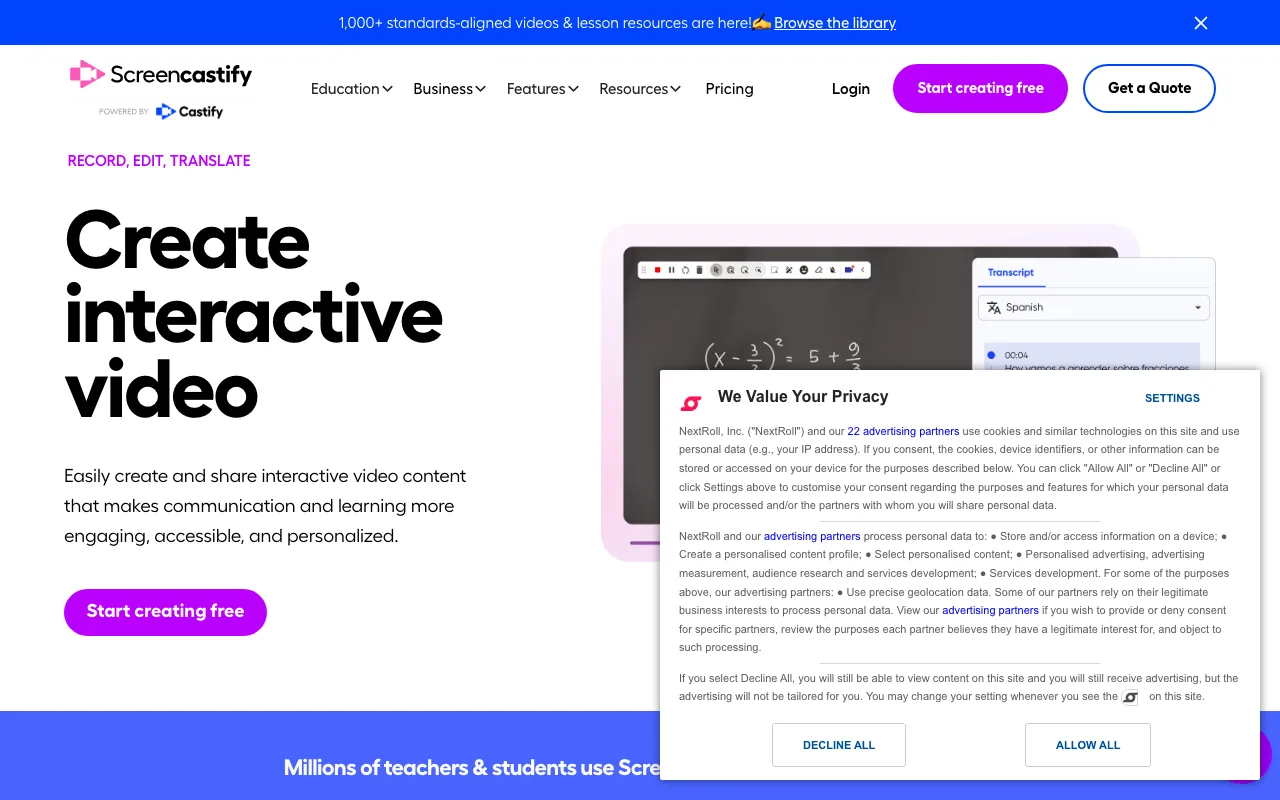
Best for: Browser-extension recording built for schools and Chromebook-based teams.
Recording starts from the same toolbar used to browse, which fits classrooms and Chromebook-managed environments where students and staff already work inside Chrome.
That same design is also its boundary: Screencastify has no desktop app, so it depends on an extension in Chrome or Edge, and on networks that allow extension installs.
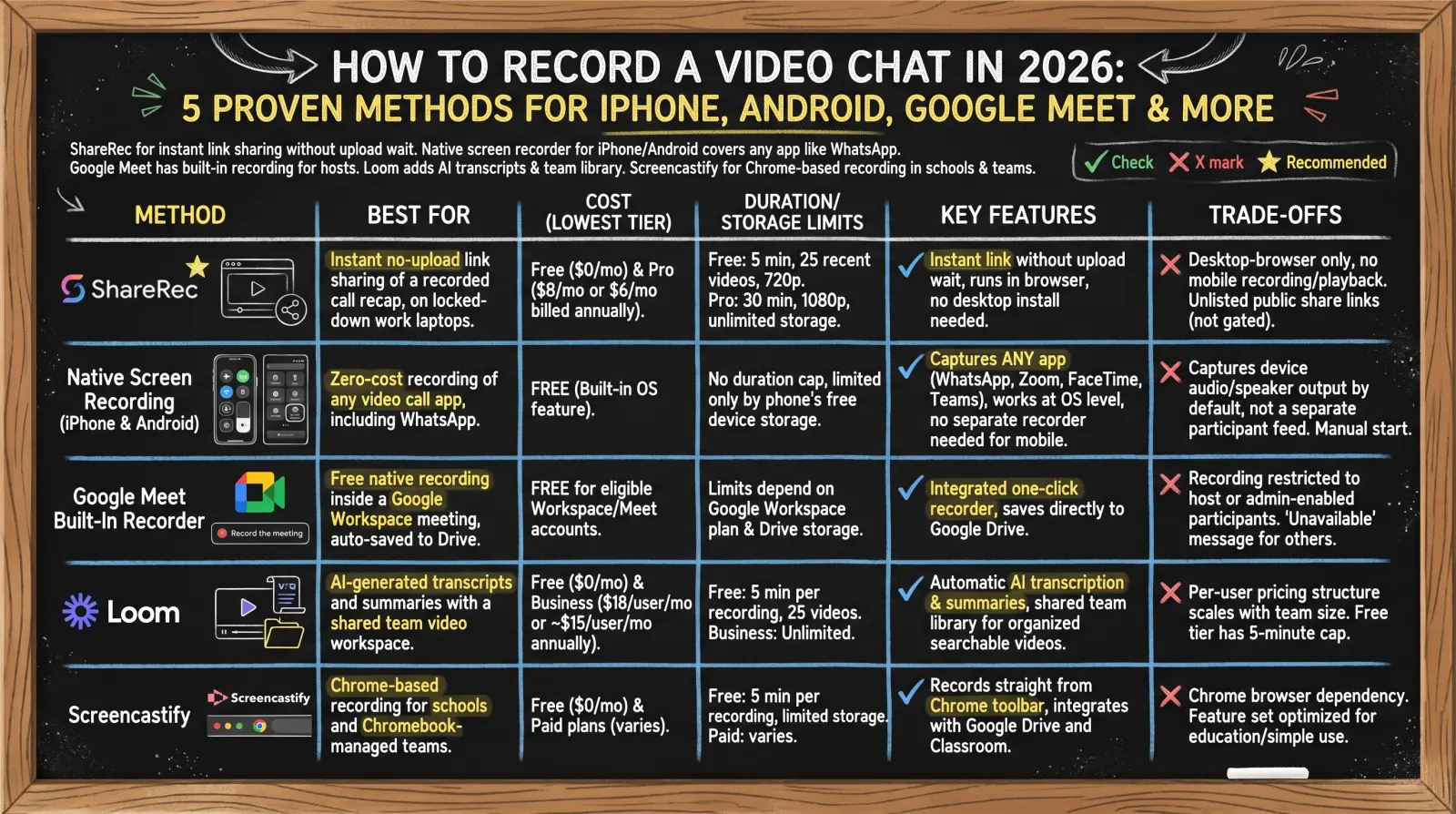
Comparison of the 5 Video Chat Recording Methods
| Tool | Best For | Starting Price | Key Feature | Limitation |
|---|---|---|---|---|
| ShareRec | Recording a desktop call and sending a link right away | Free ($0/mo); Pro $8/mo ($6/mo annual) | Link ready the moment recording stops; mixes call audio with your mic | Desktop browser only; Free caps recordings at 5 min and can't download MP4 |
| Native Screen Recording | Capturing any call app on a phone, including WhatsApp | Free (built into iPhone and Android 11+) | Works across every call app | Usually can't record the other person's voice |
| Google Meet Built-In Recording | Recording inside Workspace meetings | Paid Workspace plans or Google One 2 TB+ | Records the call and saves to Drive | Not on free Gmail; host/admin-permission gated |
| Loom | Calls recorded automatically by a Notetaker bot | Free (5-min videos); Business $18/user/mo | Notetaker bot records Zoom, Meet and Teams on every plan | A bot joins the call; AI recaps need Business + AI |
| Screencastify | Extension-based recording for schools | Free (30-min cap); Starter $7/user/mo annual | Records from the browser toolbar | Chrome or Edge extension only; no desktop app |
Key Takeaways
- ShareRec records a desktop browser call, including both sides' audio, and gives you a link the moment you stop. Pro costs $8/mo, or $6/mo billed annually.
- iPhone (Control Center) and Android (Quick Settings) screen recording captures WhatsApp and any other call app, but usually not the other person's voice.
- Google Meet's recorder needs a paid Workspace or Google One 2 TB+ plan plus host or admin permission. That is why "recording unavailable" appears.
- Loom's Notetaker bot records Zoom, Meet and Teams calls on every plan, and transcripts are free. AI recaps need Business + AI at $24/user/mo.
- Screencastify's Chrome and Edge extension suits Chromebook-managed schools, with a free tier capped at 10 videos and 30 minutes each.
Frequently Asked Questions
How do I record a video call on iPhone?
Swipe down from the top-right corner to open Control Center, touch and hold the Screen Recording button, tap Microphone to turn it on, then tap Record. The recording saves to the Photos app. iOS doesn't record the other person's audio on FaceTime or phone calls, so you'll get the video and your own voice.
How do I record a video call on Android?
On most phones running Android 11 or later, pull down Quick Settings, tap Screen record, choose whether to record audio, then start. Many calling apps block audio capture, so the other person's voice may not be recorded.
Can I record WhatsApp calls?
WhatsApp has no built-in recorder on iOS or Android, so screen recording is the only built-in option. Use the same Control Center steps on iPhone or Quick Settings steps on Android as with any other call app, and expect the other person's audio to be missing in many cases.
How do I record Google Meet meetings?
On a computer, click Meeting tools at the bottom right, then Recording, then Start recording. You need a paid Google Workspace plan (or Google One 2 TB or more) and host status or recording permission. The file saves to the organizer's Google Drive.
Why does it say "recording unavailable" on Google Meet?
Either the account's plan doesn't include recording (free Gmail accounts can't record), or the account isn't allowed to record that meeting because it isn't the host or the admin has turned recording off. Ask the host to record, or use a screen recorder.
Can I record a video call with audio from both people?
Yes, on a computer. When you share the call's tab or screen with a browser recorder like ShareRec, tick the share-audio option so the other people's voices are captured alongside your microphone. Built-in recorders like Google Meet's and Zoom's also capture both sides. On iPhone, screen recording can't capture the other side of a FaceTime or phone call.
Is it legal to record a video call?
It depends on where you and the other participants are. Some places require consent from everyone on the call. The safe habit is to tell everyone before you start recording. Google Meet and Loom's Notetaker announce recordings automatically.
How do I record video calls on Mac?
Press Shift-Command-5 to open the Screenshot toolbar, choose Record Entire Screen, Record Selected Portion, or (on macOS Tahoe 26 or later) Record Selected Window, then click Record. On macOS 27 Golden Gate or later, choose Include System Audio in Options to capture the other people's voices. Recordings save to the desktop by default.
Try it free
Record your first walkthrough free — no install needed
No install, no watermark — share a link instantly.
Start Recording Free