5 Best Free Screen Recorders for Windows in 2026 (No Watermark)

ShareRec, Windows Game Bar, OBS Studio, ShareX, and Loom are the five best free screen recorders for Windows in 2026 — all five are watermark-free on their free tiers. ShareRec runs in any browser with no .exe installer and no admin rights, offering an instant shareable link and keeping your 25 most recent videos — videos auto-expire 30 days after recording by default, and you can keep any one forever in one click (5-min cap per recording; account required on all tiers). Windows Game Bar is built into Windows 10 and 11: press Win+Alt+R to start, and the MP4 saves automatically to
Videos\Captureswith zero software installation. OBS Studio is 100% free and open-source with no usage limits, direct streaming output to Twitch and YouTube, and no account required (desktop install required). ShareX is a free Windows power tool with 80+ upload destinations, full hotkey customization, and built-in annotation (desktop install required, Windows-only). Loom generates AI transcripts, auto-summaries, and a polished async viewer — but the free tier caps total recordings at 25 videos and each at 5 minutes.The primary split: ShareRec and Loom generate instant shareable links on their free tiers. Windows Game Bar, OBS Studio, and ShareX save recordings to local disk only.
Comparison Table: Free Windows Screen Recorders at a Glance
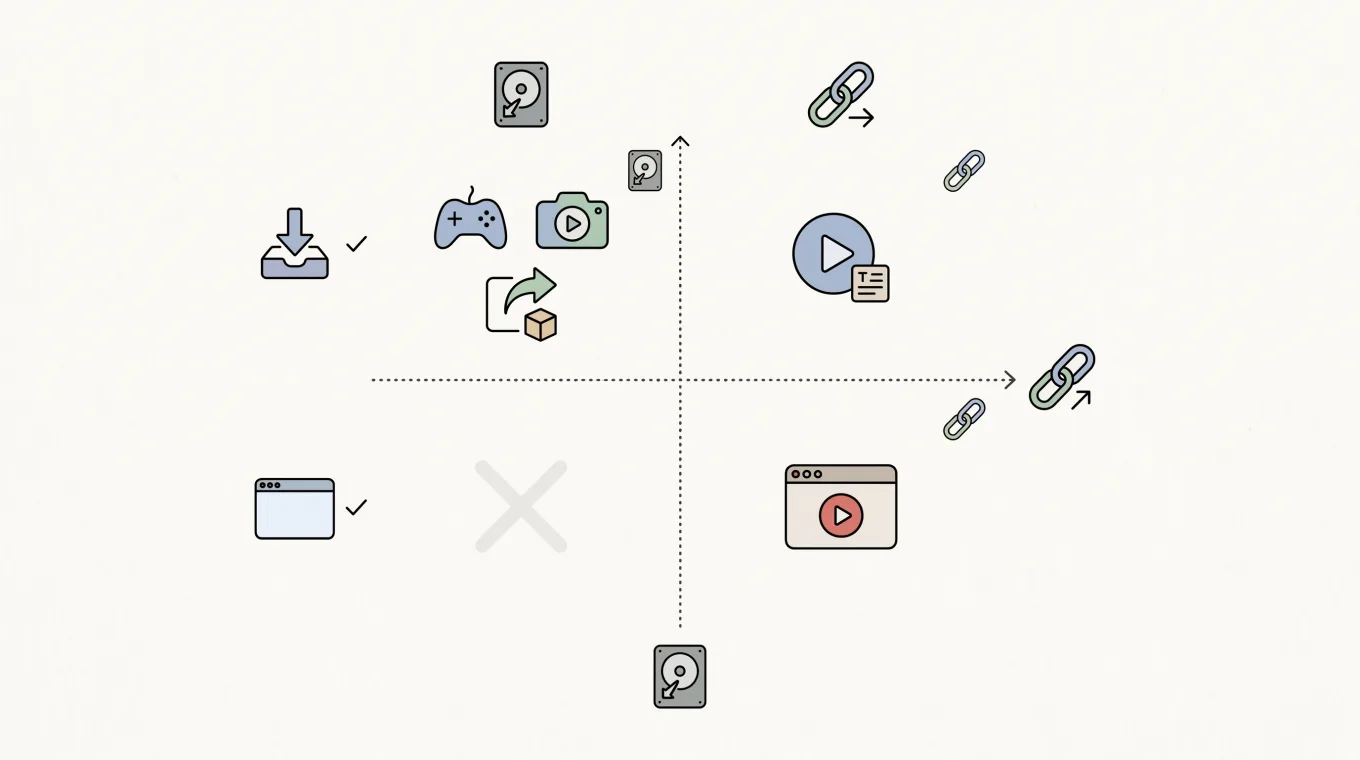
In 2026, the five leading free Windows screen recorders split cleanly on two axes: whether they require a desktop install, and whether they generate an instant shareable link — factors every current top-10 comparison omits from its criteria.
| Tool | Install Required | Watermark-Free (Free Tier) | Video Count Cap (Free) | Recording Cap (Free) | Instant Shareable Link | Best For |
|---|---|---|---|---|---|---|
| ShareRec | No (browser-based) | Yes | 25 most recent | 5 min | Yes — instant on every tier | No-install, no-admin-rights recording on Windows |
| Windows Game Bar | No (built into Windows) | Yes | Unlimited | None | No — saves locally only | Zero-setup recording on Windows 10/11 |
| OBS Studio | Yes (.exe, admin rights) | Yes | Unlimited | None | No — saves locally only | Game streaming and multi-source advanced recording |
| ShareX | Yes (.exe, Windows only) | Yes | Unlimited | None | No — requires upload destination setup | Power users needing full Windows capture customization |
| Loom | No (browser extension) | Yes | 25 videos max | 5 min | Yes | Teams needing AI transcripts and async video workflow |
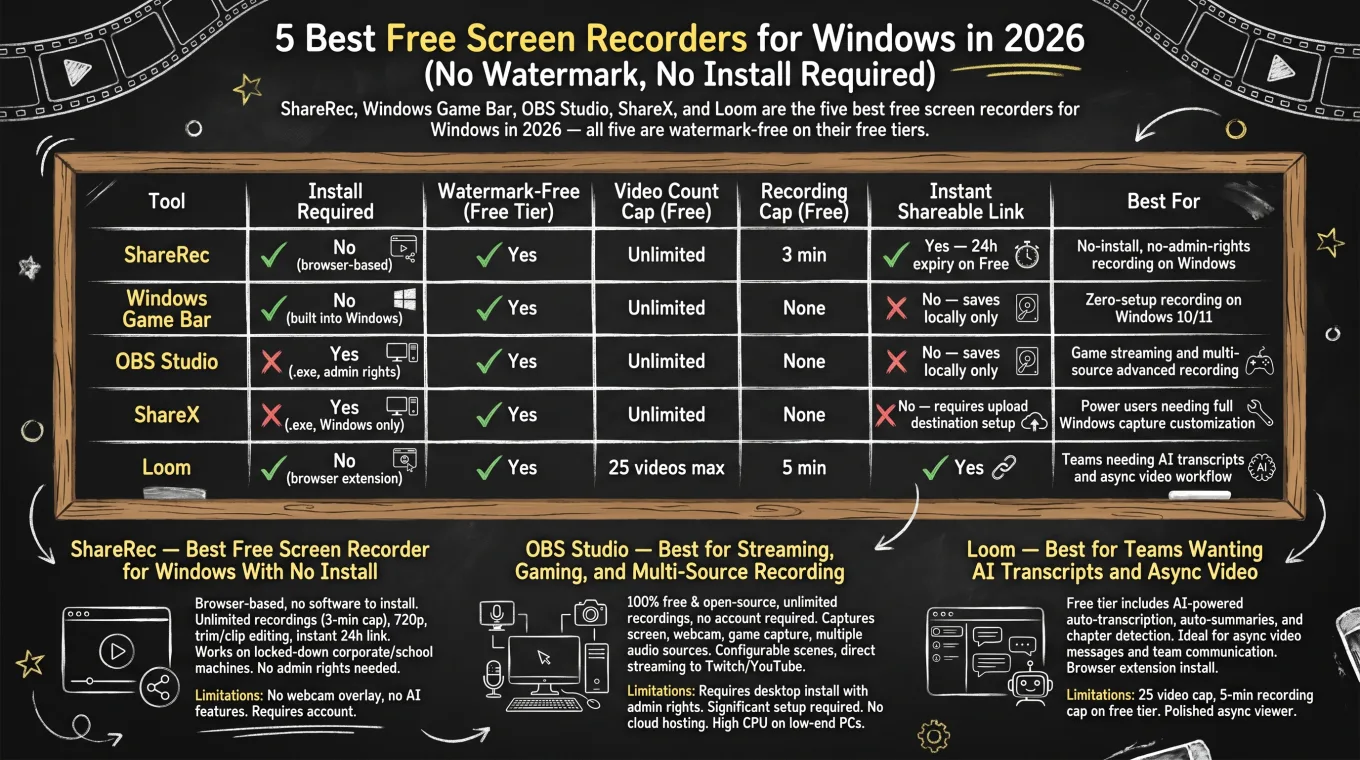
ShareRec — Best Free Screen Recorder for Windows With No Install
ShareRec at sharerec.com is a browser-based Windows screen recorder — the free tier delivers no watermark, trim and clip editing, and an instant shareable link, all without installing any software or requesting admin rights. Best for: Windows users on locked-down corporate or school machines where installing OBS or other desktop apps is blocked by IT policy.
ShareRec runs in Chrome, Edge, or Firefox. It works on managed corporate laptops and institution-owned machines where IT policy blocks .exe installations — there is no installer, no MSI package, and no elevated-permissions prompt. An account is required on all tiers including Free; sign up to start recording in your browser.
Free tier specifics: keeps your 25 most recent videos, 5-minute cap per recording, 720p resolution, no watermark, trim and clip editing included, and an instant shareable link. Videos auto-expire 30 days after recording by default — keep any one forever in one click, with a countdown on each video and an email 3 days before anything is deleted.
Honest limitations: the 5-minute recording cap is tight for multi-step walkthroughs or full product demos. The free tier retains only your 25 most recent videos — older links retire as you record new ones — so heavy users needing unlimited storage will want Pro or Business. ShareRec has no webcam bubble overlay, no emoji reactions, no AI transcription or chapter detection, no annotation or drawing tools, and no shared team library.
Pro ($8/mo) raises the cap to 30 minutes, resolution to 1080p, and unlocks unlimited videos. Business ($12/mo) extends the cap to 2 hours, also with unlimited videos. Videos auto-expire in 30 days by default on every tier — keep any video forever in one click. Pro at $8/mo and Business at $12/mo both undercut Loom's Business tier, priced at approximately $15/user/mo billed annually.
Windows Game Bar — Best Zero-Download Recorder Built Into Windows 10 and 11
Windows Game Bar is built into Windows 10 and 11 — press Win+Alt+R to start recording and the MP4 saves directly to Videos\Captures with no installer, no account, and no watermark. Best for: anyone on Windows who needs a quick desktop clip without downloading or signing up for anything.
There are no usage limits, no cloud uploads, and no exit nags. Recordings are saved locally as MP4 files at 1080p (or your monitor's native resolution when in a supported game window). Open the Game Bar overlay with Win+G to access the capture controls, mic toggle, and recent recordings panel.
Honest limitations: Game Bar does not generate a shareable link — recordings stay on local disk until you upload them elsewhere. It is optimized for fullscreen apps and games; capturing File Explorer windows or the Windows desktop itself is not supported without workarounds. Microphone capture works but simultaneous system-audio + mic mixing depends on your Windows Sound control panel configuration.
For sharing those recordings with others, you'll need a second tool. ShareRec, Loom, or any cloud-hosted video service can host the file after Game Bar produces it locally.
OBS Studio — Best for Streaming, Gaming, and Multi-Source Recording
OBS Studio is 100% free and open-source with no recording limits, no watermarks, and no account required — it captures screen, webcam, game capture, and multiple audio sources simultaneously across configurable scenes. Best for: game streamers, podcast hosts, and power users who need professional-grade multi-source recording and direct live streaming output.
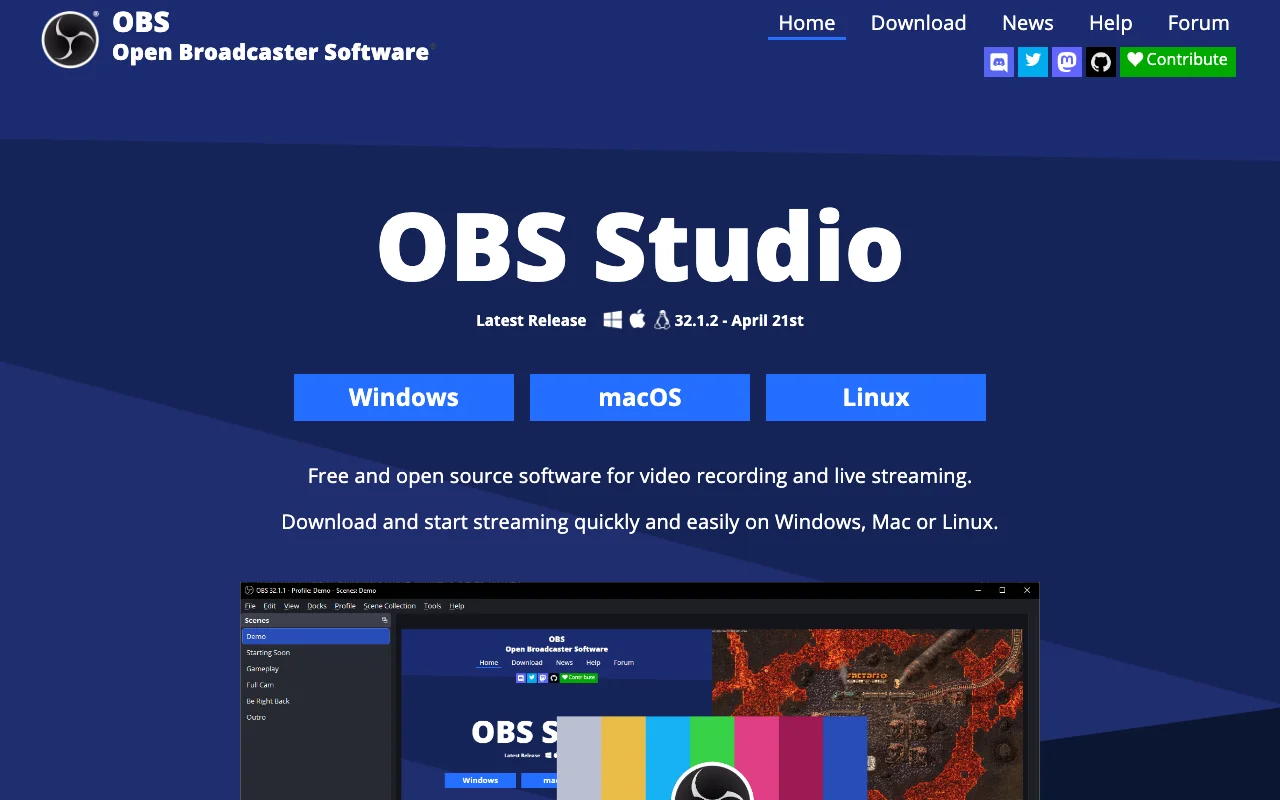
OBS outputs directly to Twitch, YouTube Live, and other major platforms from within its interface. Configurable "scenes" let you switch between screen-only, webcam-only, and hybrid layouts mid-session without stopping a recording or stream. Recording duration is unlimited with no paywalls or feature locks anywhere in the tool.
Honest limitations: OBS requires a desktop install (Windows .exe) with admin rights. Initial setup requires meaningful upfront configuration before the first quality recording — you'll configure audio sources, output format, encoder, and bitrate. Recordings save to local disk only; OBS has no built-in cloud hosting or shareable link generation. On lower-spec machines, 60fps+ game recording carries notable CPU overhead.
For users who only need occasional screen captures, the setup investment may outweigh the benefit — Windows Game Bar handles casual in-game clips via Win+Alt+G with zero configuration.
ShareX — Best for Windows Power Users Wanting Full Customization
ShareX is a free and open-source Windows-only capture tool with 80+ upload destinations, full hotkey customization, and built-in annotation — no recording cap, no watermark, and no account required. Best for: Windows power users who want every key, region, and post-capture action mapped exactly to their workflow.
ShareX captures full screen, active window, custom region, or scrolling captures with per-action hotkeys you assign yourself. After capture, ShareX can auto-annotate, upload to one of 80+ destinations (Imgur, Dropbox, FTP, S3, your own server), or run a custom script — all without leaving the tool. Screen recording outputs MP4 or GIF.
Honest limitations: ShareX is Windows-only and requires a desktop install. There is no native cloud hosting — uploads only happen if you configure an upload destination in settings. The interface is utilitarian and dense; the learning curve is steeper than Game Bar or ShareRec. There is no built-in webcam overlay or async viewer page.
Loom — Best for Teams Wanting AI Transcripts and Async Video
Loom's free tier includes AI-powered auto-transcription, auto-generated summaries, and chapter detection — no other tool in this comparison provides these capabilities at any price point. Best for: teams who send frequent async video messages and prioritize AI-assisted communication and viewer engagement over unlimited free recording.
Loom installs as a browser extension on Windows, requiring no admin rights. Every recorded video gets a hosted viewer page with emoji reactions, threaded comments, and reply-via-video functionality — a collaborative async experience desktop screen recorders cannot replicate. Loom also adds a webcam bubble overlay with face detection and tracks viewer engagement per video.
Honest limitations: the free tier is hard-capped at 25 total videos. Once that limit is reached, recording stops until older videos are deleted. Each recording is also capped at 5 minutes. The Business plan is approximately $18/user/mo billed monthly (roughly $15 billed annually). Full AI features — transcription, summaries, and chapter detection together — require the Business+AI plan at $24/mo.
Loom's recording quality, async workflow depth, and AI feature set are genuine advantages that justify the cost for teams who rely heavily on async video communication.
Truly Free vs. Freemium: Which Tools Have Hidden Limits?
Three of the five tools here save unlimited local files with no cloud caps, while ShareRec keeps your 25 most recent videos (30-day default expiry — keep any forever in one click) and only Loom cuts off recording once you hit 25 total videos. This distinction matters for long-term use without upgrading.
Watermark-free, no hidden expiry:
- ShareRec — keeps your 25 most recent videos, which auto-expire after 30 days unless you keep them forever in one click (a countdown plus a 3-day warning email mean nothing vanishes by surprise); 5-min per-recording cap; account required on all tiers including Free; Pro/Business unlock unlimited videos
- Windows Game Bar — unlimited videos; no recording time cap; no account required; saves MP4 to local disk only
- OBS Studio — unlimited videos; no recording time cap; no account required; desktop install with admin rights required
- ShareX — unlimited videos; no recording time cap; 80+ upload destinations; built-in annotation tools; Windows-only desktop install required
Freemium (capped on free tier):
- Loom — 25-video hard cap and 5-min per-recording cap on free tier; AI features and unlimited recordings require a paid plan
Bandicam is a frequent result in free screen recorder searches but belongs in the paid category. It is a paid tool starting around $40 one-time for a single-PC license; the trial version adds a watermark to every recording.
If instant shareable links matter more than installable depth, the best free screen recorders with shareable links 2026 comparison covers that decision in detail.
Key Takeaways
- ShareRec runs browser-based on Windows with no install or admin rights — free tier has no watermark, keeps your 25 most recent videos, a 5-min recording cap, trim and clip editing, and instant shareable links with a 30-day default expiry (keep any video forever in one click); account required on all tiers.
- Windows Game Bar records via Win+Alt+R with zero download — built into Windows 10 and 11, saves MP4 to
Videos\Capturesautomatically; no cloud sharing or shareable link. - OBS Studio is 100% free and open-source with no recording limits — best for game streaming and multi-source capture; requires desktop install and meaningful upfront configuration before the first quality recording.
- ShareX is a free Windows-only tool with 80+ upload destinations, full hotkey customization, and built-in annotation — no recording cap, no watermark, desktop install required.
- Loom delivers AI transcripts, summaries, and a polished async viewer — free tier hard-capped at 25 total videos and 5 minutes each; Business plan approximately $15/user/mo billed annually ($18/mo billed monthly).
- All five tools are watermark-free on their free tiers; ShareRec keeps your 25 most recent videos (30-day default expiry — keep any forever in one click), while Loom hard-caps recording at 25 total videos.
- ShareRec and Loom are the only two tools in this comparison that generate instant shareable links — all others save recordings to local disk only.
Frequently Asked Questions
Can I screen record on Windows 11 without downloading software?
Yes — two options require no .exe installation. Windows Game Bar is built into Windows 10 and 11: press Win+Alt+R to start recording; the MP4 saves automatically to Videos\Captures. ShareRec runs in any modern browser (account required on all tiers, free to create) and generates an instant shareable link; videos auto-expire 30 days after recording by default, and you can keep any one forever in one click.
Do free screen recorders add watermarks to Windows recordings?
ShareRec, Windows Game Bar, OBS Studio, and ShareX are all watermark-free on their free tiers. ShareRec keeps your 25 most recent videos (30-day default expiry — keep any forever in one click); Windows Game Bar, OBS Studio, and ShareX impose no video count cap. Loom's free tier has no watermark but hard-caps total recordings at 25 videos and 5 minutes per recording. Check each tool's current free-tier terms before committing to a long-term recording workflow.
Is Bandicam free to download and use?
No. Bandicam is a paid tool starting around $40 one-time for a single-PC license. The free trial version adds a watermark to every recording. Free alternatives on Windows without watermarks include OBS Studio (no account required), ShareX (no account required), ShareRec (account required on all tiers), and Windows Game Bar.
Which free screen recorder is best for gaming on Windows?
OBS Studio is the strongest choice for serious streamers — it handles multi-source capture, low-level game capture, and outputs directly to Twitch and YouTube Live at no cost with no recording limits or watermarks. Windows Game Bar (Win+Alt+G) captures in-game clips with minimal performance impact and requires zero installation, making it the faster option for casual clips.
Can free Windows screen recorders capture system audio and microphone at the same time?
OBS Studio and ShareX both support simultaneous system audio and microphone capture on their free tiers with full mixing control. ShareRec captures microphone audio for voiceover narration on its free tier. Windows Game Bar captures system audio by default; simultaneous microphone capture depends on Windows sound mixer settings and may require configuration in the Sound control panel.
Try it free
Record your first walkthrough free in 30 seconds
No install, no watermark — share a link instantly.
Start Recording Free