Best Screen Recorder for Teachers 2026: 5 Tools by Teaching Workflow
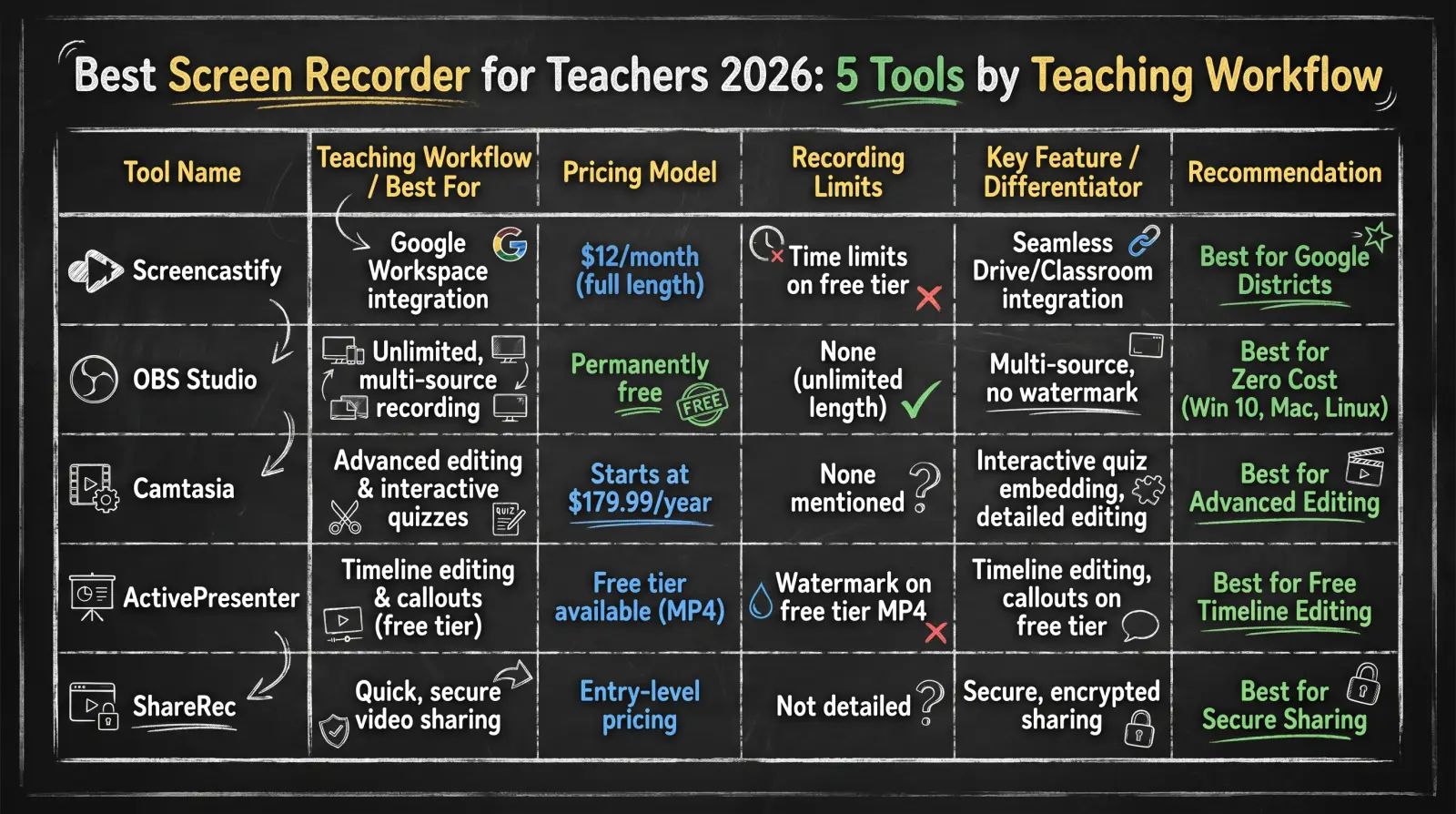
Screencastify, OBS Studio, Camtasia, ActivePresenter, and ShareRec are the five best screen recorders for teachers in 2026 — each winning a distinct teaching workflow, not a ranked list.
- Screencastify — Best for browser-based lesson recording in Chromebook and Google Workspace classrooms
- OBS Studio — Best free screen recorder: no watermarks, no recording length limits, no paid tier ever
- Camtasia — Best for annotated video feedback and polished instructional video with a full timeline editor
- ActivePresenter — Best free editing suite: 4K recording and a full timeline editor at no cost
- ShareRec — Best for quick async video feedback via instant shareable link in under 30 seconds
No single tool wins every classroom use case. Screencastify fits Chromebook programs and Google Workspace schools. OBS Studio covers any teacher with no budget and no time constraint. Camtasia and ActivePresenter serve editing-heavy workflows at opposite price points — $179.99/year vs. free. ShareRec fits the specific task of recording a 2–3 minute feedback clip on a student's submission and sharing it immediately with no upload step.
Feature Comparison: 5 Screen Recorders for Teachers
OBS Studio is the only permanently free option, Screencastify requires $12/month for full recording length, and Camtasia starts at $179.99/year — here are all five tools compared by teaching workflow.
| Tool | Best For (Teaching Workflow) | Free Tier | Paid Price | Platform | Key Limitation |
|---|---|---|---|---|---|
| Screencastify | Browser-based lesson recording | Yes (recording length cap) | From $12/month | Chrome extension | Chrome-only; free tier length cap |
| OBS Studio | Unlimited free recording | Fully free | Free (open source) | Windows, Mac, Linux | No editor; no shareable link; manual upload required |
| Camtasia | Annotated feedback and instructional video editing | 30-day trial only | $179.99/year | Windows, Mac | No free tier after trial |
| ActivePresenter | Free full-featured timeline editing | Yes (MP4 exports watermarked) | $199 one-time | Windows, Mac | MP4 exports add watermark on free tier |
| ShareRec | Quick async feedback to students | Yes (5-min cap, 720p, keeps 25 most recent, 30-day default expiry — keep any forever in 1 click, account required) | $8/month Pro; $12/month Business | Web (browser) | 5-min cap; no annotations; no AI features; account required |
Screencastify — Best for Browser-Based Lesson Recording
Screencastify records directly from Chrome with no software install, auto-saves to Google Drive, and integrates with Google Classroom assignments — Pro starts at $12/month and removes the free-tier recording length cap.
Best for: teachers in 1:1 Chromebook programs or Google Workspace districts.
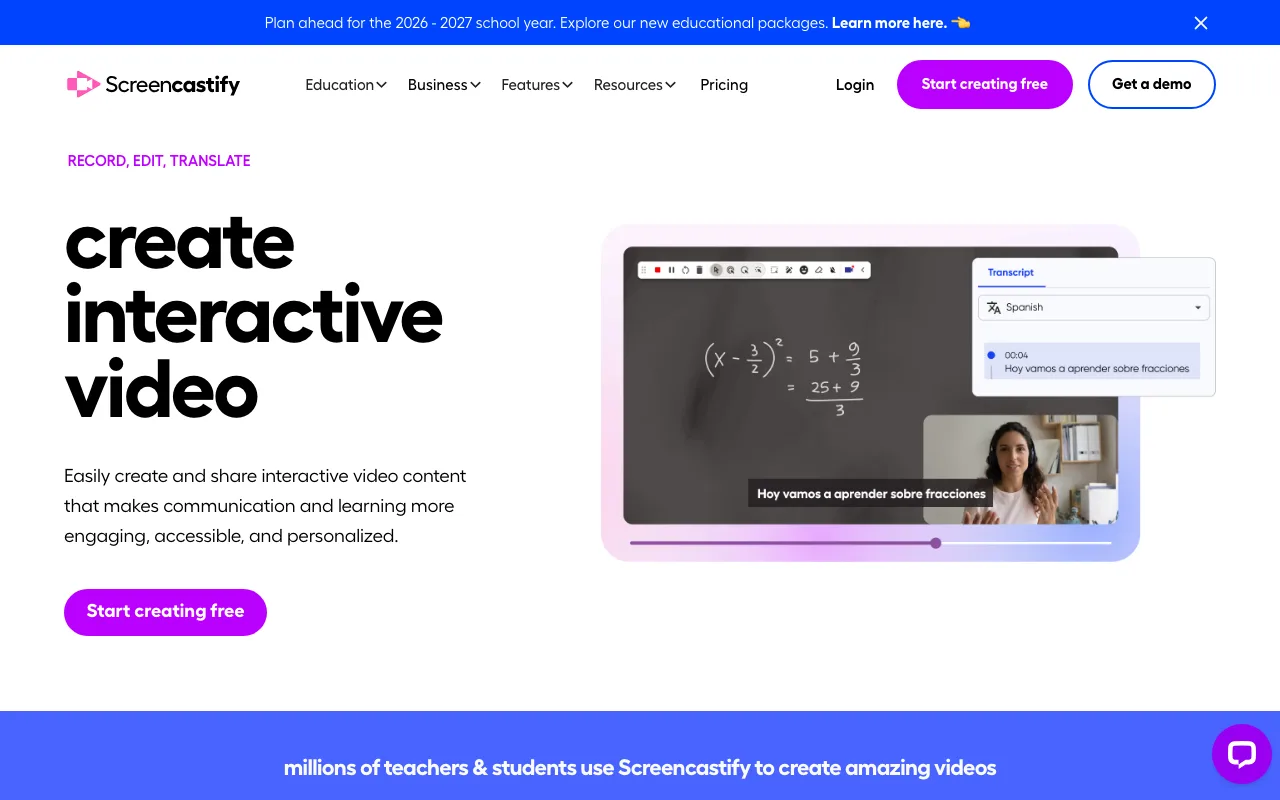
The Chrome extension records a single browser tab, a window, or the full desktop in one click. Recordings auto-save to Google Drive, and Screencastify submits them directly as Google Classroom assignment attachments — no manual file transfer. Webcam overlay supports picture-in-picture framing for lecture-style or demonstration lessons.
The free tier caps recording length — the limit cuts a standard class session short on most free accounts. Pro at $12/month removes the cap, enables unlimited recording time, and adds a basic in-browser trimming editor.
Screencastify is Chrome-only: no Firefox, no Edge, no standalone desktop application. Teachers using Windows-native recording apps or needing long uninterrupted sessions without a paid plan hit both the browser constraint and the free-tier length ceiling. For Google Workspace districts, Screencastify deploys school-wide via the Google Admin Console with no per-device install.
OBS Studio — Best Free Screen Recorder for Any Teacher Budget
OBS Studio is completely free, open source, and permanently without watermarks, recording length limits, or paid tiers — the only tool in this category that costs nothing regardless of how long or how often teachers record.
Best for: teachers who need unlimited recording length at zero cost on Windows 10, Mac, or Linux.
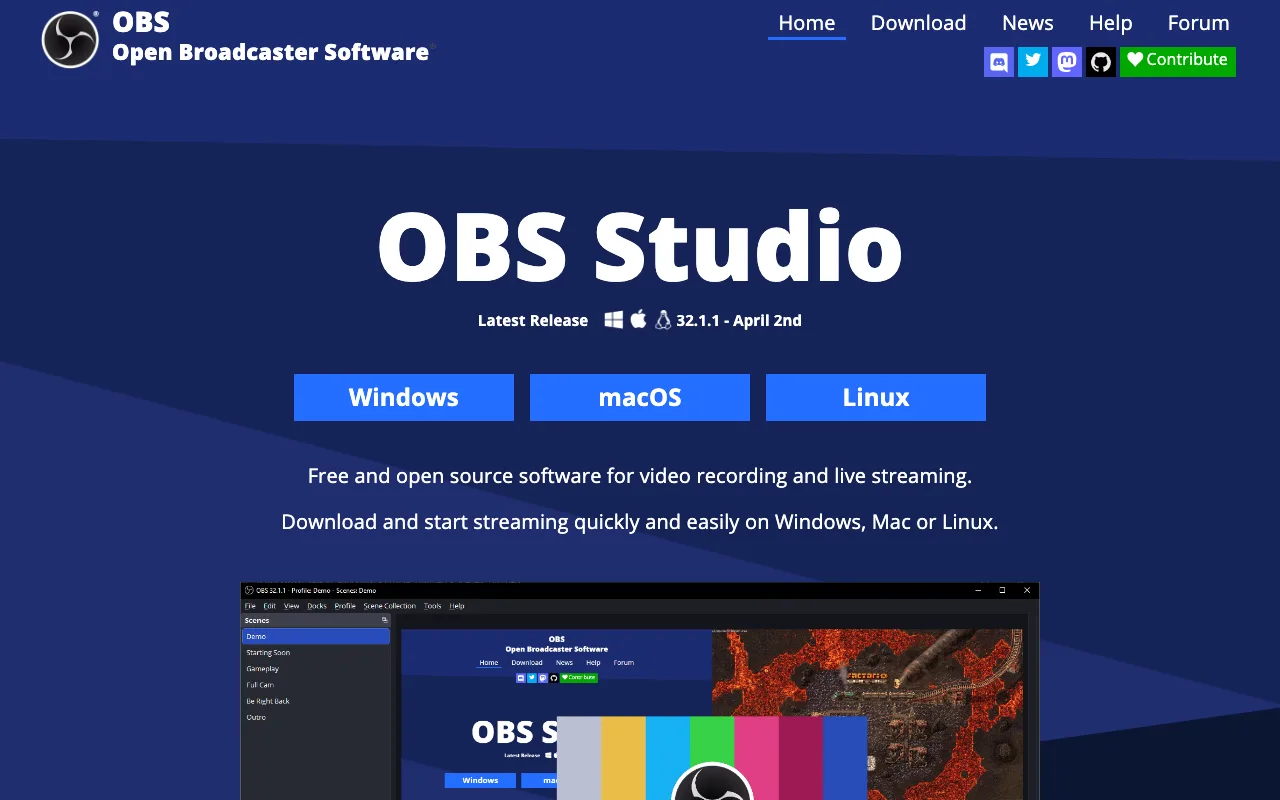
Multi-source scene composition lets teachers record slides, webcam, and microphone simultaneously in a single composed frame. Recording length is unlimited — a 90-minute lecture captures in full with no interruption or file splitting. Output saves locally to MP4 or MKV, which bypasses school-network restrictions that block cloud services during recording.
Initial setup takes 15–30 minutes: sources, audio inputs, and output settings require manual configuration for a first-time user. OBS has no built-in video editor — trimming, annotations, and callouts require a separate tool such as DaVinci Resolve (free) or iMovie (Mac). Every recording requires a manual upload to Google Drive, an LMS, or YouTube before students can access it — no shareable link is generated automatically.
OBS Studio's multi-source unlimited recording at zero cost has no equivalent in this list. Screencastify requires a paid plan for equivalent recording length; Camtasia costs $179.99/year.
Camtasia — Best for Annotated Video Feedback and Instructional Video Editing
Camtasia at $179.99/year provides a full timeline editor with zoom/pan, callouts, annotations, and embeddable quiz questions — the deepest editing toolkit of any screen recorder for teachers in this list.
Best for: teachers creating reusable instructional video with detailed visual markup or interactive in-video assessment.
The timeline editor supports multi-track editing, zoom-and-pan to highlight specific screen areas, and callout overlays that label key concepts mid-video. Embeddable quiz questions let teachers insert multiple-choice or fill-in-the-blank questions directly into video playback — student responses log to a reporting dashboard. Both Windows and Mac versions include the full feature set.
A 30-day free trial provides complete access; there is no ongoing free tier after it expires. The individual price of $179.99/year is a personal purchase for most teachers. TechSmith's education licensing reduces per-seat cost under district procurement, but individual buyers pay the full retail price.
Camtasia's interactive quiz embedding has no equivalent in OBS Studio, ActivePresenter, or ShareRec at any price.
ActivePresenter — Best Free Editing Suite for Teachers
ActivePresenter offers 4K recording and a full timeline editor at no cost, with HTML5 and SCORM exports that carry no watermark on the free tier — Pro removes the MP4 watermark for $199 one-time.
Best for: teachers who need a complete record-and-edit workflow without a recurring subscription, particularly for LMS-hosted course content.
The free tier includes the full editing toolkit: multi-track timeline, zoom/pan effects, annotations, and closed caption generation. HTML5 and SCORM exports on the free tier have no watermark, making ActivePresenter a direct route to publish polished lessons on Moodle, Canvas, or Blackboard. The $199 one-time Pro license removes the MP4 watermark and adds additional export formats.
MP4 video exports on the free tier display a watermark. Teachers distributing recordings as standard video files rather than LMS-embedded content will see the branding on every export. The interface is denser than Camtasia's and takes longer to navigate for first-time users.
4K recording on a free tier is unique to ActivePresenter in this list. OBS Studio also records without a cap or watermark but requires a separate editing application; ActivePresenter handles recording and editing in a single workflow.
ShareRec — Best for Quick Async Video Feedback to Students
ShareRec generates an instant shareable link after recording with no upload step — the free tier covers 5-minute recordings and keeps your 25 most recent videos, and the link is ready in under 30 seconds.
Best for: teachers recording short feedback clips on student submissions and pasting the link directly into a Classroom comment or LMS feedback field.
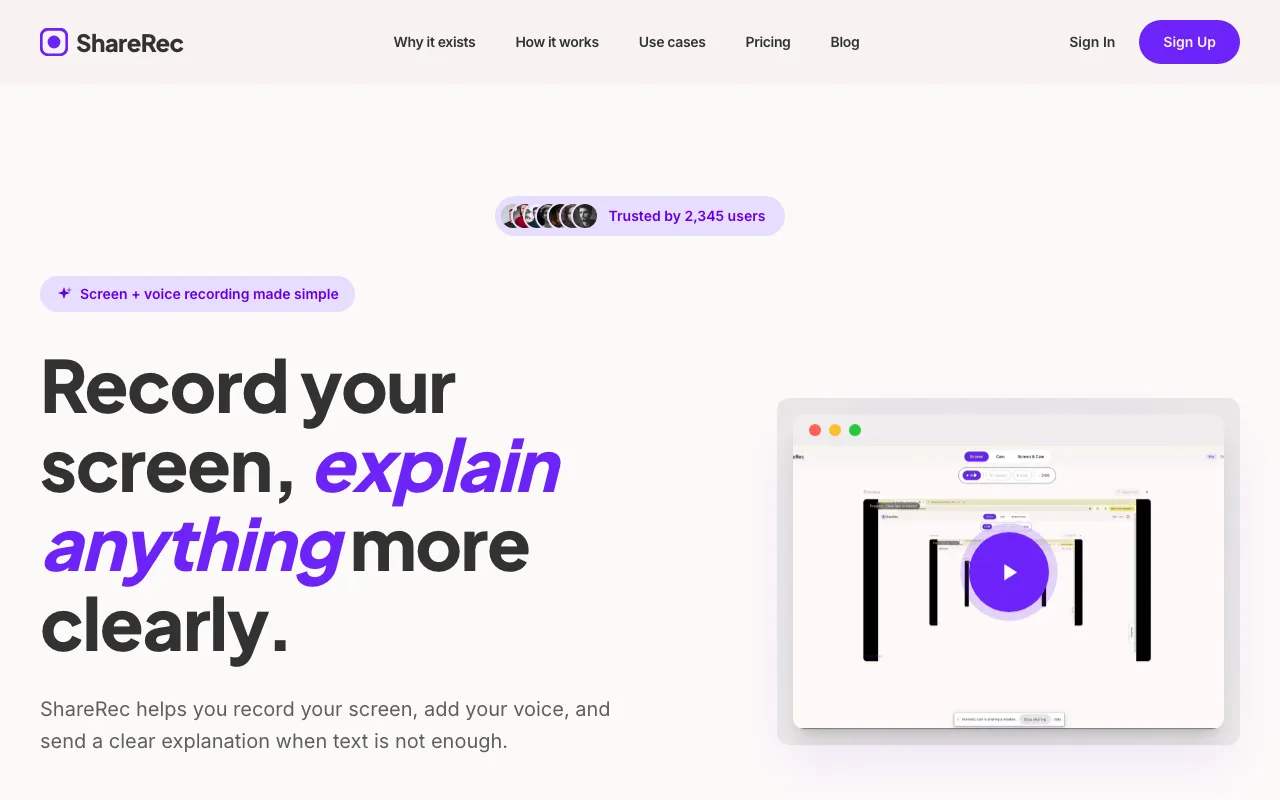
The core workflow: open a student's submitted document, record a 2–3 minute walkthrough of revisions needed, and get a shareable link immediately — no Drive upload, no file transfer. Free tier recordings are 720p, and videos auto-expire 30 days after recording by default — keep any feedback clip forever in one click so it stays accessible whenever a student returns to it, while clips you no longer need tidy themselves; the free plan keeps your 25 most recent videos. A countdown shows on each video and you're emailed 3 days before anything is deleted.
Pro at $8/month upgrades to 1080p and adds unlimited videos. Business at $12/month adds unlimited videos and a 2-hour cap. Videos auto-expire in 30 days by default on every tier — keep any video forever in one click. An account is required on all tiers, including free.
The 5-minute cap per video makes full-lesson recording impractical on the free tier — ShareRec is designed for short feedback clips, not lecture archives. There are no annotation tools, drawing tools, AI transcripts, webcam bubble overlay, or shared team library. At $8/month, ShareRec Pro costs less than half of Loom's entry-level plan at $15+/month, with a simpler feature set. Related reading: Loom alternatives for 2026.
Key Takeaways
- Screencastify — Chrome-only; one-click recording with Google Drive auto-save and Google Classroom integration; Pro at $12/month.
- OBS Studio — Permanently free, no watermarks, unlimited length; requires 15–30 min setup and manual upload to share.
- Camtasia — $179.99/year; full timeline editor with zoom/pan, callouts, and embeddable quiz questions; no free tier.
- ActivePresenter — Free 4K recording and full timeline editor; MP4 exports watermarked; HTML5/SCORM exports are clean.
- ShareRec — Free 5-minute recordings with an instant shareable link (keeps your 25 most recent videos; 30-day default expiry — keep any forever in one click); no annotations, AI features, or webcam overlay.
Frequently Asked Questions
What is the best free screen recorder for teachers?
OBS Studio is fully free with no watermarks or recording length limits — permanently open source with zero paid tiers. ActivePresenter offers the richest free editing tier: 4K recording and a full timeline editor, with no watermark on HTML5/SCORM exports (MP4 exports add a watermark on the free tier). Screencastify and ShareRec both have free tiers with per-recording length caps.
What screen recorder works best with Google Classroom?
Screencastify integrates directly — it auto-saves to Google Drive and supports assignment submission through Google Classroom without leaving the interface. OBS Studio outputs local files that teachers upload manually to Drive before sharing. ShareRec generates a shareable link that pastes directly into any Classroom comment or assignment feedback field.
How do I record video feedback on a student's work?
Open the student's submitted document and start recording. ShareRec delivers an instant shareable link for 2–3 minute clips — no upload step, ready in 30 seconds. Camtasia adds zoom/pan and callout annotations for detailed visual markup. OBS Studio has no time limit but requires a manual upload before students can access the file.
Do I need Camtasia, or is OBS Studio good enough for teachers?
OBS Studio handles lesson recording without time limits or cost but has no editing tools, no annotations, and no shareable link — files require manual upload to Drive or an LMS. Camtasia at $179.99/year adds a full timeline editor, zoom/pan, callouts, and embeddable interactive quizzes. ActivePresenter provides a full editor for free if the watermark on MP4 exports is acceptable.
Can I use a screen recorder on a school-managed Chromebook?
Screencastify runs as a Chrome extension with no admin install required — the most reliable option for school-managed Chromebooks, deployable school-wide from the Google Admin Console. OBS Studio requires a local desktop install, which managed Chromebook policies typically block. ShareRec is browser-based and runs in any Chrome session, including on school-managed Chromebooks.
Try it free
Record your first walkthrough free in 30 seconds
No install, no watermark — share a link instantly.
Start Recording Free