5 Free Screen Recorders With No Watermark in 2026 (Each Wins a Different Use Case)
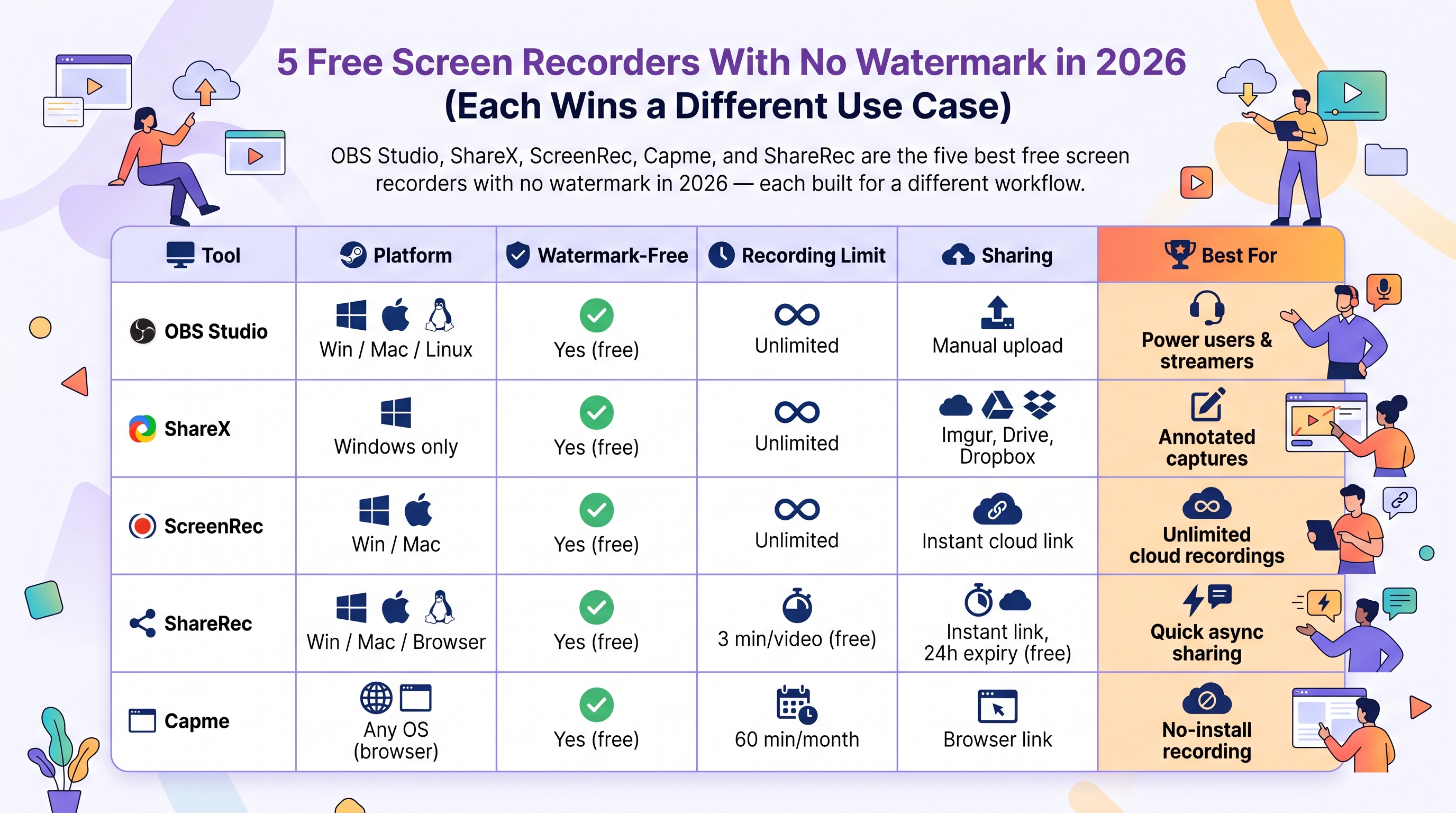
OBS Studio, ShareX, ScreenRec, Capme, and ShareRec are the five best free screen recorders with no watermark in 2026 — each built for a different workflow.
- OBS Studio is free, open-source, and unlimited on Windows, macOS, and Linux — the only pick with Linux support.
- ShareX adds built-in arrows, blur, and scrolling capture for Windows users at zero cost with no recording cap.
- ScreenRec provides unlimited recording length with an instant cloud-hosted shareable link on Windows, Mac, and Linux — no manual upload step.
- Capme runs entirely in a browser tab with unlimited free recording and zero cloud upload — recordings save locally on your device, on any OS with no software installation.
- ShareRec (Windows, Mac, Browser) generates a shareable link in under 30 seconds, watermark-free, capping free recordings at 5 minutes per video; videos auto-expire in 30 days by default on every tier, with keep-forever one click away; Pro adds unlimited videos and a longer cap at $8/month.
Choose OBS Studio for multi-hour tutorials or live streaming, ShareX for annotated Windows captures, ScreenRec for unlimited cloud recordings, Capme for any OS without installing software, or ShareRec for async feedback clips under 5 minutes.
Comparison: Free Screen Recorders With No Watermark in 2026
| Tool | Platform | Watermark-Free | Recording Limit | Sharing | Best For |
|---|---|---|---|---|---|
| OBS Studio | Win / Mac / Linux | Yes (free) | Unlimited | Manual upload | Power users & streamers |
| ShareX | Windows only | Yes (free) | Unlimited | Imgur, Drive, Dropbox | Annotated captures |
| ScreenRec | Win / Mac / Linux | Yes (free) | Unlimited | Instant cloud link | Unlimited cloud recordings |
| ShareRec | Win / Mac / Browser | Yes (free) | 5 min/video (free) | Instant link, 30-day default (keep forever, 1 click) | Quick async sharing |
| Capme | Any OS (browser) | Yes (free) | Unlimited | Local file (no upload) | Private no-install recording |
OBS Studio — Best for Power Users and Streamers
OBS Studio is free, open-source, and unlimited — no watermark, no recording cap, and no paid tier on Windows, macOS, or Linux. Best for: content creators, developers recording multi-hour walkthroughs, and streamers who need multi-source scene control.
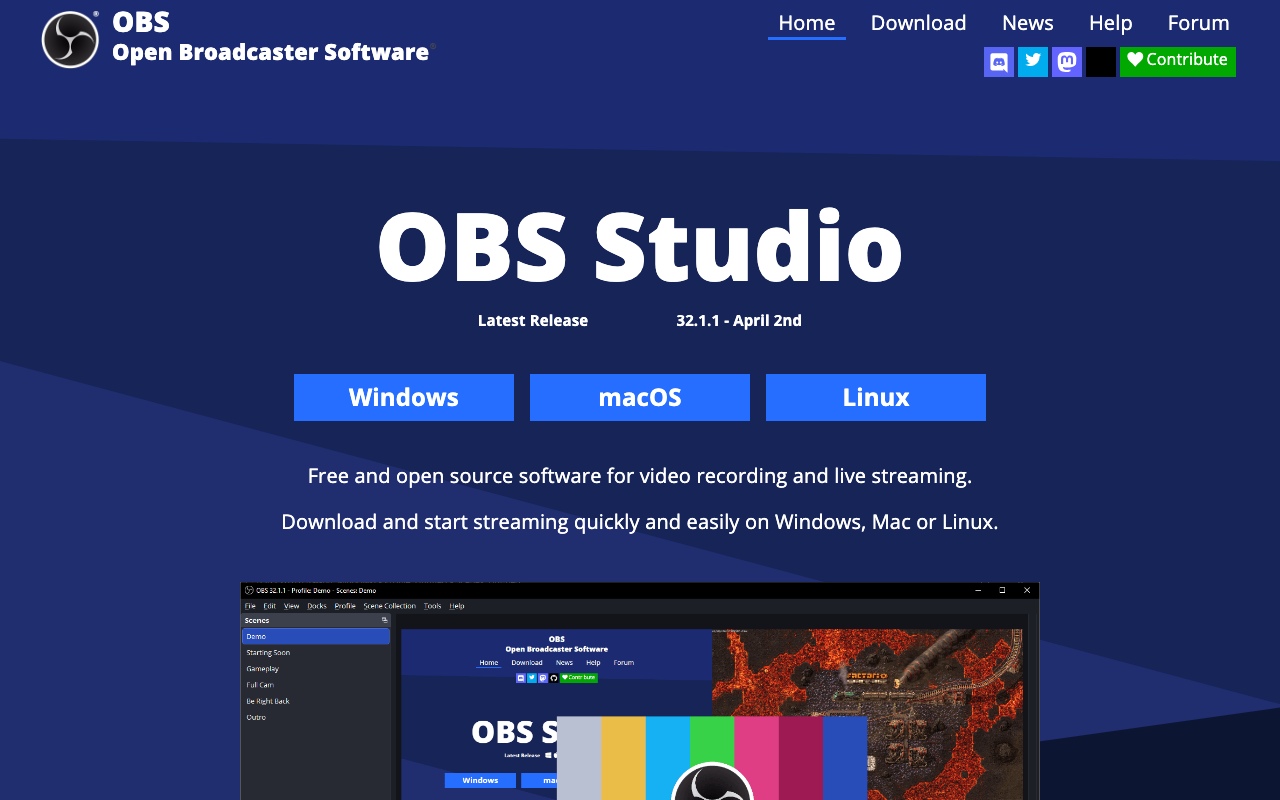
OBS is maintained by an open-source community with Twitch as a primary institutional backer — a structural guarantee that no future pricing tier or watermark gate can be introduced. That backing gives the "free forever" commitment real credibility, not just developer goodwill. Multi-source recording stacks screen capture, webcam, microphone, and system audio as independent layers; each element is repositionable within the frame. Scene switching cycles between saved layouts — for example, a full-screen slide view and a picture-in-picture presenter view — without pausing or interrupting the active recording session.
First-time setup requires manually configuring encoder type (x264 or hardware-accelerated), output bitrate (typically 3,000–6,000 kbps for local recording), audio sources (desktop audio and microphone as separate tracks), and the local save directory. This initial configuration takes 20+ minutes and has no guided wizard. OBS has no built-in trim or annotation editor and no cloud upload; post-production requires a separate tool — DaVinci Resolve for professional-grade editing or CapCut for fast trimming and basic effects.
OBS Studio is the only free, watermark-free screen recorder with native Linux support — the default pick for developers and system administrators recording on Ubuntu or Debian.
ShareX — Best for Windows Users Who Need Annotation and Scrolling Capture
ShareX is free, open-source, and Windows-only — offering built-in annotation (arrows, blur, text overlays) and scrolling capture with no watermark and no recording limit. Best for: Windows users who need to mark up screenshots or recordings and upload directly to cloud storage without a separate editor.
ShareX applies arrows, blur regions, text labels, and shapes within the app — no third-party tool required for annotation. Scrolling capture records full-length web pages beyond the visible screen as a single continuous file — not a sequence of separate screenshots stitched together after the fact. Once a recording or capture completes, the automated post-capture workflow triggers an automatic upload to Imgur, Google Drive, or Dropbox and returns a shareable link directly inside ShareX — no manual browser upload step required.
The settings panel exposes 40+ configurable options — window-type selection, custom hotkeys, automated post-capture actions, upload destinations, and output format controls — with no guided setup wizard to sequence first-time configuration. That density is the power-user signal: ShareX rewards users willing to invest time in configuration but provides no onboarding path for those who aren't.
ShareX has no Mac, Linux, or browser version. It has no webcam overlay and no background blur — these are separate, absent features, not variations of the same limitation. There is no built-in cloud storage; the app relies entirely on external upload destinations configured manually in the settings panel.
ScreenRec — Best for Unlimited Cloud Recordings
ScreenRec's free tier offers unlimited recording length, no watermark, and an instant cloud-hosted shareable link on Windows, Mac, and Linux — no paid plan and no credit card required for core use. Best for: users who need unlimited recording length, immediate link sharing, and no local storage management.
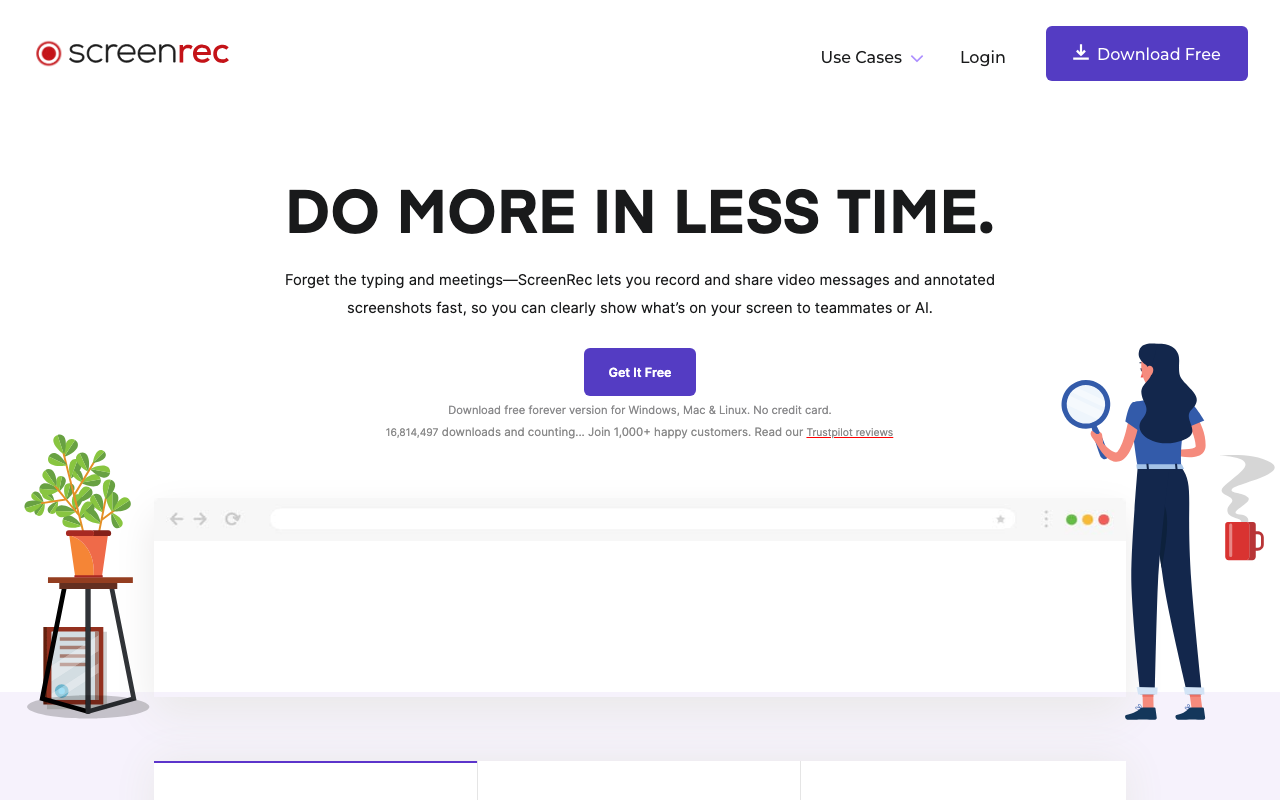
ScreenRec generates a shareable link the moment a recording stops — no upload delay, no manual export step. A single session captures screen, microphone, and webcam simultaneously, stored in ScreenRec's cloud as soon as recording ends.
No credit card is required on the free tier — signup uses email only, removing the payment-friction barrier that comparable cloud-storage recorders impose at account creation.
ScreenRec stores recordings as permanent links only — there is no built-in cloud storage cap disclosed. Its links stay live until you delete them; anyone sharing confidential content through ScreenRec must manually delete recordings, and the links remain active indefinitely until that happens.
ScreenRec's cloud storage capacity is not published in its documentation. The service operates without a stated per-account cap, meaning users cannot predict account behavior after sustained heavy use — a meaningful limitation for anyone relying on ScreenRec as a long-term archive. ScreenRec is a desktop app only; there is no browser recording mode. Trimming requires a separate local tool.
ShareRec — Best for Quick Async Feedback and Instant Sharing
ShareRec's free tier is watermark-free with a shareable link ready in under 30 seconds — each recording is capped at 5 minutes at 720p, and videos auto-expire in 30 days by default on every tier, with keep-forever one click away. Best for: remote teams sending async status updates, sales follow-up clips, customer support screen shares, and code walkthroughs under 5 minutes.
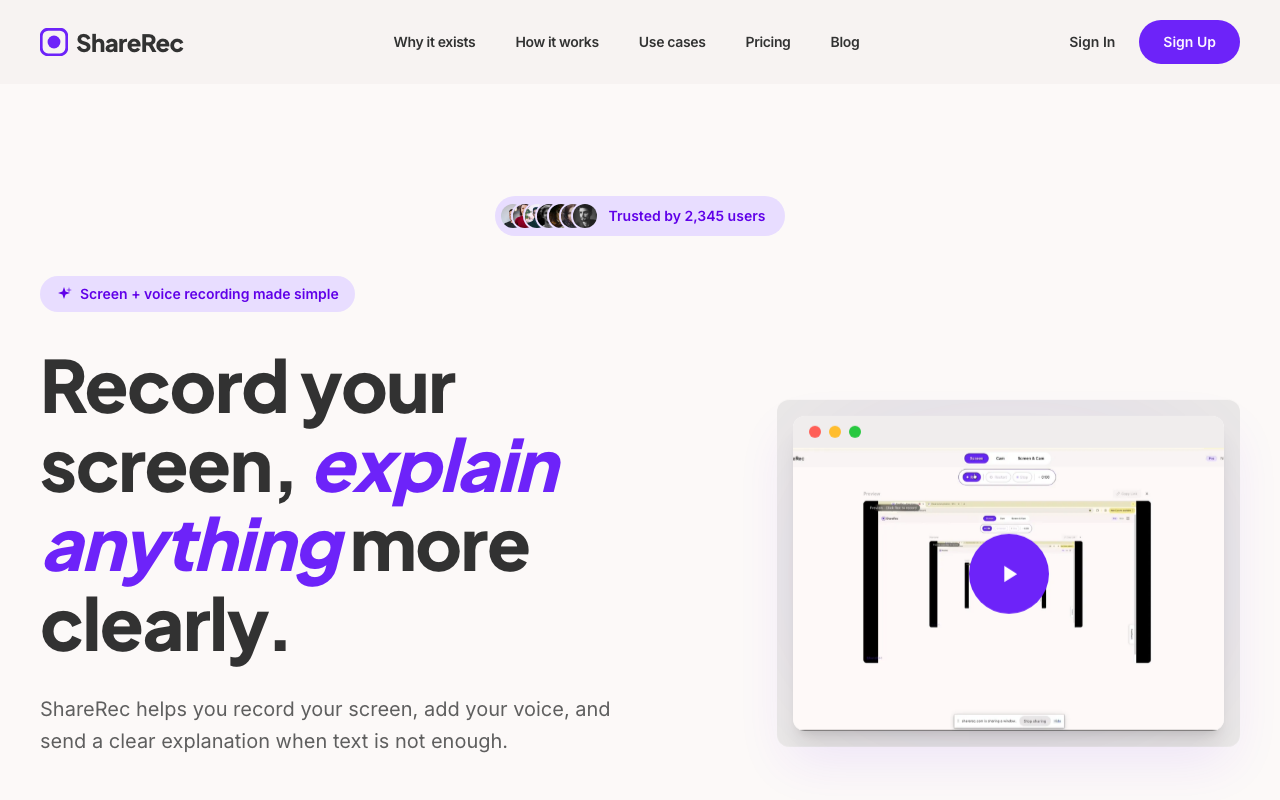
Recording starts from the browser in a single click — sign in, hit record, and screen plus voice capture begin simultaneously. The instant shareable link with no upload step is ShareRec's defining differentiator: the URL is on your clipboard the moment you stop. Keep any clip forever in one click, so a demo you send today still works months later — while videos you don't need tidy themselves after 30 days by default (a countdown shows on each, and you're emailed 3 days before deletion). The Free plan keeps your 25 most recent videos as you record new ones.
Pro at $8/month adds unlimited videos and a longer recording cap — a concrete price advantage against Loom's $15+/month entry tier for teams that need the same async video workflow without the time cap.
The free-tier limitations carry equal weight alongside the strengths: No AI features — no auto-transcripts, no summaries, no chapter markers generated at any tier. No webcam bubble or reactions overlay — screen and voice only. No shared team workspace or searchable video library — each recording exists as a standalone link with no organizational layer behind it. Editing is limited to trim and clip — no annotations, drawing tools, or blur are available. 5-minute cap per video — unsuitable for tutorials, product demos, or any walkthrough requiring more than a single uninterrupted scene.
Capme — Best for Browser-Based Recording Without Installation
Capme is the correct tool for Chromebook users and anyone on a corporate or managed device where software installation is blocked — it records directly in a browser tab, free and unlimited, watermark-free, and stores every recording locally on your own device with zero cloud upload. Best for: privacy-conscious users, people on managed devices where installation is restricted, Chromebook users, and anyone recording from a machine they don't own.
Capme uses the standard browser screen share API — no Chrome extension download or installation required. Any browser that supports the Screen Capture API (Chrome, Edge, Firefox, Arc) can access Capme by navigating to the site and granting screen share permission, making it functional on Chromebook, Windows, Mac, and Linux with identical steps on each platform.
Capme's defining trait is zero cloud upload — every recording is processed and saved entirely on your own device, so nothing is ever sent to a server. There is no time limit and no monthly cap; you can record for as long as you need, watermark-free. The tradeoff is that Capme does not generate a shareable cloud link the way ScreenRec or ShareRec do — you save the file locally and share it yourself.
Capme does not support desktop audio mixing — audio is captured via the browser API only, with no access to system-level audio sources or multi-track mixing. There is no annotation or trim editor on the free tier, and no webcam overlay. Because recording is fully local, there is no cloud link — the finished file downloads to your device for you to share manually.
Capme's browser-based architecture makes it the only recording option for Chromebook users and corporate laptops with software installation restrictions — where desktop tools like OBS Studio and ShareX cannot be deployed.
Free Screen Recorders With No Watermark for Windows 10 and Android
Windows 10's built-in Xbox Game Bar (Win + G) records games and apps without a watermark — for full desktop or browser recording on Windows 10, OBS Studio and ShareX are the stronger free options.
Xbox Game Bar captures active application windows to MP4 locally without a watermark, but doesn't reliably capture the full desktop or browser tabs. OBS Studio and ShareX capture any window type with no recording limit, no credit card, and no Microsoft account required.
Windows 10 users needing annotation should use ShareX; for instant link-sharing, ShareRec or ScreenRec both generate a cloud link within 30 seconds.
Android 10 and later include a built-in screen recorder in the quick settings panel — swipe down and tap Screen Recorder. It saves locally in MP4, no watermark, no app required, no time limit. For Android 9 and earlier, AZ Screen Recorder's free tier captures without a watermark to local storage.
Capme works on Android via Chrome — navigate to the Capme site, grant screen share permission, and record with no time limit, no app required; the file saves to your device.
How to Remove a Watermark From a Free Screen Recorder (and Why Bandicam Adds One)
You cannot remove a watermark from a free screen recorder by editing the video — it is embedded at the pixel level during recording. The only reliable solution is switching to a recorder that doesn't add one.
Watermarks exist because free recording tiers use them as forced brand advertising — every video shared from a free account becomes a promotional asset for the software company, creating conversion pressure to upgrade and remove the mark. Bandicam's free tier stamps a visible "Bandicam" label in the top-left corner of every recording for exactly this reason; a one-time perpetual license (around $53.90, list price $77) removes it. The watermark is not a technical constraint of the free tier — it is a deliberate conversion mechanism built into the product.
Cropping reduces visible screen area but cannot eliminate the embedded text. Third-party watermark remover tools use AI inpainting to reconstruct the pixels beneath the mark, but the re-encoding process introduces generation loss — in typical H.264 workflows, each encode cycle degrades video quality by 5–15%, compounding across multiple processing steps. The results on moving content are inconsistent and the quality cost is real, making re-encoding a poor substitute for switching tools.
OBS Studio, ShareX, ScreenRec, ShareRec, and Capme all produce watermark-free recordings on their free tiers — no editing, cropping, or third-party tool required.
Key Takeaways
- OBS Studio is free, open-source, and unlimited on Windows, Mac, and Linux — the only pick with Linux support.
- ShareX offers built-in annotation tools (arrows, blur, text) on Windows at zero cost with no recording time limit.
- ScreenRec delivers unlimited recording length with an instant cloud link on Windows, Mac, and Linux — no per-session cap.
- ShareRec — Best for quick async sharing: no watermark on free tier, 5-min cap per video, instant link with no upload step; 30-day default expiry on every tier, keep any video forever in one click. $8/month Pro adds unlimited videos.
- Capme records in a browser tab on any OS — unlimited, watermark-free, zero cloud upload (saves locally), no install required.
- Bandicam's free tier adds a permanent watermark — removal requires a paid license (one-time perpetual ≈ $53.90), not video editing.
- Android 10+ includes a built-in screen recorder in quick settings — no third-party app or watermark.
Frequently Asked Questions
Is OBS Studio completely free with no watermark?
Yes. OBS Studio is free, open-source software with no paid tier, no watermark, and no recording time limit. It runs on Windows, macOS, and Linux. The only costs are setup time — first-time configuration typically takes 20+ minutes — and a separate editor if you need to trim or annotate recordings.
How do I record my screen for free without a watermark on Windows 10?
OBS Studio and ShareX are both free, open-source, and watermark-free on Windows 10 with no recording limit. Xbox Game Bar (Win + G) records without a watermark but only captures recognized applications — not the full desktop or browser tabs. ScreenRec and ShareRec both generate a shareable cloud link within 30 seconds on Windows 10.
Is Bandicam free without a watermark?
No. Bandicam's free tier adds a visible "Bandicam" watermark to every recording. Removing it requires purchasing a license — a one-time perpetual license runs about $53.90 (Bandicam also now offers an annual subscription around $33/year). If you need a free watermark-free recorder on Windows, OBS Studio, ShareX, ScreenRec, and ShareRec all provide watermark-free recordings on their free tiers.
How do I remove a watermark from a screen recording?
A screen recording watermark is burned in at the pixel level — cropping removes screen area but cannot eliminate the mark. AI inpainting tools produce inconsistent results on moving content and introduce quality loss with each re-encode pass. The clean solution is switching to a watermark-free recorder: OBS Studio, ShareX, ScreenRec, Capme, and ShareRec all capture without applying a watermark.
What is the best free screen recorder for sharing a quick video link?
ScreenRec and ShareRec both generate shareable links immediately after recording without a manual upload step. ScreenRec has no per-video length limit; ShareRec caps free recordings at 5 minutes, with a 30-day default expiry on every tier that you can override to keep any video forever in one click. Capme records locally with no cloud upload, so it does not produce a shareable link — you download and share the file yourself.
Does any free screen recorder work on a Chromebook without installation?
Capme works on Chromebook via Chrome browser — no installation required. Navigate to the Capme site, grant screen share permission, and record with no time limit, watermark-free; recordings save locally on the device. ShareRec also has a browser-based mode accessible on Chromebook. OBS Studio and ShareX require desktop installation and do not run on ChromeOS.
Try it free
Record your first walkthrough free in 30 seconds
No install, no watermark — share a link instantly.
Start Recording Free