5 Best Screen Recorders for Customer Support Teams [2026]
Birdie, Loom, ScreenRec, Screencastify, and ShareRec are the five strongest screen recorders for customer support teams in 2026, each serving a distinct workflow. Birdie is the only tool that lets agents send recording request links to customers — customers capture the bug on their own screen and the video lands directly in the ticket. Loom provides AI-generated transcripts, viewer engagement analytics, and a searchable video library; free accounts cap at 25 videos and 5 minutes each, with paid plans starting at $15/month. ScreenRec delivers unlimited free recording with no video count or length cap, capturing desktop, webcam, and microphone simultaneously. Screencastify runs as a Chromium-based browser extension with 30 free recordings per month and no software install required. ShareRec generates shareable links in under 30 seconds with no upload step — Pro at $8/month removes the 5-minute cap and adds unlimited videos; videos auto-expire in 30 days by default on every tier, but the owner can keep any video forever in one click (with a 3-day warning before anything is deleted), and the Free plan keeps your 25 most recent videos, while a Business plan at $12/month raises the cap to 2 hours. For helpdesk-integrated workflows, Birdie or Loom; for zero-budget unlimited recording, ScreenRec; for Chrome or Edge environments, Screencastify; for the fastest instant shareable link with no upload step, ShareRec.
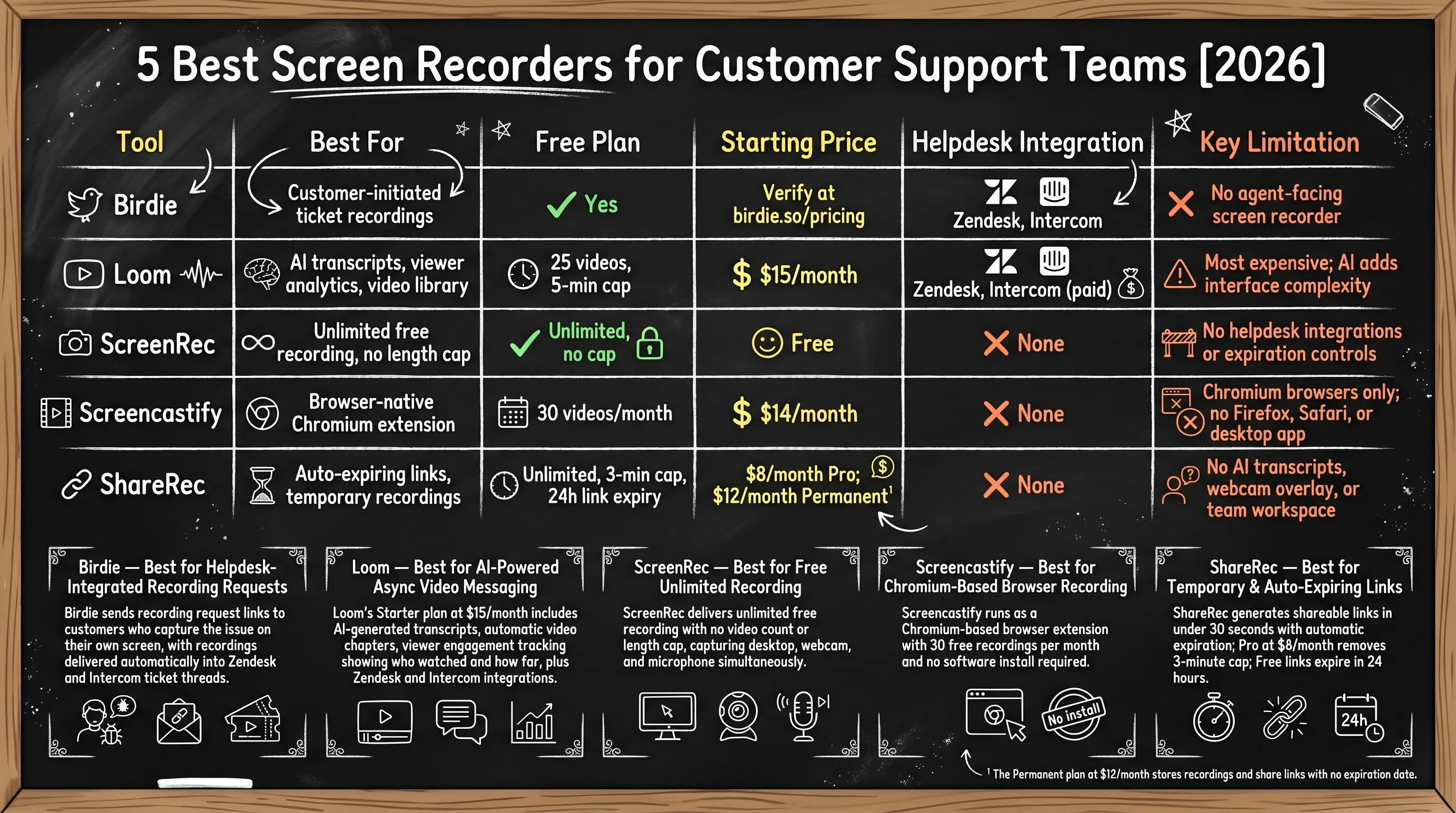
| Tool | Best For | Free Plan | Starting Price | Helpdesk Integration | Key Limitation |
|---|---|---|---|---|---|
| Birdie | Customer-initiated ticket recordings | Yes | Verify at birdie.so/pricing | Zendesk, Intercom | No agent-facing screen recorder |
| Loom | AI transcripts, viewer analytics, video library | 25 videos, 5-min cap | $15/month | Zendesk, Intercom (paid) | Most expensive; AI adds interface complexity |
| ScreenRec | Unlimited free recording, no length cap | Unlimited, no cap | Free | None | No helpdesk integrations or expiration controls |
| Screencastify | Browser-native Chromium extension | 30 videos/month | $14/month | None | Chromium browsers only; no Firefox, Safari, or desktop app |
| ShareRec | Instant shareable link, flexible expiry | Keeps 25 most recent, 5-min cap, 30-day default expiry (keep forever, 1 click) | $8/month Pro; $12/month Business | None | No AI transcripts, webcam overlay, or team workspace |
Videos auto-expire in 30 days by default on every tier, including Free — keep any video forever in one click, with a 3-day email warning before anything is deleted.
Birdie — Best for Helpdesk-Integrated Recording Requests
Birdie sends recording request links to customers who capture the issue on their own screen, with recordings delivered automatically into Zendesk and Intercom ticket threads. Best for: helpdesk-integrated support teams who need customer-initiated bug reproductions without scheduling a live call.
The core workflow: a support agent triggers a Zendesk macro that fires a Birdie recording request link directly into the ticket reply. The customer clicks the link, records their screen — and optionally their webcam and microphone — with no Birdie account or app install required. When the recording finishes, it attaches automatically to the open ticket. The agent sees the video appear inline in the ticket thread, with no manual upload step and no follow-up email required to retrieve the file.
Birdie captures screen, webcam, and microphone in one session when the customer enables all inputs — though customers can record screen-only if webcam or audio is not needed. The recording type is customer-controlled at the time of capture, so agent-side assumptions about what will be recorded should account for screen-only submissions. Recording request links embed in email templates or fire from Zendesk macros, making it straightforward to standardize the request flow across a support team.
Public pricing is not listed — verify current plans at birdie.so/pricing; a free tier exists for evaluation, and paid plans unlock higher request volumes and helpdesk automation.
Limitations: Birdie is one-directional — customer records, agent receives; there is no agent-facing recorder for creating walkthrough videos or async demos. Support agents who need to send recorded walkthroughs to customers must use a separate tool.
Loom — Best for AI-Powered Async Video Messaging
Loom's Starter plan at $15/month includes AI-generated transcripts, automatic video chapters, viewer engagement tracking showing who watched and how far, plus Zendesk and Intercom integrations for support teams. Best for: teams that need AI transcripts, a searchable video library, and data confirming customers actually watched the resolution video.
Viewer analytics show watched/unwatched status and viewing duration per recipient. For logged-in viewers, Loom captures individual playback data including which sections were rewatched. For anonymous external customers — the majority in a support context — analytics return aggregate data: total views, overall completion rate, and approximate drop-off point rather than per-person tracking. Teams relying on confirmed individual watch data should note this distinction before using analytics as a support metric.
Video chapters auto-generate from AI transcripts and meaningfully improve the customer experience: a customer can click "reset your password" in the chapter list and jump directly to that step instead of scrubbing through a four-minute walkthrough. AI transcripts and chapters are included in the Starter plan at $15/month; advanced AI features such as AI-generated video titles and suggested follow-up actions are available on Business and Enterprise tiers.
The free tier allows 25 videos maximum with a 5-minute cap. Zendesk, Intercom, and AI transcripts all require a paid Starter plan at $15/month; video length is unlimited on paid tiers.
Limitations: Loom is the most expensive option here; the AI transcript panel and analytics add interface layers that teams sending occasional recordings may not need.
ScreenRec — Best for Free Unlimited Recording
ScreenRec's free plan includes unlimited recordings with no length cap and no video count limit, capturing desktop, webcam, and microphone simultaneously — the only tool in this comparison with no paywall on recording volume. Best for: individual agents or small support teams who need unlimited recording without hitting a free-tier ceiling.
ScreenRec ranks #1 organically in Google search results for "screen recording software," which validates it as a tool with a genuine user base evaluated by independent reviewers — not a niche product propped up by paid placement.
The free tier is limited only by local storage — no monthly quota, no cloud storage cap. In practice for a support team, this means recordings accumulate on the agent's local drive; there is no automatic cloud backup unless the agent manually exports and uploads files to another location. A team relying on ScreenRec should establish a local file-management habit or a manual export workflow, since recordings are not recoverable from ScreenRec's servers if local storage fails.
Capture options include full desktop, a selected region, webcam overlay, and microphone. When a recording finishes, ScreenRec generates a shareable link immediately — no processing delay before the link becomes active. Account creation is required on all tiers, including free.
Limitations: No helpdesk integrations, no link expiration controls, no viewer analytics, no team workspace, and no AI transcript.
Screencastify — Best for Chrome Extension Recording
Screencastify's browser extension records screen, webcam, and microphone directly inside the browser with 30 free recordings per month and no software install required on any OS running a Chromium-based browser. Best for: Chrome and Chromebook teams who need browser-native recording without IT-managed software installs.
Support teams in Chromebook environments or under IT policies blocking software installs can deploy Screencastify with zero infrastructure requirements — the extension installs from the Chrome Web Store and works on any Chromium-based browser, including Chrome, Microsoft Edge, and ChromeOS. This is particularly relevant for enterprise or government support organizations that standardize on Chromebooks for front-line staff; IT administrators can push the extension to hundreds of agents via Google Admin Console without a single local installer.
Videos save automatically to Google Drive when a recording completes — no manual export step is required, and the file appears in the agent's Drive folder immediately after the recording ends. Agents can also export directly from the browser to local storage if preferred. Editing tools — trim, crop, and annotation — are available on the paid plan at $14/month, which also adds team management and higher-quality video export. Free tier: 30 recordings per month.
Limitations: No Zendesk, Intercom, or helpdesk integrations; Chromium-based browsers only — no Firefox, Safari, or standalone desktop app.
ShareRec — Best for the Fastest Instant Shareable Link
ShareRec delivers a shareable recording link in under 30 seconds with no upload step, and lets you keep any video forever in one click while videos auto-expire in 30 days by default on every tier — including Free — across two paid tiers: Pro at $8/month and Business at $12/month, the two lowest paid entry points in this comparison. Best for: teams who send one-off async recordings and want a link ready instantly, with a tidy default window they fully control.
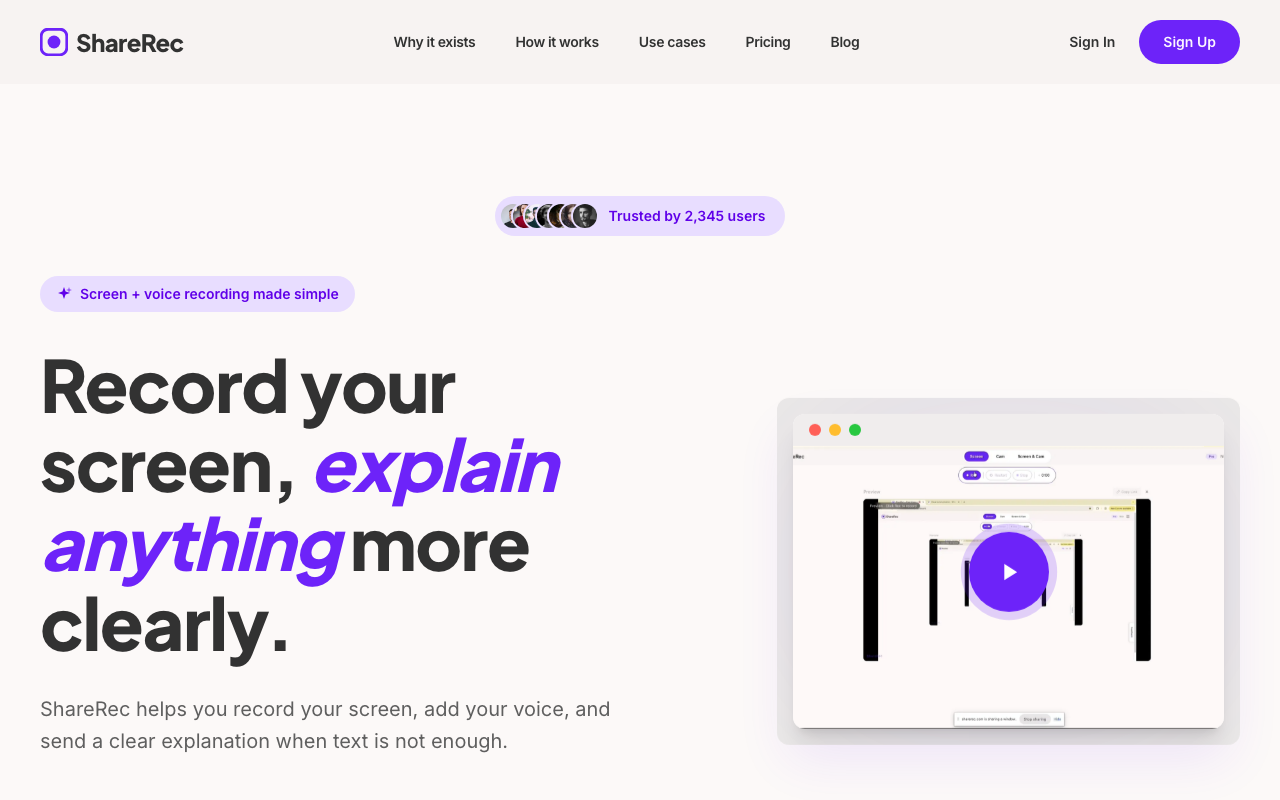
ShareRec records screen and voice; the shareable link is ready immediately after recording stops — no manual upload step or processing delay. Keep any video forever in one click, so a support walkthrough you rely on stays accessible; videos you don't keep auto-expire after 30 days by default (a countdown shows on each one, and you're emailed 3 days before deletion), and the Free plan keeps your 25 most recent videos as you record new ones.
Free tier: keeps your 25 most recent videos, 5-minute maximum per video, account required on all tiers, 30-day default expiry (keep any video forever in one click). Pro at $8/month removes the 5-minute cap and adds unlimited videos. The Business plan at $12/month raises the cap to 2 hours with unlimited videos — every tier defaults to a clean 30-day window with one-click keep-forever, which suits reference recordings that need to outlast a single support thread without requiring a full video library tool. You control each video's lifespan (Never / 24 hours / 7 days / 30 days), with a 3-day warning before anything is deleted.
Resolution is user-selectable at the time of recording: 720p for smaller file sizes and faster sharing, or 1080p for higher-fidelity captures where screen text readability matters. The trim and clip editing workflow runs in-browser after the recording stops — agents mark start and end points on the timeline and generate a trimmed share link without re-uploading or switching tools.
Limitations: No AI transcripts, no webcam overlay, no annotation tools, no team workspace or shared library, and no helpdesk integrations.
Key Takeaways
- Birdie is the only tool that lets agents request recordings from customers; verify pricing at birdie.so/pricing.
- Loom free tier: 25-video max, 5-minute cap; Starter at $15/month adds AI transcripts, video chapters, and viewer tracking.
- ScreenRec is the only tool with unlimited free recordings and no length cap — no paid plan required; recordings are local-only with no cloud backup.
- Screencastify works on Chromium-based browsers (Chrome, Edge, ChromeOS); 30 free recordings/month, $14/month paid, no helpdesk integrations.
- ShareRec free tier limits recordings to 5 minutes, keeps your 25 most recent videos, and defaults to a 30-day expiry you can override to keep any video forever in one click; Pro at $8/month removes the cap and adds unlimited videos; Business plan at $12/month raises the cap to 2 hours.
- Only Birdie and Loom offer documented Zendesk and Intercom integrations among all five tools reviewed.
- ShareRec delivers the fastest instant shareable link — no upload step, ready in under 30 seconds; videos auto-expire in 30 days by default on every tier including Free, and you keep any video forever in one click.
Frequently Asked Questions
Can customers record their own screen and send it to a support team?
Birdie is the only tool in this comparison designed for this direction. Agents send a Birdie recording request link from inside a Zendesk or Intercom ticket. The customer clicks the link, records their screen, and the video attaches to the open ticket automatically — no Birdie account required on the customer's end.
Does Microsoft Teams have a built-in screen recorder for customer support teams?
Microsoft Teams includes meeting recording for Microsoft 365 Business and Enterprise subscribers — recordings save to SharePoint or OneDrive. It captures screen sharing during live meetings but has no native tool for standalone agent walkthroughs outside a scheduled call. For individual screen recordings without an active meeting, Teams requires a third-party tool.
Is it legal to record a customer support screen session?
Recording laws vary by jurisdiction. US federal law requires one-party consent for calls, but California, Florida, and Illinois require all-party consent. GDPR applies to EU customer data regardless of where the business operates. The practical standard: disclose recording at the start of every session and obtain explicit customer consent before the recording begins.
Which screen recording tools in this comparison integrate with Zendesk or Intercom?
Birdie and Loom are the only tools with documented Zendesk and Intercom integrations. Birdie delivers customer-submitted recordings directly into ticket threads. Loom embeds video links inside ticket replies on paid plans at $15/month. ScreenRec, Screencastify, and ShareRec have no helpdesk integrations — agents copy and paste links manually into tickets.
What is the best free screen recorder for customer support teams?
ScreenRec is the only screen recorder for customer support teams with unlimited free recordings and no length cap. Screencastify offers 30 free recordings per month. Loom's free tier caps at 25 videos with a 5-minute maximum. ShareRec caps free recordings at 5 minutes and keeps your 25 most recent videos, which auto-expire after 30 days by default unless you keep them forever in one click.
Try it free
Record your first walkthrough free in 30 seconds
No install, no watermark — share a link instantly.
Start Recording Free