Record a PowerPoint with Audio and Video: 5 Tools (2026)
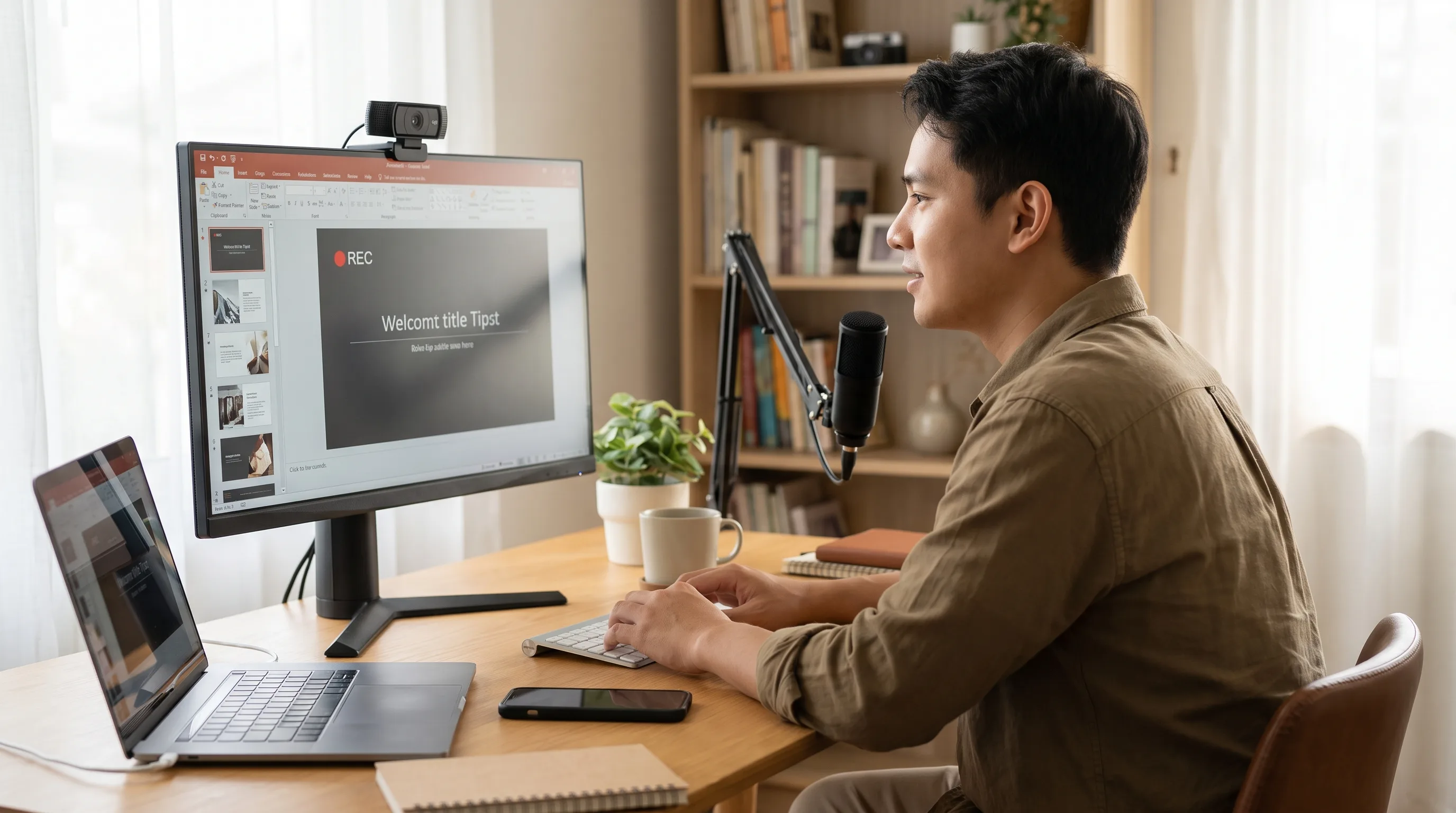
ShareRec is the fastest way to record a PowerPoint presentation with audio and video when you need an instant shareable link and no software install. Three methods cover most cases: (1) native PowerPoint recording, built into an existing Office license; (2) screen recording software installed on the desktop; (3) a browser-based tool that captures screen, webcam, and audio and produces a shareable link.
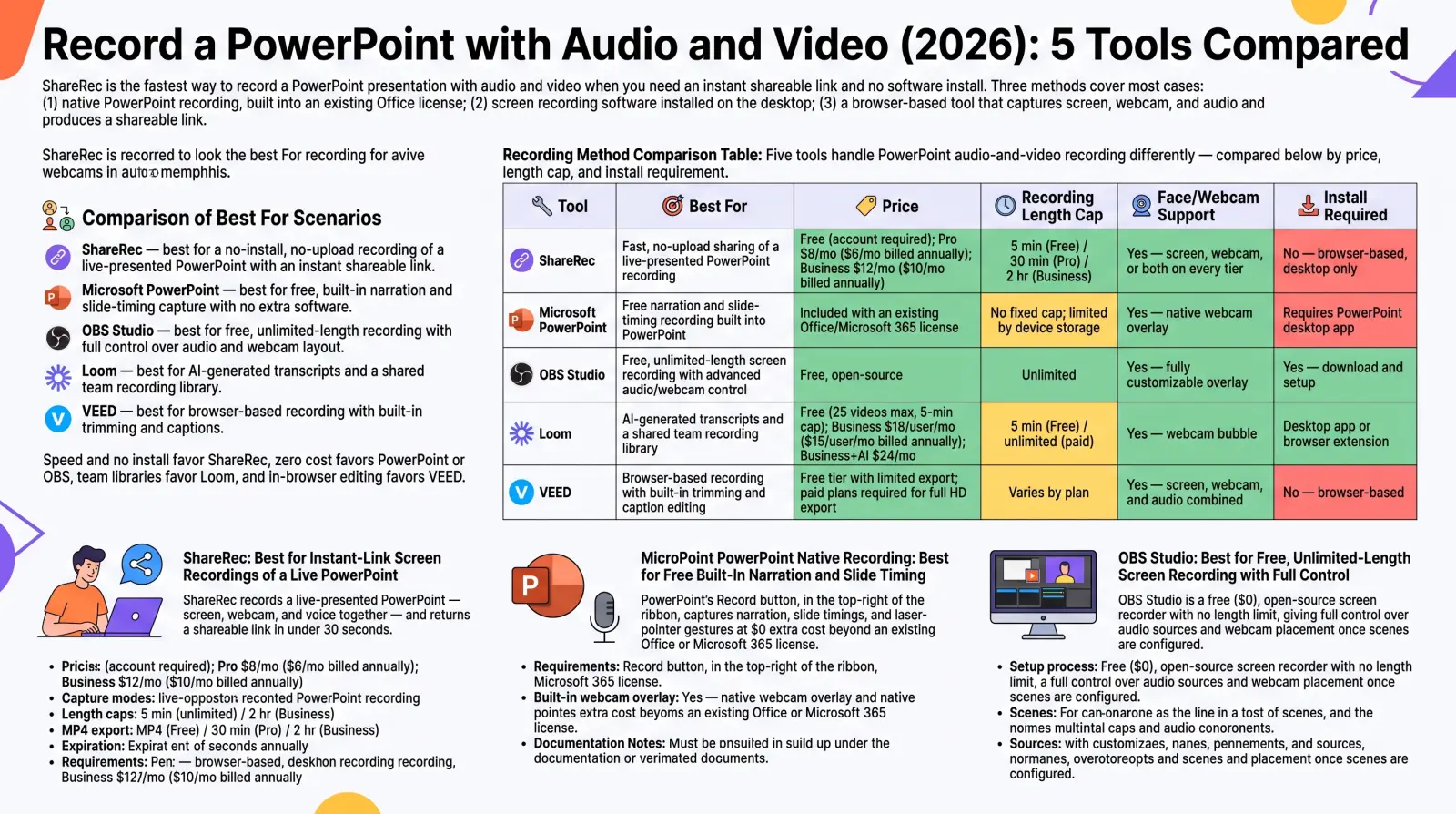
ShareRec — best for a no-install, no-upload recording of a live-presented PowerPoint with an instant shareable link. Microsoft PowerPoint's native Record feature — best for free, built-in narration and slide-timing capture with no extra software. OBS Studio — best for free, unlimited-length recording with full control over audio and webcam layout. Loom — best for a shared team recording library with free transcripts on every plan. VEED — best for browser-based recording with built-in trimming and captions.
Speed and no install favor ShareRec, zero cost favors PowerPoint or OBS, team libraries favor Loom, and in-browser editing favors VEED.
Recording Method Comparison Table
Five tools handle PowerPoint audio-and-video recording differently — compared below by price, length cap, and install requirement.
| Tool | Best For | Price | Recording Length Cap | Face/Webcam Support | Install Required |
|---|---|---|---|---|---|
| ShareRec | Fast, no-upload sharing of a live-presented PowerPoint recording | Free (account required); Pro $8/mo ($6/mo billed annually); Business $12/mo ($10/mo billed annually) | 5 min (Free) / 30 min (Pro) / 2 hr (Business) | Yes — screen, webcam, or both on every tier | No — browser-based, desktop only |
| Microsoft PowerPoint | Free narration and slide-timing recording built into PowerPoint | Included with an existing Office/Microsoft 365 license | No cap documented by Microsoft | Yes — native camera overlay | Yes — PowerPoint desktop app for Windows or Mac (PowerPoint for the web can't record) |
| OBS Studio | Free, unlimited-length screen recording with advanced audio/webcam control | Free, open-source | Unlimited | Yes — fully customizable overlay | Yes — download and setup |
| Loom | A shared team recording library with free transcripts on every plan | Free (25 videos max, 5-min cap); Business $18/user/mo; Business+AI $24/user/mo | 5 min (Free); longer on paid plans | Yes — webcam bubble | Desktop app or browser extension |
| VEED | Browser-based recording with built-in trimming and caption editing | Free plan available; paid plans unlock watermark-free export | Varies by plan | Yes — screen, webcam, and audio combined | No — browser-based |
ShareRec: Best for Instant-Link Screen Recordings of a Live PowerPoint
ShareRec records a live-presented PowerPoint — screen, webcam, and voice together — and returns a shareable link the moment you stop recording. Best for: presenters on locked-down corporate laptops who can't install software and don't want to wait on an upload. A free plan and Pro at $8/mo ($6/mo billed annually) are both available.
ShareRec doesn't import a .pptx file directly. The workflow: open the PowerPoint deck, start a screen recording in ShareRec, and present live with webcam and narration on. Sharing the resulting link is immediate — there's no upload wait because the recording is already hosted.
All three capture modes — screen only, webcam only, or screen plus webcam — are available on every tier including Free. Basic trim and clip editing are included too.
The Free plan caps recordings at 5 minutes and 720p and keeps only the 25 most recent videos. MP4 export isn't included on Free — that's Pro/Business only. Pro at $8/mo raises the cap to 30 minutes at 1080p for less than half of Loom Business's $18/user/mo; Business runs $12/mo ($10/mo billed annually) and raises the cap to 2 hours.
Every recording auto-expires 30 days after it's made, unless the owner sets Never, 24 hours, 7 days, or 30 days instead. The dashboard shows a countdown, and the owner gets a warning email 3 days before deletion.
ShareRec requires an account on every tier including Free, and recording works only in a desktop browser, though anyone you send the link to can watch on a phone. There's no built-in annotation tool, and share links are unlisted public URLs without password protection or SSO.
Microsoft PowerPoint Native Recording: Best for Free Built-In Narration and Slide Timing
PowerPoint's built-in recorder captures your narration, camera, slide timings, and pen or laser-pointer gestures at $0 extra cost beyond an existing Office or Microsoft 365 license. Best for: presenters who already have PowerPoint on Windows or Mac and don't want a separate app.
Recording narration requires a working microphone; PowerPoint also needs speakers and a sound card recognized by the operating system to preview audio. No download is necessary — the feature ships inside the desktop app itself.
A webcam overlay is built in, so the presenter's face appears in the corner of the recording while slides play. OBS and most browser tools need extra configuration to achieve the same effect.
Recording works in the desktop apps for Windows and Mac only — Microsoft states that PowerPoint for the web doesn't support recording a slide show. Newer versions add a teleprompter view that scrolls your speaker notes while you record. Narration isn't captured while a slide transition plays, so pause during transitions. To share the result, export it: on Windows, Record > Export > Export Video; on Mac, Record > Export to Video.
OBS Studio: Best for Free, Unlimited-Length Screen Recording with Full Control
OBS Studio is a free ($0), open-source screen recorder with no length limit, giving full control over audio sources and webcam placement once scenes are configured, on Windows, macOS, and Linux. Best for: presenters who want zero cost and are comfortable with a one-time setup step.
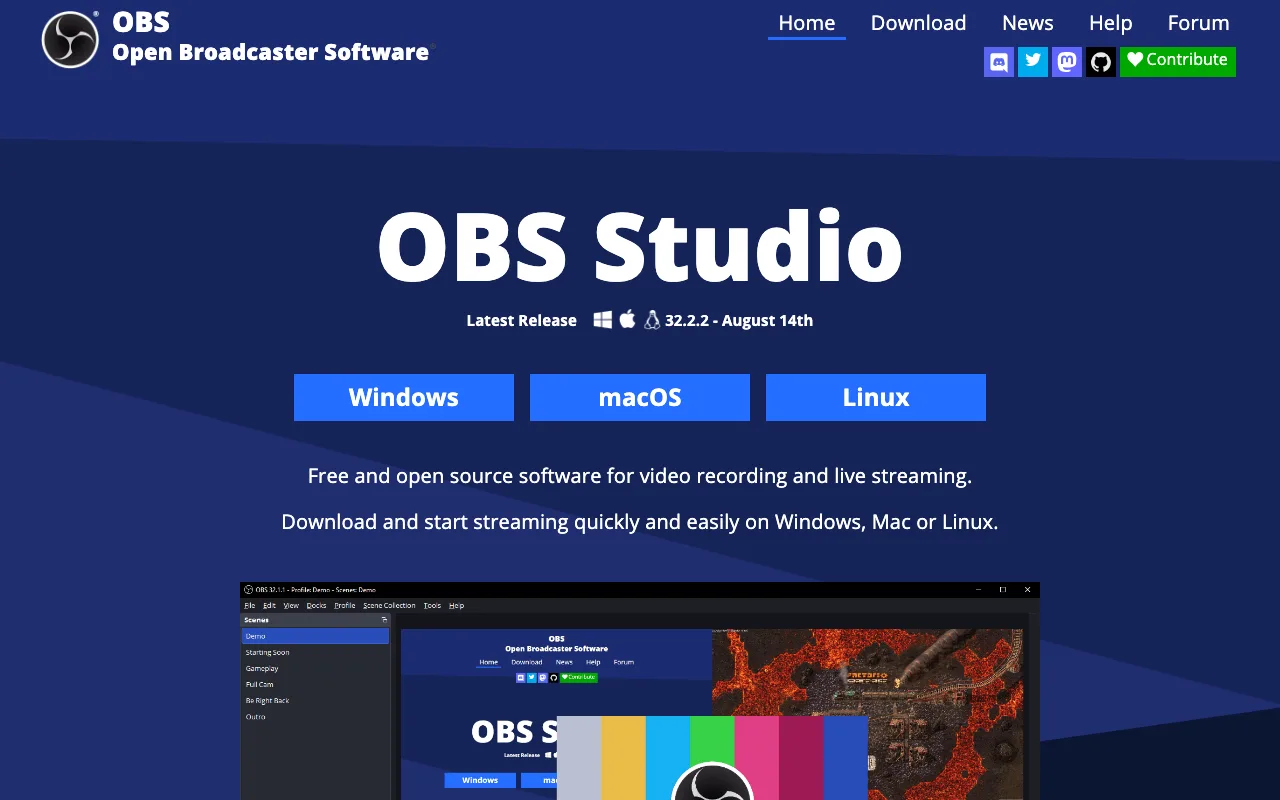
Recording starts with downloading OBS and creating a Scene, then adding Sources inside it: a Display Capture (or Window Capture) source for the PowerPoint slideshow, an Audio Input Capture source for the microphone, and a Video Capture Device source for the webcam. Each source is resized and layered manually — the webcam typically goes in a corner, cropped to sit over the slides without blocking content. Scene Collections let a presenter save this layout once and reuse it for every future recording, so the setup cost is paid only the first time.
That one-time setup buys full customization: webcam size, position, audio mixing between microphone and desktop audio, and output format (such as MP4, MKV, or MOV) are all adjustable per scene. There's no recording-length ceiling at all.
The tradeoff shows up after recording, not during it. OBS saves the finished file locally with no built-in upload or link-sharing step, so the presenter has to find the file, then upload it to cloud storage or a video host before anyone else can watch it.
Loom: Best for Team-Shared Recording Libraries
Loom's free plan allows up to 25 videos with a 5-minute recording cap and up to 50 workspace members, while its cheapest paid tier, Business, costs $18/user/month. Best for: teams that want recordings organized in a shared, searchable library.
There's no separate Loom Pro tier — Business is the paid plan, raising the limits on recording length and video count. Transcripts are included free on every plan, in 50+ languages. Business+AI, at $24/user/month, adds the deeper AI layer: auto summaries, auto chapters, and filler-word and silence removal (auto titles are already free on every plan).
The shared library is organized into Spaces and Folders that persist across a workspace, so a PowerPoint walkthrough uploaded today stays discoverable months later through search instead of getting buried in a chat thread. Viewers can leave timestamped comments and emoji reactions directly on the recording, and creators can see who viewed; deeper engagement insights start on paid plans.
Loom fits best when multiple people need to find, search, and reference past recordings in one shared library rather than just send a single link — a one-off screen share doesn't need that infrastructure, but a recurring training library or async standup archive does.
VEED: Best for Browser-Based Recording with Built-In Editing
VEED records screen, webcam, and audio in one browser tab and includes free trimming and captions, but watermark-free export requires a paid plan. Best for: presenters who want quick in-browser trims or captions before sharing.
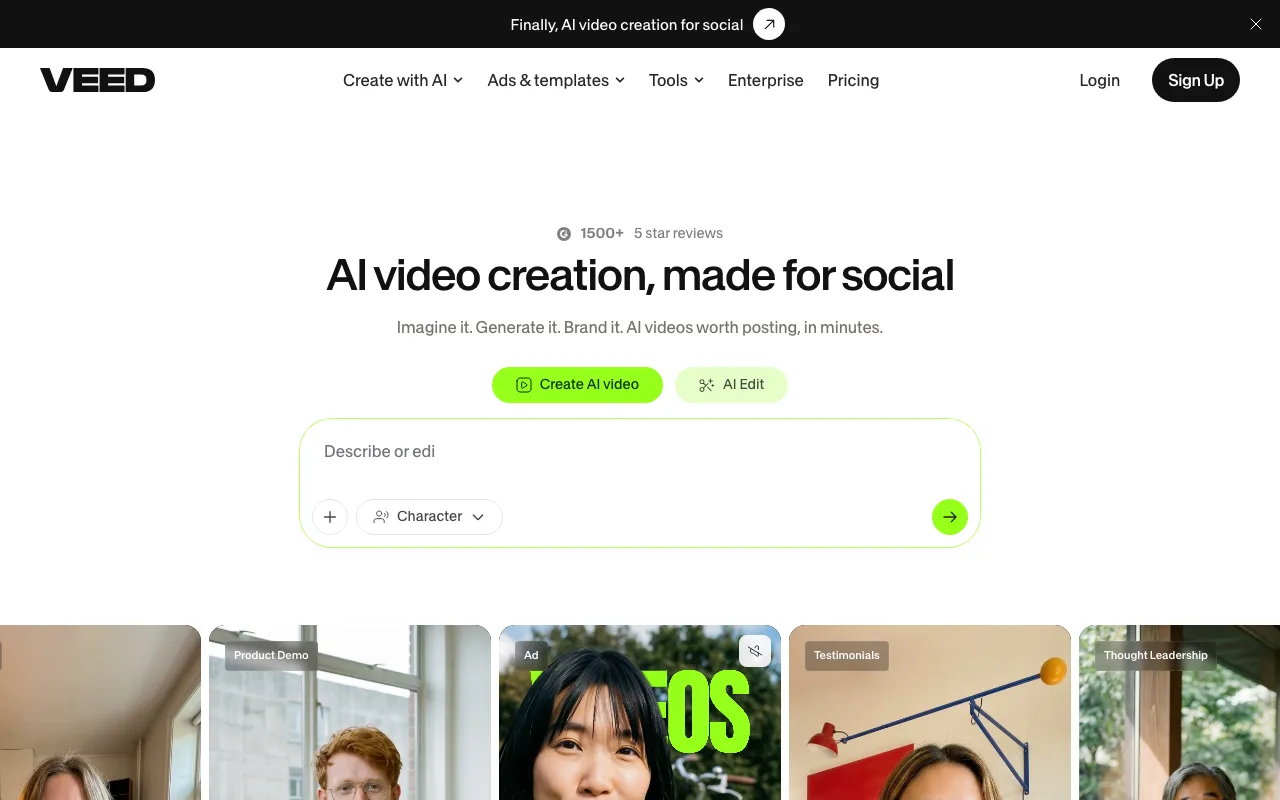
Recording, reviewing, and lightly editing all happen in the same tab, with no separate editor to open or file to re-upload. Beyond trimming and auto-captions, the built-in editor covers subtitle styling and translation, background-noise removal, a filler-word remover that strips "um" and "uh" automatically, and basic text overlays or callouts placed directly on top of the screen recording.
The free plan is enough to record, trim, and caption. Watermark-free, higher-resolution export and longer projects sit on VEED's paid plans — check its pricing page for current limits.
VEED beats native PowerPoint recording specifically when the presentation needs post-recording polish before it goes out: auto-captions for accessibility, a trimmed highlight clip, or noise cleanup on a recording made in a loud room. A presenter who just needs to record and share as-is is faster off with PowerPoint's native recorder or ShareRec, which skip that editing layer entirely.
Frequently Asked Questions
Why is there no option to record audio on PowerPoint?
This is usually a device-selection or permissions issue rather than a missing feature. Open PowerPoint's recording settings and confirm the correct microphone is selected as the input device. Then check that the operating system has granted PowerPoint microphone access. Restarting the app after these checks resolves it in most cases.
How do I record myself with my face visible while presenting a PowerPoint?
Three options work: PowerPoint's native webcam overlay in the Record panel, a screen recorder like OBS with a webcam source added to the scene, or a browser-based tool like ShareRec or VEED. These browser tools capture screen and webcam together automatically.
How do I get video and audio to play together in PowerPoint after recording?
Playback sync issues are usually a codec or container mismatch, not a recording failure. Use PowerPoint's built-in Export to Video option instead of sharing the raw recording file. Always test playback with sound before presenting to confirm audio and video stay aligned.
Can I record a PowerPoint presentation on Mac?
Yes. PowerPoint for Mac records camera and microphone, lets you choose a teleprompter or presenter view, and exports with Record > Export to Video. macOS asks you to approve camera and microphone access for PowerPoint in System Settings first. PowerPoint for the web can't record.
What's the best free tool to record a PowerPoint presentation?
PowerPoint's native Record feature is free if an Office license already covers narration and slide timings. OBS Studio is free and open-source with no recording length limit, a better fit when you want a custom layout and granular audio mixing.
Can I record a PowerPoint presentation online without installing software?
Yes. Browser-based tools like ShareRec and VEED record screen, webcam, and audio directly in the browser tab and produce a shareable link within seconds, with no software download required. The PowerPoint file still has to be screen-shared live during recording — it can't simply be uploaded as a file.
Key Takeaways
- ShareRec turns a live PowerPoint into a shareable link with no upload step; recordings auto-expire in 30 days unless you keep them.
- Microsoft PowerPoint's Record feature captures narration, camera, and slide timings free, but only in the Windows or Mac desktop app.
- OBS Studio is free, open-source, and has no recording length limit.
- Loom's free plan caps at 5 minutes; Business starts at $18/user/mo.
- VEED records screen, webcam, and audio in-browser; watermark-free export needs a paid plan.
Try it free
Record your first walkthrough free — no install needed
No install, no watermark — share a link instantly.
Start Recording Free