How to Share a Screen Recording Securely in 2026: 5 Tools Compared
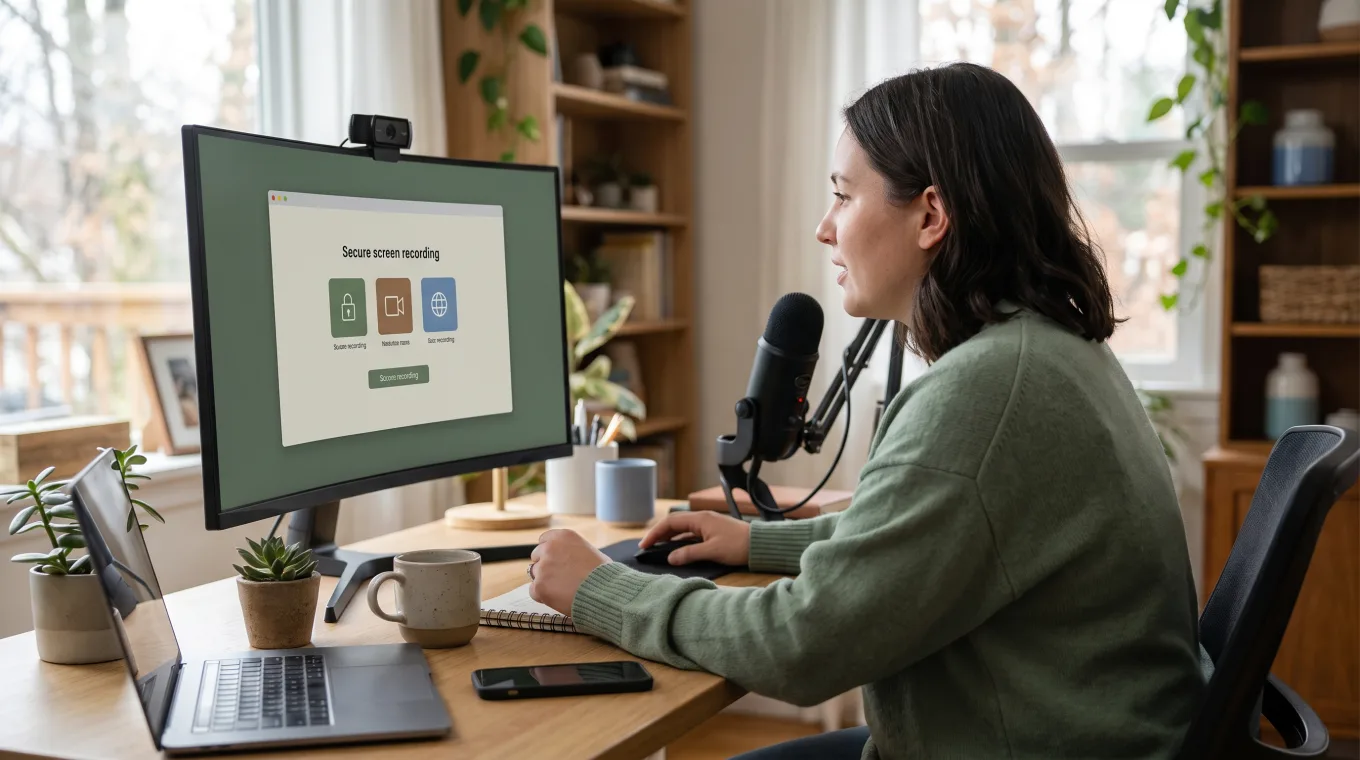
ShareRec is the top pick here for one specific reason: every recording auto-expires 30 days after capture by default, adjustable in one click to Never, 24 hours, 7 days, or 30 days, and recording happens directly in the browser with no software to install — even on locked-down corporate laptops that block new app installs. Is there a safe screen recording app? It depends what "safe" means for your workflow: five tools cover distinct workflow needs, from short-lived one-off sharing to full team collaboration. ShareRec — links that expire on their own by default, for sales demos, support tickets, and other one-off recordings you don't want living online indefinitely. Loom — teams that need AI-generated transcripts and summaries at scale. Screencastify — classroom recording through a Chrome or Edge extension. Screen Studio — a Mac-only recorder with shareable links built in on both plans. Veed — full video editing and multi-platform export after recording. Only ShareRec applies automatic link expiration out of the box — but its links are unlisted, not password-protected: anyone with the link can watch until it expires or the owner deletes it.
Compare the 5 Tools by Security and Price
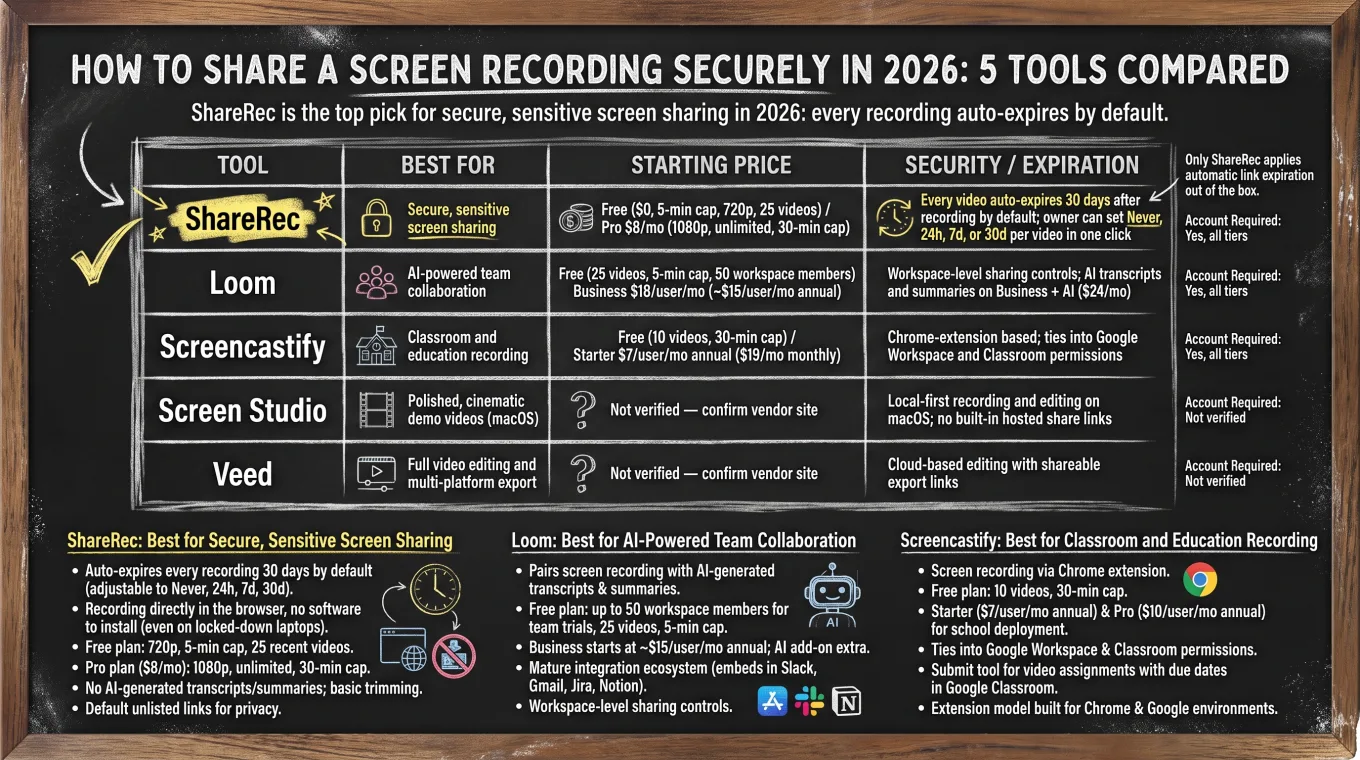
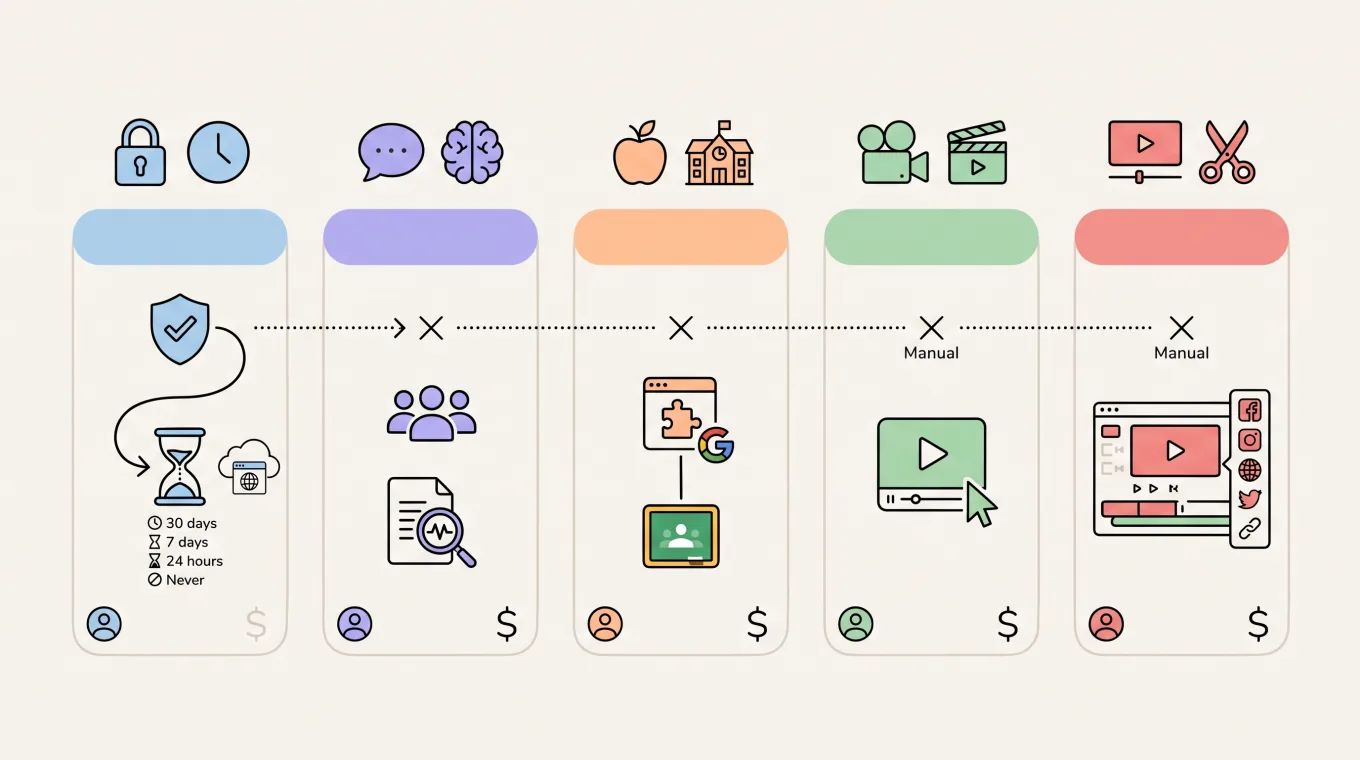
ShareRec, Loom, Screencastify, Screen Studio, and Veed differ most in how — and whether — access to a recording expires automatically.
| Tool | Best For | Starting Price | Security / Expiration | Account Required |
|---|---|---|---|---|
| ShareRec | Links that expire on their own | Free ($0, 5-min cap, 720p, 25 most recent videos) / Pro $8/mo (1080p, unlimited, 30-min cap) | Every video auto-expires 30 days after recording by default; owner can set Never, 24h, 7d, or 30d per video in one click | Yes, all tiers |
| Loom | AI-powered team collaboration | Free (25 videos, 5-min cap, up to 50 workspace members) / Business $18/user/mo | Workspace-level sharing controls; AI summaries on Business + AI ($24/mo), transcription on all tiers | Yes, all tiers |
| Screencastify | Classroom and education recording | Free (10 videos, 30-min cap) / Starter $7/user/mo annual ($19/mo monthly) | Chrome & Edge extension | Yes, all tiers |
| Screen Studio | Mac-only recording + shareable links | $29/mo, or $9/mo billed annually (macOS only) | Shareable links on both plans (up to 1080p/60fps), can be set private; expiry not stated | No free plan listed |
| Veed | Full video editing and multi-platform export | Free plan; paid from ~$12/mo (Basic), Pro $30/mo annual | Cloud-based editing with shareable export links; no link expiration | Yes, all paid tiers |
ShareRec: Best for Links That Expire on Their Own
ShareRec auto-expires every recording 30 days after capture by default, with a one-click toggle to set Never, 24 hours, 7 days, or 30 days per video. Recording happens directly in the browser with no software to install, which matters on locked-down corporate laptops where employees can't get admin approval for new apps.
An account is required on every tier, including Free. The Free plan records at 720p with a 5-minute cap and keeps the 25 most recent videos; Pro costs $8/month and adds 1080p recording, unlimited storage, and a 30-minute cap per video. That $8/month starting price for Pro costs less than half Loom's Business plan ($18/user/mo).
ShareRec doesn't include AI-generated transcripts or summaries, and editing is limited to trimming and clipping rather than a full editing suite. For sales demos, support recordings, or any one-off clip you don't want to remember to delete, the default expiration removes the need to manually revoke access later.
Every link is also unlisted by default, so a recording can only be reached by someone with the direct URL, not through search. That's not the same as a password or a restricted viewer list, though: ShareRec has neither. Anyone who gets the link — forwarded, screenshotted, or pasted somewhere public — can watch it until it expires or the owner deletes it. If you need password protection, Loom offers it on Business and up (see below).
Loom: Best for AI-Powered Team Collaboration
Loom pairs screen recording with AI-generated transcripts and summaries, and its Free plan supports up to 50 workspace members for team trials. The Free plan allows 25 videos with a 5-minute cap, enough for a team trial without a paid commitment.
Business starts at $18/user/month, with up to 17% off for annual billing. Transcription and auto titles are available even on the Free tier, but AI-generated summaries and chapter markers require the separate Business + AI plan at $24/month. An account is required on every tier. Loom offers per-video privacy settings, and password-protected videos are available on Business and up; creators can also override a workspace's default expiry rule on an individual video.
Screencastify: Best for Classroom and Education Recording
Screencastify delivers screen recording through a Chrome or Edge extension, with a Free plan capped at 10 videos and a 30-minute recording limit. Starter costs $7/user/month billed annually ($19/month billed monthly), and Pro runs $10/user/month annually ($25/month billed monthly) for school-wide deployment.
An account is required on every tier.
Transcripts, and AI titles and chapters, are Screencastify Pro-only.
Screen Studio: Best for Mac-Only Recording With Shareable Links
Screen Studio is a Mac-only subscription with shareable links built in on both plans — up to 1080p at 60fps, videos up to 30 minutes. Links can be set private so only the people you send them to can open them.
Screen Studio is subscription-based at $29/month, or $9/month billed annually, and runs on macOS only. No free plan is listed.
Screen Studio's pricing page doesn't state a link-expiration policy, and links can be set private so only the people you send them to can open them — its sharing is built for quick demo links, not sensitive, time-limited access.
Both plans include a cloud transcript of the recording, with local transcription also available via Whisper or Apple's speech tools. It runs on macOS only, which narrows its fit for teams mixing Windows and Mac devices or needing cross-platform recording from one tool.
Veed: Best for Full Video Editing After Recording
Veed combines browser-based screen recording with a full video editing suite — captions, effects, and multi-platform export — in one workflow. Recording and editing both happen in the browser, so a raw capture can be trimmed, captioned, and reformatted for different platforms without switching tools.
VEED offers a Free plan; paid tiers run from about $12/month (Basic) up to $30/month for Pro billed annually. An account is required on paid tiers.
Veed's editor auto-generates subtitles with translation into multiple languages and offers templates that reformat one recording into square, vertical, and landscape versions sized for different social platforms, useful for a single demo repurposed across channels.
VEED's Pro plan adds a full brand kit — a logo, colors, and fonts to keep exported recordings visually consistent — and 4K export for platforms that need higher-quality uploads (the Basic plan includes only a simpler fonts-and-colors brand kit). VEED is built as a general-purpose video editor with recording as one entry point, rather than a tool designed primarily around access control or link expiration for sensitive sharing.
Key Takeaways
- ShareRec: links auto-expire 30 days after recording by default, adjustable to Never, 24h, 7d, or 30d.
- Loom: Free tier gives 25 videos at a 5-minute cap; Business starts at $18/user/mo, and AI summaries require the separate Business + AI tier at $24/mo (transcription is available on all tiers).
- Screencastify: Free tier allows 10 videos at a 30-minute cap; Starter costs $7/user/mo annually, runs on Chrome and Edge.
- Screen Studio: Mac-only, no free plan listed; $29/mo ($9/mo billed annually), offers shareable links on both plans; expiry not stated.
- Veed: browser-based recording paired with a full editing suite; Free plan, paid from ~$12/mo, with 4K export and a full brand kit on Pro ($30/mo annual).
Frequently Asked Questions
What makes screen sharing secure?
Three factors matter: encryption in transit and at rest, access controls such as passwords, expiration dates, and restricted viewer lists, and clarity on who can view or re-share the link. A tool missing any of the three leaves gaps in the workflow.
Is there a safe screen recording app?
Yes — the right one depends on what you need. ShareRec auto-expires links by default so nothing lingers online by accident, Loom adds workspace-level sharing controls and password-protected videos (Business and up), and Screencastify is built for classroom recording — all three require an account.
How secure is Zoom screen sharing compared to other tools?
Zoom's Security & Privacy settings let hosts control who can record during a call, but a recording shared afterward depends entirely on the host's storage location and link choices. Zoom has no built-in expiration system for recordings once saved and shared.
Can screen recordings be intercepted over WiFi?
A recording file isn't transmitted live during capture, so WiFi interception isn't the primary risk. The bigger exposure is how the finished file or link is shared afterward — an unencrypted email attachment carries more risk than a link with automatic expiration.
What's the most secure way to share confidential screen recordings?
Use a tool with automatic link expiration and access restriction rather than email attachments or public cloud folders, and set the shortest expiration window the workflow allows. Review who still has access before sharing sensitive footage, especially for legal or compliance material.
How do I know if a tool uses end-to-end encryption?
Check the vendor's security or trust documentation for an explicit statement on encryption in transit and at rest. This article's research did not confirm end-to-end encryption claims for any of the five tools — verify directly with each vendor before sharing recordings for compliance-sensitive work.
Try it free
Record your first walkthrough free — no install needed
No install, no watermark — share a link instantly.
Start Recording Free