How to Record Your Screen and Instantly Share a Link: 5 Best Tools (2026)
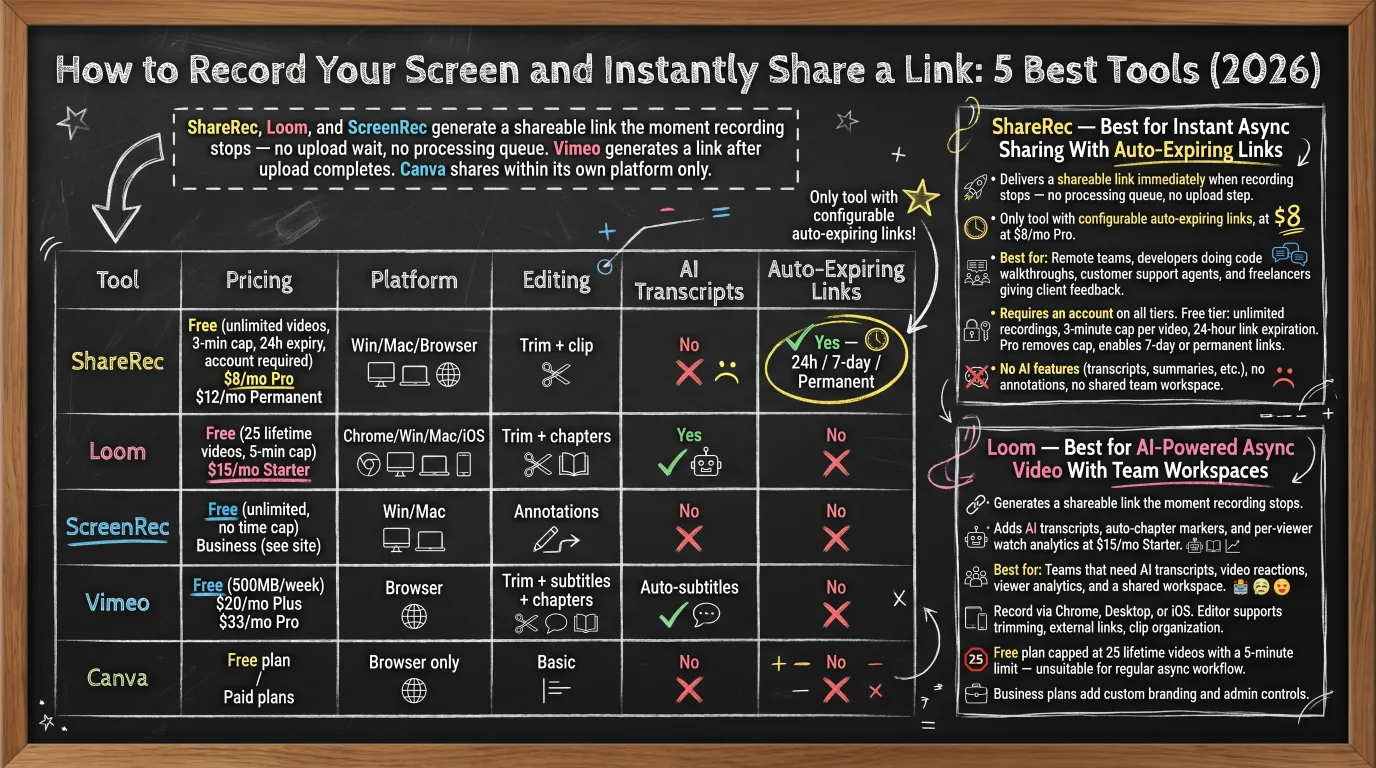
ShareRec, Loom, and ScreenRec generate a shareable link the moment recording stops — no upload wait, no processing queue. Vimeo generates a link after upload completes. Canva shares within its own platform only.
ShareRec (free tier with account required: keeps your 25 most recent videos, 5-minute cap per video, 30-day default expiry with keep-forever in one click; Pro at $8/mo; Business at $12/mo) delivers an instant shareable link the moment recording stops — record, stop, send in under 30 seconds, with no upload step. Available on Windows, Mac, and browser.
Loom (free: 25 lifetime videos, 5-minute cap per recording; Starter at $15/mo) generates a link when recording stops and adds AI transcripts, auto-chapters, and per-viewer watch analytics. Chrome extension, desktop apps, and iOS available.
ScreenRec (free, no recording time cap, unlimited cloud storage) auto-copies a cloud link to clipboard the moment recording stops. Windows and Mac only — no browser recording option.
Vimeo (free: 500MB/week storage; Plus at $20/mo) provides password protection, domain-level embedding restrictions, and per-viewer analytics — but the link is not ready until upload finishes.
Canva (free plan included) records screen and webcam inside the Canva editor and shares through Canva's link system — not a standalone recording tool.
Five Screen Recorders Compared: Pricing, Platform, and Link Controls
ShareRec and ScreenRec are the only tools in this comparison that auto-copy a shareable link to clipboard on recording stop; ShareRec videos carry a 30-day default expiry on every tier, including its free plan — with keep-forever in one click.
| Tool | Pricing | Platform | Editing | AI Transcripts | Auto-Expiring Links |
|---|---|---|---|---|---|
| ShareRec | Free (25 most recent videos, 5-min cap, 30-day default expiry, account required) / $8/mo Pro / $12/mo Business | Win/Mac/Browser | Trim + clip | No | 30-day default (keep forever, 1 click) |
| Loom | Free (25 lifetime videos, 5-min cap) / $15/mo Starter | Chrome/Win/Mac/iOS | Trim + chapters | Yes | No |
| ScreenRec | Free (unlimited, no time cap) / Business (see site) | Win/Mac | Annotations | No | No |
| Vimeo | Free (500MB/week) / $20/mo Plus / $33/mo Pro | Browser | Trim + subtitles + chapters | Auto-subtitles | No |
| Canva | Free plan / Paid plans | Browser only | Basic | No | No |
ShareRec — Best for Instant Async Sharing With Flexible Expiry
ShareRec delivers a shareable link immediately when recording stops — no processing queue, no upload step — and every video defaults to a 30-day expiry on every tier, keep-forever in one click, including the free plan, at $8/mo Pro.
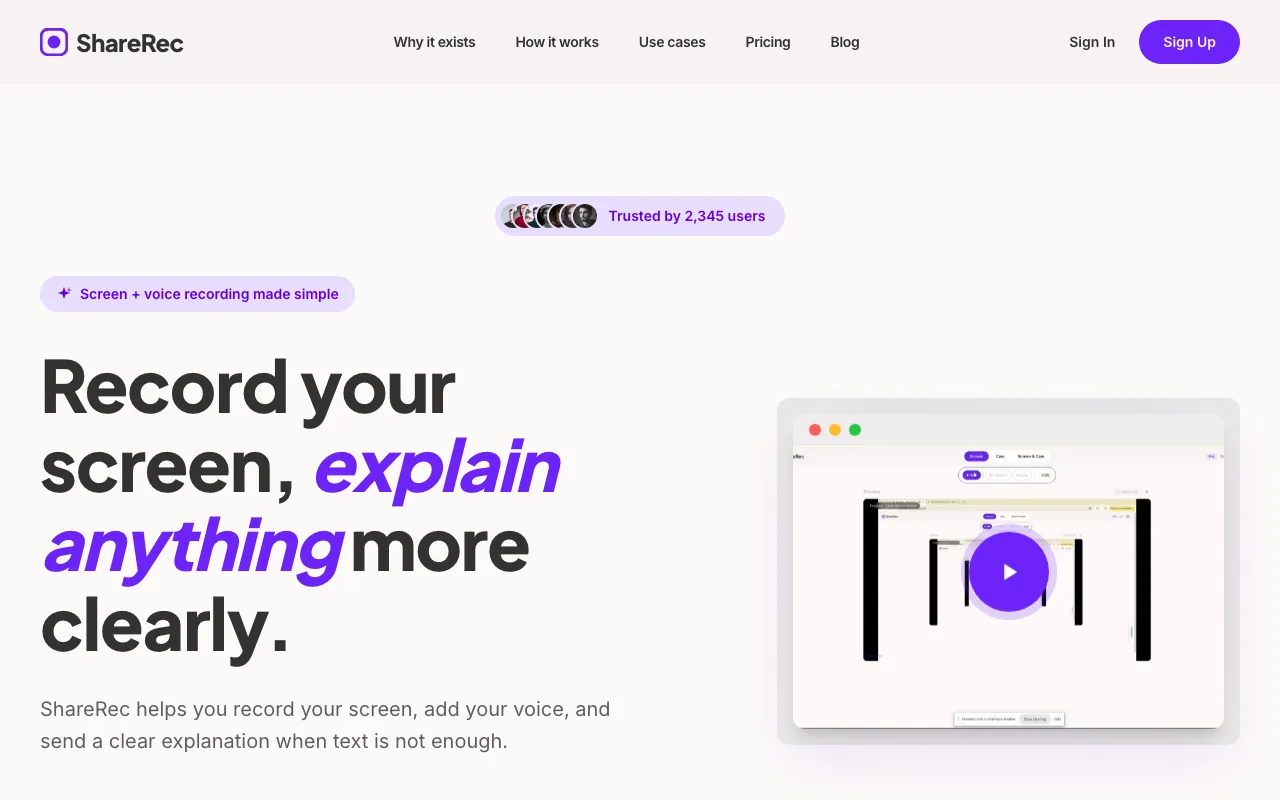
Best for: Remote teams, developers doing code walkthroughs, customer support agents, and freelancers giving client feedback who need quick async recordings with a link they can send in seconds.
ShareRec requires an account on all tiers. Record screen and voice in one click; a shareable link is immediately available. Free tier: 720p recordings, 5-minute cap per video, 30-day default expiry (keep any video forever in one click), keeping your 25 most recent videos. Recordings over 5 minutes require Pro or splitting.
Keep any video forever in one click, so recipients can open a walkthrough weeks later — while videos you don't need tidy themselves after 30 days, and a 3-day email warning lands before anything is deleted. Pro at $8/mo raises the cap to 30 minutes and unlocks unlimited videos; Business at $12/mo stores videos at up to 1080p with a 2-hour cap and unlimited videos.
At $8/mo Pro versus Loom Starter at $15/mo: both deliver an instant link, and ShareRec Pro runs roughly half the price. Loom adds AI transcripts, auto-generated chapter markers, and per-viewer engagement analytics — none of which ShareRec includes.
The free tier's 5-minute cap is a hard limit: any walkthrough that runs longer requires either splitting into multiple recordings or upgrading to Pro, and the free tier retains only your 25 most recent videos. ShareRec has no AI features — no auto-transcripts, no summaries, no AI-generated chapter markers. Editing is limited to trim and clip; there are no annotation tools, no drawing tools, and no webcam bubble overlay. There is no shared team workspace or video library — recordings are managed per individual account.
Loom — Best for AI-Powered Async Video With Team Workspaces
Loom generates a shareable link the moment recording stops and adds AI transcripts, auto-chapter markers, and per-viewer watch analytics at $15/mo Starter — features absent from ShareRec and ScreenRec.
Best for: Teams that need AI transcripts, video reactions, viewer analytics, and a shared workspace alongside instant link sharing.
Record via Chrome extension, Windows/Mac desktop app, or iOS app; a link is available immediately on stop. The editor supports trimming, external links, and clip organization.
AI transcripts generate automatically; Loom creates chapter markers so viewers skip to specific segments. Viewers react with emoji and leave timestamped comments. The dashboard shows per-viewer watch rate and rewatch moments.
Links share by default with optional password protection; no auto-expiring links — recordings persist until manually deleted. Viewers can comment without a Loom account on most plan tiers.
The free plan is capped at 25 lifetime videos with a 5-minute per-recording limit. At typical async usage — a few internal updates, a client walkthrough, and a bug-report clip per week — that 25-video ceiling is exhausted within two to three weeks. Starter at $15/mo removes both limits and adds viewer analytics.
Business plans add custom branding, admin controls, and advanced workspace management. Visit loom.com/pricing for current Business plan details. Loom is unavailable on Android — mobile recording is iOS only.
ScreenRec — Best for Free Unlimited Recording With No Time Cap
ScreenRec's free plan removes per-recording time limits entirely, includes unlimited cloud storage, and auto-copies a shareable link to clipboard the moment recording stops — the strongest free option for sessions over 5 minutes.
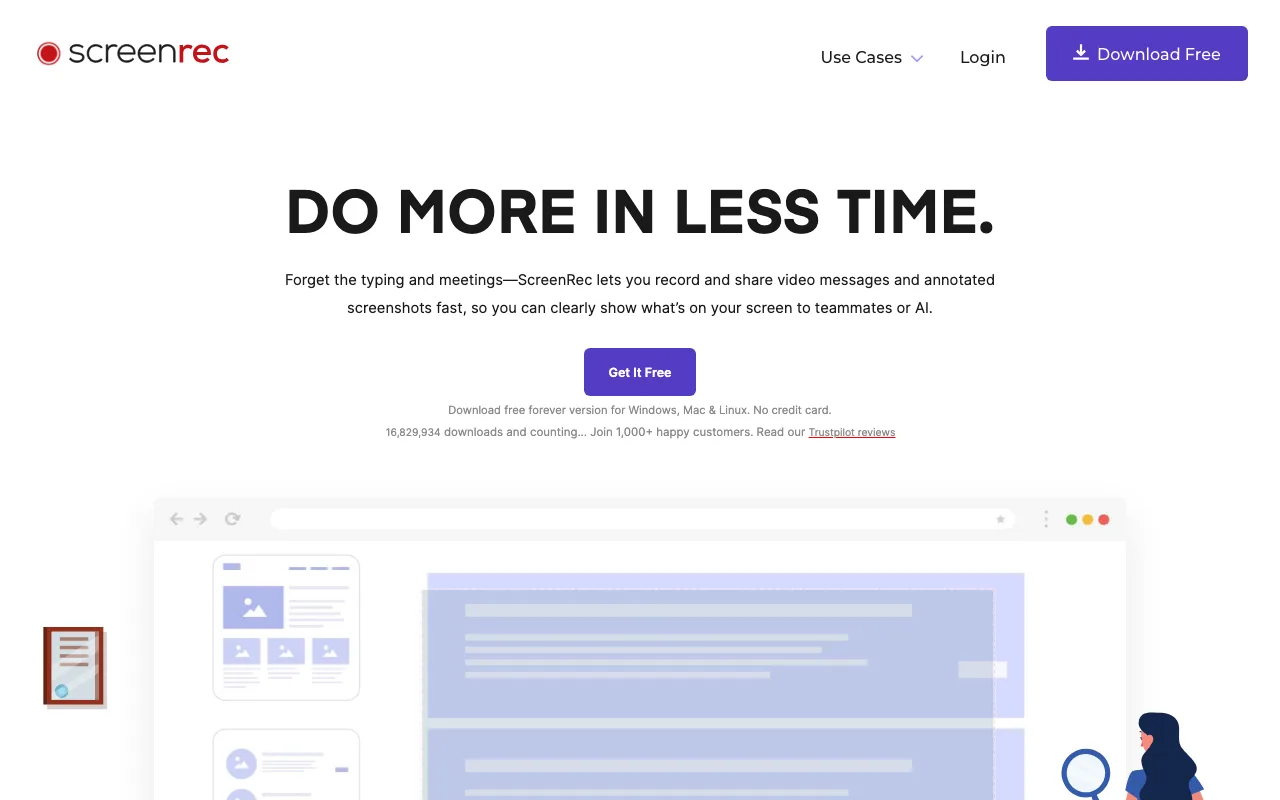
Best for: Users who need to record sessions longer than 5 minutes — full demos, long meetings, or hour-long walkthroughs — at no cost.
Record screen and webcam on Windows or Mac; stop and ScreenRec's cloud generates a clipboard link immediately.
ShareRec's free tier caps at 5 minutes; Loom's free tier at 5 minutes; ScreenRec sets no cap — a 60-minute demo records without splitting.
ScreenRec includes AI-suggested callouts for screenshot annotations — not applicable to full-length recordings.
The free plan includes unlimited cloud storage with no per-viewer analytics. Links on the free plan do not expire — recordings persist until manually deleted, with no automatic cleanup schedule. Free plan recordings cannot be exported to third-party services: there is no direct export to Google Drive or Dropbox, and videos are accessible only through ScreenRec's own cloud viewer. Business plans add team features and analytics; visit screenrec.com for current pricing. Windows and Mac only — no browser recording option is available on any tier.
Vimeo — Best for Professional Video Hosting With Granular Sharing Controls
Vimeo provides password-protected sharing, domain-level embedding restrictions, and per-viewer watch analytics per video — but generates a shareable link only after upload completes, not on recording stop, starting at $20/mo Plus.
Best for: Professionals who need polished video presentation, password-protected sharing, and per-viewer analytics after screen recording.
Vimeo is a video hosting platform with a screen recorder added. Record via browser; the link generates after upload completes — time between stop and link depends on file size and upload speed. A 10-minute 1080p screen recording typically requires 30–90 seconds of upload time before the link activates, depending on connection speed. ShareRec, Loom, and ScreenRec deliver a ready link within seconds of stopping regardless of file size, while Vimeo requires the upload to finish before any link exists.
Set password protection per video, restrict embedding to specific domains, control download permissions, and view per-viewer analytics from a single Share panel. Video replacement without changing the link is supported.
The in-browser editor supports trimming, chapter markers, and auto subtitles — accessible after upload.
The free plan allows 500MB/week of storage. A single 10-minute 1080p recording runs approximately 400–500MB, which means a free account can accommodate roughly one full-length recording per week. Plus at $20/mo and Pro at $33/mo expand storage and features; visit vimeo.com/upgrade for current plan details.
Canva — Best for Recording Within an Existing Canva Design Workflow
Canva's browser-based screen recorder is included in the free plan and generates a shareable Canva link when recording stops — but requires an active Canva file as context and does not function as a standalone recording tool.
Best for: Users already working inside Canva who want to attach a recorded walkthrough to a design or presentation without switching apps.
Open any Canva file, select Present and Record, and Canva captures screen and webcam. On stop, the video attaches to the Canva file as an embedded asset — it is not saved as a standalone exportable video file. A Canva link generates automatically, but that link opens Canva's own viewer page, not a neutral video player.
Sharing is through Canva's viewer page only — no link expiration, no password protection, no per-viewer analytics. The recording cannot be routed to external services: there is no direct export to YouTube, Google Drive, Dropbox, or any third-party video platform. The output is locked to Canva's ecosystem.
The recorder is browser-only and requires an active Canva file to initiate a recording. Upgrading to Canva Pro does not expand recording capabilities beyond what the free tier provides — Pro adds brand controls and additional storage, but the screen recording feature works identically on both plans. Users who need a standalone shareable video link outside of Canva's platform should use ShareRec, ScreenRec, or Loom instead.
How to Record Your Screen on Windows, Mac, and iPhone Without a Third-Party App
Windows Game Bar, QuickTime on Mac, and iPhone's built-in Screen Recording each capture your screen at no cost — but none generates a shareable link automatically; a manual upload to a cloud service is required before a link exists.
Windows: Game Bar (Win + Alt + R)
- Press Win + Alt + R to start recording immediately — no overlay required.
- Press the same shortcut again or click the stop button in the recording toolbar to end the session.
- The video saves as an MP4 to your Videos > Captures folder.
- To share via a link, upload to Google Drive, Dropbox, or OneDrive and copy the share link from there.
Mac: QuickTime Player
- Open QuickTime Player and select File > New Screen Recording.
- Choose a microphone input, select your recording area, and click Record.
- Click the stop button (⏹) in the menu bar to finish — the file saves as a .mov.
- To get a shareable link, save to iCloud Drive or upload to Google Drive and share from either service.
iPhone: Control Center Screen Recording
- Go to Settings > Control Center and add Screen Recording to your controls.
- Swipe open Control Center and tap the circle record button — a 3-second countdown starts.
- Tap the red status bar at the top of the screen and select Stop to end the recording.
- The video saves to Photos. To share via a link, upload to iCloud Photos or Google Photos and share from within the app.
Frequently Asked Questions
What is the fastest way to record and share a screen link?
Cloud tools generate a shareable link when recording stops — no upload step. ShareRec and ScreenRec auto-copy the link to clipboard immediately on stop. Loom generates a viewable link within seconds. Native tools — Windows Game Bar, QuickTime, iPhone Screen Recording — save locally and require a manual upload before any link exists.
Can I record my screen and share a link at the same time?
No tool generates a live-viewable streaming link during an active recording session. Cloud tools — ShareRec, Loom, and ScreenRec — generate a shareable link the moment recording stops. The gap is under a few seconds, but recording and sharing are always sequential steps, not simultaneous.
How do I record my iPhone screen and share it instantly?
Enable Screen Recording in Settings > Control Center, swipe open Control Center, and tap the circle button. Tap the red status bar to stop — video saves to Photos. To get a link, upload to iCloud Photos or Google Photos. Loom's iOS app generates a shareable link on stop. ShareRec has no iOS app; account required on all tiers.
What is the best free tool for screen recording and instant link sharing on Windows?
ScreenRec's free plan generates a cloud link on recording stop with no time cap per session. ShareRec's free tier also generates an instant link but caps each recording at 5 minutes and requires an account — videos auto-expire after 30 days by default, but you keep any one forever in one click. Windows Game Bar saves MP4 files locally but generates no shareable link without a manual upload step.
How do I share a screen recording without uploading to the cloud?
Record with QuickTime (Mac) or Windows Game Bar (Win + Alt + R), then share via AirDrop (Mac-to-Mac), email attachment, or a local network drive. No cloud link is generated with either method. If cloud hosting is acceptable, ShareRec's free tier generates an instant shareable link the moment you stop recording — videos auto-expire after 30 days by default unless you keep them forever in one click; account required.
Do screen recording links expire, and can I keep them permanent?
ShareRec videos auto-expire 30 days after recording by default on every tier, including its free plan — but you keep any video forever in one click, and a 3-day email warning lands before anything is deleted, so a recording you want to keep still opens weeks later. Loom, ScreenRec, Vimeo, and Canva do not offer timed link expiration; their links persist until you manually delete the recording. Vimeo allows manual video deletion but has no automatic expiry option on a schedule.
Key Takeaways
- ShareRec ($8/mo Pro) delivers an instant shareable link without an upload step — record, stop, send in under 30 seconds — with a 30-day default expiry on every tier and keep-forever in one click (plus a 3-day email warning); free tier caps each recording at 5 minutes, keeps your 25 most recent videos, and includes no AI features, no annotations, and no team workspace.
- Loom ($15/mo Starter) adds AI transcripts, auto-chapters, and per-viewer watch analytics not available in ShareRec or ScreenRec — free plan is limited to 25 lifetime videos, exhausted within a few weeks of regular async use.
- ScreenRec (free) removes time limits entirely — the only free option here with no per-recording cap, best for sessions longer than 5 minutes; free plan links do not expire and recordings cannot be exported to third-party services.
- Vimeo ($20/mo Plus) offers the most granular sharing controls — password protection, domain-level embedding restrictions, and per-viewer watch data — but the link is not ready until upload completes, which can take 30–90 seconds for a 10-minute 1080p file.
- Canva (free plan included) makes sense only if you are already editing inside Canva — its screen recorder does not function as a standalone tool, is browser-only, output is tied to Canva's viewer system, and upgrading to Pro does not expand recording capabilities.
Try it free
Record your first walkthrough free in 30 seconds
No install, no watermark — share a link instantly.
Start Recording Free