How to Record on Windows (2026): 5 Ways to Record Your Screen
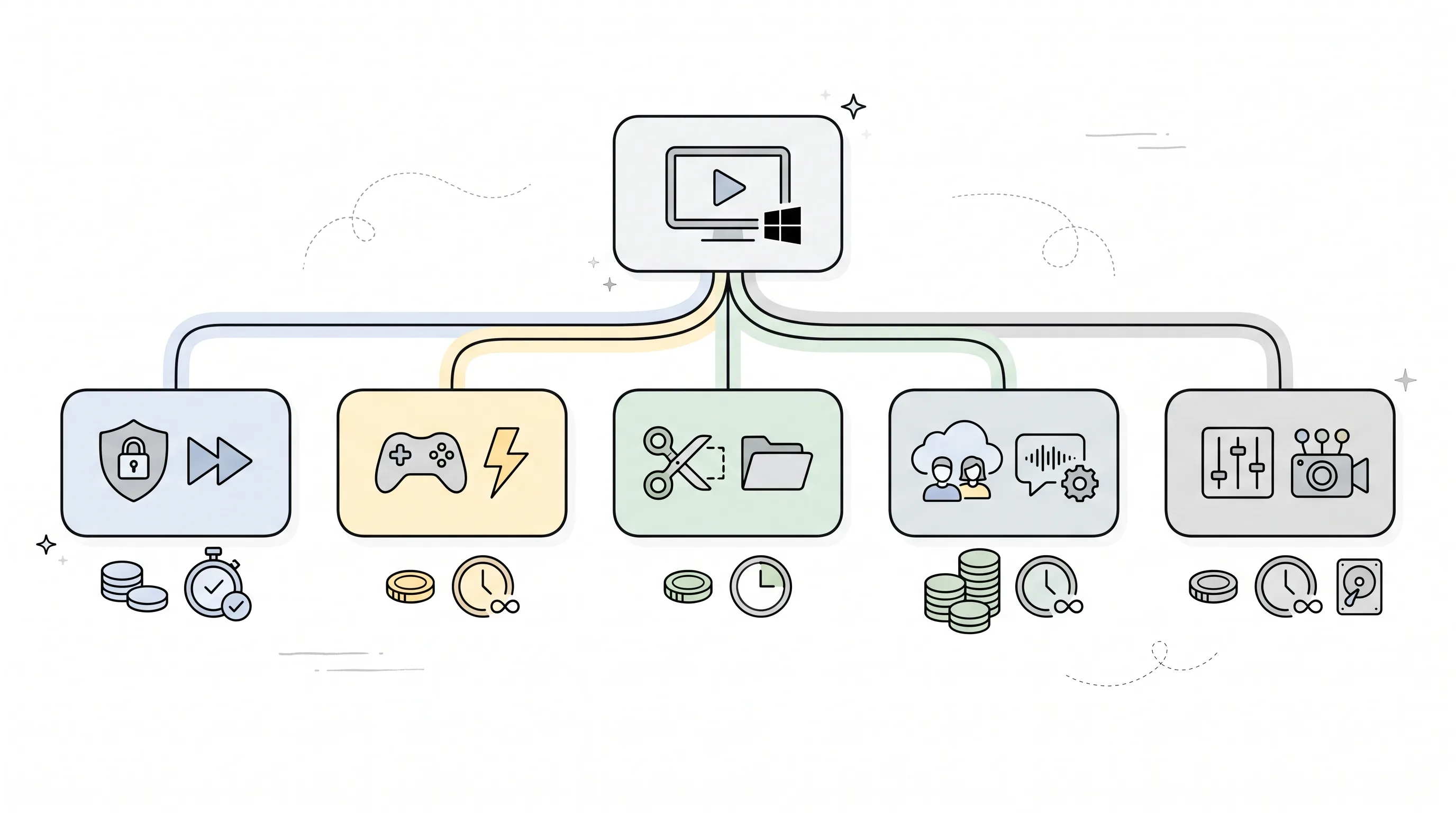
ShareRec is the best tool for recording your screen on Windows when you want a link that expires on its own — a sales demo, a support fix, or a one-off walkthrough you don't want living online forever. It captures your screen and voice in one click and hands back a ready-to-share link the moment recording stops, with no upload wait. For a fast, completely free recording with nothing to install, Windows' built-in Xbox Game Bar (Win+G, then Win+Alt+R) is the quickest option on both Windows 10 and 11. On Windows 11, the Snipping Tool's screen-record mode (Win+Shift+R) works well for short clips that involve the desktop or File Explorer. Teams that want a shared video library with searchable transcripts on every plan should use Loom. Streamers and professionals who need full control over scenes, sources, and audio mixing should use OBS Studio, which is free and open source. Price, recording limits, and audio support vary widely across all five, from free built-in shortcuts to paid team platforms.
Compare All 5 Ways to Record Your Screen on Windows
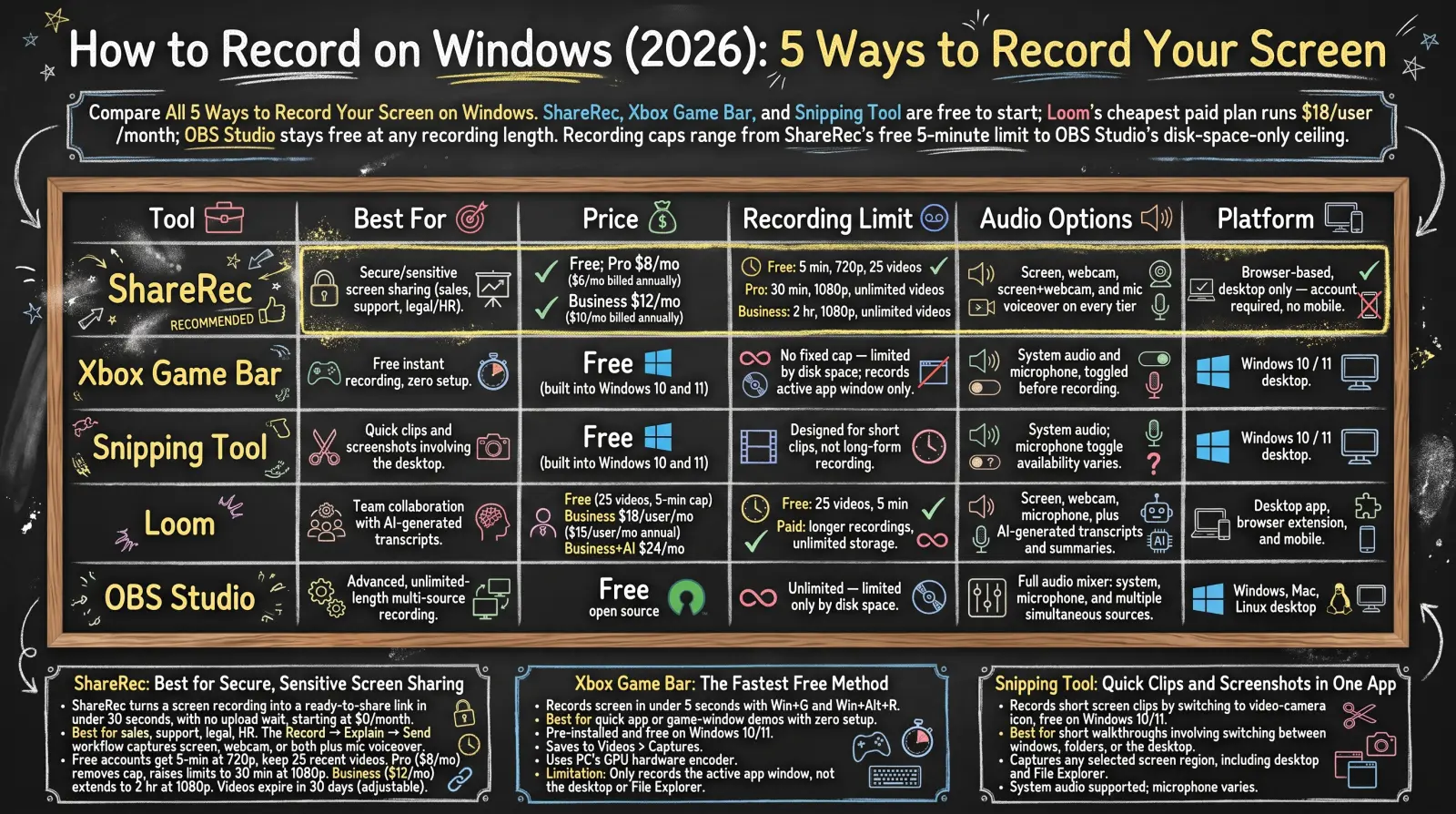
ShareRec, Xbox Game Bar, and Snipping Tool are free to start; Loom's Business plan runs $18/user/month; OBS Studio stays free at any recording length. Recording caps range from ShareRec's free 5-minute limit to OBS Studio's disk-space-only ceiling.
| Tool | Best For | Price | Recording Limit | Audio Options | Platform |
|---|---|---|---|---|---|
| ShareRec | Quick share links that expire on their own (sales, support) | Free; Pro $8/mo ($6/mo billed annually); Business $12/mo ($10/mo billed annually) | Free: 5 min, 720p, 25 most recent videos kept. Pro: 30 min, 1080p, unlimited videos. Business: 2 hr, 1080p, unlimited videos | Screen, webcam, screen+webcam, and mic voiceover on every tier | Browser-based, desktop only — account required, no mobile browser support |
| Xbox Game Bar | Free instant recording, zero setup | Free (built into Windows 10 and 11) | Max length is a Windows setting — 30 min, 1 hr, 2 hr (default) or 4 hr; only records the active app window, not the desktop or File Explorer | System audio and microphone, toggled in the audio widget before recording | Windows 10 / 11 desktop |
| Snipping Tool | Quick clips and screenshots involving the desktop | Free (built in, but screen recording is Windows 11 only) | Designed for short clips, not long-form recording | Microphone voiceover toggle and PC (system) audio capture, added in version 11.2307.44.0 | Windows 11 desktop (Win 10 cannot record) |
| Loom | Team collaboration with a searchable shared library | Free (25 videos, 5-min cap); Business $18/user/mo monthly; Business+AI $24/mo | Free: 25 videos, 5 min each, up to 50 workspace members. Paid tiers: longer recordings | Screen, webcam, microphone; transcripts on every plan, AI summaries on Business+AI | Desktop app, browser extension, and mobile |
| OBS Studio | Advanced, unlimited-length multi-source recording | Free, open source | Unlimited — limited only by disk space | Full audio mixer: system, microphone, and multiple simultaneous sources | Windows, Mac, Linux desktop |
ShareRec: Best for Links That Expire on Their Own
ShareRec turns a screen recording into a ready-to-share link the moment recording stops, with no upload wait, starting at $0/month. Best for: sales demos, support walkthroughs, and one-off recordings meant for one specific person, not a public video host, that you'd rather not leave live online forever.
The Record → Explain → Send workflow captures screen, webcam, or both plus a mic voiceover, then hands back a link the moment recording stops. All three recording modes and trim editing are available on every tier, including Free.
Free accounts get 5-minute recordings at 720p and keep the 25 most recent videos, with no watermark but no MP4 export. Pro, at $8/month ($6/month billed annually), removes the video cap and raises limits to 30 minutes at 1080p, plus MP4 download. That's less than half the price of Loom's Business plan ($18/user/mo). Business, at $12/month ($10/month annually), extends recordings to 2 hours at 1080p.
Every video expires 30 days after recording by default, with a dashboard countdown and a 3-day warning email. The owner can switch any video to Never, 24 hours, 7 days, or 30 days in one click. An account is required on every tier, including Free. There's no AI transcription, annotation tool, or mobile support — recording and sharing both happen from a desktop browser.
Share links are unlisted, not password-protected: anyone with the link can watch until it expires or you delete it. If you need passwords or viewer restrictions, use a tool that offers them.
Xbox Game Bar: The Fastest Free Method to Record Your Screen on Windows
Xbox Game Bar records your screen in under 5 seconds with Win+G to open the overlay and Win+Alt+R to start or stop — no download required. Best for: quick app or game-window demos with zero setup.
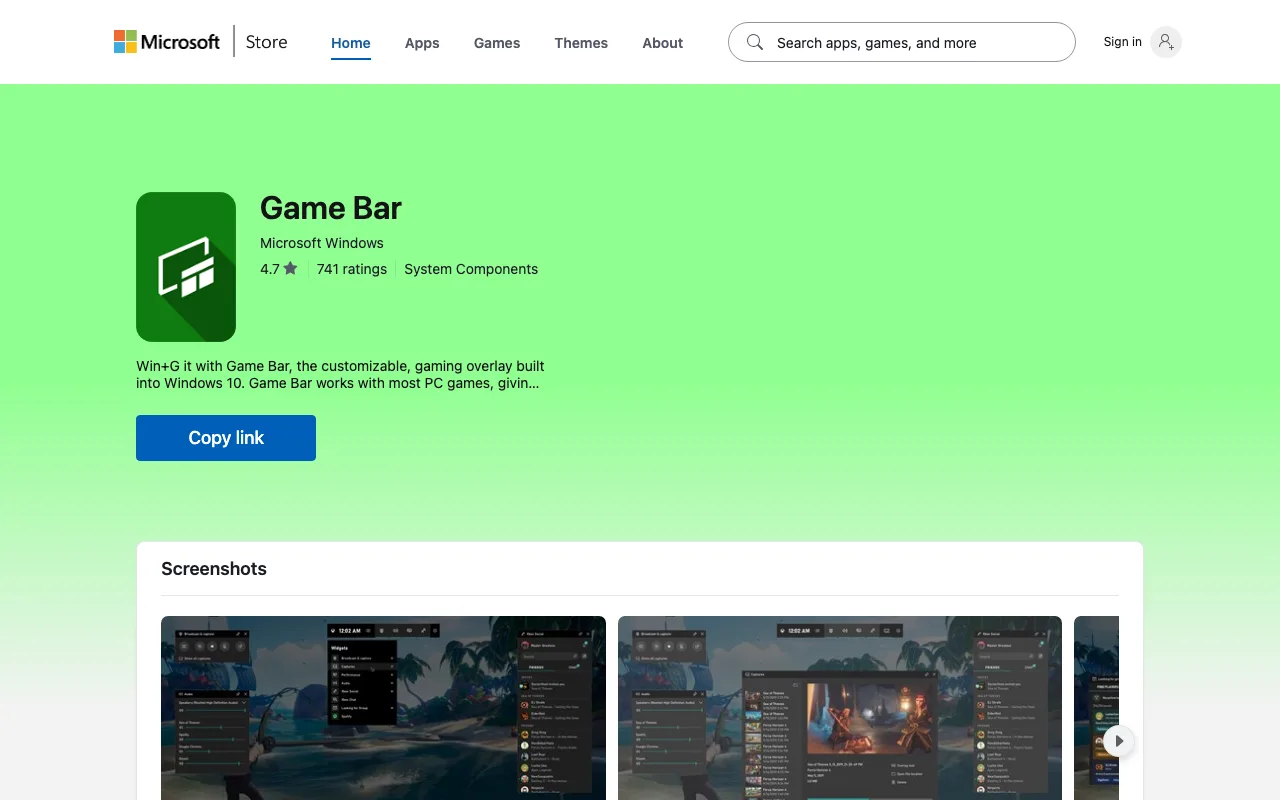
Game Bar comes pre-installed and free on both Windows 10 and 11, and finished recordings save automatically to Videos > Captures. Opening the audio widget before recording lets you toggle system audio and microphone independently, so a walkthrough can include app sound, narration, or both. It also uses the PC's GPU hardware encoder, which keeps recording overhead low compared to software-only capture.
The main limitation: Game Bar only records the active app window. It can't capture the desktop, File Explorer, or the taskbar, so switching between apps mid-recording can cut the capture short or leave gaps. For anything that needs the full desktop, the Snipping Tool or a third-party tool is the better fit.
Snipping Tool: Quick Clips and Screenshots in One App
The Snipping Tool records short screen clips with Win+Shift+R, and it's free and pre-installed — but its screen-record mode is a Windows 11 feature only. Best for: short walkthroughs that involve switching between windows, folders, or the desktop.
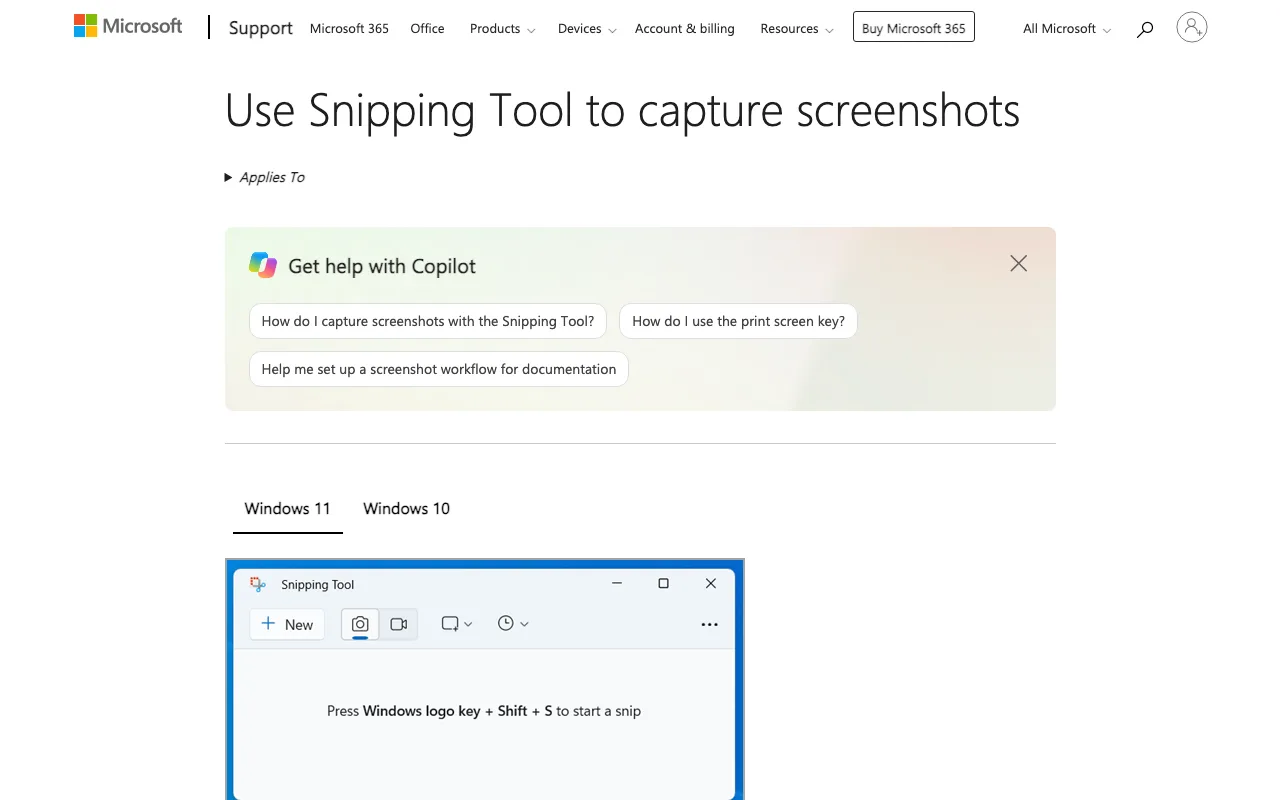
Pressing Win+Shift+R — or opening it from the Start menu and selecting the camera icon — switches from screenshot mode to screen-record mode, then a click-and-drag selects the capture region. On Windows 11, unlike Game Bar, the Snipping Tool captures any selected screen region, including the desktop and File Explorer — the exact gap Game Bar leaves open.
Microsoft's Windows Insider blog documents both: a microphone toggle for voiceover, and — since version 11.2307.44.0 — an option to record PC (system) audio alongside it, so app or game sound is captured too. The tool has no advanced editing, no webcam overlay, and isn't built for anything longer than a short clip. On Windows 10, the Snipping Tool and its Snip & Sketch predecessor take screenshots only, so Windows 10 users who need to capture the desktop need a third-party tool.
Loom: Best for Team Collaboration and a Searchable Video Library
Loom's free plan allows 25 videos capped at 5 minutes each, shared across up to 50 workspace members. Best for: teams that want a searchable video library, not solo quick recordings.
Paid access starts at the Business tier, $18/user/month billed monthly, with up to 17% off for annual billing — there's no separate "Loom Pro" tier anymore. Transcripts are included free on every Loom plan, in 50+ languages. Business+AI, at $24/user/month, adds AI-written summaries and auto-generated chapters on top of the same recording engine (auto titles are already free on every plan).
Every Loom recording captures screen, webcam, and microphone together, and the desktop app, browser extension, and mobile app all record the same way. Screen-recording quality is mature, integrations cover most team chat and project-management tools, and the AI feature set is well established.
For a single one-off recording sent to one recipient, Loom's workspace-and-library model adds overhead that ShareRec's link-first workflow skips entirely. Loom's strength shows up once several teammates are recording, watching, and searching transcripts together.
OBS Studio: Best for Advanced, Unlimited Recording
OBS Studio records at unlimited length for free, capped only by available disk space, with full control over scenes, sources, and audio. Best for: streamers and professionals producing long-form or multi-source content.
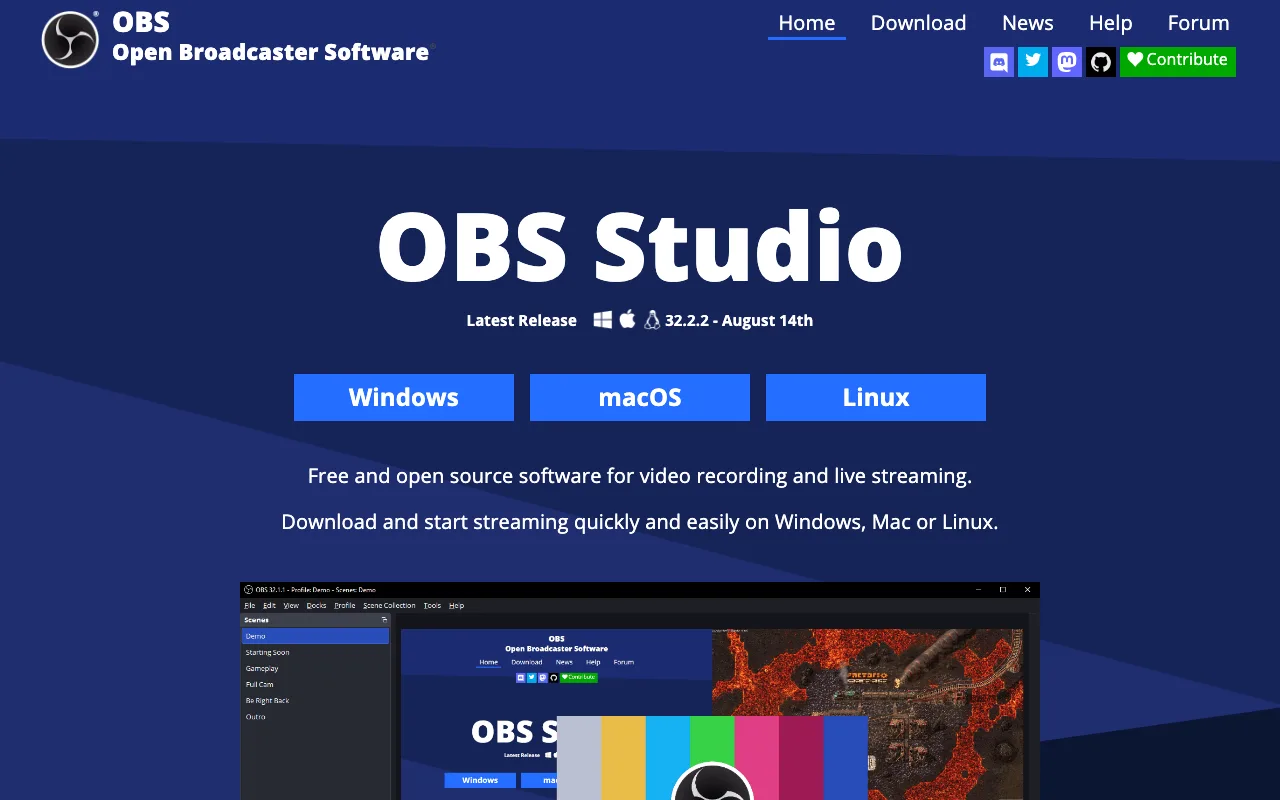
Scenes can combine multiple sources — a webcam, a browser window, a game capture, and static overlays — in one recording, switched live with hotkeys or a click. The built-in audio mixer runs system audio, microphone, and additional inputs as separate tracks, each with its own gain and filters.
OBS is free and open source on Windows, Mac, and Linux, so a scene built once can be reused across machines. Setup takes longer than the built-in tools — sources, scenes, and audio routing all need configuring before the first recording.
There's no built-in link-sharing — finished recordings save as local files that need to be uploaded to a separate host manually before anyone else can watch them.
Key Takeaways
- ShareRec — best for links that expire on their own; free tier caps at 5 min/720p and auto-expires videos after 30 days by default.
- Xbox Game Bar — fastest free option; Win+G then Win+Alt+R starts recording in under 5 seconds on Windows 10/11.
- Snipping Tool — on Windows 11 only, best for quick clips involving the desktop or File Explorer, which Game Bar can't capture.
- Loom — best for teams wanting a searchable shared video library; transcripts are free on every plan and the free tier caps at 25 videos/5 minutes each.
- OBS Studio — best for advanced, unlimited-length recording with full scene and audio control, free and open source.
- Loom's Business plan ($18/user/mo) costs more than double ShareRec's Pro plan at $8/month.
Frequently Asked Questions
What is the fastest way to record my screen on Windows?
Press Win+G to open Xbox Game Bar, built into Windows 10 and 11, then press Win+Alt+R to start recording immediately. The file saves automatically to Videos > Captures — no download, install, or account needed, making it the fastest way to record on Windows.
What's the difference between Xbox Game Bar and the Snipping Tool?
Xbox Game Bar only records the active app window, so it can't capture the desktop or File Explorer. On Windows 11, the Snipping Tool records any selected screen region, including the desktop, which makes it the better choice for walkthroughs that involve switching between windows and folders.
How do I record my screen with system audio, like game or app sounds?
Open the audio widget in Xbox Game Bar before recording and enable System audio to capture app or game sound. ShareRec and Loom can capture system audio on every plan, but the browser asks you to tick a “share audio” box in the screen-picker dialog when recording starts. OBS Studio captures desktop audio as its own mixer track once the source is configured.
How do I add microphone narration to a screen recording?
Enable the microphone toggle in the Xbox Game Bar or Snipping Tool audio controls before recording starts — Microsoft documents voiceover toggles for both, and the Snipping Tool (Windows 11, version 11.2307.44.0+) can also capture PC audio alongside it. ShareRec, Loom, and OBS Studio all record microphone audio alongside the screen on every tier, with no separate narration step to configure.
Can I record my screen on Windows 10 for free?
Yes, but not with the Snipping Tool — its screen-record mode is Windows 11 only. On Windows 10 the free built-in option is Xbox Game Bar, which records the active app window but not the desktop or File Explorer. ShareRec's free plan (5 minutes, 720p) and Loom's free plan (25 videos, 5-minute cap) both work through a desktop browser, and OBS Studio is free with no recording-length limit.
What is the keyboard shortcut to start or stop a screen recording?
Win+G opens Xbox Game Bar, and Win+Alt+R starts or stops recording on both Windows 10 and 11. On Windows 11, Win+Shift+R opens the Snipping Tool's recording overlay directly; its screen-record mode is not available on Windows 10.
When should I use a third-party tool instead of the built-in options?
ShareRec produces a shareable link the instant recording stops, useful for a single one-off walkthrough. Loom stores every recording in a searchable team library, with transcripts on every plan. OBS Studio adds full manual control over scenes, sources, and audio levels for advanced or long-form production.
Try it free
Record your first walkthrough free — no install needed
No install, no watermark — share a link instantly.
Start Recording Free