How to Record Customer Support Videos: Methods, Tools & Legal Guide (2026)
ShareRec is the best tool for recording customer support videos when you want a link that expires on its own instead of living online indefinitely — sales demos, quick fixes, or one-off walkthroughs — record your screen and voice in one click and get a no-upload shareable link the moment you stop recording, from any browser, no install required. SnapCall is best for CRM-linked call recording that auto-links to case records. Vidyard is best for support-to-revenue video workflows with case tracking. Screencastify is best for simple, team-wide screen capture. Jam.dev is best for technical bug-report recordings that auto-capture console and network logs.
ShareRec requires an account on every tier, and its free plan caps each recording at 5 minutes and retains only your 25 most recent videos — higher-volume or longer-session teams should weigh the paid tiers or a different tool for their workflow.
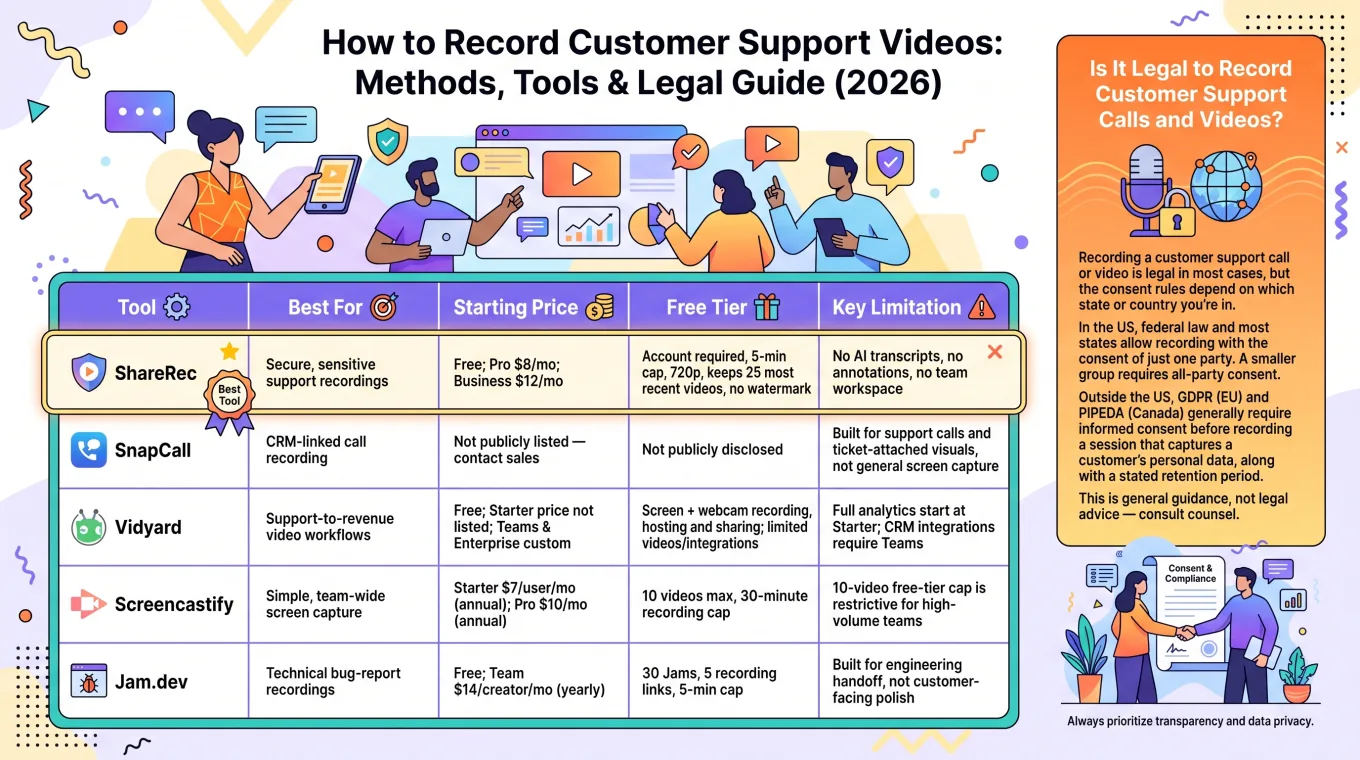
Customer Support Video Recording Tools Compared
Five tools cover the distinct workflows support teams need in 2026: quick expiring links, CRM-linked calls, revenue handoffs, team-wide capture, and technical bug reports.
| Tool | Best For | Starting Price | Free Tier | Key Limitation |
|---|---|---|---|---|
| ShareRec | Support recordings with links that expire on their own | Free; Pro $8/mo; Business $12/mo | Account required, 5-min cap, 720p, keeps 25 most recent videos, no watermark | No AI transcripts, no annotations, no team workspace |
| SnapCall | CRM-linked call recording | Not publicly listed — contact sales | Not publicly disclosed | Built for support calls and ticket-attached visuals, not general screen capture |
| Vidyard | Support-to-revenue video workflows | Free; Starter $89/seat/mo ($59/seat/mo annual); Teams & Enterprise custom | A limited free plan (its own pages disagree on hosting/sharing inclusion) | Full analytics start at Starter; CRM integrations require Teams |
| Screencastify | Simple, team-wide screen capture | Starter $7/user/mo billed annually ($19/mo monthly); Pro $10/mo annually ($25/mo monthly) | 10 videos max, 30-minute recording cap | 10-video free-tier cap is restrictive for high-volume teams |
| Jam.dev | Technical bug-report recordings | Free; Team $14/creator/mo billed yearly | 30 Jams, 5 recording links, 5-min cap | Built for engineering handoff, not customer-facing polish |
Is It Legal to Record Customer Support Calls and Videos?
Recording a customer support call or video is legal in most cases, but the consent rules depend on which state or country you're in. In the US, federal law and most states allow recording with the consent of just one party to the call — typically the person doing the recording. A smaller group of states require all parties to consent, often called all-party or two-party consent, with California and Pennsylvania as commonly cited examples.
State laws change and define "recording" differently for audio versus video, so confirm your state's current requirement before recording a call. Outside the US, GDPR (EU) and PIPEDA (Canada) generally require informed consent before recording a session that captures a customer's personal data, along with a stated retention period.
This is general guidance, not legal advice — consult counsel for your jurisdiction before setting a recording policy.
ShareRec — Best for Support Recordings With Links That Expire on Their Own
ShareRec generates a no-upload shareable link the moment you stop recording and runs entirely in the browser, making it a fit for support teams who want a link that disappears on its own. Best for: support teams recording walkthroughs, sales demos, or quick fixes who don't want the recording living online after the ticket closes.
Because it runs in the browser, ShareRec works on locked-down corporate laptops where support teams often can't install desktop software. Each recording gets a flexible expiry window — 30 days by default, or Never, 24 hours, 7 days, or 30 days in one click — useful when a video shouldn't stay online indefinitely by default.
Share links are unlisted, not password-protected: anyone with the link can watch until it expires or you delete it. If a recording shows customer PII, blur it before sharing — ShareRec has no built-in access controls to restrict who can view the link.
An account is required on every tier, including Free. The Free plan caps each recording at 5 minutes, records at 720p, and keeps only the 25 most recently recorded videos rather than an unlimited library; trim and clip tools are included with no watermark.
Pro ($8/month) removes the video-count limit, raises the cap to 30 minutes, and records at 1080p. Business ($12/month) keeps unlimited videos with a 2-hour cap, also at 1080p.
ShareRec does not include AI transcripts, annotation or drawing tools, or a shared team workspace.
SnapCall — Best for CRM-Linked Call Recording
SnapCall records support calls and video sessions in the browser and automatically links each recording to the matching case or contact record in a connected CRM. Best for: support teams handling calls through Zendesk or Salesforce that want every recording attached to the right ticket without manual filing.
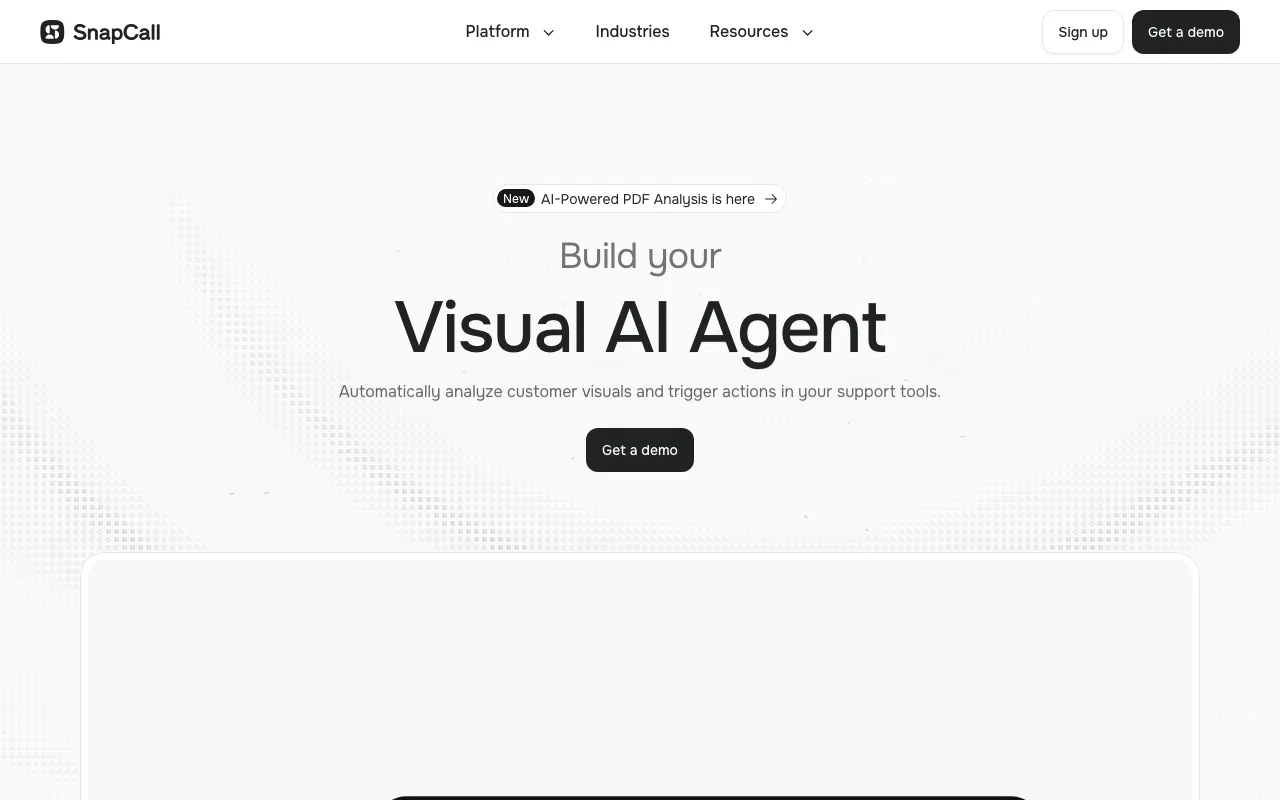
The tool is built around in-ticket video calls and screen sharing, letting an agent start a recorded call or screen-share session directly from a case record rather than a separate recording app. Customers can send screen recordings, photos, and audio back as attachments on the same ticket. That case-linking is the core differentiator versus general screen recorders, which save files independently of any CRM record.
SnapCall lists three tiers — Light, Core, and Scale — but publishes no prices and no free plan; teams should request a quote directly. It's built around live support calls and ticket-attached visuals rather than general-purpose screen capture, so recording arbitrary desktop workflows outside a call requires a second tool.
Vidyard — Best for Support-to-Revenue Video Workflows
Vidyard records screen-and-webcam videos and tracks viewer engagement on each one, which support teams use to hand qualified cases to sales or confirm a customer actually watched a walkthrough. Best for: teams where support videos double as a handoff point to sales or customer success.
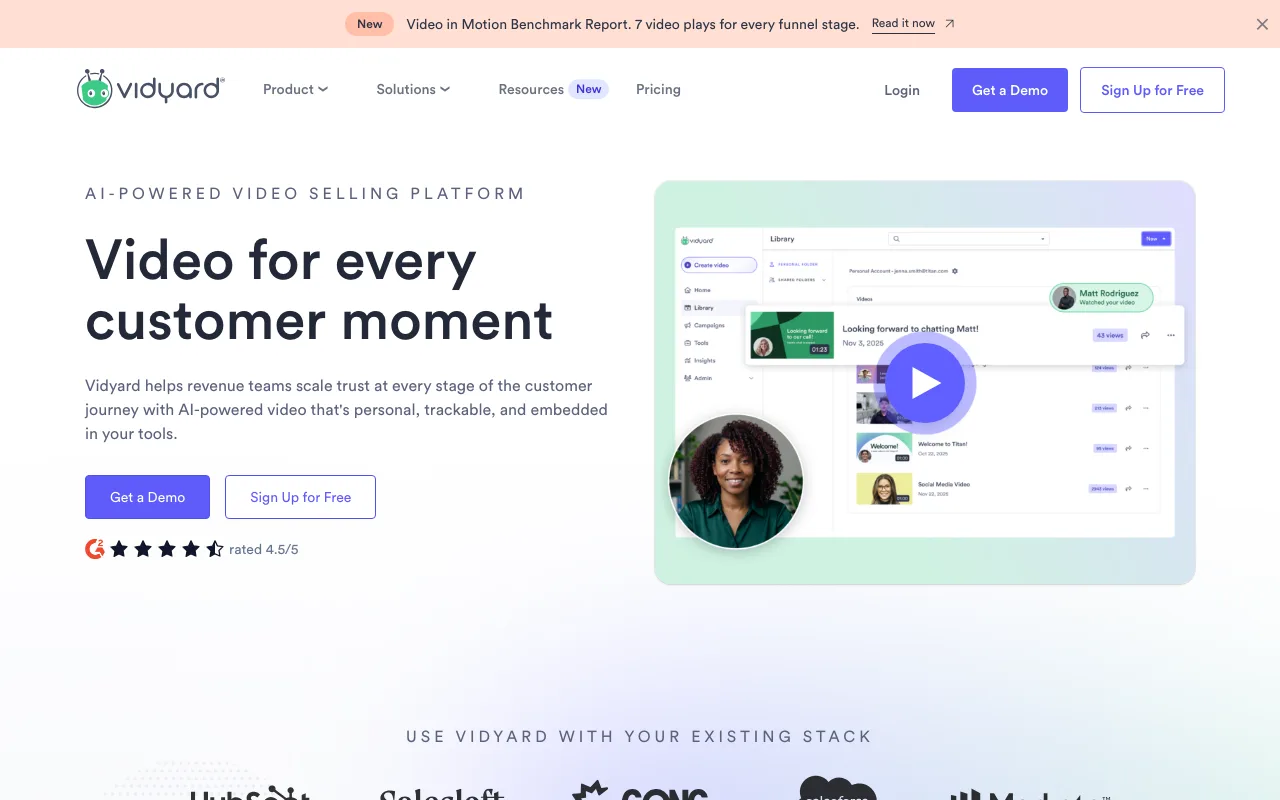
The free plan includes screen and webcam recording, but caps the number of videos per month and the integrations available — its own pages disagree on whether hosting and sharing are included free or require a paid plan. Full viewer-level analytics — whether and how much of a video a recipient watched — start on the paid Starter plan, and CRM integrations with platforms like Salesforce and HubSpot sit on the Teams plan above it, which is what teams pay for when a support video needs to be tracked as part of a revenue pipeline rather than filed away.
Vidyard's Starter plan is published at $89/seat/month ($59/seat/month billed annually, 14-day trial), and Teams and Enterprise are custom-quoted. Password protection, custom branding, and CRM sync all sit on paid plans rather than the free tier (CRM sync specifically requires Teams).
Screencastify — Best for Simple, Team-Wide Screen Capture
Screencastify is built for non-technical ease of use, with a dedicated customer-support landing page and a browser extension for Chrome and Edge that any team member can pick up without training. Best for: support teams that want every rep recording screens with minimal onboarding.
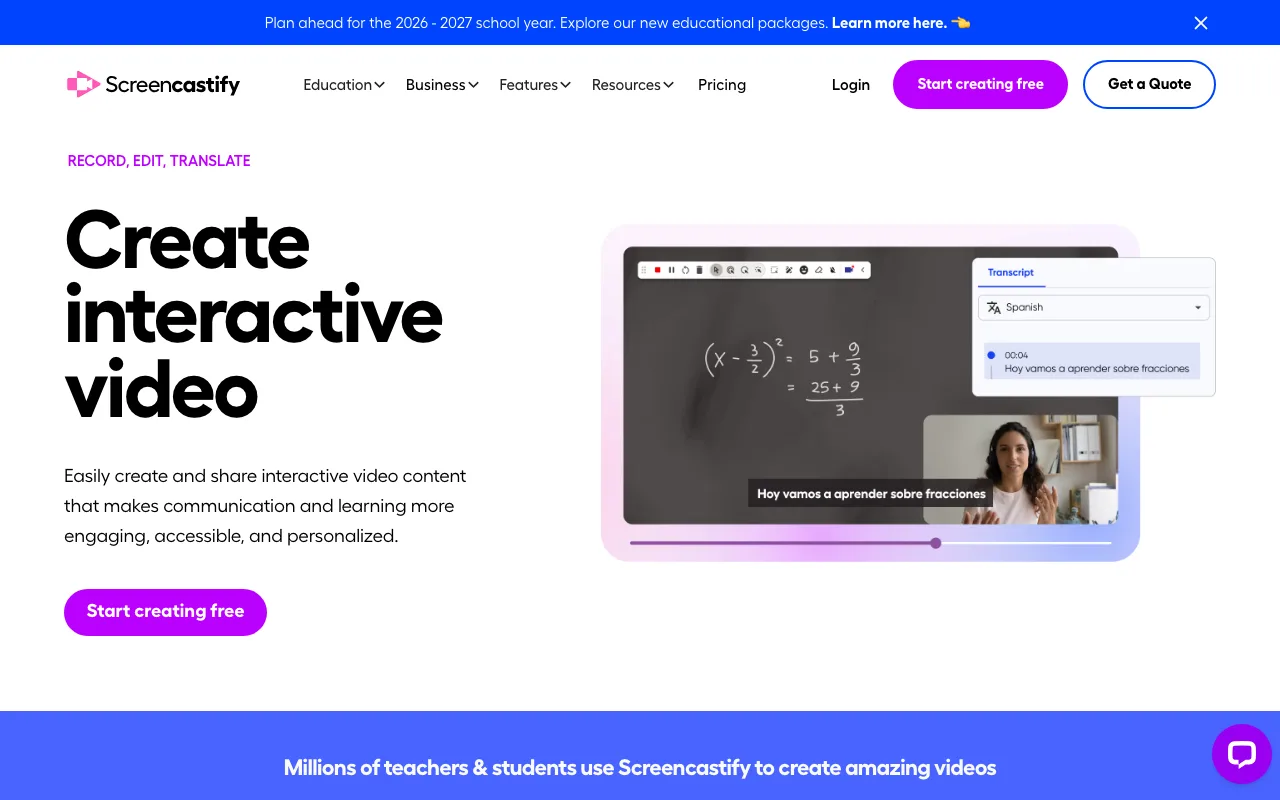
The Free plan allows up to 10 videos with a 30-minute recording cap per video — a longer per-video limit than several competitors' free tiers, though the total video count is capped rather than time-based. Recordings share as links or downloads, and the extension runs directly in Chrome or Edge so reps record without leaving their browser tab.
Paid plans start at Starter, $7/user/month billed annually ($19/month billed monthly), and Pro, $10/month billed annually ($25/month billed monthly), both of which lift the 10-video cap.
The 10-video free-tier limit becomes restrictive quickly for teams recording more than a handful of sessions per week, pushing active teams onto a paid plan sooner than tools with a time-based free cap.
Jam.dev — Best for Technical Bug-Report Recordings
Jam.dev captures a screen recording alongside console logs, network requests, and a step-by-step replay in a single click, which is why engineering-adjacent support teams use it for bug reports instead of a plain screen recorder. Best for: technical support or QA teams handing reproducible bugs to engineers.
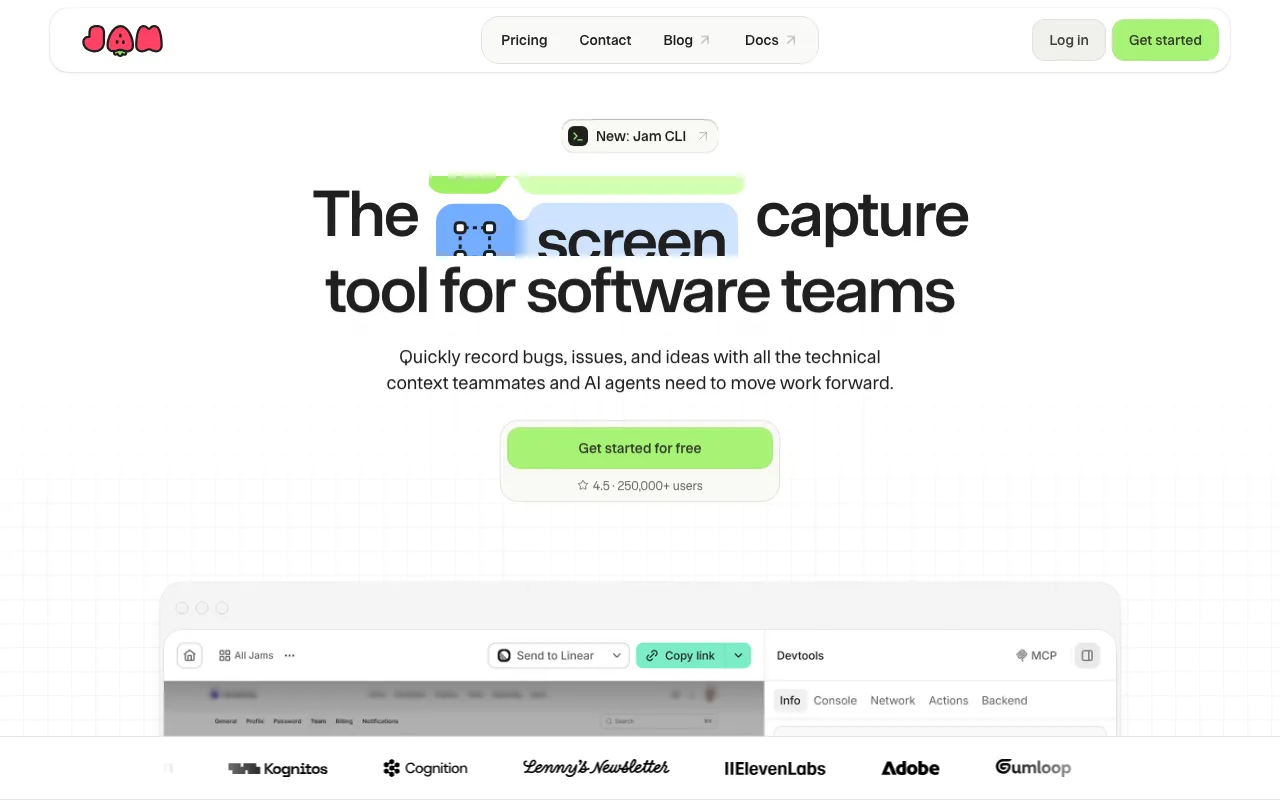
Every capture packages the video with structured technical data — console errors, failed network calls, browser and OS details — so an engineer can diagnose an issue without asking the customer to reproduce it live. Jam.dev integrates with issue trackers including Jira and Linear, plus Slack and webhooks, attaching the capture directly to a new or existing ticket.
Jam.dev's Free plan covers 30 Jams, 5 recording links, and recordings up to 5 minutes; the Team plan is $14 per creator/month billed yearly and adds video annotations and blurring, with Enterprise custom-quoted. It's built for technical bug capture rather than polished, customer-facing video, so it fits poorly for sales demos or compliance walkthroughs.
Security, Privacy, and Recording Quality Standards for Support Videos
Treat any support recording that shows customer data as sensitive by default: restrict access, set an expiry, and confirm resolution and audio meet a minimum before sending it. Apply this checklist before recording:
- Blur or crop any customer PII visible on screen — account numbers, emails, payment fields — before sharing the link.
- Set a link expiry (24 hours to 30 days) rather than leaving a recording accessible indefinitely.
- Record at a minimum of 720p; 1080p is standard for anything shared externally or used in training.
- Use a headset or external microphone — built-in laptop mics introduce background noise that AI transcription tools misread.
- Store recordings in a tool with access controls rather than a public file-sharing folder.
- Delete or archive recordings once they've served their purpose — support resolution, training, or handoff — instead of keeping an indefinite backlog.
Key Takeaways
- ShareRec generates a no-upload shareable link the moment recording stops; free tier caps at 5 minutes, 25 videos.
- SnapCall auto-links call recordings to the matching case record in Zendesk or Salesforce, built around in-ticket video calls and screen sharing.
- Vidyard tracks viewer-level engagement on each recording — full analytics from the paid Starter plan — useful for handing support videos to sales.
- Screencastify caps its free tier at 10 videos with a 30-minute-per-video recording limit.
- Jam.dev auto-captures console logs and network requests alongside the screen recording for engineering handoff.
- Most US states allow recording with one party's consent; a minority require all parties — verify your state first.
- Set a link expiry and restrict access on any recording that shows customer data.
Frequently Asked Questions
Can I legally record customer service calls without consent?
In most US states, recording is legal with one party's consent — typically the person recording. A minority of states require all parties to consent. Confirm your state's current law before recording, and treat this as general guidance, not legal advice.
What is two-party consent for call recording?
Two-party (or all-party) consent means every participant on a call must agree before it's recorded, not just the person initiating it. It contrasts with one-party consent, where only one participant needs to agree. Requirements vary by state and country — verify your jurisdiction's current rule before recording.
What recording tools are best for customer support teams in 2026?
ShareRec fits one-off recordings that need a link that expires on its own; SnapCall fits CRM-linked calls; Vidyard fits support-to-revenue workflows; Screencastify fits simple team-wide capture; and Jam.dev fits technical bug reports. The right pick depends on whether the recording needs case-linking, analytics, or console/network data attached.
How do I securely store and protect customer support recordings?
Use a tool with access controls and link expiry rather than a public file-sharing folder, blur any visible PII before sharing, and delete recordings once they've served their purpose. Set expiry windows — 24 hours to 30 days — instead of leaving links accessible indefinitely.
Can I use support video recordings in employee training?
Yes, recordings can generally be reused for training once any customer-identifying information is removed or the customer has consented to that use. Check your original consent language and applicable consent laws before repurposing a customer-facing recording — this is general guidance, not legal advice.
What quality standards should I use for professional support videos?
Record at a minimum of 720p — 1080p for anything shared externally — use a headset or external mic to cut background noise, and keep each recording focused on one issue or workflow. Poor audio is the most common reason viewers stop watching a support video early.
Try it free
Record your first walkthrough free — no install needed
No install, no watermark — share a link instantly.
Start Recording Free