How to Record a Video Proposal for Clients: 5 Best Tools (2026)
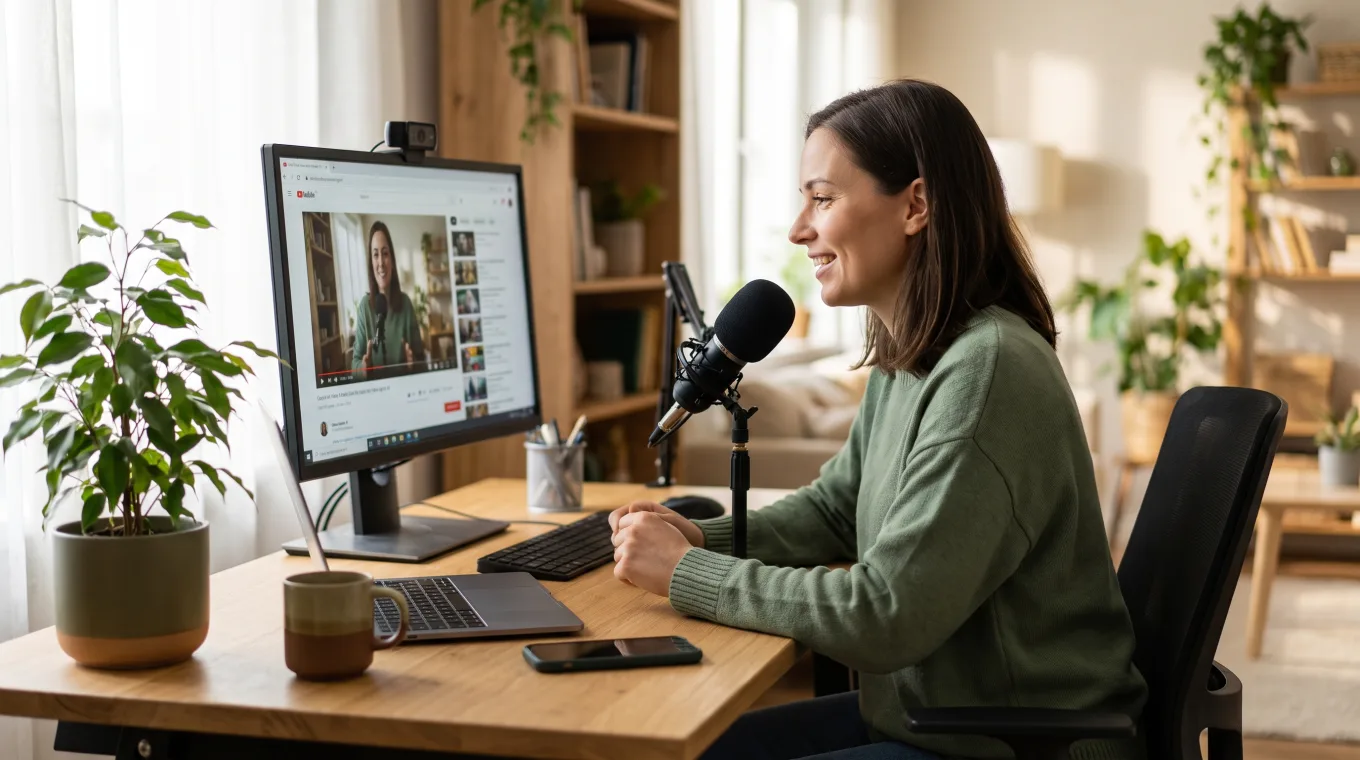
Quick Answer: How to Record a Video Proposal for Clients
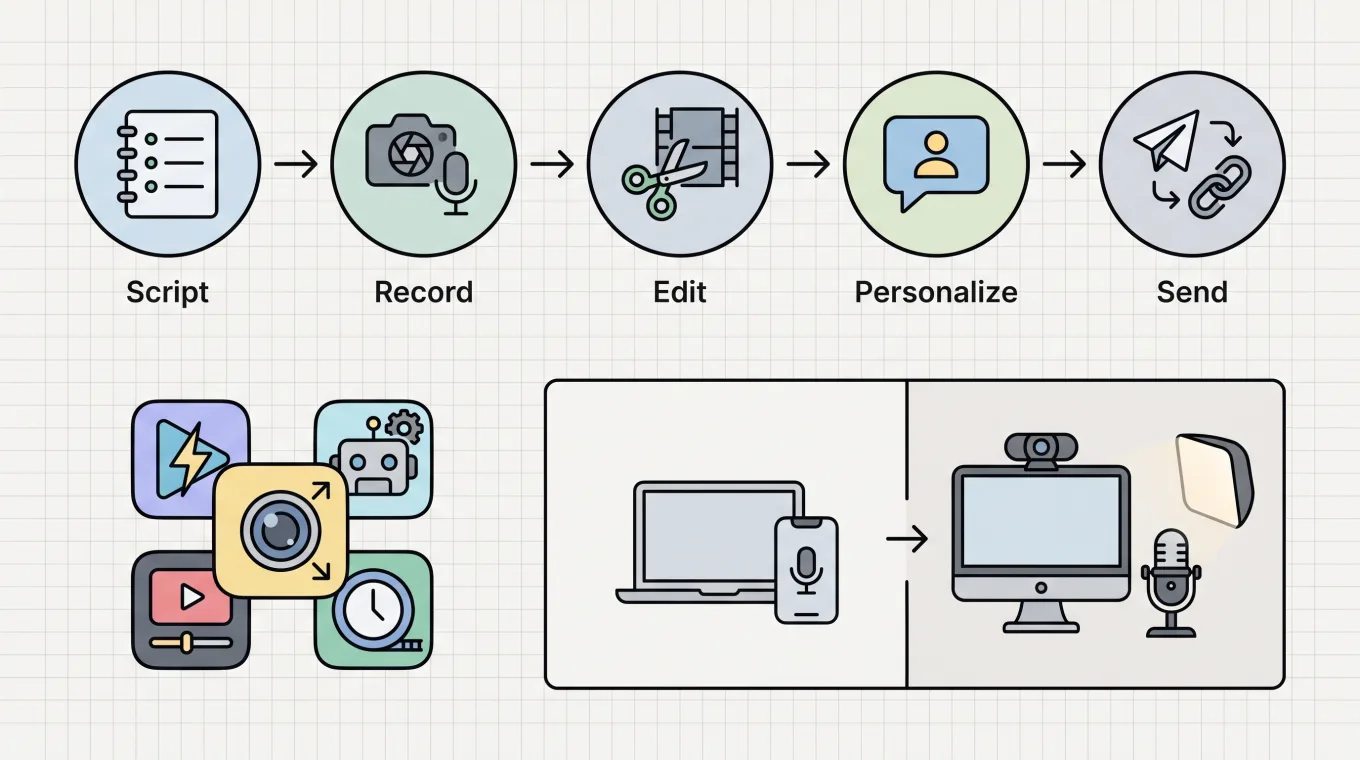
ShareRec is a fast way to record and share a video proposal for clients, turning one take into a link the moment recording stops. There's no upload wait between finishing the recording and sending it. Recording a proposal that lands well follows five steps.
- Script — Write 3-5 talking points covering the client's problem, your solution, and the next step. Skip a word-for-word script so the delivery sounds natural.
- Record — Capture your screen and voice in one take with a browser-based recorder, aiming for 2-3 minutes.
- Edit — Trim the opening pause and any dead air; a quick clip is usually enough.
- Personalize — Say the client's name and reference their specific request in the first 15 seconds.
- Send — Share a link instead of a file attachment so the client can watch instantly on any device.
Loom adds AI transcripts and summaries for teams already using its ecosystem. Screen Studio is a macOS-only recorder with shareable links built in. Veed handles post-production editing and branding after recording. Screencastify allows 30-minute free recordings for longer walkthroughs.
How to Record a Video Proposal for Clients: Equipment, Script, and Delivery
A professional video proposal needs a quiet room, a 3-5 point script, and a link-based delivery method instead of a file attachment. Minimum equipment is a laptop or phone camera with its built-in microphone. A room with curtains or soft furniture cuts down echo. A stronger setup adds a 1080p webcam, a USB condenser microphone, and one soft light placed in front of you rather than behind.
Audio quality affects client trust more than video quality does. Keep the microphone 6-12 inches from your mouth, and turn off HVAC and close windows before recording. Play back a 10-second test clip to catch problems before recording the full take.
Script 3-5 bullet points covering the client's stated problem, your proposed solution, pricing or scope, and the next step you want them to take. Bullet points sound more natural on camera than a word-for-word script.
Delivery has four options, each suited to a different proposal type:
- Shareable link — Fastest option, no download required; some tools expire links after a set period.
- Password-protected link — Adds security for legal, HR, or compliance proposals.
- File transfer (Drive or Dropbox) — Works when the client already uses that ecosystem, but requires a download.
- Unlisted hosting (Vimeo or YouTube) — Suits proposals meant to be revisited; needs manual link management since neither platform auto-expires access.
5 Best Tools to Record a Video Proposal for Clients: Price and Feature Comparison
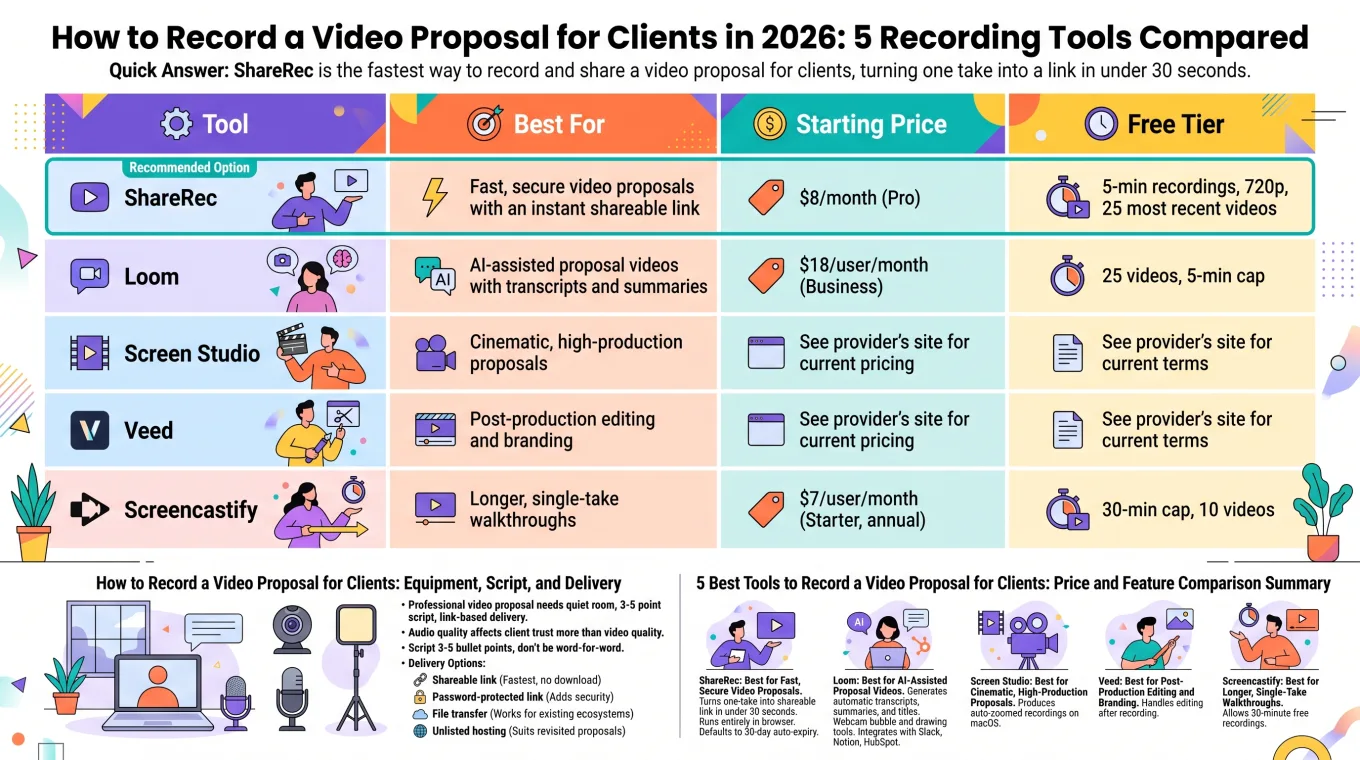
ShareRec starts at $8/month, Screencastify's Starter plan runs $7/user/month billed annually, and Loom's Business plan starts at $18/user/month. The five tools split into distinct recording styles rather than one direct price comparison — instant link sharing, cinematic polish, post-production branding, AI processing, and longer single takes.
| Tool | Best For | Starting Price | Free Tier |
|---|---|---|---|
| ShareRec | Fast video proposals with a link that expires on its own | $8/month (Pro) | 5-min recordings, 720p, 25 most recent videos |
| Loom | AI-assisted proposal videos with transcripts and summaries | $18/user/month (Business) | 25 videos, 5-min cap |
| Screen Studio | macOS-only recording + shareable links | $29/month billed monthly, $9/month billed annually | No free plan |
| Veed | Post-production editing and branding | ~$12/month (Basic), $30/month (Pro) | Free plan available — brand kit is Pro-tier |
| Screencastify | Longer, single-take walkthroughs | $7/user/month (Starter, annual) | 30-min cap, 10 videos |
ShareRec: Best for Fast Video Proposals That Expire on Their Own
ShareRec turns a one-take screen-and-voice recording into a shareable link the moment recording stops. Pro pricing starts at $8/month for unlimited videos and 1080p recordings up to 30 minutes. Best for: sales reps and support teams sending time-sensitive, client-facing videos that shouldn't sit online indefinitely.
The workflow is record, explain, send — no upload progress bar between finishing a take and having a link ready to paste into an email. It runs entirely in the browser, so it works on locked-down corporate laptops that block software installs.
Every video defaults to a 30-day auto-expiry. The owner can switch it to Never, 24 hours, or 7 days in one click, with a dashboard countdown and a warning email three days before deletion. This matters for proposals containing pricing or client-specific terms that shouldn't sit online indefinitely — though the link itself is unlisted, not password-protected: anyone who has it can watch until it expires or the owner deletes it.
The free plan requires an account, like every tier, caps each recording at 5 minutes and 720p, and keeps only the 25 most recent videos. Screen, webcam, and screen-plus-webcam recording are all available on the free tier, including a webcam bubble you can reposition and resize, and trim editing works on every plan. At $8/month, Pro costs less than half Loom's Business plan at $18/user/month; a $12/month Business plan lifts the recording cap to two hours.
Loom: Best for AI-Assisted Proposal Videos
Loom gives every recording a searchable transcript on every plan, and reserves AI summaries for its top tier (auto-titles are on every plan, including Free). Business plans start at $18/user/month. Best for: teams already standardized on a mature recording ecosystem who want AI processing built in.
Every recording gets a searchable transcript on every plan, including the free one. The AI-written summary — useful when a proposal gets forwarded to someone who wasn't on the original call — requires the Business+AI tier. The webcam bubble overlays your face on the screen recording, and built-in drawing tools let you circle or annotate parts of the screen while talking.
Viewer insights are included on every tier; more detailed engagement insights showing whether a client watched the proposal and where they dropped off are part of the Business plan and up.
The free plan supports 25 videos, a 5-minute recording cap, and up to 50 workspace members, and Loom no longer offers a lower-cost "Pro" tier — the cheapest paid plan is Business at $18/user/month. Transcripts and auto-titles are included on every tier, including the free plan; AI summaries and filler-word removal require the Business+AI tier at $24/user/month.
Screen Studio: Best for Cinematic, High-Production Proposals
Screen Studio runs on macOS only — no Windows build exists — with shareable links included on both its plans. Best for: teams standardized on Mac who want recording and link sharing in one native app.
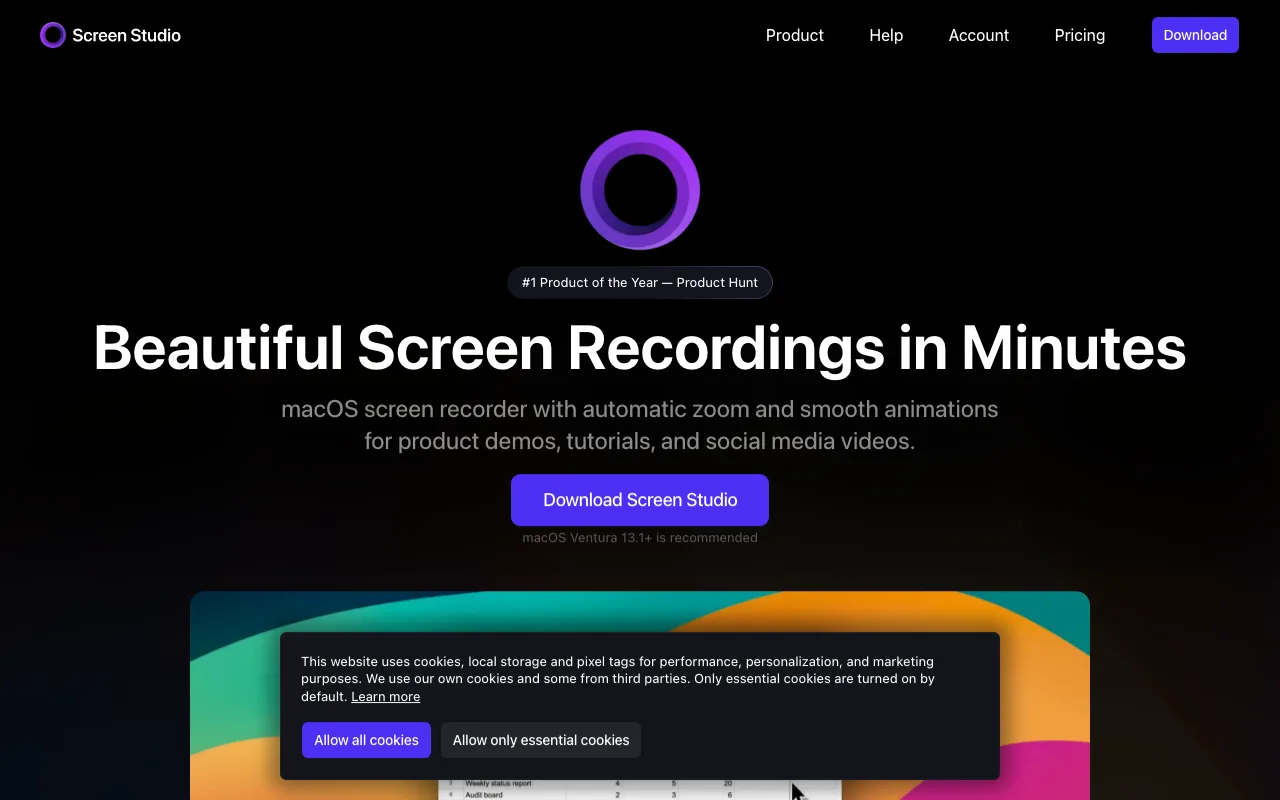
Links can be set private so only people you send them to can open them, and both plans include a cloud transcript of the recording (local transcription via Whisper or Apple's speech tools is also available).
The macOS-only limitation rules Screen Studio out for mixed-OS sales teams. Screen Studio is a $29/month subscription billed monthly, dropping to $9/month billed annually; both plans include shareable links (up to 1080p at 60fps, videos up to 30 minutes), and there is no permanently free tier.
Veed: Best for Post-Production Editing and Branding
Veed is a browser-based video editor with screen and webcam recording built in, and its auto-captions and brand kit templates apply after the raw footage is captured. A brand kit locks in one logo, font, and color scheme across every proposal a team sends — but it sits on the Pro tier, not the free plan. Best for: teams that want a fully branded proposal video with logos, fonts, and colors matching their company style.
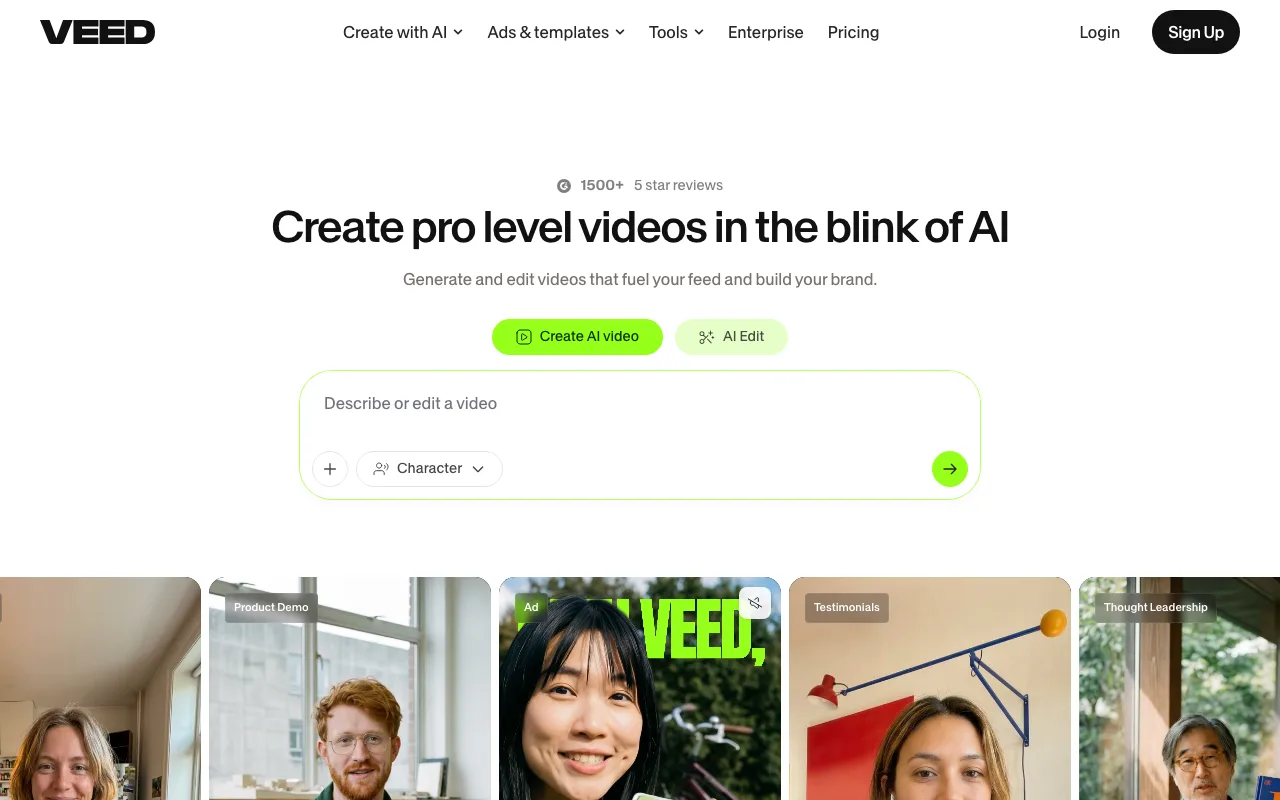
Auto-captions transcribe the recording automatically. Export presets are built for multiple platforms, so the same recording can be resized for email, LinkedIn, or a landing page.
Veed is built primarily as an editor rather than a fast one-take recorder, which adds editing steps before a video is ready to send. Paid plans run about $12/month for Basic and $30/month for Pro, and the free plan leaves the brand kit and 4K export behind the Pro tier.
Screencastify: Best for Longer, Single-Take Walkthroughs
Screencastify's free tier allows 30-minute recordings — longer than most competitors' free caps. Paid Starter plans begin at $7/user/month billed annually. Best for: budget-conscious teams recording detailed scope-of-work walkthroughs that run past the 5-minute limit most free recorders impose.
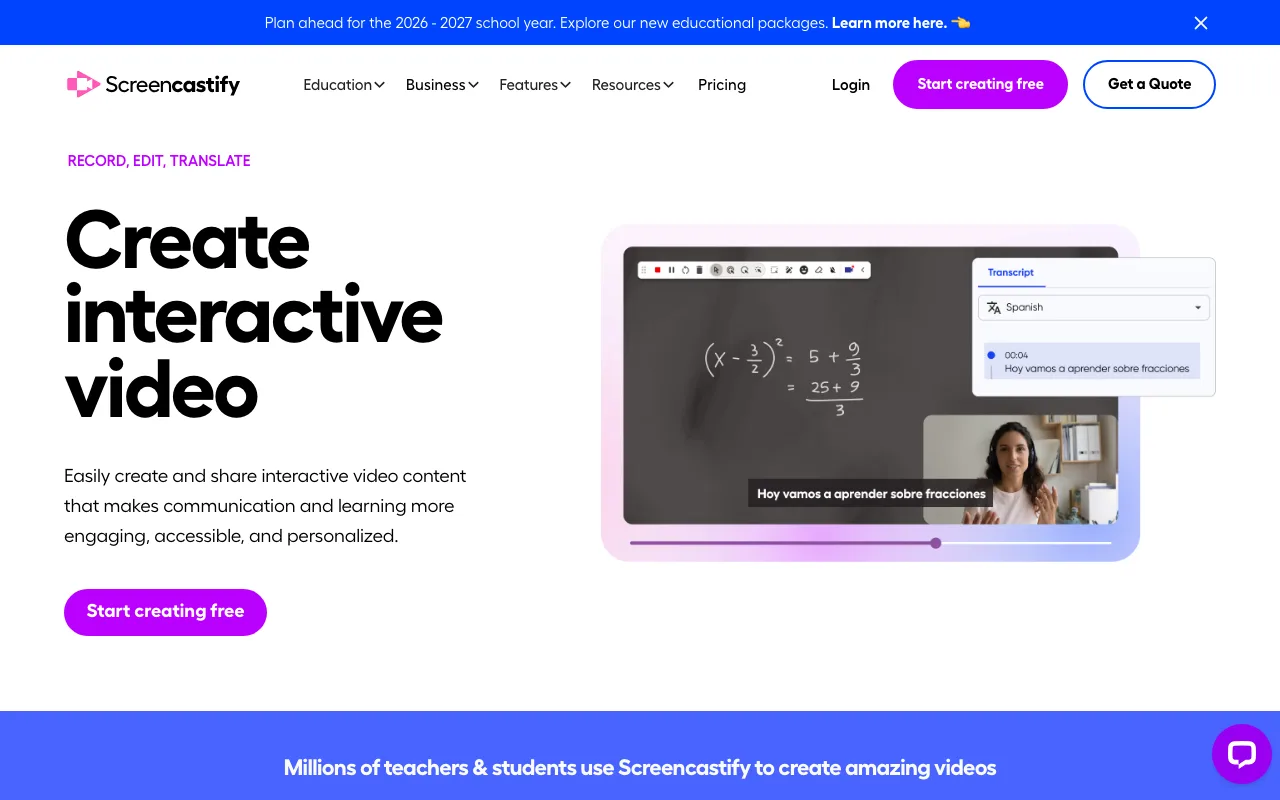
Screencastify runs as a Chrome or Microsoft Edge extension alongside its browser-based editor, so a proposal walkthrough doesn't have to be split into multiple short clips to fit under a time cap. Basic trim and editing tools handle cleanup after recording, and Pro pricing runs $10/user/month billed annually ($25/user/month billed monthly) for additional features.
The free tier keeps only 10 saved videos. Screencastify also has less brand recognition and a smaller integration ecosystem than Loom, which matters for teams that rely on Slack or CRM auto-posting.
Key Takeaways
- ShareRec turns a screen-and-voice recording into a link the moment recording stops; links default to 30-day expiry, changeable anytime.
- Loom includes transcripts on every tier; AI summaries require Business+AI at $24/user/month. Business plans start at $18/user/month.
- Screen Studio offers shareable links on both plans but runs on macOS only.
- Veed adds captions and brand kits after recording, not fast one-take sharing; the brand kit requires the Pro tier.
- Screencastify offers the longest free cap at 30 minutes; Starter runs $7/user/month annually.
- Most free tiers cap recordings at 5 minutes — Screencastify's 30-minute cap is the exception.
- Shareable links beat file attachments for time-sensitive proposals with expiring access.
Frequently Asked Questions
How do I record my own proposal video?
Record with a screen recorder and voiceover (ShareRec, Loom), an on-camera phone or DSLR setup, or advanced software like OBS. A one-click screen-and-voice recorder is fastest for beginners since it captures screen and narration in a single take without extra editing software.
What's the best free tool to record a proposal video?
Free tiers vary: ShareRec allows 5-minute, 720p recordings and keeps the 25 most recent videos; Loom caps recordings at 5 minutes with a 25-video limit; Screencastify allows 30-minute recordings but keeps only 10 videos. The right choice depends on recording length versus saved-video count.
How long should a proposal video be?
Most client proposals work best at 2-3 minutes — long enough to explain the offer, short enough to hold attention. Longer walkthroughs covering a detailed scope of work or technical demo can run up to whatever recording cap the chosen tool's free tier allows.
What equipment do I need to record a professional proposal video?
At minimum, a phone or laptop camera and built-in microphone in a quiet room are enough. For a more polished result, add a 1080p webcam, a noise-canceling USB microphone, and one soft light placed in front of you rather than behind.
Can I record a proposal video on my phone?
Yes — a phone camera works well for on-camera proposal videos recorded through the camera app. Screen-recording tools that capture a laptop or browser screen, like ShareRec or Loom, require a desktop or laptop browser rather than a phone.
How do I deliver a proposal video to a client?
Four common methods: a shareable link from a recording tool, a password-protected link for sensitive content, a file transfer through Drive or Dropbox, or unlisted hosting on Vimeo or YouTube. Check any auto-expiry policy — ShareRec's links default to 30 days — before sending a video proposal for clients with a tight deadline.
Try it free
Record your first walkthrough free — no install needed
No install, no watermark — share a link instantly.
Start Recording Free