How to Record a Video on Zoom: Every Method, Plus 4 Alternatives (2026)

ShareRec is the best tool for recording a video without needing an actual Zoom meeting—it requires a free account but skips the install and upload wait, delivering a shareable link the moment recording stops. To record an actual Zoom meeting: click Record in the meeting toolbar, choose Record to the Cloud or Record on this Computer, confirm any recording-consent prompt, then start talking—Zoom saves the file once the meeting ends.
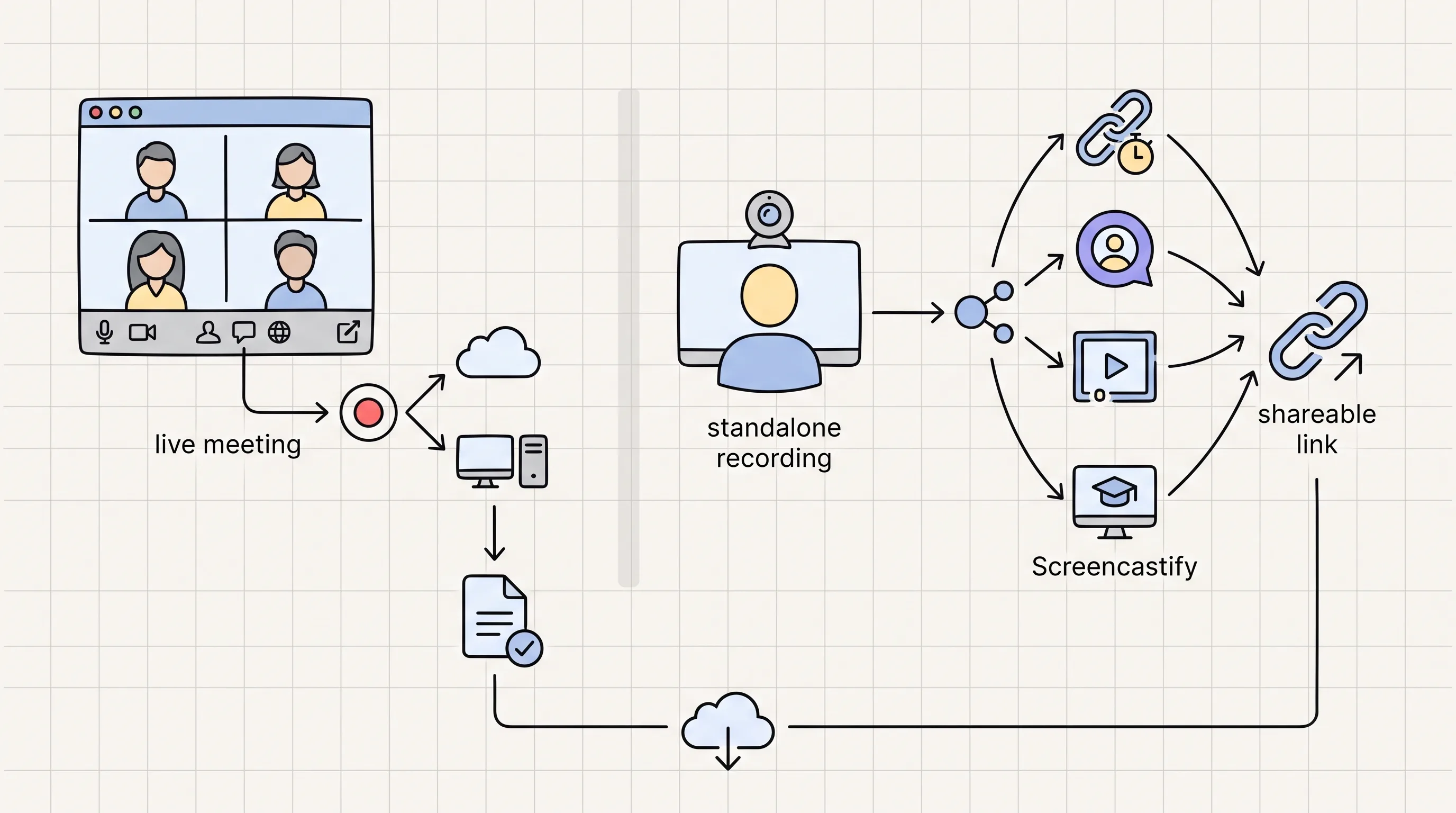
Five tools cover every recording scenario in 2026: ShareRec (a link that expires on its own, no meeting needed), Zoom (recording inside a live meeting), Loom (AI-powered async messaging), Tella (polished solo screen-and-webcam recordings), and Screencastify (classroom and education recording). The core decision is whether you're recording inside a meeting that's already happening or creating a standalone video to send instead of scheduling one. Zoom handles the first case natively; the other four tools handle the second.
How to Record a Zoom Meeting in 4 Steps
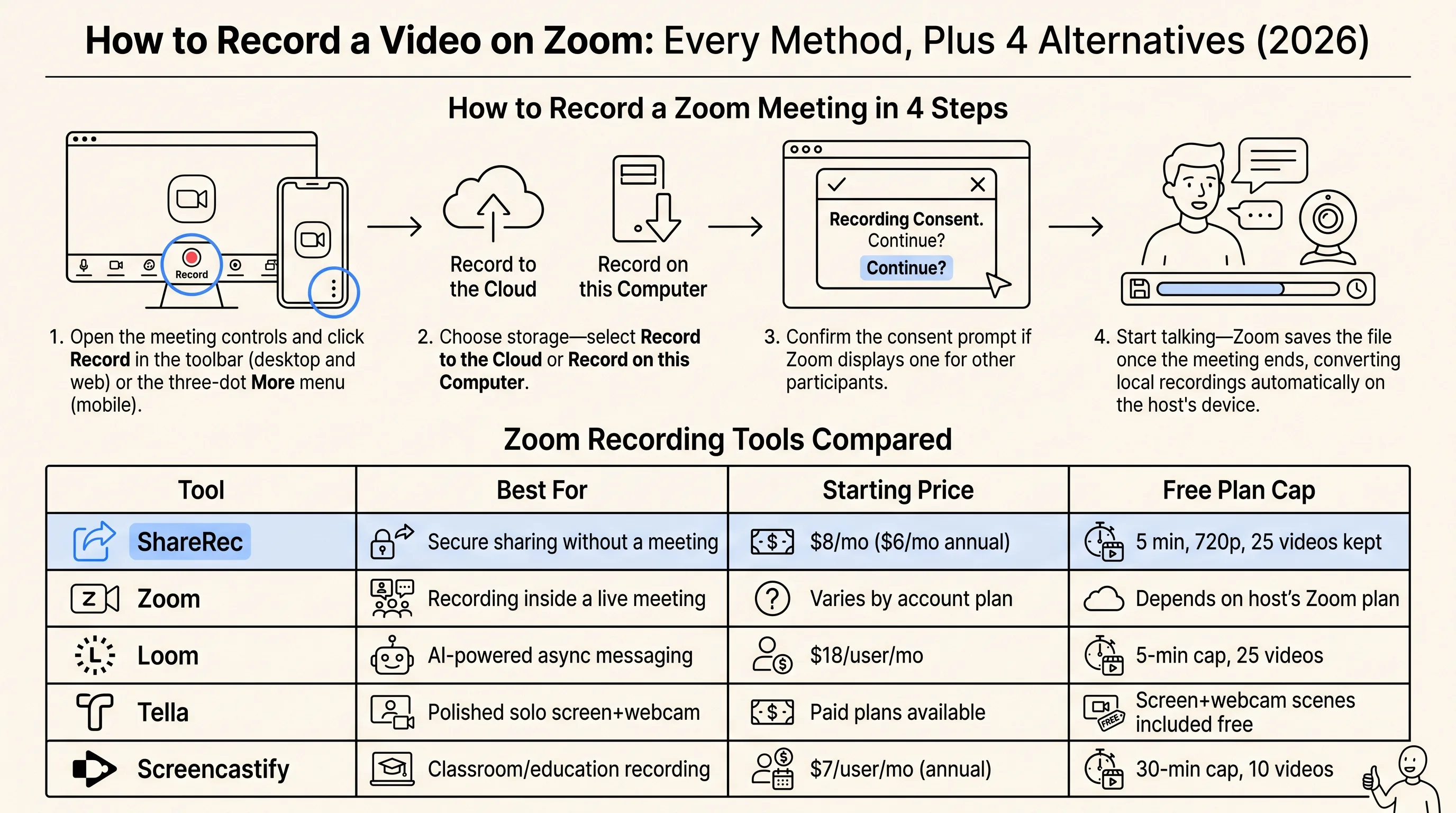
- Open the meeting controls and click Record in the toolbar (desktop and web) or the three-dot More menu (mobile).
- Choose storage—select Record to the Cloud or Record on this Computer.
- Confirm the consent prompt if Zoom displays one for other participants.
- Start talking—Zoom saves the file once the meeting ends, converting local recordings automatically on the host's device.
Zoom Recording Tools Compared
ShareRec, Zoom, Loom, Tella, and Screencastify sit at different price points and solve different recording jobs. Starting price and each tool's free-plan cap are the two numbers worth comparing.
| Tool | Best For | Starting Price | Free Plan Cap |
|---|---|---|---|
| ShareRec | A link that expires on its own, no meeting needed | $8/mo ($6/mo annual) | 5 min, 720p, 25 videos kept |
| Zoom | Recording inside a live meeting | Varies by account plan | Depends on host's Zoom plan |
| Loom | AI-powered async messaging | $18/user/mo | 5-min cap, 25 videos per person |
| Tella | Polished solo screen+webcam | $26/mo Pro ($13/mo annual) | No free plan — 7-day Pro trial |
| Screencastify | Classroom/education recording | $7/user/mo (annual) | 30-min cap, 10 videos |
ShareRec: Best for No-Upload Sharing Without a Meeting
ShareRec is a good option for recording a screen or webcam video and sending it without opening a Zoom meeting at all, using a Record, Explain, Send workflow that produces a shareable link the moment recording stops. Recordings can capture screen only, webcam only, or both, and viewers open the link directly with no upload step.
The Free plan costs $0, requires an account, caps recordings at 5 minutes in 720p, and keeps the 25 most recent videos with trim-and-clip editing and no watermark. Pro runs $8/mo ($6/mo billed annually) and raises the cap to 30 minutes at 1080p with unlimited videos; Business is $12/mo ($10/mo annually) with a 2-hour cap, also 1080p and unlimited. All three recording modes and the trim-and-clip editor ship on every tier—paid plans change duration, resolution, and retention, not which features unlock.
Every recording expires automatically 30 days after it's made; the owner can reset any video to Never, 24 hours, 7 days, or 30 days in one click, with a dashboard countdown and a warning email 3 days before deletion. Running entirely in the browser, ShareRec works on locked-down corporate laptops where IT blocks new software. Pro's $8/mo price is less than half of Loom's Business plan at $18/user/month. ShareRec skips AI transcripts, annotation tools, and a team workspace on every tier—editing is trim-and-clip only. Share links are unlisted, not password-protected: anyone with the link can watch until it expires or the owner deletes it.
Zoom: Best for Recording Directly Inside a Live Meeting
Zoom's native recording works best when you're already hosting or attending a live meeting, saving the recording as a byproduct of the call rather than a separate task. On iOS and Android, tap Record in the meeting controls, then tap Start Recording; mobile recordings save to Zoom's cloud rather than to the phone itself, per Zoom's official support documentation.
Participants can't record by default. A participant can only record if the host toggles on "Allow participants to record" in the meeting's security or recording settings, or grants recording permission to that person individually during the call. This host-controlled permission model works the same way on desktop, web, and mobile.
For a standalone video without scheduling a meeting, Zoom Clips records screen, webcam, or both directly from the Zoom app—no meeting link, no attendees, no waiting room. It's Zoom's closest built-in equivalent to a solo recording tool. Zoom fits teams that are already meeting live and want the recording as a natural output of that conversation. Cloud storage limits and who can record depend on the account's specific Zoom plan.
Loom: Best for AI-Powered Async Video Messaging
Loom is the strongest choice for teams that want async video messaging built into a full AI-assisted workflow, backed by mature screen-recording quality and a large team ecosystem. The free plan allows up to 25 videos with a 5-minute recording cap, and the free plan also supports a shared team workspace rather than a single-user setup—check Loom's current pricing page for the exact member limit before relying on a specific number.
The cheapest paid tier, Business, costs $18/user/mo. Business+AI adds AI-generated summaries and auto-generated chapters for $24/mo—Loom no longer offers a separate "Pro" tier between Free and Business. Transcripts and auto-titles are included on every plan, including Free. Loom's desktop apps (Windows and Mac) and Chrome extension sync every recording automatically.
Loom's core strengths are recording quality and reach across large collaborative teams. Teams already using Loom for onboarding or sales follow-ups get transcript search and auto-chapters without switching tools. It suits organizations that want video messaging woven into a broader collaboration stack rather than a single-purpose recorder. Summaries, chapters, and the higher usage limits are gated behind the Business+AI tier specifically.
Tella: Best for Polished Solo Screen + Webcam Recordings
Tella is a native Mac and Windows recorder (plus a Chrome extension and browser recording) that captures screen and webcam together, with recordings up to 4K and 6 hours per clip on every tier, including the trial. Recording starts directly in the app or browser, with no session to schedule and no viewers to invite beforehand.
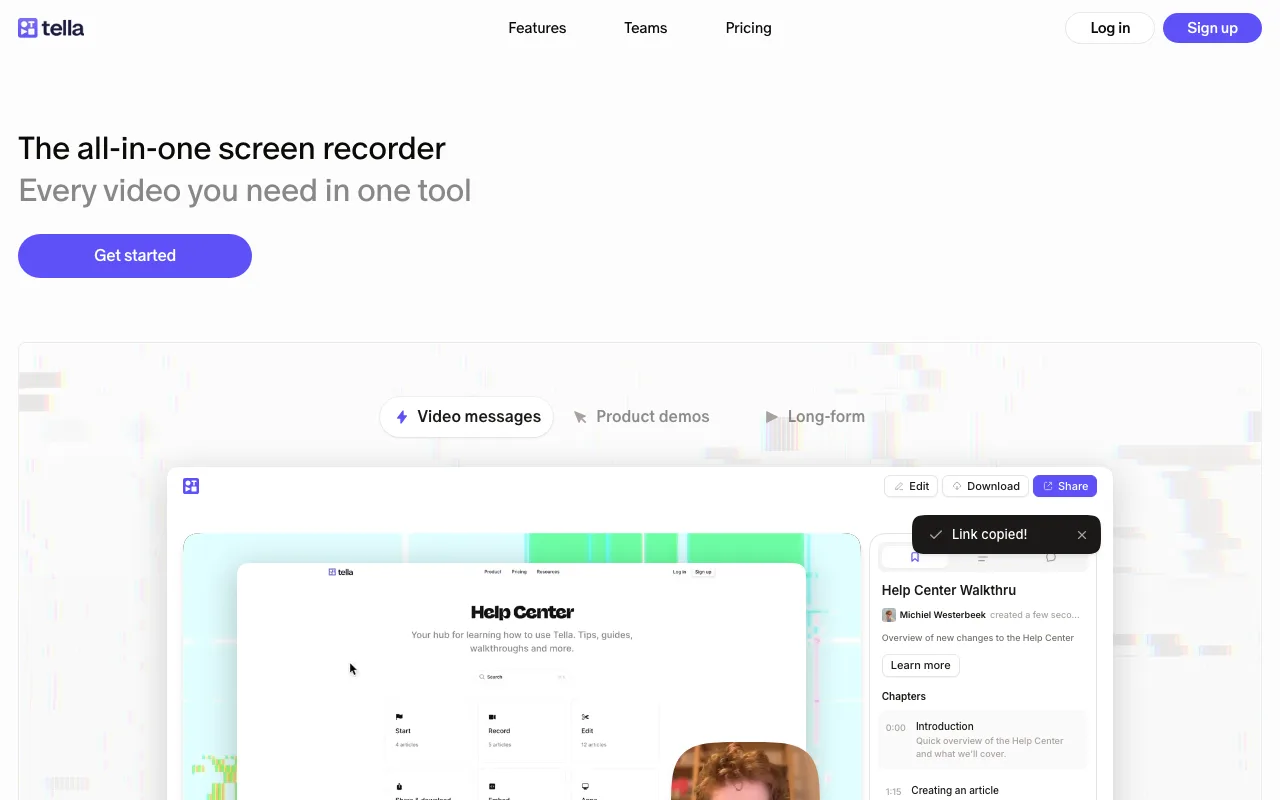
Pro adds AI-generated titles, descriptions, and video chapters, plus transcription in 106 languages. Finished recordings export to MP4 or a shareable link.
Tella has no free tier: every account starts with a 7-day free trial of the full Pro plan (no credit card required), after which Pro runs $26/month, or $13/month billed annually. Premium, at $39/month ($19/month billed annually), removes Tella branding, adds a custom domain, and shares in 4K at 60fps.
Screencastify: Best for Classroom and Education Recording
Screencastify is the recording tool built specifically for teachers capturing lessons from inside the browser, running as a Chrome or Edge extension rather than a downloaded app. The free plan allows up to 10 videos with a 30-minute recording cap per video.
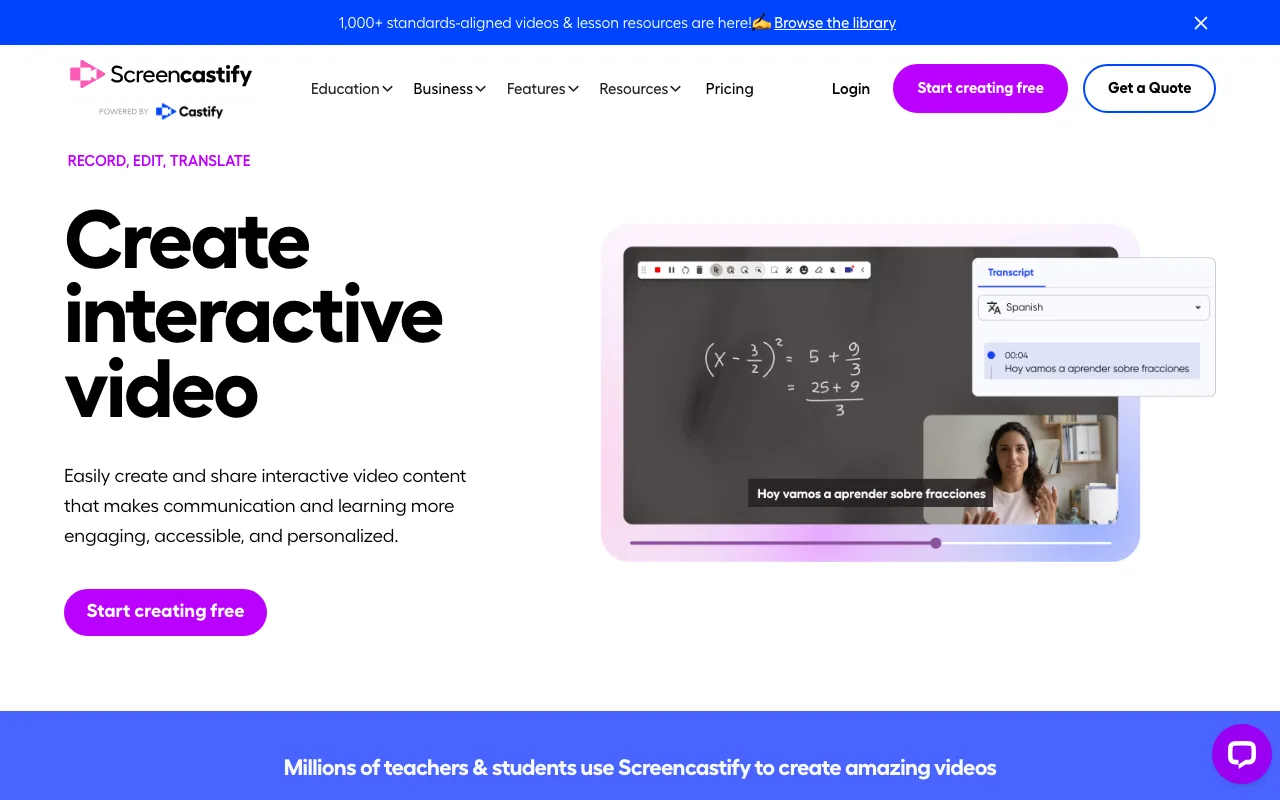
Paid plans start with Starter at $7/user/mo billed annually ($19/user/mo billed monthly), and Pro at $10/user/mo billed annually ($25/user/mo billed monthly).
It fits educators who want to record a lesson or screen tutorial directly from their browser without installing separate software. Screencastify's workflow and integrations are built around classroom use, so it's less suited to sales or support recording than the other tools here.
Key Takeaways
- ShareRec wins meeting-free recording: Free caps at 5 minutes, 25 videos kept; Pro is $8/mo, account required on every tier.
- Zoom records natively inside live meetings; participants need host permission to record.
- Zoom Clips records a standalone video without scheduling a meeting.
- Loom offers 25 free videos per person at a 5-minute cap; Business starts at $18/user/mo.
- Tella has no free tier, only a 7-day trial; Pro starts at $26/mo, or $13/mo billed annually.
- Screencastify allows 10 free videos at a 30-minute cap; Starter is $7/user/mo annually.
- ShareRec's Pro tier costs less than half of Loom's Business plan at $18/user/mo.
Frequently Asked Questions
Where is the record button in Zoom?
The Record button sits in the meeting toolbar at the bottom of the Zoom window on desktop and web, next to Participants and Chat. On iOS and Android, tap the three-dot More menu in the meeting controls, then tap Record. Recording only starts once you also confirm Start Recording or the cloud/local storage choice.
Can participants record a Zoom meeting?
Participants can record only if the host turns on "Allow participants to record" in the meeting's security or recording settings, or grants that permission to a specific person during the call. Without one of those two actions, the Record option stays hidden or disabled for anyone who isn't the host or co-host.
Does Zoom save recordings automatically?
Zoom only saves a recording if someone actively clicked Record during the meeting—recording is never automatic by default. Cloud recordings finish processing and appear in the account's cloud storage after the meeting ends; local recordings save to the host's device once Zoom finishes converting the file.
Why can't I record a video on Zoom?
Recording usually fails for one of three reasons: the host has recording disabled in account or meeting settings, the account's Zoom plan doesn't include cloud recording, or a participant lacks host-granted permission. Checking the host's recording settings and the account's plan tier resolves most cases without contacting support.
Can I record a video without opening a Zoom meeting?
Yes—Zoom Clips records a standalone screen, webcam, or combined video without starting a meeting, and tools like ShareRec, Loom, Tella, and Screencastify all record independently of Zoom entirely. ShareRec's Record, Explain, Send workflow handles this case specifically, producing a shareable link the moment recording stops, with no upload wait, though it requires a free account.
How long can a Zoom recording be on the free plan?
Zoom's own cloud storage limits and recording length depend on the specific account plan, so check current plan details on Zoom's site before relying on a fixed number. For a standalone recording with a known free-tier cap instead, ShareRec's Free plan supports up to 5 minutes per recording.
Try it free
Record your first walkthrough free — no install needed
No install, no watermark — share a link instantly.
Start Recording Free