How to Record a Teams Meeting: Steps, Rules & 5 Tools (2026)
Quick Answer: Best Ways to Record a Teams Meeting
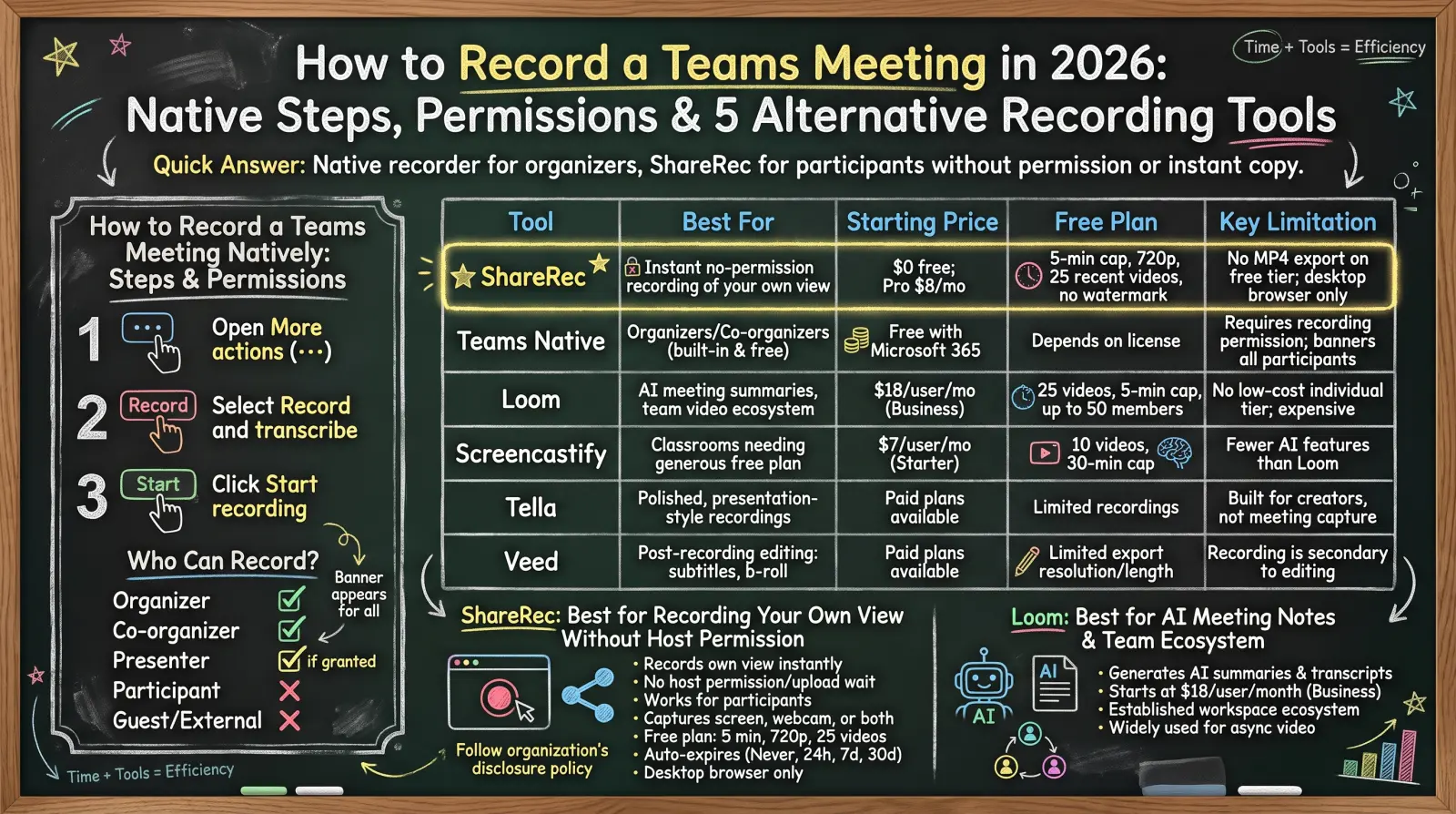
ShareRec is the top pick for recording a Teams meeting when your account can't use Teams' own recorder: open the meeting in Chrome or Edge, share that tab in ShareRec with tab audio turned on, and you get a shareable link moments after you stop. If you have a work or school Microsoft 365 licence and your role allows it, Teams' built-in recorder is the simplest route: select More actions, then Record and transcribe, then Start recording. On a personal Teams account, recording needs a Microsoft 365 Personal, Family or Premium subscription, and those recordings expire after 30 days unless you download them; free Teams without a subscription can't record. Loom, Screencastify, Tella, and Veed cover the remaining cases: Loom's Notetaker joins the call for you, Screencastify gives the longest free browser recordings, Tella polishes the result, and Veed edits it afterwards. ShareRec's free plan caps recordings at 5 minutes, so a full meeting needs Pro (30 minutes) or Business (2 hours). Whatever tool you use, tell everyone in the meeting that you're recording.
How to Record a Teams Meeting Natively: Steps, Permissions & Troubleshooting
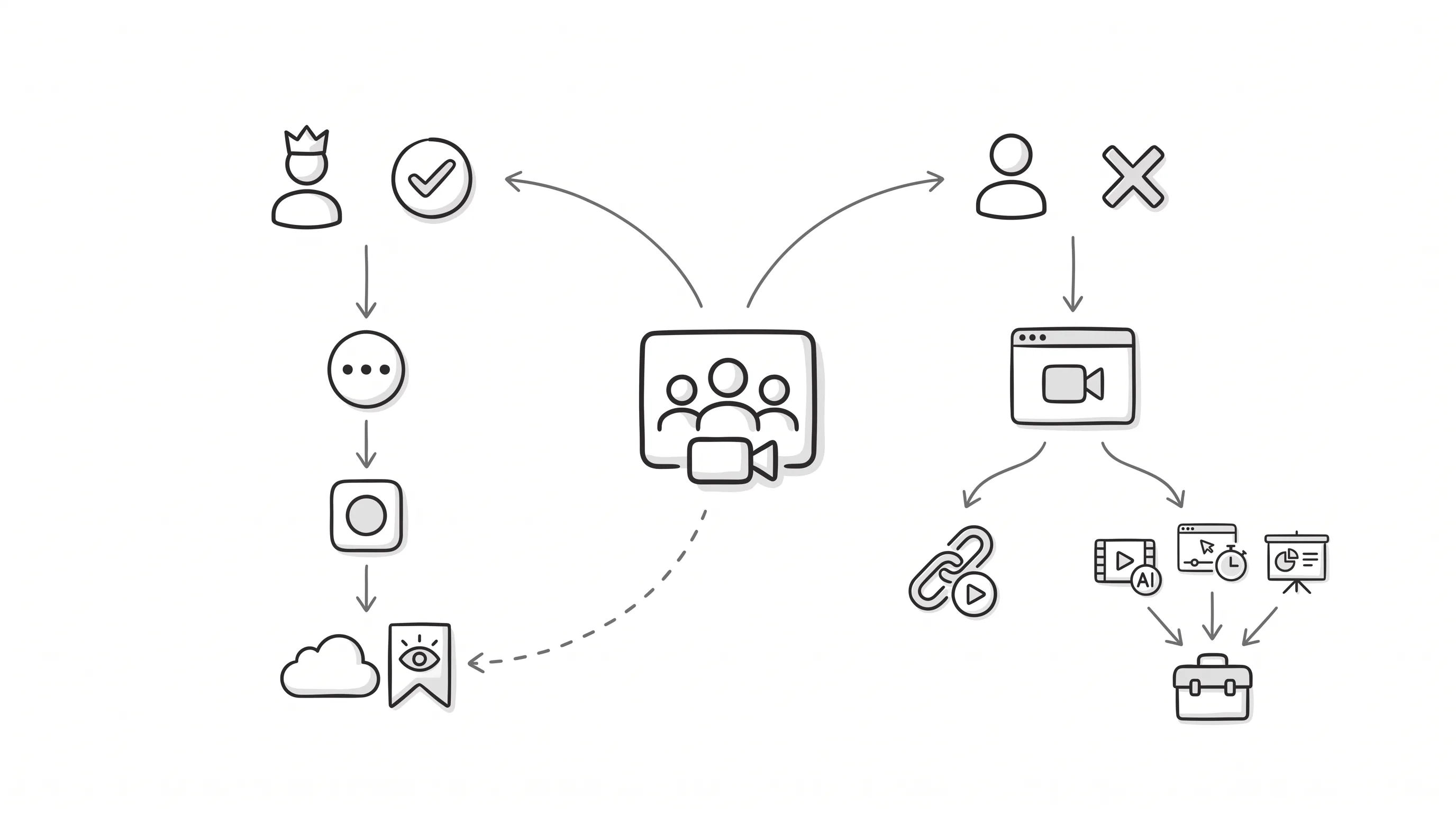
To record natively, select More actions (···) in the meeting controls, then Record and transcribe, then Start recording, and confirm. For an audio-only recording, choose More options after Start recording and pick Audio only. Every participant gets a notification in their Teams desktop, web, or mobile app as soon as recording starts. When the meeting ends, the recording is processed and saved to the organizer's OneDrive, or to the channel's SharePoint site for a channel meeting, and linked in the meeting chat.
Who Can Record a Teams Meeting?
Microsoft lists three conditions. You need a qualifying licence: Office 365 Enterprise E1, E3, E5, F3, A1, A3, A5, or Microsoft 365 Business, Business Premium, or Business Essentials. Your IT admin must have recording enabled. And you can't be a guest or from another organization.
- Organizer and co-organizers: can start and stop recording. The organizer doesn't need to be present.
- Presenters: can record by default, unless the organizer has limited it. Organizers with Teams Premium can limit recording to organizers and co-organizers, or extend it to presenters too.
- Attendees: generally can't start a recording.
- Guests, external users, and anonymous participants: can't record natively.
Why Can't I Record in a Teams Meeting?
- Free Teams with no Microsoft 365 subscription: recording on a personal account needs a Microsoft 365 Personal, Family or Premium subscription, and participants without one can't start a recording.
- Your role: you joined as an attendee, or the organizer has limited recording to organizers and co-organizers.
- Guest or external account: people from outside the organizer's organization can't record.
- Admin policy: your IT admin has turned meeting recording off. Both the organizer and the person starting the recording need recording permission.
Teams Recording Tools Compared
ShareRec, Loom, Screencastify, Tella, and Veed cover the cases Teams' own recorder doesn't: no licence, no recording rights, or a recording you want to send or edit. Pricing, free-plan limits, and the main limitation for each are below.
| Tool | Best For | Starting Price | Free Plan | Key Limitation |
|---|---|---|---|---|
| ShareRec | Recording a Teams web meeting in your browser and sending a link | Pro $8/mo ($6/mo billed annually); Business $12/mo ($10/mo annually) | Yes: 5-min cap, 720p, keeps 25 most recent, no watermark, account required | Free cap is too short for a whole meeting; MP4 download is Pro/Business only; desktop browser only |
| Loom | A Notetaker that joins and records the call for you | Business $18/user/mo; Business + AI $24/user/mo | Yes: 25 videos, 5-min screen recordings, unlimited meeting length, transcripts | AI summaries and meeting recaps need Business + AI |
| Screencastify | Longer browser recordings on a free plan | Starter $7/user/mo billed annually ($19 monthly) | Yes: 10 videos, 30-min recordings | Chrome or Edge extension only; captions and transcripts start on Pro |
| Tella | Polished, presentation-style recordings | Paid plans from $13/mo | No: 7-day free trial of Pro | Built for creator content, not meeting capture |
| Veed | Editing a recording after the meeting | Paid plans available; check current pricing | Yes; check current limits | Editing-first; the recorder is secondary |
ShareRec: Best for Recording a Teams Web Meeting and Sending a Link
ShareRec records a Teams meeting from your browser and gives you a shareable link moments after you stop, with no upload step. It records your screen, so it doesn't depend on a Microsoft 365 licence or Teams' recording policy.
How to record a Teams meeting with ShareRec:
- Join the meeting in Chrome or Edge at teams.microsoft.com rather than in the desktop app.
- In ShareRec, start a screen recording and pick the Teams tab in the browser's share dialog.
- Turn on the browser's share tab audio option. Without it, you'll only capture your own microphone, not the other people in the call.
- Stop when you're done. Your link is ready moments later.
ShareRec mixes the shared tab's audio with your microphone into one track. If you'd rather record the Teams desktop app by sharing your whole screen, other people's audio depends on your browser and operating system offering a system-audio option, so the browser tab is the reliable route.
Every tier, including Free, includes all three recording modes: screen only, webcam only, and screen plus a webcam bubble, along with trim. An account is required on every plan. The Free plan caps recordings at 5 minutes in 720p and keeps your 25 most recent videos, with no watermark. That's enough for a key decision or a demo segment, not a full meeting. Pro ($8/month, or $6/month billed annually) raises the cap to 30 minutes in 1080p and adds MP4 download. Business ($12/month, or $10/month billed annually) records up to 2 hours.
Videos auto-expire 30 days after recording by default, on every plan, and you can switch any video to Never, 24 hours, or 7 days at any time. Recording needs a desktop browser; recipients can watch the link on a phone. ShareRec doesn't produce transcripts or summaries, and links are unlisted rather than password-protected.
ShareRec doesn't announce itself in the meeting the way Teams' recorder does, so it's on you to tell everyone you're recording and follow your organization's policy.
Loom: Best for a Notetaker That Records the Call for You
Loom's Notetaker can join a Teams meeting from your calendar and record it, and meeting recording is available on every Loom plan, including the free Starter plan with unlimited meeting length. When the Loom Notetaker joins, it appears as a participant, and attendees are alerted in the meeting chat.
The free Starter plan includes 25 videos, 5-minute screen recordings, and transcripts in 50+ languages. Business costs $18 per user per month, with unlimited videos and recording time but no AI features. Summaries, chapters, meeting notes, and meeting recap emails need Business + AI at $24 per user per month (auto titles are free on every plan). There is no individual Pro tier.
Because the Notetaker is a bot participant, the organizer has to let it in, and some organizations block outside bots. For a team already standardized on Loom, it keeps meeting recordings in the same video library as everything else.
Screencastify: Best for Longer Free Browser Recordings
Screencastify's free plan records up to 30 minutes per video, with up to 10 videos. That's longer than the 5-minute free caps on ShareRec and Loom's screen recorder, which makes it a fit for teachers and trainers recording a longer Teams session from the browser.
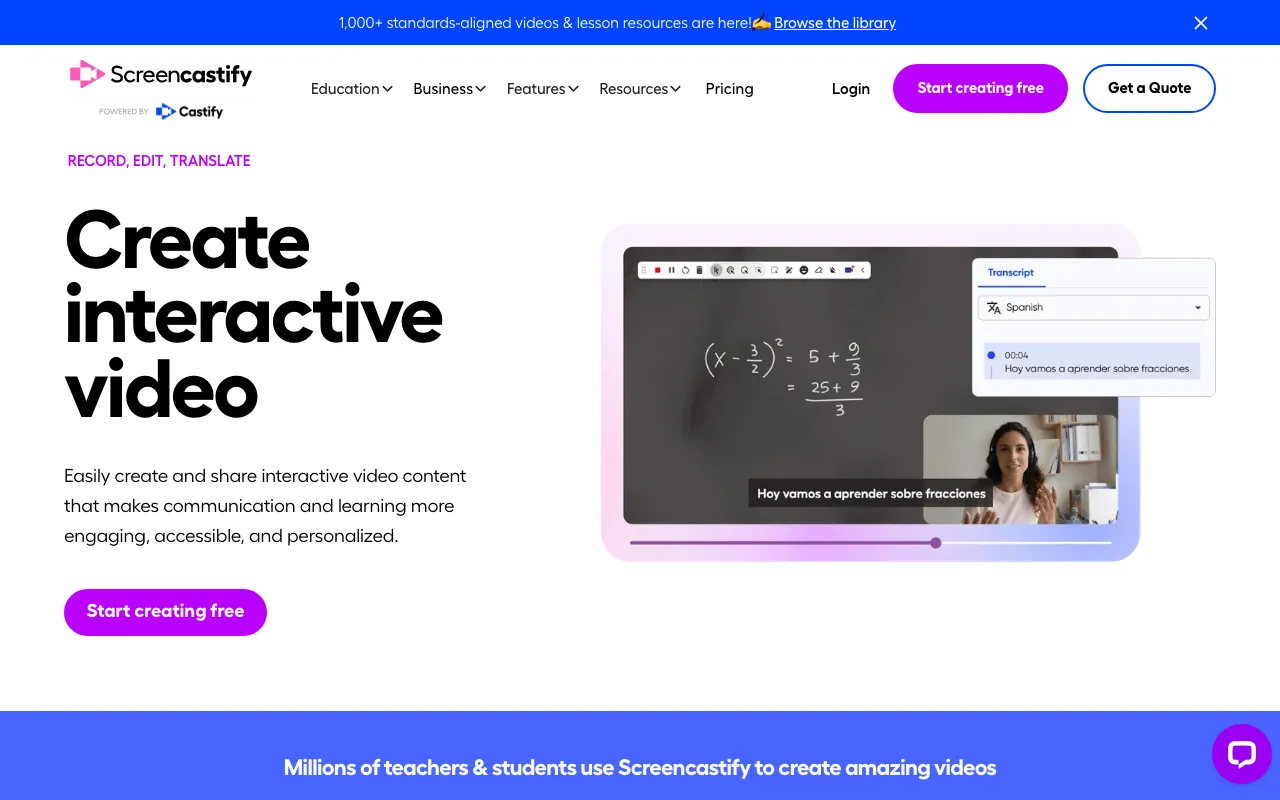
Screencastify runs as a Chrome or Edge extension; there's no desktop app. It captures a tab or your full screen, then lets you trim the recording before you share it. Starter costs $7 per user per month billed annually ($19 monthly) and records up to 60 minutes. Pro costs $10 per user per month billed annually ($25 monthly) and records up to 180 minutes.
Captions and transcripts start on Pro, along with Screencastify's AI editing features. On Free and Starter, writing a recap stays manual.
Tella: Best for Polished, Presentation-Style Recordings
Tella switches between camera and screen layouts to turn a recording into a presentation-style video rather than a raw capture. It's built for creators and marketers turning a walkthrough into content, not for archiving an internal meeting.
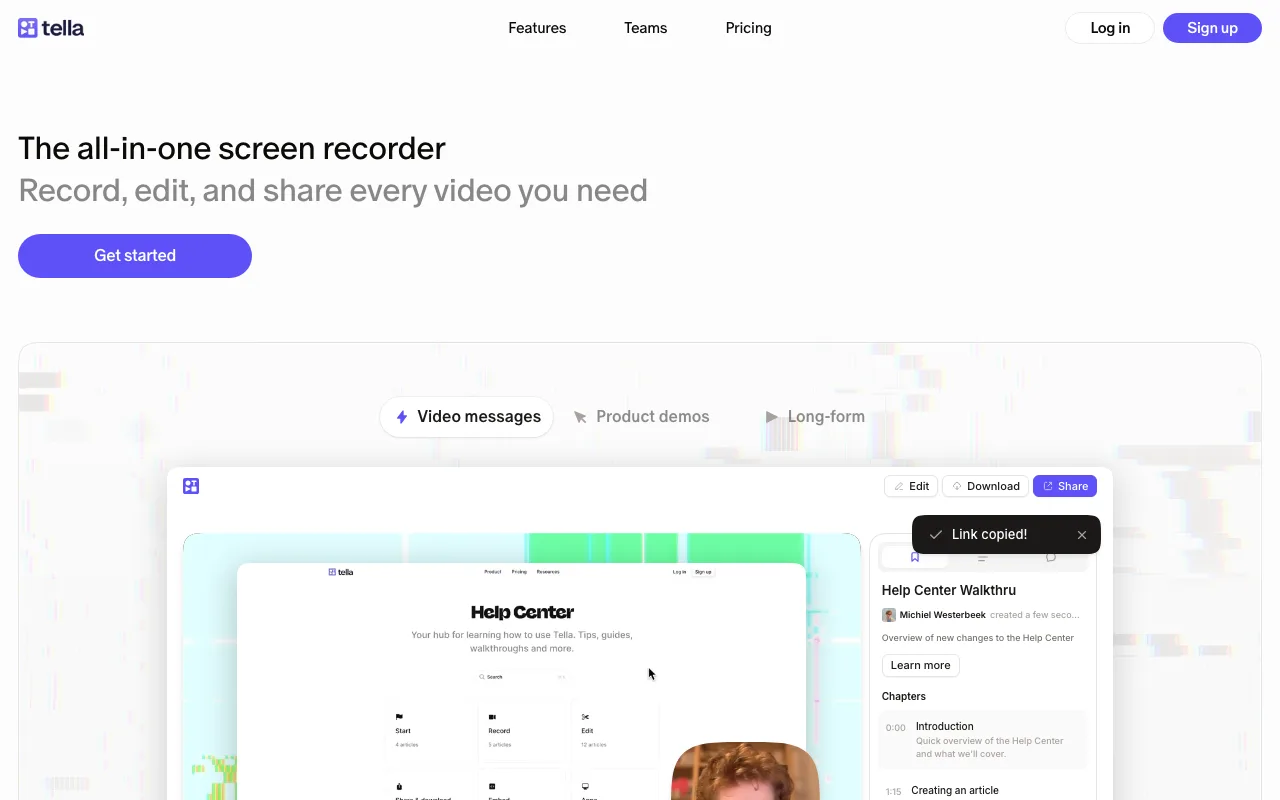
Layouts, backgrounds, and webcam framing can be adjusted in Tella's editor after recording. A product demo shown in a Teams call, for example, can be re-recorded or re-cut into a cleaner screen-and-webcam sequence before it goes to prospects.
Tella has no free plan. Every account starts with a 7-day free trial of Pro, with no credit card required, and paid plans start at $13 per month. If you mainly need to keep a record of internal calls, a faster recorder like ShareRec or Teams' own recorder will be a better fit.
Veed: Best for Editing a Recording After the Meeting Ends
Veed is a video editor first and a recorder second, adding subtitles, trims, and different export formats to a meeting recording after capture. It has a browser-based screen and webcam recorder, but most people use it on a recording they already have, whether from Teams or another tool.
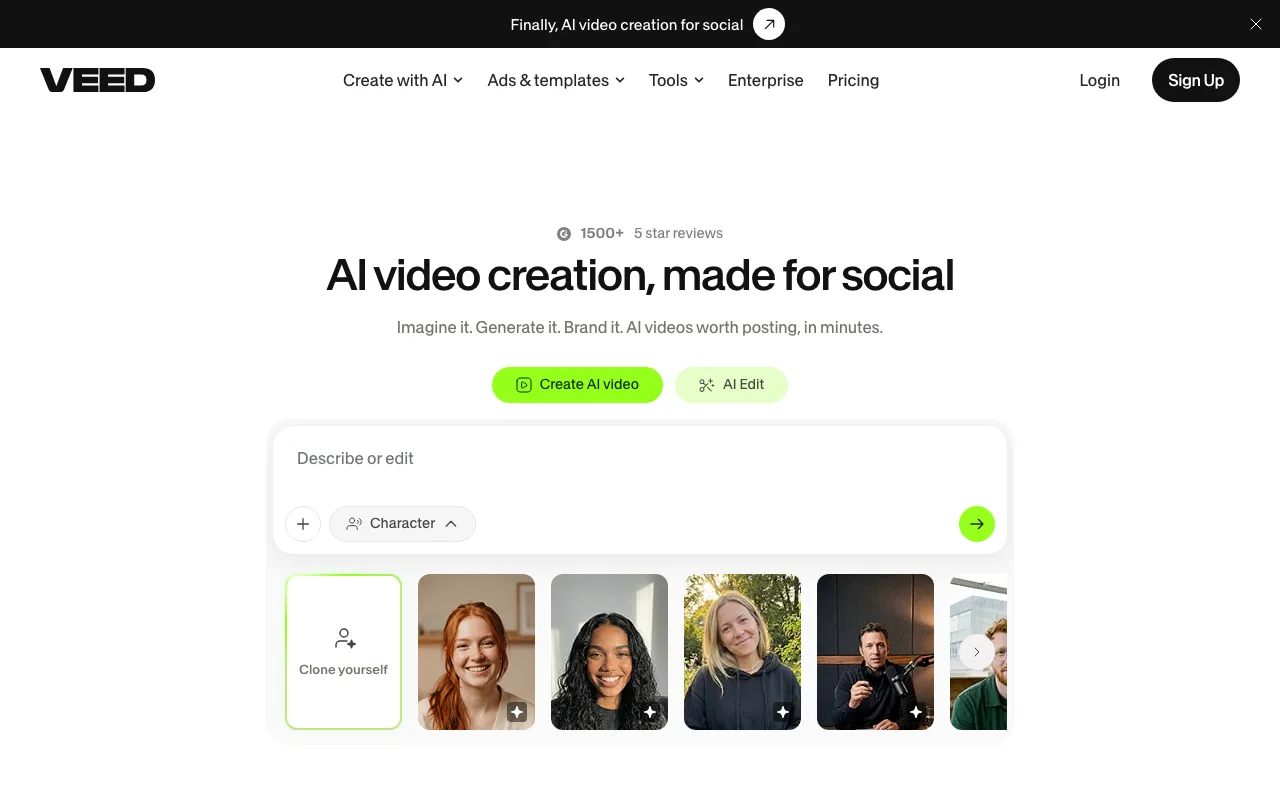
Veed fits teams that want a finished, captioned video rather than just an archive of the call. A sales team turning a recorded Teams demo into a trimmed, subtitled highlight clip for prospects gets more from Veed than from a tool that only captures the screen.
Veed offers a free plan, with higher-resolution export and brand features on paid tiers; check its current pricing before budgeting. For an internal recording that only needs to exist as a reference, Teams' own recorder or ShareRec is the faster path.
Key Takeaways
- ShareRec records a Teams web meeting from your browser tab and gives you a link moments after you stop; Free caps at 5 minutes, Pro at 30, Business at 2 hours.
- Turn on tab audio when you share the Teams tab, or you'll only record your own microphone.
- Teams' own recorder needs a qualifying work or school licence, an admin policy that allows recording, and the right meeting role.
- Free Teams without a Microsoft 365 subscription can't record; Personal, Family and Premium subscribers can, and their recordings are kept for 30 days.
- Loom's Notetaker records Teams meetings on every plan, including free; AI summaries need Business + AI at $24.
- Screencastify offers 30-minute free recordings in Chrome or Edge; Tella has no free plan; Veed is for editing afterwards.
- Tell participants whenever you record, whichever tool you use.
Frequently Asked Questions
Can I record a Teams meeting if I'm not the organizer?
Sometimes. Co-organizers can record, and presenters can if the meeting is set up to allow it, as long as you have a qualifying licence, recording is enabled by your admin, and you're from the organizer's organization. Attendees, guests, and external participants generally can't. In those cases, you can record your own view with a screen recorder such as ShareRec, but ask the organizer and tell everyone first.
Why can't I record in a Teams meeting?
The usual causes are: you're on free Teams without a Microsoft 365 subscription, you joined as an attendee or guest, the organizer limited recording to organizers and co-organizers, or your IT admin turned recording off.
Can I record on Teams for free?
Not with Teams' own recorder on a free account: recording needs a work or school licence, or a Microsoft 365 Personal, Family or Premium subscription on a personal account. Free alternatives exist: ShareRec's free plan records up to 5 minutes, Screencastify's up to 30 minutes, and Loom's Notetaker records meetings on its free plan.
Does Teams notify participants when recording starts?
Yes. Everyone in the meeting gets a notification in the Teams desktop, web, or mobile app as soon as a recording starts. Screen recorders like ShareRec don't post that notification, so tell participants yourself before you start.
Where do Teams meeting recordings go?
Native recordings are saved to the organizer's OneDrive, or to the channel's SharePoint site for a channel meeting, and linked in the meeting chat. The organizer owns the recording, and by default only organizers and co-organizers can download or delete it. Recordings made with ShareRec go to your ShareRec library and give you a shareable link straight away.
Can I record a Teams meeting on my phone?
The Teams mobile app can start a recording if you have recording rights. ShareRec needs a desktop browser to record; anyone you send the link to can watch it on a phone.
How long are Teams recordings kept?
Your admin's settings decide when a Teams recording expires, and the recording's owner can change or remove that expiration. ShareRec videos expire 30 days after recording by default, and you can switch any video to Never, 24 hours, or 7 days.
Is it legal to record a Teams meeting?
Recording rules depend on where you and the other participants are, and many places require everyone's consent. Teams' own recorder notifies everyone automatically; with any other tool, announce the recording at the start and follow your organization's policy.
Try it free
Record your first walkthrough free — no install needed
No install, no watermark — share a link instantly.
Start Recording Free