How to Record a Product Walkthrough: 5 Best Tools (2026)
ShareRec is the best tool for recording a product walkthrough you don't want living online forever — sales demos, support sessions, and other one-off clips — using a no-upload shareable link that expires on its own by default. Loom is best for team collaboration and AI-summarized walkthroughs, supporting up to 50 free workspace members. Screencastify is best for education and training walkthroughs, with a 30-minute free recording cap. Screen Studio is best for macOS-only recording with shareable links included on both its $29/month and $9/month (billed annually) plans. Veed is best for editing, captioning, and branding a walkthrough after recording — it records in the browser too, but its strength is the post-production stage.
ShareRec requires an account on every tier, including Free. Every new recording auto-expires 30 days after it's made by default, with a one-click override to Never, 24 hours, or 7 days. The right pick depends on whether the walkthrough needs to stay private, get discussed by a team, teach a class, sell visually, or get polished after recording.
Product Walkthrough Tools Compared at a Glance
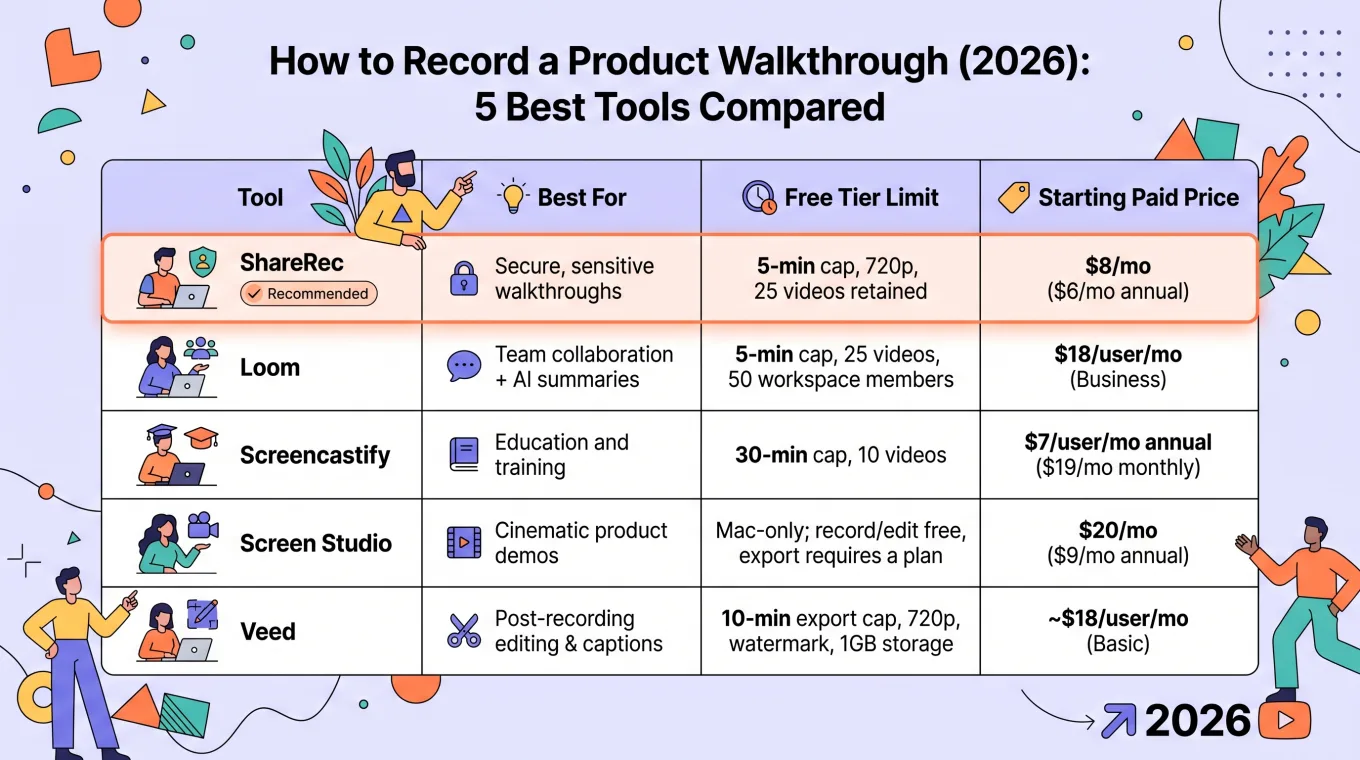
Free-tier recording caps range from 5 minutes (ShareRec, Loom) to 30 minutes (Screencastify), and starting paid prices span $7 per user per month (Screencastify) up to a $29 flat monthly rate (Screen Studio). ShareRec, Loom, Screencastify, and Veed all offer a free plan, while Screen Studio is paid-only — and retention rules and pricing diverge sharply once a walkthrough needs to scale past a few videos. The table below lines up the free-tier limits and starting paid price for each.
| Tool | Best For | Free Tier Limit | Starting Paid Price |
|---|---|---|---|
| ShareRec | Links that expire on their own | 5-min cap, 720p, 25 videos retained | $8/mo ($6/mo annual) |
| Loom | Team collaboration + AI summaries | 5-min cap, 25 videos, 50 workspace members | $18/user/mo (Business) |
| Screencastify | Education and training | 30-min cap, 10 videos | $7/user/mo annual ($19/mo monthly) |
| Screen Studio | macOS-only recording + shareable links | Mac-only; no free plan listed | $29/mo ($9/mo annual) |
| Veed | Browser recording + post-production editing | Free plan; exports watermarked | Paid plans available (verify current pricing) |
ShareRec: Best for Links That Expire on Their Own
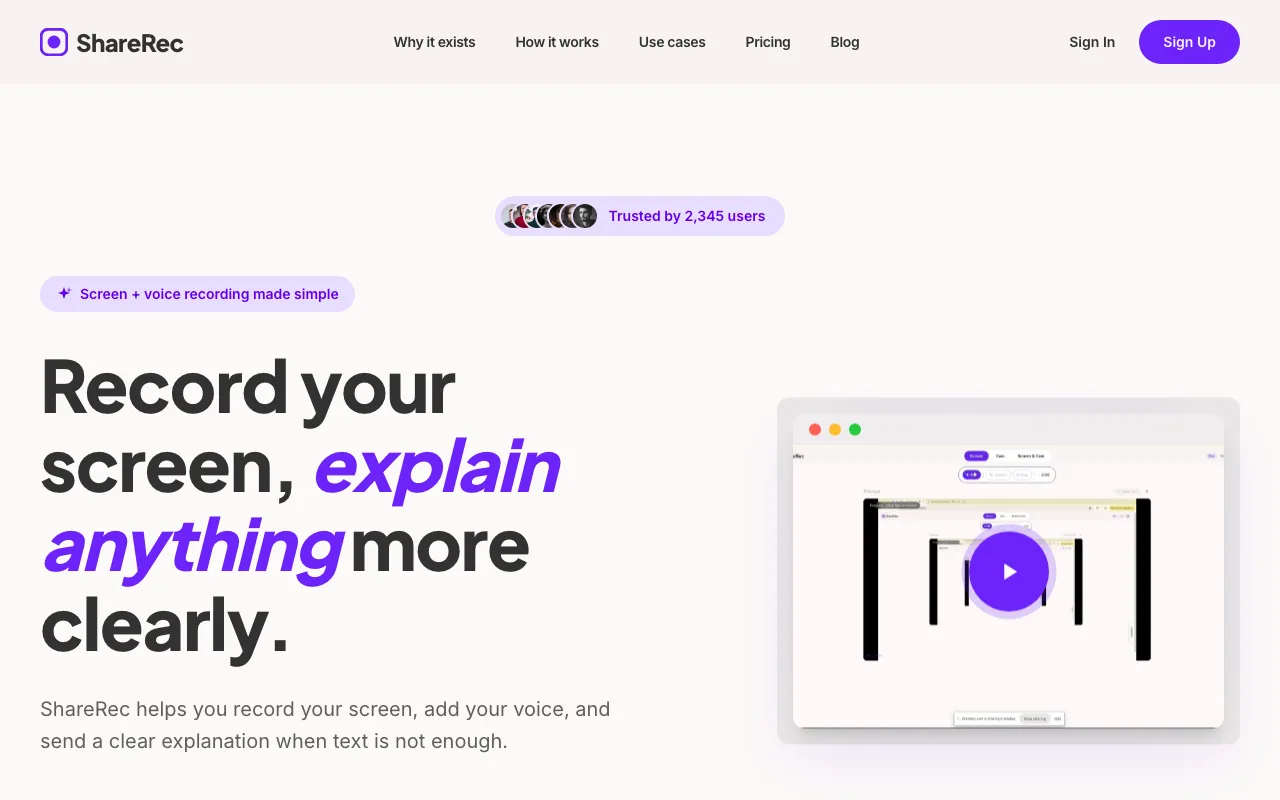
ShareRec turns a screen recording into a shareable link the moment recording stops, with no separate upload step. Its Record → Explain → Send workflow makes it a fast option here for sales demos and customer support recordings that don't need to sit online indefinitely.
Best for: Sales and support teams that need a private, no-upload link fast, with expiry handled automatically.
An account is required on every ShareRec tier, including Free — there's no anonymous recording option. The Free plan caps recordings at 5 minutes in 720p and keeps the 25 most recent videos, with no watermark and built-in trim-and-clip editing.
Pro costs $8/mo ($6/mo billed annually) and raises the cap to 30 minutes at 1080p with unlimited stored videos. Business costs $12/mo ($10/mo billed annually) and extends the cap to 2 hours at 1080p, also with unlimited videos. Pro's $8/mo price is less than half of Loom's Business plan at $18/user/month.
All three recording modes — screen, webcam, and screen-plus-webcam — plus trim editing are available on every tier, including Free; nothing is gated behind a paywall. Every recording auto-expires 30 days after creation by default, with a one-click override to Never, 24 hours, or 7 days, plus a dashboard countdown and a 3-day warning email before deletion.
ShareRec runs entirely in the browser, so it works on locked-down corporate laptops without admin rights to install anything. It has no AI transcripts, summaries, or chapters on any tier, no annotation or drawing tool, and no team workspace or shared library. Share links are unlisted, not password-protected: anyone with the link can watch until it expires or you delete it.
Loom: Best for Team Collaboration and AI-Powered Summaries
Loom's Free plan supports up to 50 workspace members recording and sharing videos together. That makes it the strongest fit here for teams that need a shared library rather than individual clips. Free recordings are capped at 5 minutes each, with a maximum of 25 videos stored at once.
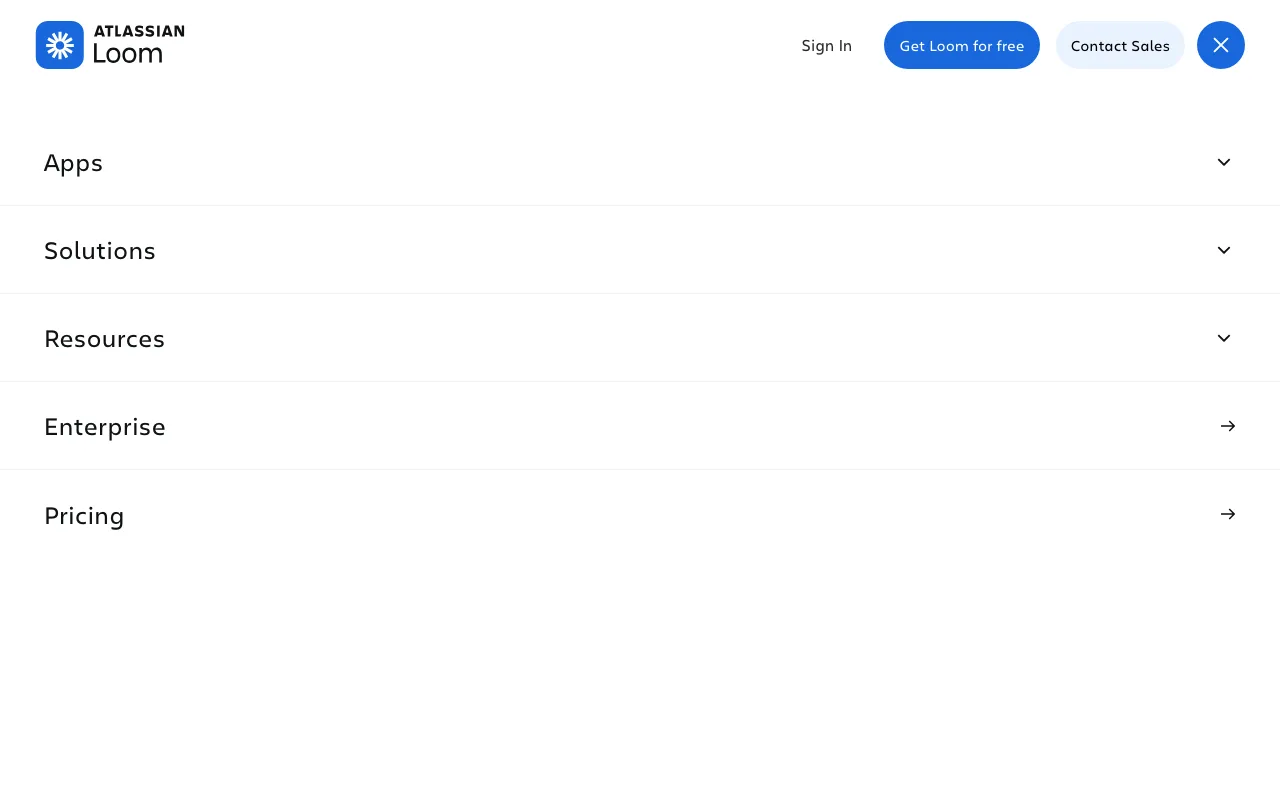
Best for: Cross-functional teams that need a searchable, shared video library.
Paid plans start at Business, priced at $18/user/month — there is no separate "Loom Pro" tier in the current lineup. Transcription and auto-generated titles are included on every Loom plan, including Free. Business+AI costs $24/user/month and layers AI on top of that: auto-generated summaries and automatic chapters that make long walkthroughs searchable.
Loom's ecosystem includes a desktop app for Windows and Mac, plus a Chrome extension and mobile apps. That depth suits cross-functional teams — sales, support, and product — working from one searchable video library instead of emailing files back and forth.
Viewer insights are available on every tier; more detailed engagement insights — showing exactly where viewers dropped off — are part of the Business plan and up.
Per-user pricing on Business and Business+AI scales with headcount, so cost grows in proportion to team size compared with flat-rate tools.
Screencastify: Best for Education and Training Walkthroughs
Screencastify's Free plan allows a 30-minute recording cap — the longest free-tier limit among these five tools. That makes it suited to full-length lessons and onboarding sessions recorded in one take. The Free plan stores up to 10 videos at a time.
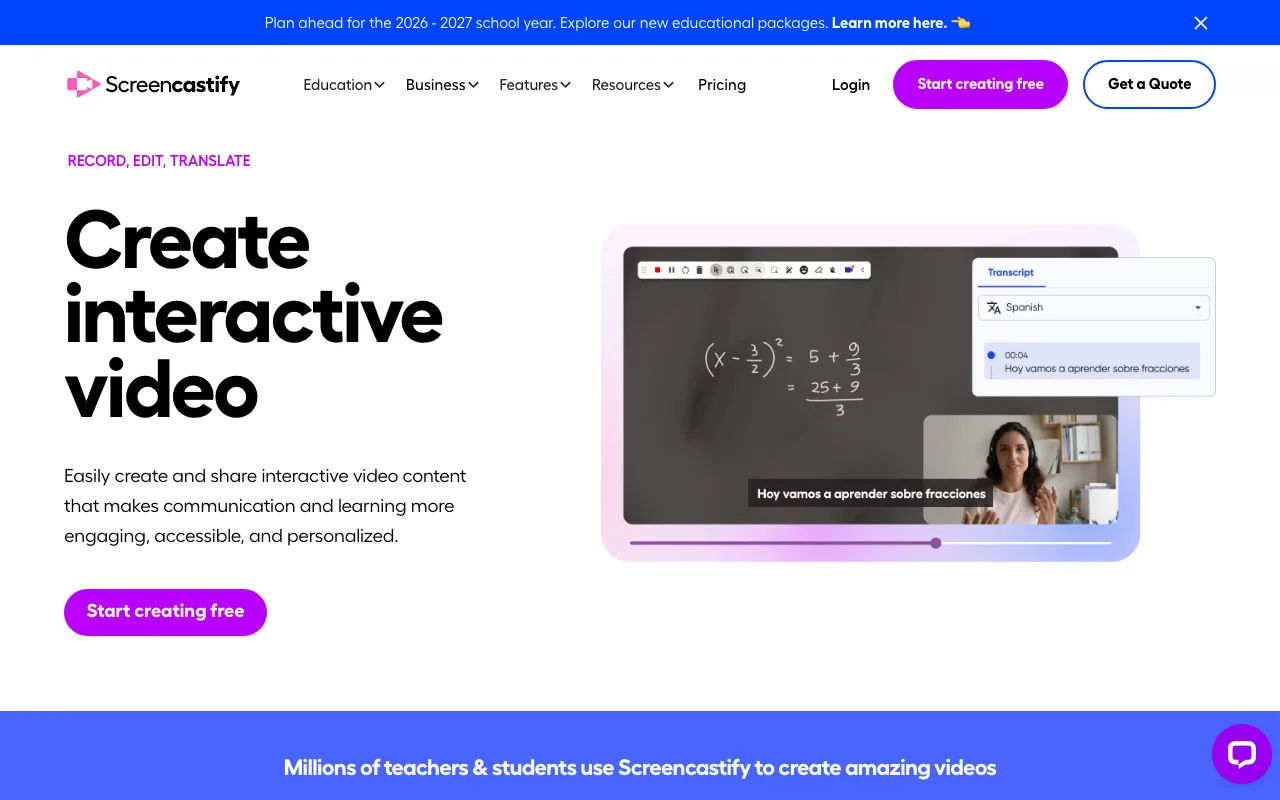
Best for: Teachers and corporate trainers recording full-length lessons in a single take.
Paid plans include Starter at $7/user/month billed annually ($19/month billed monthly) and Pro at $10/user/month billed annually ($25/month billed monthly). Both tiers are built around classroom and corporate-training use rather than general business recording.
Screencastify runs entirely in the browser as a Chrome extension or an Edge extension — there is no desktop app to install. That fits teachers, corporate trainers, and onboarding teams recording longer instructional walkthroughs on a managed Chromebook or Windows laptop. A 30-minute cap comfortably covers most single-session lessons or software walkthroughs without needing to split a recording into multiple parts.
Its extension-first design covers Chrome and Edge, but it has no Firefox, Safari, or standalone desktop app.
Screen Studio: Best for Polished, Cinematic Product Demo Videos
Screen Studio is a macOS-only recorder with shareable links on both its plans — up to 1080p at 60fps, videos up to 30 minutes.
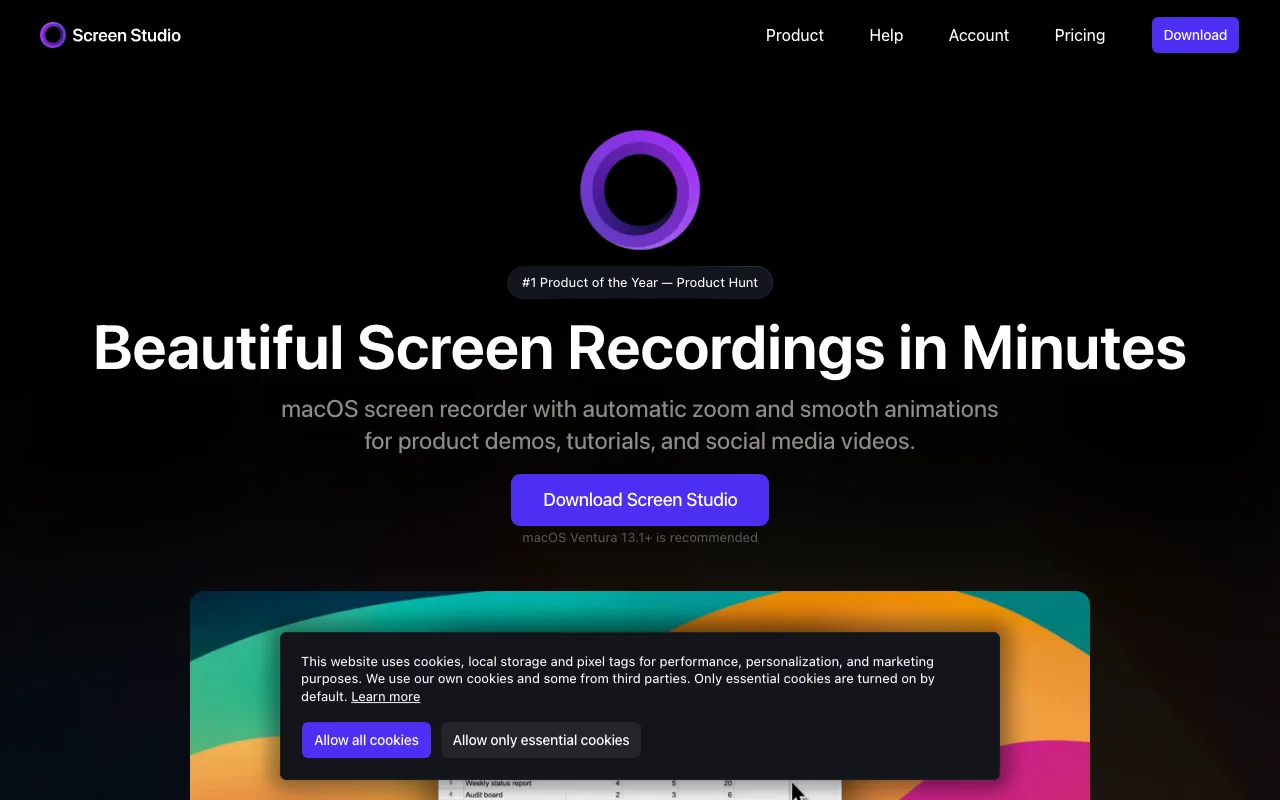
Best for: Marketing teams and founders standardized on Mac who need a recorder with built-in link sharing.
Screen Studio runs on macOS only (13.1 or later recommended) — there's no Windows build. Pricing is subscription-based: $29/month billed monthly, or $9/month billed annually. Whether pricing is per-seat, per-device, or flat isn't stated on Screen Studio's pricing page.
Screen Studio's pricing page lists no free plan — only the monthly and annual subscriptions above — so a walkthrough recorded with it needs a paid seat rather than a free tier.
Shareable links can be set private so only the people you send them to can open them, and both plans include a cloud transcript of the recording. Mac-only availability rules it out for teams standardized on Windows, and the lack of a team workspace makes it a weaker fit for collaborative review than Loom.
Veed: Best for Editing, Captions, and Branding After Recording
Veed records a walkthrough in the browser and then edits it in the same place — captions, branded templates, and multi-channel resizing. Its screen recorder captures screen, webcam, or both on Windows, Mac, and Linux with nothing to install, but the reason to reach for Veed is the post-production stage rather than the capture itself.
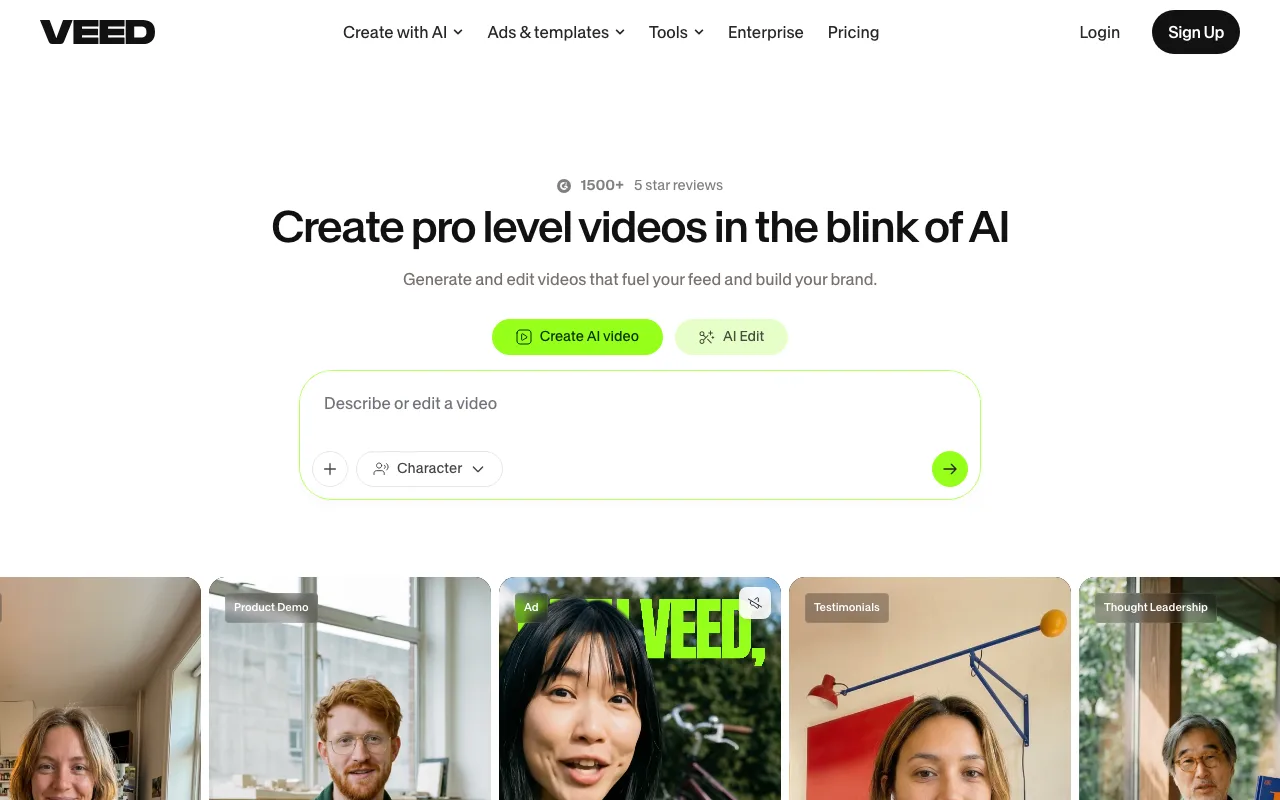
Best for: Teams that need to caption, brand, and repurpose a walkthrough after recording it.
Veed does offer a free plan, but it watermarks every export and limits export length, resolution, and storage — confirm the current caps on Veed's pricing page before relying on them.
Veed renamed its paid tiers in 2026, and its pricing table is rendered dynamically rather than published as static text, so exact per-seat rates could not be independently verified for this comparison — check Veed's pricing page directly before budgeting for a team rollout.
Veed can capture the walkthrough itself, but it also accepts footage from another tool, so it can sit at the polish stage after ShareRec, Loom, Screencastify, or Screen Studio has captured the raw walkthrough. The best fit is teams that record a rough walkthrough elsewhere and then need to add captions, apply a brand template, and resize it for a landing page, a LinkedIn post, and a sales deck — all from one source recording.
Key Takeaways
- ShareRec creates a shareable link the moment recording stops, with no upload step; 30-day auto-expiry default, one-click override.
- Loom includes transcription and auto titles on every tier including Free, and adds AI summaries and auto chapters on Business+AI at $24/user/month; the free workspace supports up to 50 members.
- Screencastify offers a 30-minute free recording cap, the longest among these five tools; runs as a Chrome or Edge extension.
- Screen Studio offers shareable links on both plans; Mac-only, $29/month ($9/month billed annually), with no free plan listed.
- Veed records in the browser and doubles as a cloud editor for captions, branding, and repurposing; its free plan watermarks exports.
- ShareRec is browser-based with no install; Loom and Screen Studio use desktop apps; Screencastify runs as a Chrome or Edge extension with no desktop app.
- ShareRec, Loom, and Screencastify each require an account to record, even on their free tiers.
Frequently Asked Questions
What's the fastest way to record and share a product walkthrough?
ShareRec's Record → Explain → Send workflow skips the upload wait: the link appears as soon as you stop recording, with no separate upload step. An account is required to use ShareRec, including on its free tier, which caps recordings at 5 minutes in 720p with built-in trim-and-clip editing.
Do I need to install software to record a product walkthrough?
It depends on the tool: ShareRec is browser-based and needs no installation, so it works even on locked-down corporate laptops. Loom and Screen Studio both use desktop apps (Screen Studio is macOS-only), while Screencastify runs entirely in the browser as a Chrome or Edge extension, with no desktop app.
How long can a free-tier recording be?
Free-tier caps vary by tool. ShareRec allows 5-minute recordings at 720p with the 25 most recent videos retained. Loom's free plan also caps at 5 minutes with 25 videos stored. Screencastify's free plan allows up to 30 minutes with 10 videos stored. Veed records in the browser as well, and its free plan is limited mainly at export, where videos carry a VEED watermark.
Which tool is best for a large team with shared video libraries?
Loom fits large teams best: its Free plan already supports up to 50 workspace members, and workspace features scale up at $18/user/month on the Business plan. Business+AI, at $24/user/month, adds AI summaries and auto-generated chapters that make a growing library searchable — transcription itself is already included on every tier, including Free.
Do recorded walkthrough links expire?
On ShareRec, every new recording auto-expires 30 days after it's made by default. The owner can switch that to Never, 24 hours, or 7 days in one click, with a dashboard countdown and a 3-day warning email before deletion.
Try it free
Record your first walkthrough free — no install needed
No install, no watermark — share a link instantly.
Start Recording Free