How to Record a One-Minute Video Update: 5 Best Tools (2026)
ShareRec is the fastest way to record a one-minute video update, generating a shareable link as soon as you stop recording, with no upload wait, straight from a browser tab. Loom follows for teams that want AI-generated summaries and chapters, which sit on its $24/user/month Business + AI tier — transcripts and auto titles themselves are free on every Loom plan. Screencastify works as a free Chrome or Edge extension recorder with a 30-minute cap on its free tier, useful for anyone who'd rather skip installing desktop software. Screen Studio is a Mac-only recorder with shareable links on both plans, though it has no free plan listed — $29/month, or $9/month billed yearly. Veed pairs recording with a full in-browser editor for captions and text overlays when an update needs light post-production before it goes out.
ShareRec's free tier caps recordings at 5 minutes — more than enough runway for a 60-second update — and requires an account, as do Loom and Screencastify. Pick ShareRec for speed, Loom for AI-assisted team workflows, Screencastify for free Chrome or Edge recording, Screen Studio for visual polish, or Veed for recording plus editing in one app.
Comparing the 5 Best Tools to Record a One-Minute Video Update
ShareRec, Loom, Screencastify, Screen Studio, and Veed each solve a different part of recording and sharing a one-minute video update, spanning a $0 free-tier recorder up to $24/user/month AI-powered team tools. The table below lines up pricing, free-tier limits, and platform support for each.
| Tool | Best For | Free Tier | Starting Paid Price | Platform |
|---|---|---|---|---|
| ShareRec | Instant, no-upload updates | 5-min cap, 720p, 25 videos kept, account required | $8/mo ($6/mo billed annually) | Browser (Windows, Mac, Chromebook) |
| Loom | Team collaboration with AI | 25 videos, 5-min cap, account required | $18/user/mo | Desktop app + browser |
| Screencastify | Free in-browser recording | 10 videos, 30-min cap, account required | $7/user/mo billed annually | Chrome or Edge extension (Windows, Mac, Chromebook) |
| Screen Studio | Mac-only recording + shareable links | None — paid only | $29/mo ($9/mo billed yearly) | Mac only |
| Veed | Recording plus built-in editing | Free plan available; limits not publicly listed | Not publicly listed — confirm on site | Browser-based |
ShareRec: Best for Instant, No-Upload One-Minute Updates
ShareRec generates a shareable link as soon as you stop recording, with no upload wait, because recording and sharing happen in the same browser-based step. Best for: teams that need a one-minute update out the door immediately, including from locked-down corporate laptops.
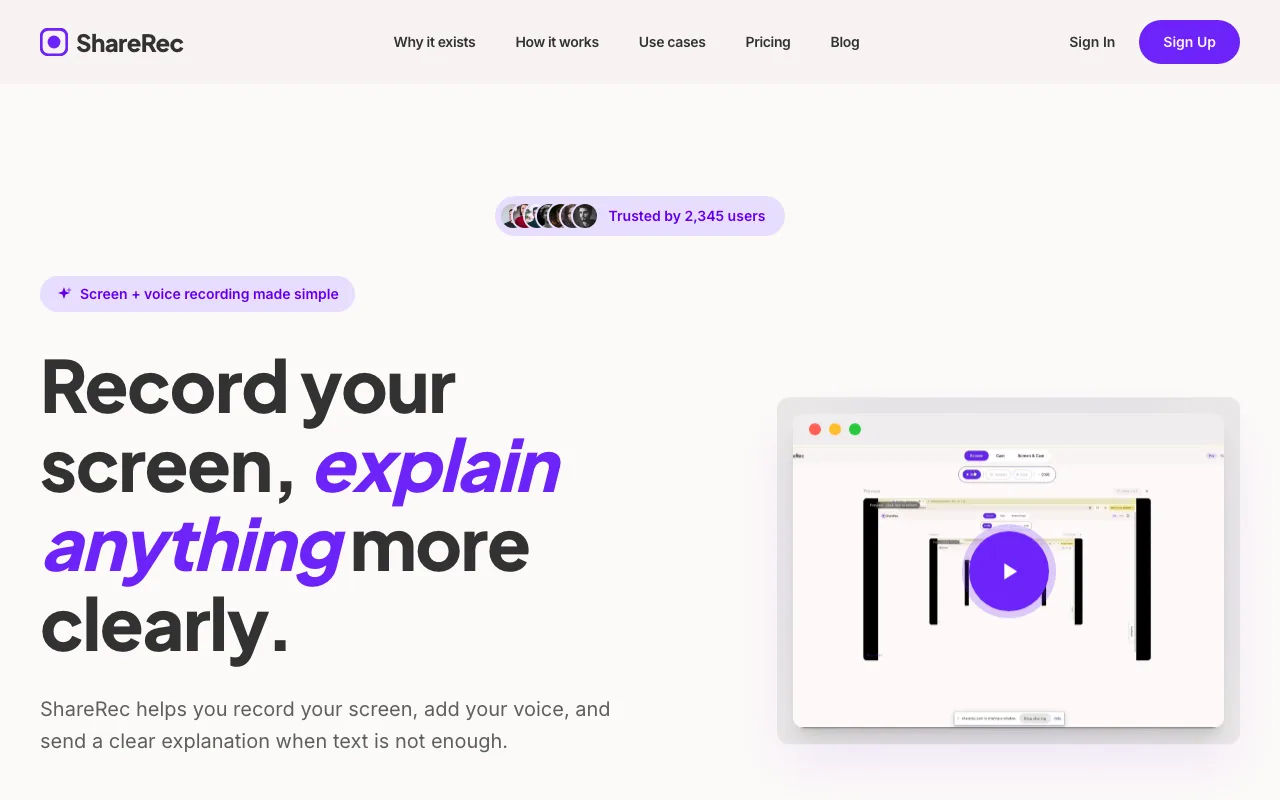
The workflow is record, explain, send — no install, no admin rights required. Every tier, including Free, includes all three recording modes (screen, webcam, screen+webcam), a webcam bubble, and trim & clip editing; none of those are gated behind a paid plan.
The Free plan costs $0/month, requires an account, and caps recordings at 5 minutes — enough for a 60-second update with room to spare. It records at 720p and keeps the 25 most recently recorded videos. Pro costs $8/month ($6/month billed annually) and raises the cap to 30 minutes at 1080p with unlimited stored videos — less than half the price of Loom's $18/user/month Business tier. Business costs $12/month ($10/month billed annually) and extends the recording cap to 2 hours.
Every new ShareRec video auto-expires 30 days after recording by default. The owner can reset any video to Never, 24 hours, 7 days, or 30 days in one click, with a dashboard countdown and a warning email sent 3 days before deletion.
ShareRec requires an account on every tier, including Free. Free-tier retention is count-based — the 25 most recent videos, not unlimited storage — and there's no AI transcript, summary, or auto-chapter feature on any tier; editing is trim & clip only, with no annotation or drawing tool.
Loom: Best for Team Collaboration with AI Features
Loom pairs desktop and browser screen recording with transcripts and auto titles free on every plan, and adds AI summaries and chapters on its Business + AI tier at $24/user/month. Best for: teams sharing updates async where searchable transcripts and auto-summaries save review time.
Recording covers screen, webcam, or both, from a native desktop app or the browser. Transcripts, captions, and auto titles are included on every Loom plan, free tier included. The AI layer sits above that: auto-generated summaries, chapters, and filler-word removal are not part of the $18 Business plan — they require Business + AI at $24/user/month.
The Free plan allows up to 25 stored videos with a 5-minute recording cap, in workspaces of up to 50 members. Paid pricing has consolidated around a single Business tier — no standalone "Pro" plan remains — at $18/user/month (save up to 17% billed annually). A Business + AI tier at $24/user/month adds AI summaries, chapters, and meeting recaps; Auto Titles are included starting on the free Starter plan.
Loom's free plan is capped at 25 total stored videos rather than unlimited, and per-seat pricing scales quickly once a team grows past a handful of members.
Screencastify: Best for Free, In-Browser Recording
Screencastify records screen and webcam directly from a Chrome or Edge extension, with a free tier that allows 10 videos at up to 30 minutes each. Best for: individuals and educators who want to record without installing desktop software.
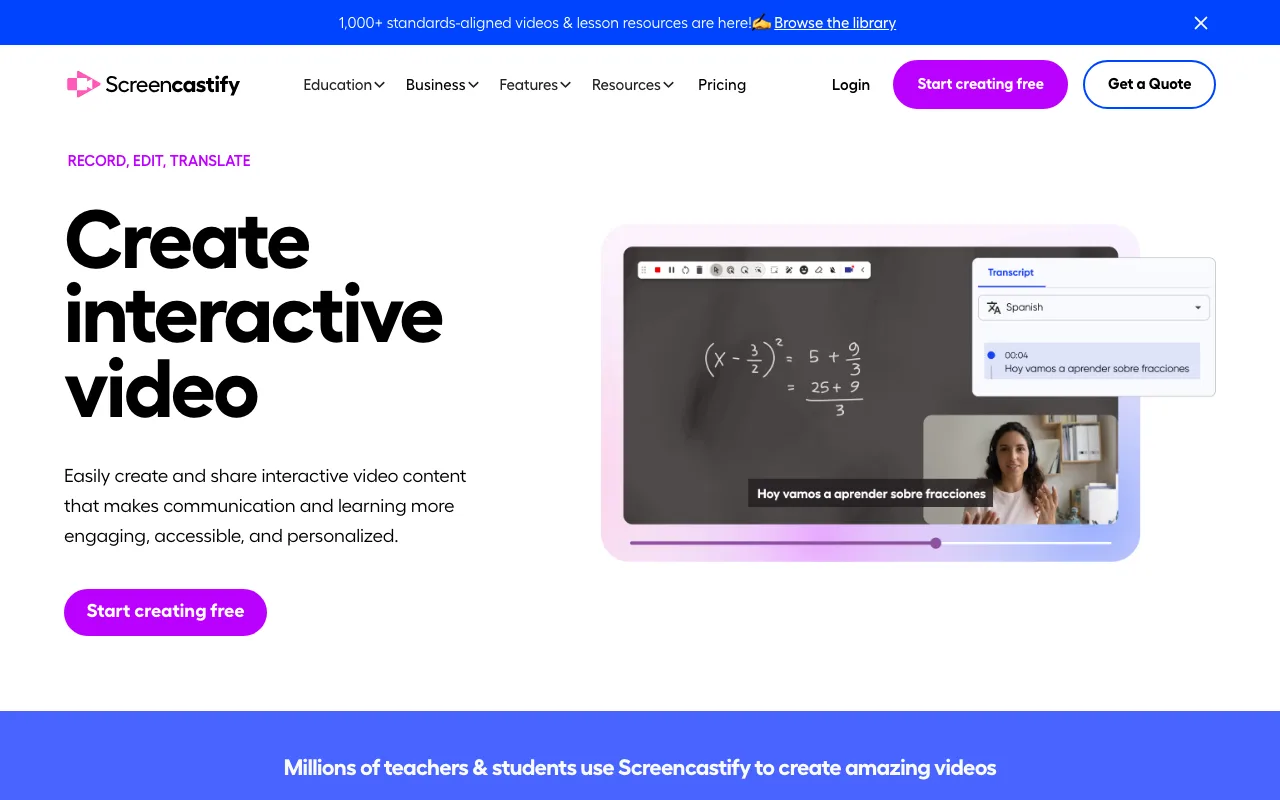
That 30-minute free-tier cap leaves far more runway than a one-minute update needs. Because Screencastify runs as a browser extension rather than a native application, it works the same way on Windows, Mac, and Chromebooks. It ships as a Chrome extension and an Edge extension, with no desktop app, which makes it a direct fit for anyone recording on a work PC without admin rights to install software.
Paid tiers step up from there: Starter costs $7/user/month billed annually ($19/month billed monthly), and Pro costs $10/user/month billed annually ($25/month billed monthly).
Screencastify is tied to Chromium browsers — Chrome and Edge. Anyone whose primary browser is Safari or Firefox needs a different workflow to record.
Screen Studio: Best for Mac-Only Recording With Shareable Links
Screen Studio is a Mac-only subscription with shareable links on both plans (up to 1080p at 60fps, videos up to 30 minutes), with no Windows or Linux client. Best for: product demos and update videos where a native Mac recorder with built-in link sharing matters.
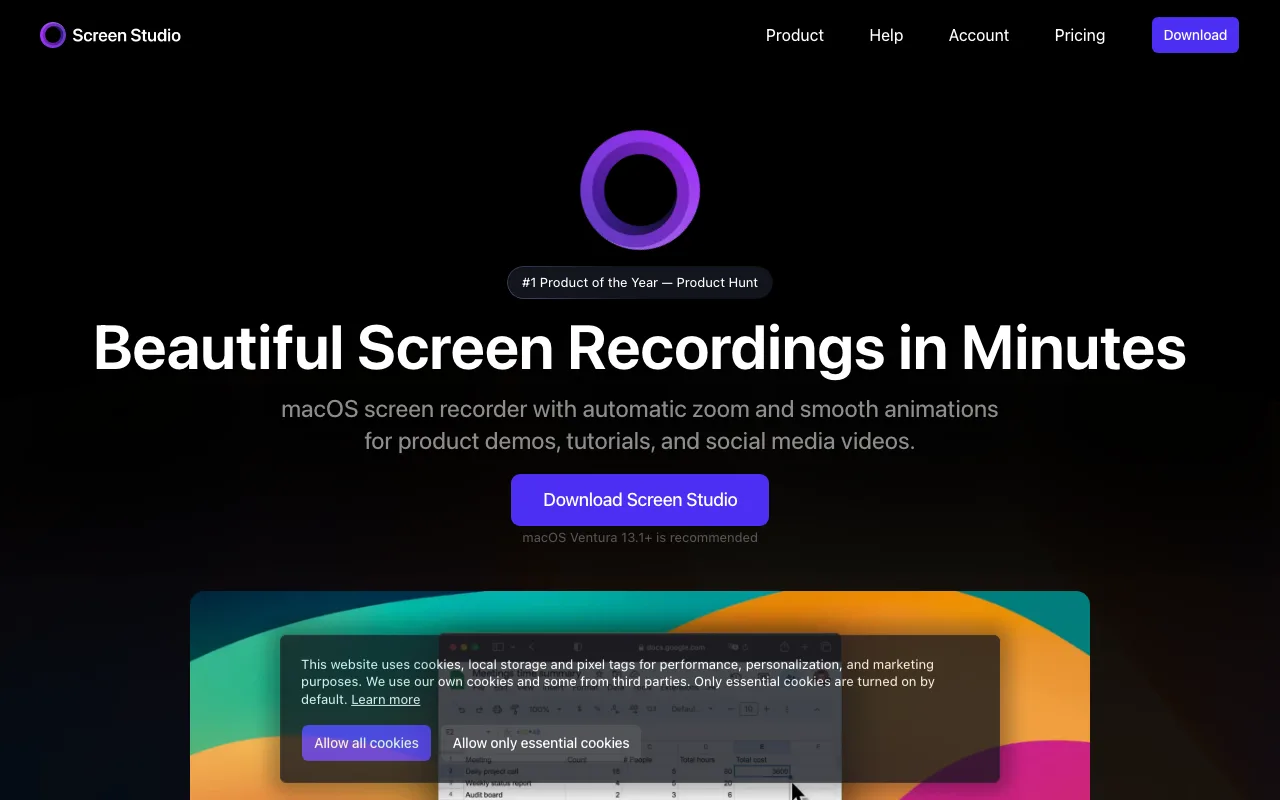
Both plans include a cloud transcript of the recording, with local transcription also available via Whisper or Apple's speech tools.
That Mac-only requirement is a direct gap for anyone recording a one-minute update on a Windows PC. There is also no free plan listed: Screen Studio costs $29/month, or $9/month billed yearly, and macOS Ventura 13.1 or later is recommended.
Veed: Best for Recording Plus Built-In Editing
Veed combines browser-based screen and webcam recording with a full video editor — trimming, captions, and text overlays — in one workflow, though its per-seat pricing isn't publicly listed and should be confirmed on Veed's site, where a free plan does exist. Best for: a one-minute update that needs light polish, like auto-captions or a background swap, before it goes out.
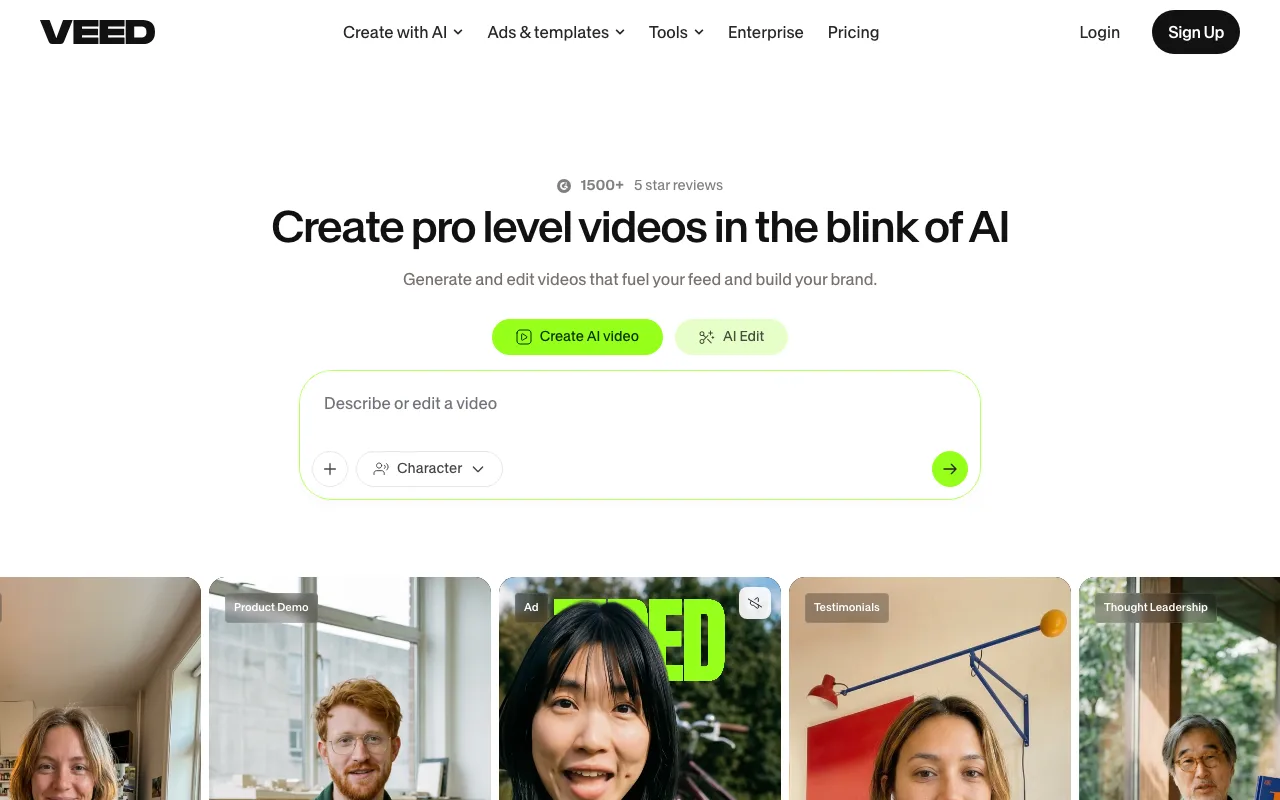
Recording is just one entry point into Veed; the editing suite is the core product, and footage can also be uploaded from other sources. That makes it useful when the goal is a lightly produced update rather than a raw, unedited clip.
The tradeoff is interface weight: Veed's editor has more surface area than a single-purpose recorder built only for record-and-send speed.
Key Takeaways
- ShareRec creates a shareable link as soon as you stop recording, with no upload step and a 5-minute free-tier cap.
- Loom includes transcripts free on every plan; AI summaries and chapters require Business + AI at $24/user/month, and the free plan is capped at 25 stored videos.
- Screencastify records free in a Chrome or Edge extension with a 30-minute cap; paid plans start at $7/user/month.
- Screen Studio offers shareable links on both plans but runs on macOS only and has no free plan listed ($29/month, $9/month billed yearly).
- Veed pairs recording with a full in-browser editor for captions and overlays before sharing.
- ShareRec, Loom, and Screencastify require an account, even on free tiers.
- ShareRec's $8/month Pro tier costs less than half Loom's $18/user/month Business plan.
Frequently Asked Questions
What software should I use to record a 1-minute video on Windows?
Browser-based recorders like ShareRec and Screencastify avoid install friction on locked-down Windows machines, since neither needs admin rights. Loom offers a native Windows desktop app. Windows Game Bar (built into Windows 10/11) and OBS Studio are free native options outside this comparison's SaaS tools.
Can I record a 1-minute video on my phone without downloading an app?
Native camera apps handle basic phone recording with zero installs on iOS and Android, and both platforms include a built-in screen recorder. Screen-sharing web tools are a different matter: mobile browsers do not implement the screen-capture API these recorders depend on, so ShareRec detects an unsupported browser on a phone and points you to a desktop instead. Record a screen-share update from a laptop or desktop browser.
How do I make a 1-minute video file smaller for sharing?
For a downloadable file, use the H.264 codec at a 1-5 Mbps bitrate and 24-30fps, which keeps a one-minute clip small without visible quality loss. Link-sharing tools like ShareRec and Loom skip file-size concerns entirely, since the recipient streams from a link instead of downloading a file.
What is the best resolution and frame rate for a 1-minute video?
1080p at 30fps is the practical default for a one-minute update video, balancing clarity with reasonable file size. ShareRec's free tier caps out at 720p, while its $8/month Pro plan unlocks 1080p recording for the same one-minute clip.
How do I record my computer screen for exactly 1 minute?
Most screen recorders, including every tool in this comparison, require manually stopping the recording rather than setting an exact duration. OBS Studio supports a configurable auto-stop after a set recording length, the closest native alternative to an automatic one-minute cutoff.
Is an account required to use ShareRec, Loom, or Screencastify?
Yes. ShareRec requires an account on every tier, including Free. Loom and Screencastify also require sign-in to save and share a recording. None of these three offers an account-free way to record and share a video.
How long do shared video links stay active?
It varies by tool depending on how each service manages a one-minute video update: ShareRec videos auto-expire 30 days after recording by default, unless the owner sets the link to Never, 24 hours, 7 days, or 30 days instead — with a warning email sent 3 days before deletion. Other tools set their own link-expiration rules.
Try it free
Record your first walkthrough free — no install needed
No install, no watermark — share a link instantly.
Start Recording Free