How to Record a Code Walkthrough in 2026: 5 Tools Compared

ShareRec is the best tool for recording a code walkthrough on a locked-down corporate laptop — it's browser-based, needs no install, and produces a shareable link as soon as you stop recording. OBS Studio is the top free, offline pick with no account required. CodeTour is best for interactive, non-video annotated walkthroughs inside VS Code. Loom is best for AI-generated transcripts and cross-team sharing. FlashBack is best for polished, pre-recorded tutorials with built-in editing.
To record any code walkthrough: (1) pick a tool based on your constraints — install permissions, budget, and audience; (2) clean up your IDE by hiding notifications, extra tabs, and unused terminals; (3) record while narrating the problem, the goal, the main code path, tradeoffs, and the result; (4) pause 2-3 seconds after each code block so viewers can read it; (5) export the file or share the link.
What Is a Code Walkthrough?
A code walkthrough is a developer-led explanation of a piece of code that covers the problem it solves, the goal, the main code path, tradeoffs, and the result. It can be recorded as a video or delivered live over a screen share. The key distinction from a formal code review: in a walkthrough, the author leads and narrates; in a review, a reviewer critiques the code independently, often asynchronously and without the author present.
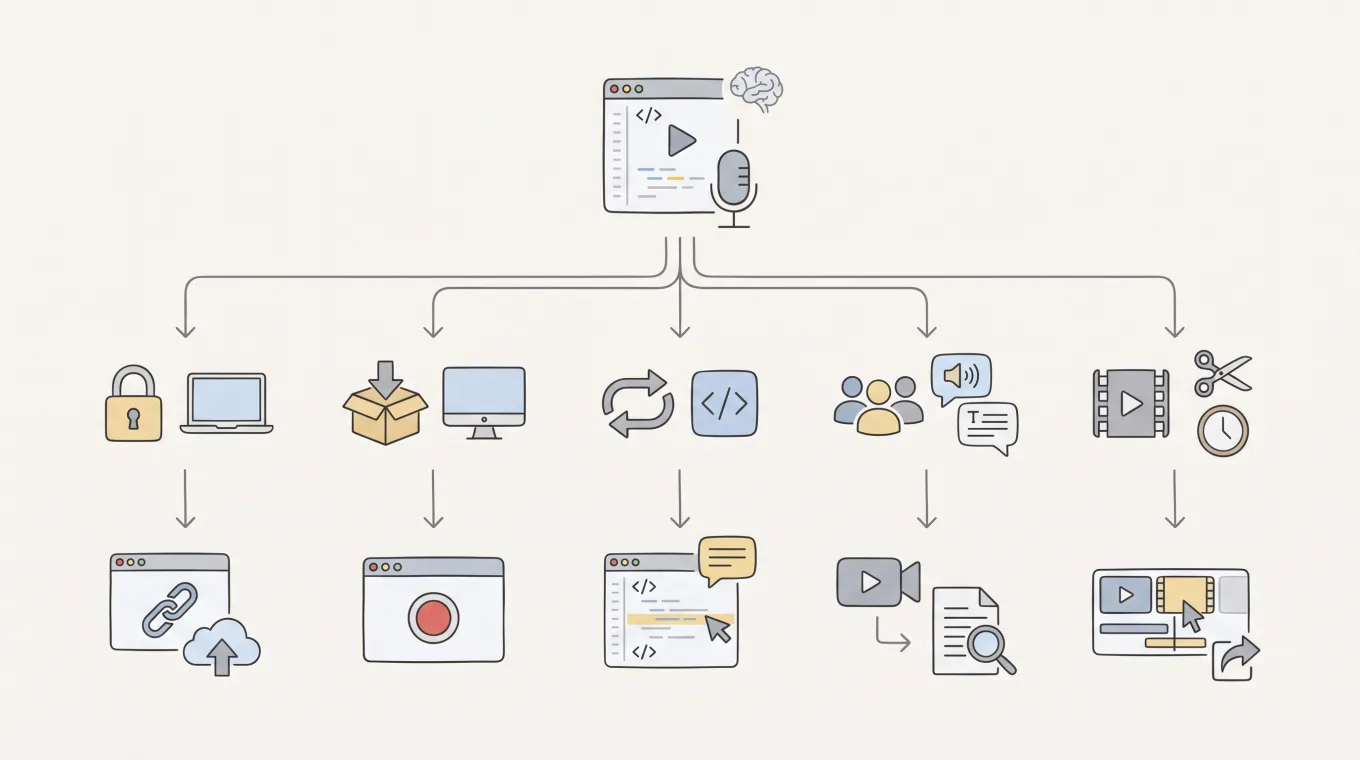
Which Recording Approach Fits Your Use Case?
Match the recording approach to your biggest constraint — install permissions, repetition, or audience reach — not to whichever tool is most popular.
- Locked-down corporate laptop → live browser recording (ShareRec)
- Free, offline, full control → live desktop recording (OBS Studio)
- Same codebase, repeated onboarding → annotation-based, no video (CodeTour)
- Cross-team or non-engineering audience → live recording with AI transcript (Loom)
- Reusable, edited onboarding asset → pre-recorded with editing (FlashBack)
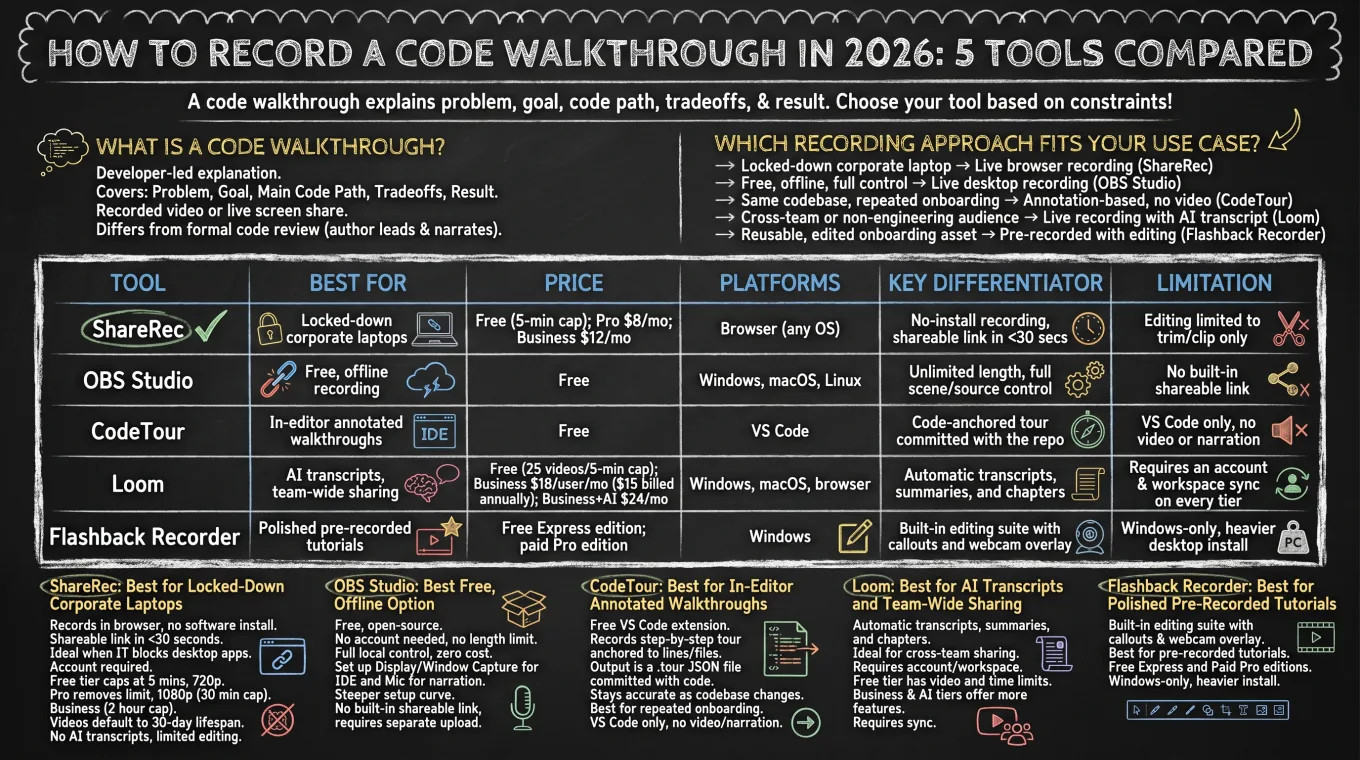
Code Walkthrough Tools Compared at a Glance
ShareRec, OBS Studio, CodeTour, Loom, and FlashBack cover five distinct approaches to recording a code walkthrough, from no-install browser capture to fully annotated in-editor tours.
| Tool | Best For | Price | Platforms | Key Differentiator | Limitation |
|---|---|---|---|---|---|
| ShareRec | Locked-down corporate laptops | Free (5-min cap); Pro $8/mo; Business $12/mo | Browser (any OS) | No-install recording, shareable link the moment you stop | Editing limited to trim/clip only |
| OBS Studio | Free, offline recording | Free | Windows, macOS, Linux | Unlimited length, full scene/source control | No built-in shareable link |
| CodeTour | In-editor annotated walkthroughs | Free | VS Code | Code-anchored tour committed with the repo | VS Code only, no video or narration |
| Loom | AI transcripts, team-wide sharing | Free (25 videos/5-min cap); Business $18/user/mo; Business+AI $24/mo | Windows, macOS, browser | Transcripts + auto titles free all plans; summaries/chapters on Business+AI | Requires an account and workspace sync on every tier |
| FlashBack | Polished pre-recorded tutorials | Free Express edition; paid Pro edition | Windows | Built-in editing suite with callouts and webcam overlay | Windows-only, heavier desktop install |
ShareRec: Best for Locked-Down Corporate Laptops
ShareRec records code walkthroughs directly in the browser with no software install and turns the recording into a shareable link as soon as you stop recording. Best for: engineers on corporate laptops where IT policy blocks desktop app installs.
An account is required on every tier, including Free. The free tier caps recordings at 5 minutes, records at 720p, and retains only the 25 most recent videos. Pro ($8/mo) removes the video limit and raises quality to 1080p with a 30-minute cap per recording; Business ($12/mo) extends that cap to 2 hours. Pro costs less than half Loom's Business plan ($18/user/mo).
Every new video defaults to a 30-day lifespan unless the owner sets it to Never, 24 hours, or 7 days — useful when sharing proprietary or sensitive code internally without leaving a permanent public link. ShareRec has no AI transcripts, summaries, or chapters, editing is limited to trim and clip, there's no emoji reactions overlay, and there's no team workspace or shared library.
OBS Studio: Best Free, Offline Option
OBS Studio is a free, open-source screen recorder that never requires an account and has no recording length limit. Best for: developers who want full local control and zero recurring cost.
Set it up for a code walkthrough by adding a Display or Window Capture source scoped to the IDE window, adding a Mic/Aux source for narration, and setting output format to MP4. OBS also supports multiple monitors, a full audio mixer, and plugins for more advanced captures.
The tradeoff is a steeper setup curve than browser-based tools, and OBS has no built-in way to generate a shareable link — the finished recording has to be exported and uploaded to a separate host like Drive, an unlisted YouTube video, or an internal server before anyone else can watch it.
CodeTour: Best for In-Editor Annotated Walkthroughs
CodeTour is a free VS Code extension that records a step-by-step tour anchored to specific lines and files instead of a video. Best for: teams that repeat the same onboarding walkthrough for new hires.
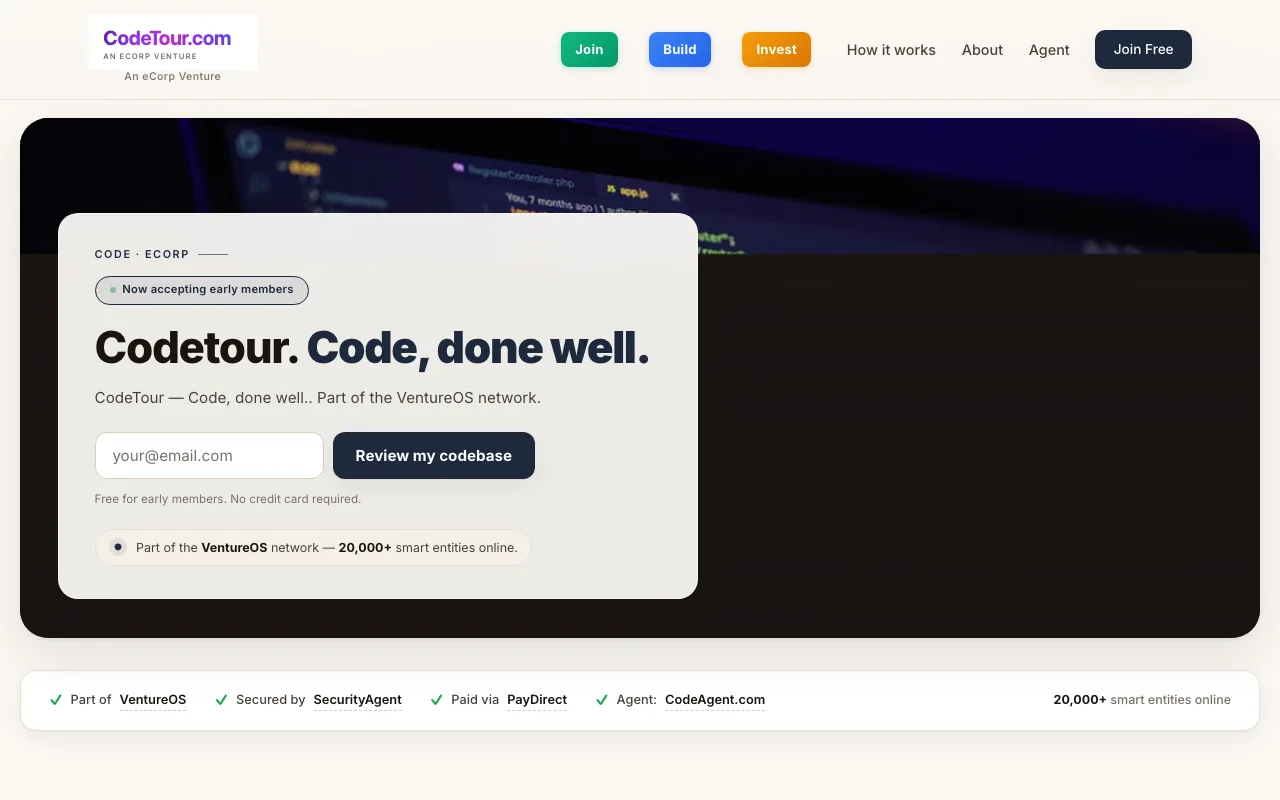
The output is a .tour JSON file that gets committed alongside the code, so it stays accurate as the codebase changes and teammates can self-serve it without watching a recording. That makes it the strongest fit for onboarding flows that get repeated every time someone new joins a project.
CodeTour is VS Code only, has no voice narration or video output, and doesn't help cross-IDE teams or non-technical stakeholders who need something to simply watch.
Loom: Best for AI Transcripts and Team-Wide Sharing
Loom records code walkthroughs with automatic transcripts free on every plan (AI-generated summaries are a Business+AI feature), and its free tier allows up to 25 videos with a 5-minute cap per video. Best for: walkthroughs that need to reach PMs, support, or other non-engineering teams alongside developers.
Loom records from both desktop and browser. Automatic transcripts are free on every plan; AI summaries and auto-generated chapters (Business+AI only) make long walkthroughs skimmable for viewers who weren't in the room. The free tier supports up to 50 workspace members. Paid plans are Business at $18/user/mo or Business+AI at $24/mo — Loom no longer offers a separate "Pro" tier.
FlashBack: Best for Polished Pre-Recorded Tutorials
FlashBack produces polished, pre-recorded code walkthrough tutorials with a built-in editing suite for trims, callouts, and webcam overlay, and its Express edition is free. Best for: teams producing a finished, reusable onboarding asset rather than a raw take.
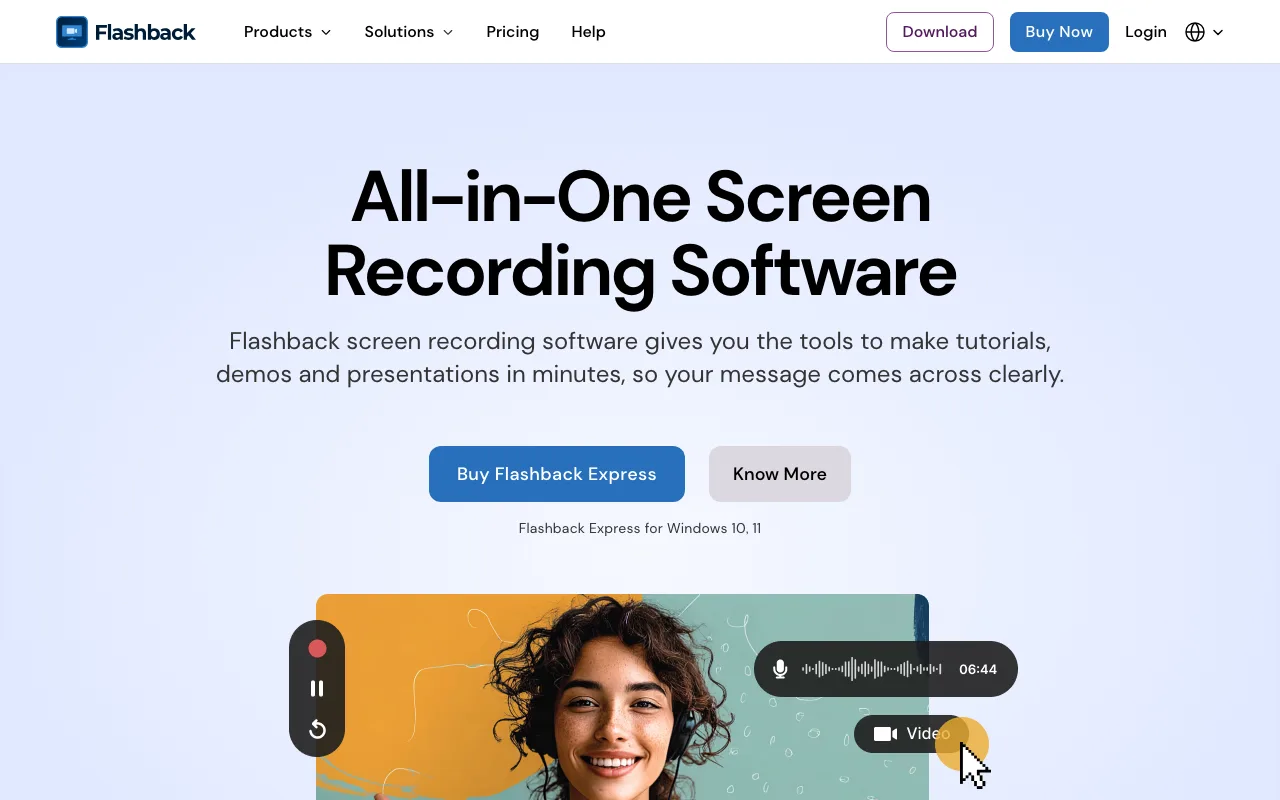
It supports the structured tutorial format — problem, goal, main code path, tradeoffs, result — with editing tools to clean up mistakes and dead air after recording. The free Express edition covers basic capture and trimming; the Pro edition adds advanced editing and export options.
FlashBack is Windows-only and a heavier desktop application than the browser-based options in this comparison.
Key Takeaways
- ShareRec: browser-based, no-install recording with a shareable link the moment you stop (free tier caps at 5 min/720p).
- OBS Studio: free, open source, no account or length limit — but needs manual setup to share.
- CodeTour: free VS Code extension that produces a code-anchored tour instead of a video, versioned with the repo.
- Loom: free tier caps at 25 videos/5 minutes (transcripts free on every plan); paid plans start at $18/user/mo, with summaries/chapters on Business+AI.
- FlashBack: Windows-only, with built-in editing for polished, pre-recorded walkthrough tutorials.
- Pick by constraint first — install permissions, repetition, or audience reach — not popularity.
- Three approaches exist: live video, pre-recorded and edited, or in-editor annotation with no video.
Frequently Asked Questions
What tools are best for recording VS Code walkthroughs?
CodeTour is best for interactive, non-video, in-editor tours anchored to specific code lines. For an actual screen-recorded video of the VS Code window, ShareRec or OBS Studio both work — ShareRec for a quick browser recording, OBS Studio for a free, offline capture.
Can I record code walkthroughs for free?
Yes. OBS Studio needs no account and has no recording length limit, CodeTour is a free VS Code extension that commits its tour file with the repo, and ShareRec's free tier (account required) covers 5-minute recordings at 720p and keeps your 25 most recent videos. All three options work at zero cost.
What's the difference between a code walkthrough and a code review?
A code walkthrough is author-led: the developer who wrote the code narrates the problem it solves, the goal, the main code path, and the tradeoffs made along the way. A code review is reviewer-led critique, typically conducted asynchronously, with the reviewer examining the code independently and without the original author present to explain it.
Should I edit my code walkthrough video after recording?
Only if you're producing a reusable onboarding asset — trim dead air and mistakes with a tool like ShareRec, which supports basic trim and clip edits, or FlashBack, which includes a full editing suite with callouts and webcam overlay. For a quick internal PR explanation, an unedited take is usually faster and just as useful.
How long should a good code walkthrough be?
Most effective walkthroughs run 3-8 minutes — long enough to cover the problem, the main code path, and the tradeoffs, short enough to hold the viewer's attention. Both ShareRec's free tier and Loom's free tier cap individual recordings at 5 minutes, which lines up well with that target length.
Do I need an account to record a code walkthrough?
It depends on the tool. OBS Studio and CodeTour need no account at all — both install locally or run inside VS Code. ShareRec and Loom both require an account on every tier, including their free plans, since recordings sync to a hosted workspace.
Try it free
Record your first walkthrough free — no install needed
No install, no watermark — share a link instantly.
Start Recording Free