How to Record a Bug Report Video (5 Best Tools, 2026)

ShareRec is the fastest tool for recording bug report videos on Windows — it runs in any modern browser, requires no desktop install, and generates a shareable link the moment you stop recording.
Five tools cover the full range of QA team needs:
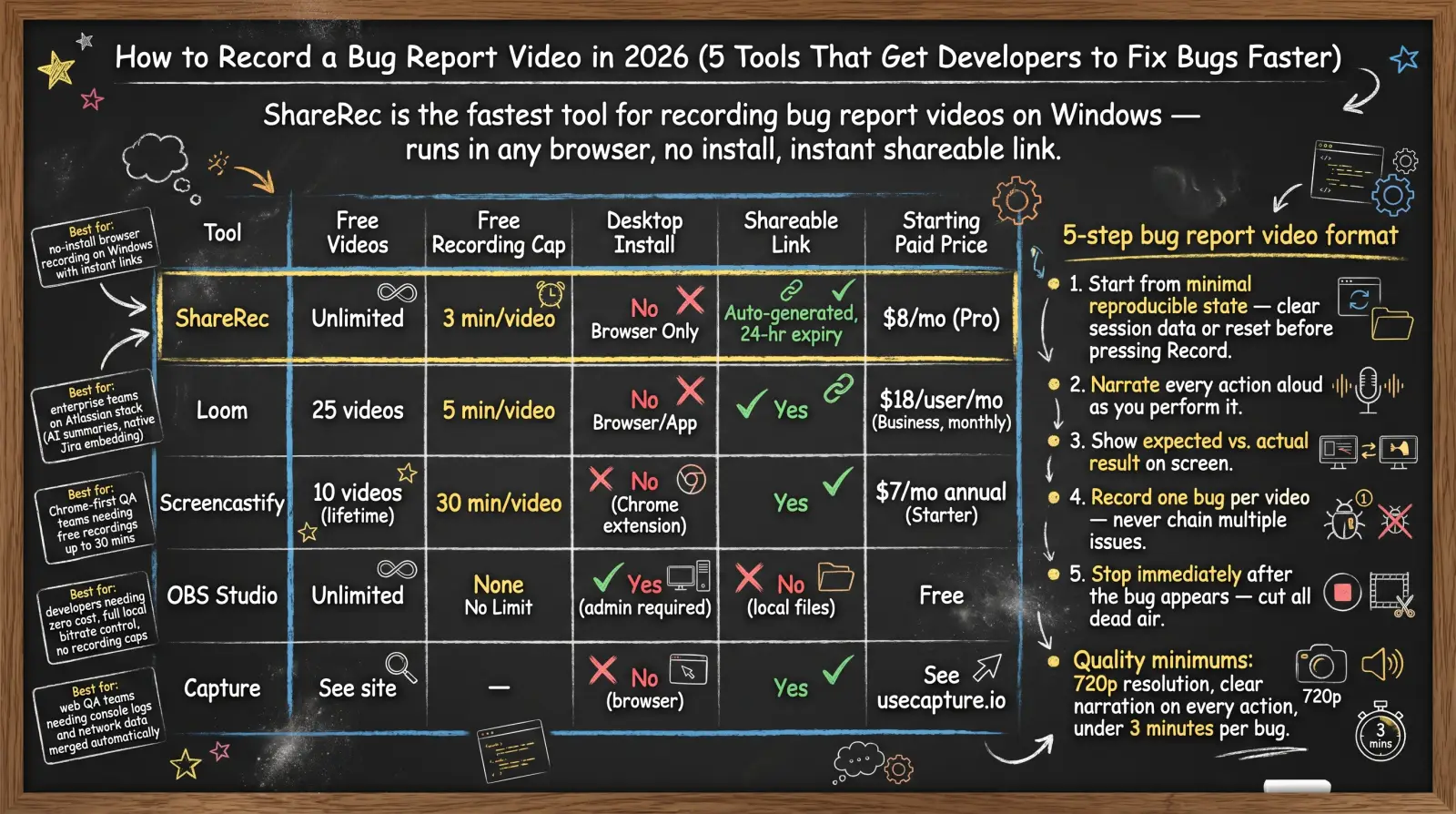
- ShareRec — Best for: no-install browser recording on Windows with instant shareable links
- Loom — Best for: enterprise teams on the Atlassian stack who need AI summaries and native Jira embedding
- Screencastify — Best for: Chrome-first QA teams needing free recordings up to 30 minutes
- OBS Studio — Best for: developers who want zero cost, full local bitrate control, and no recording caps
- Capture — Best for: web QA teams who need browser console logs and network data merged automatically with the video
5-step bug report video format:
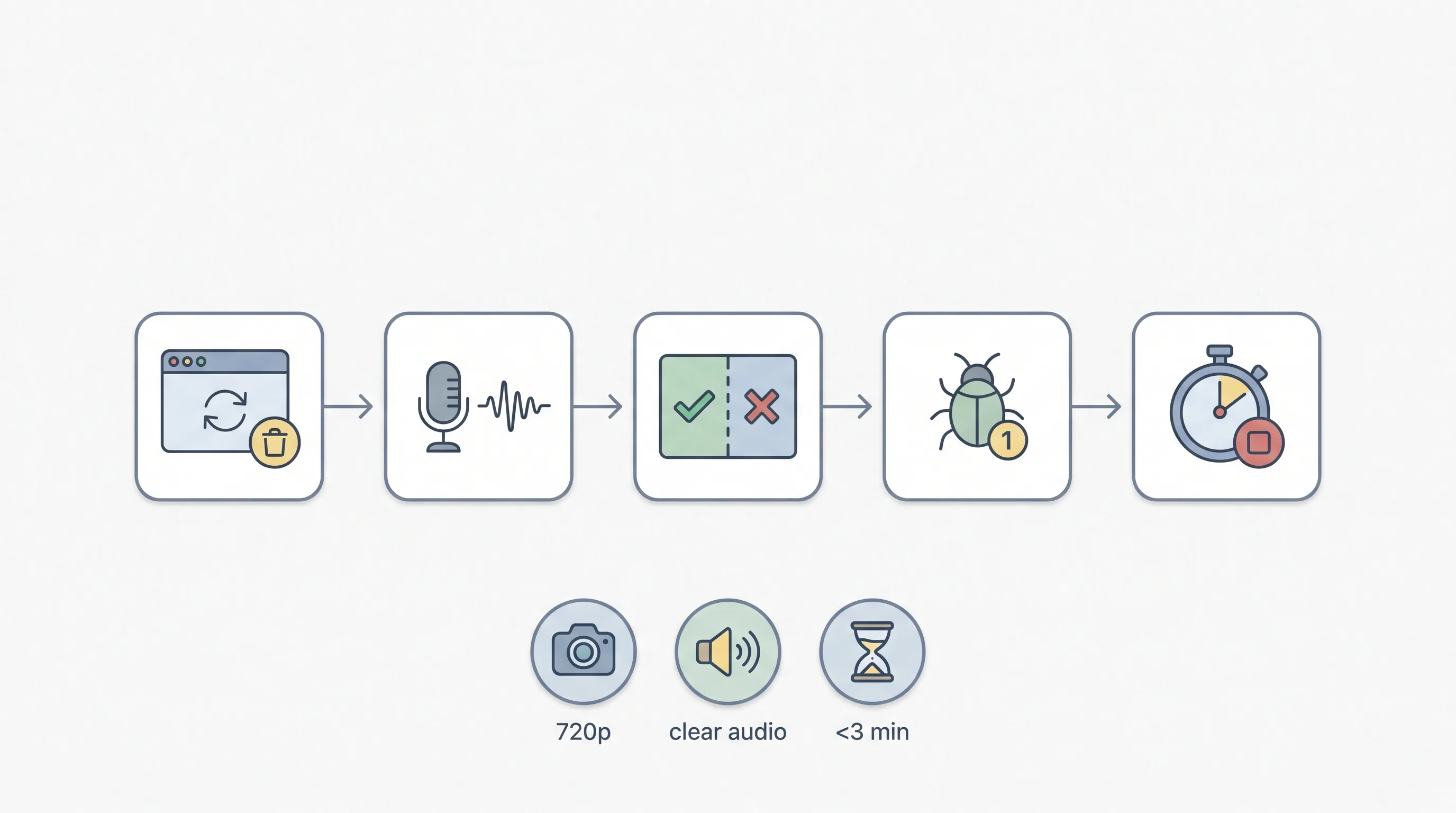
- Start from minimal reproducible state — clear session data or reset the environment before pressing Record.
- Narrate every action aloud as you perform it.
- Show expected vs. actual result on screen.
- Record one bug per video — never chain multiple issues.
- Stop immediately after the bug appears — cut all dead air.
Quality minimums: 720p resolution, clear narration on every action, under 3 minutes per bug.
How to Record a Bug Report Video: 5-Step Format and Quality Specs
A useful bug report video starts from minimal reproducible state, narrates every action aloud, and shows the exact gap between expected and actual behavior — all in under 3 minutes. This bug report video format helps developers reproduce issues with fewer follow-up questions.
Step 1 — Start from minimal state. Log out, clear session storage, and reset any persistent UI state before pressing Record. If the bug requires a specific prior action to trigger, perform that action before narrating. Guessing at environmental setup is the single largest source of developer follow-up questions.
Step 2 — Narrate every action aloud. Say "I'm clicking the Submit button" as you click it. A silent video forces developers to infer intent from mouse movement, adding time to reproduction. If you type into a field, say what you're typing and why.
Step 3 — Show expected vs. actual result. After the bug appears, hold on the broken state for 3–5 seconds. Navigate to documentation or another screen that shows the correct behavior. This on-screen comparison removes ambiguity from the expected outcome field in the bug tracker.
Step 4 — One bug per video. A 90-second focused recording is more actionable than a 6-minute walkthrough of three related issues. Recording multiple bugs in one video forces the developer to split the ticket manually, slowing triage.
Step 5 — Stop immediately after the bug. End the recording within 5 seconds of demonstrating the issue. Trim any trailing dead air over 2 seconds before sharing — most browser-based tools include a trim editor at no cost.
Quality specifications: Record at 720p minimum; use 1080p for UI-heavy bugs where small elements must be readable. Keep single-step bugs under 3 minutes. Complex multi-step reproduction paths can run up to 10 minutes provided all dead air is removed.
Bug Report Video Tool Comparison
Free tier limits, install requirements, and link-sharing behavior are the primary differentiators across ShareRec, Loom, Screencastify, OBS Studio, and Capture.
| Tool | Free Videos | Free Recording Cap | Desktop Install | Shareable Link | Starting Paid Price |
|---|---|---|---|---|---|
| ShareRec | 25 most recent | 5 min/video | No | Yes — instant | $8/mo (Pro) |
| Loom | 25 videos | 5 min/video | No | Yes | $18/user/mo (Business, monthly) |
| Screencastify | 10 videos (lifetime) | 30 min/video | No (Chrome extension) | Yes | $7/mo annual (Starter) |
| OBS Studio | Unlimited | None | Yes (admin required) | No (local files) | Free |
| Capture | Unlimited (free) | — | No (Chrome ext) | Yes | Free (free forever) |
ShareRec — Best for Instant Shareable Bug Report Links on Windows
Best for: QA teams on locked-down Windows machines who need a shareable link they can paste into a bug ticket in under 30 seconds.
ShareRec charges $0 on its Free tier, runs entirely in a browser tab, and generates an instant link the moment you click Stop — no file upload, no post-processing. The workflow: open a browser tab → click Record → narrate the bug → click Stop → copy the auto-generated link → paste into Jira, GitHub Issues, or Linear.
Free tier: keeps your 25 most recent videos, 5-minute cap per recording, 720p output, 30-day default expiry (keep any video forever in one click), no watermark, trim and clip editing included. An account is required on every tier, including Free.
The 5-minute cap covers standard single-step bug reports but not full test session walkthroughs — teams recording longer reproduction paths need Pro. ShareRec also has no annotation tools, no AI transcript feature, and no webcam overlay.
Pro ($8/month) extends recordings to 30 minutes, upgrades output to 1080p, and unlocks unlimited videos. Business ($12/month) allows 2-hour recordings, also with unlimited videos. Videos auto-expire in 30 days by default on every tier — and you keep any one forever in one click.
Keep any bug video forever in one click and it still opens when the developer picks the ticket up days later — while the recordings you no longer need tidy themselves after 30 days, and a 3-day email warning lands before anything is deleted, so nothing you care about disappears mid-triage.
Loom — Best for Enterprise Teams with Jira and AI Summaries
Best for: engineering teams already in the Atlassian stack who need AI-generated transcripts and native Jira or Confluence embedding.
Loom's native Jira and Confluence integration allows bug report videos to embed directly inside issue cards, eliminating the need to manage separate shared links. No desktop install required — Loom records in the browser on Windows and macOS, or via the Loom desktop app.
Free tier: 25 videos maximum, 5-minute recording cap per video, up to 50 workspace members. Business costs $18/user/month billed monthly (approximately $15/user/month billed annually). Business+AI at $24/user/month adds AI-generated transcripts, video summaries, and automatically generated chapter markers.
A QA team filing 30 bugs per sprint exhausts the 25-video free cap within days, adding $18 per engineer per month to move to Business.
The AI summary feature delivers real value where developers review dozens of bug recordings per week — AI-generated summaries let developers scan key moments without watching the full recording.
Screencastify — Best for Chrome-First Teams Needing Free 30-Minute Recordings
Best for: QA teams working primarily in Chrome who need free recordings up to 30 minutes with no separate desktop install.
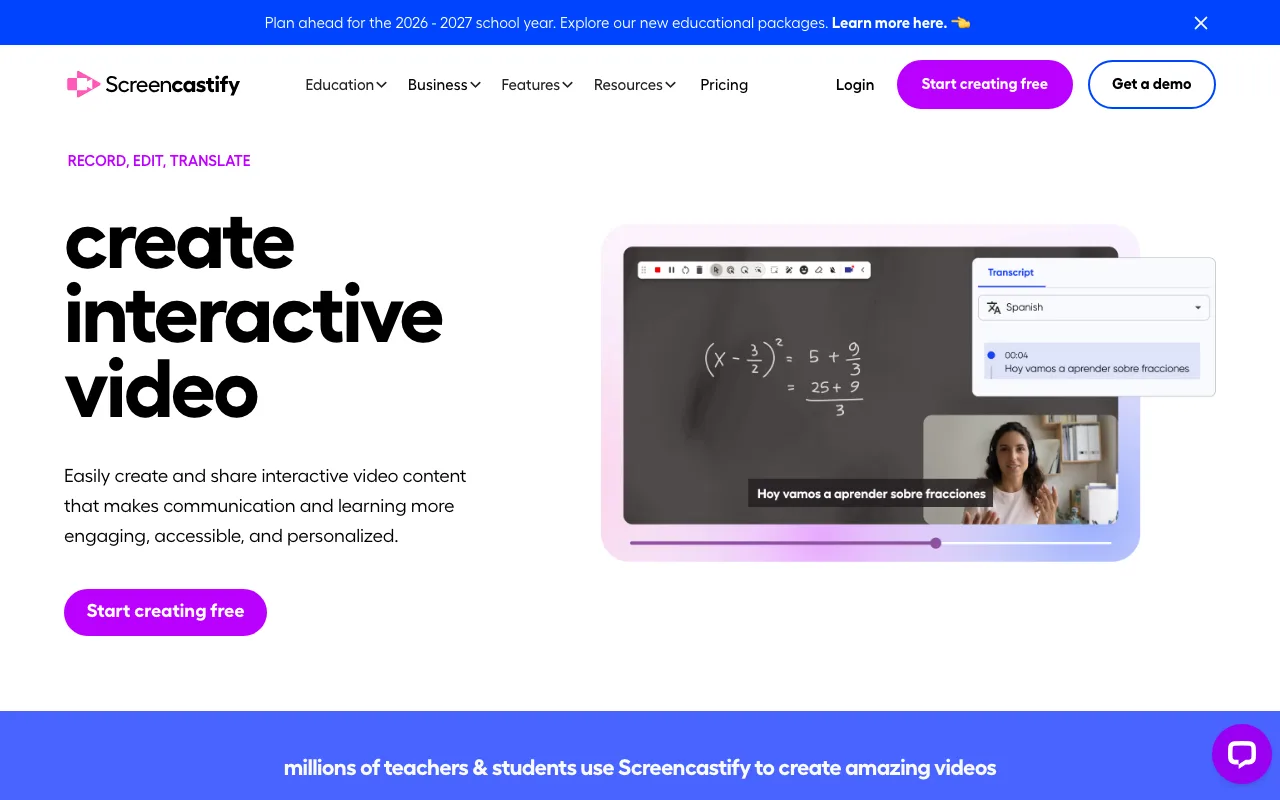
Screencastify installs as a Chrome extension from the Web Store — one click, no admin rights required for the extension install itself — and records directly from the browser without a desktop application. Free tier: 10 videos maximum (lifetime cap), 30-minute recording cap per video.
The 30-minute free recording cap is the most generous of the five tools, making Screencastify a strong fit for complex multi-step bugs that require a full environment setup before the issue triggers. Paid plans add unlimited videos: Starter at $7/user/month billed annually ($19/month billed monthly), Pro at $10/month billed annually ($25/month billed monthly).
The 10-video lifetime cap on the free tier is the lowest of any tool here — a single active sprint can exhaust it. Screencastify does not work in Firefox, Safari, or Edge without installing the extension separately in each browser.
OBS Studio — Best for Power Users Who Need Full Local Control
Best for: developers and QA engineers who need unlimited local recordings with full bitrate control and zero ongoing cost.
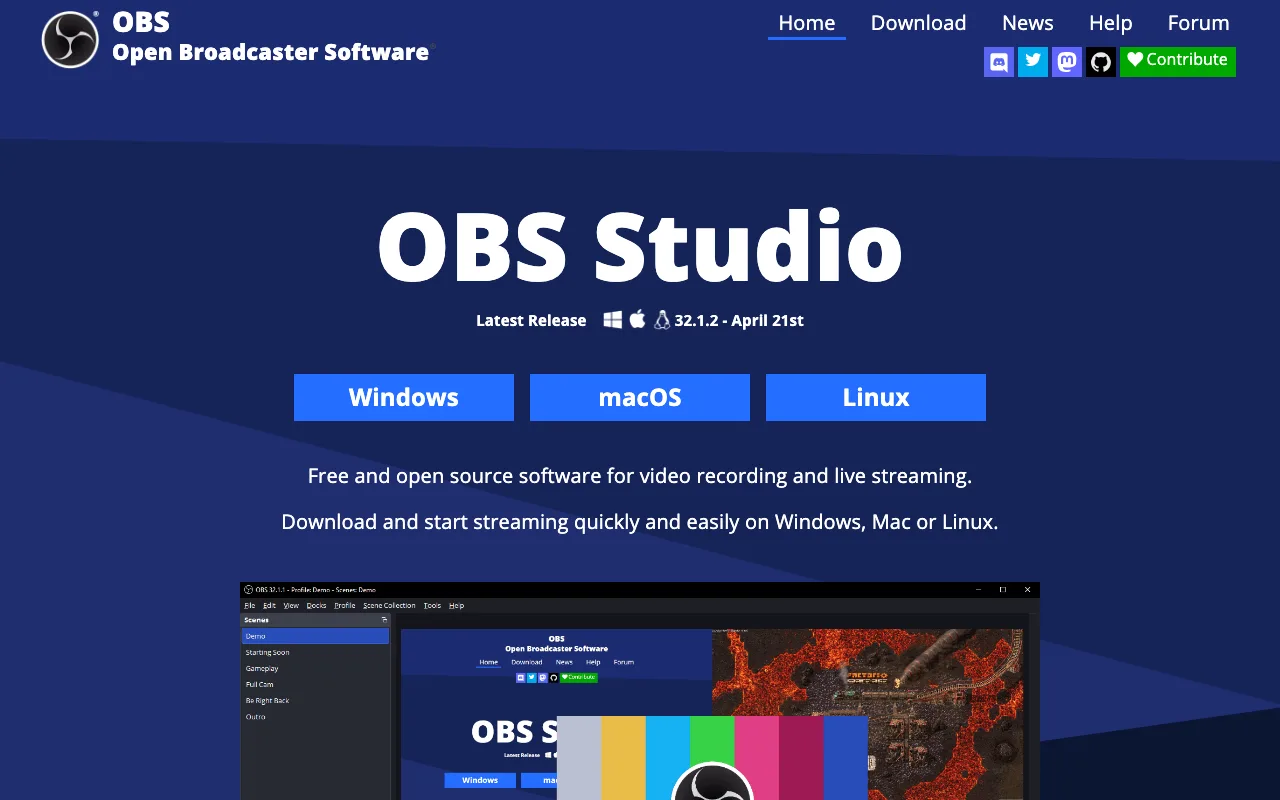
OBS Studio is fully free and open source with no recording caps, no video count limits, and no subscription — recordings save directly to local disk in MP4, MKV, or FLV format. A desktop install is required: download the Windows .exe with local admin rights needed for installation.
Full control over resolution, frame rate (up to 60fps), bitrate, and output format are genuine strengths. Teams with existing shared storage — Google Drive, S3, or SharePoint — can record locally with OBS, upload to shared storage, and paste the resulting link into the bug tracker.
Setup takes 10–15 minutes to configure scene layout, audio source, and output path — longer than any browser-based tool. No built-in shareable link: files must be uploaded manually before they can be referenced in a bug ticket.
Capture — Best for Automated Bug Metadata Collection
Best for: product and QA teams filing web application bugs who need browser console logs, network requests, and video merged automatically into one report.
Capture bundles browser console logs and network request data with the screen recording in the background — no manual copy-paste from DevTools after the bug appears. This produces a single, complete report rather than a video file plus a separately exported HAR file.
Capture runs as a Chrome extension — no desktop app — and is currently free for all users ("free forever"); the company plans premium features later but has committed not to paywall existing ones. The integrations ecosystem is smaller than Loom or Screencastify — verify current coverage on their site before committing.
Capture is purpose-built for browser-based web application bugs — mobile app QA and native desktop application bug reports are outside its core use case. Teams see the most value from Capture when developers spend significant time reconstructing browser state from written reproduction steps.
Key Takeaways
- ShareRec — Free tier keeps your 25 most recent videos, 5-min cap, no watermark, 30-day default expiry (keep any forever in one click); account required on every tier.
- Loom — Free: 25 videos, 5-min cap; Business ($18/user/month) adds AI transcripts and Jira embedding.
- Screencastify — Free: 10 total videos (lifetime), 30-min cap; Chrome extension, no desktop app.
- OBS Studio — Free, open source, no recording caps; requires desktop install, no built-in cloud sharing.
- Capture — Free Chrome extension that bundles console logs and network data with video automatically; built for web app QA.
Frequently Asked Questions
What should you include in a bug report video?
A complete bug report video covers five elements: starting from minimal reproducible state, recording one bug per video, narrating every action aloud, showing an on-screen comparison of expected vs. actual result, and ending immediately after the bug appears with no dead air. These five elements give developers everything needed to reproduce the issue without follow-up.
How long should a bug report video be?
Under 3 minutes for a standard single-step bug. ShareRec's free tier 5-minute cap comfortably covers this best practice. For complex multi-step reproduction paths — where multiple prior actions are required to trigger the issue — up to 10 minutes is acceptable, provided dead air over 2 seconds is trimmed before sharing.
Do you need a paid tool to record bug report videos?
No. ShareRec's free tier keeps your 25 most recent videos with a 5-minute cap — videos auto-expire after 30 days by default, but you keep any one forever in one click (with a 3-day email warning), and an account is required. Loom's free tier allows 25 videos at up to 5 minutes each. OBS Studio is fully free with no limits but requires a desktop install and has no built-in cloud sharing. Paid tiers add longer recording times and unlimited videos.
Can a bug report video replace written descriptions?
Video effectively replaces the reproduction steps field but does not replace the bug title, expected and actual outcome fields, severity tag, or environment details in the tracker. Developers need the written fields to triage and assign the ticket before watching the video. Bug report videos supplement written reports — they do not eliminate them.
Try it free
Record your first walkthrough free in 30 seconds
No install, no watermark — share a link instantly.
Start Recording Free