How to Make Training Videos for Employees in 2026 (5 Tools Compared)
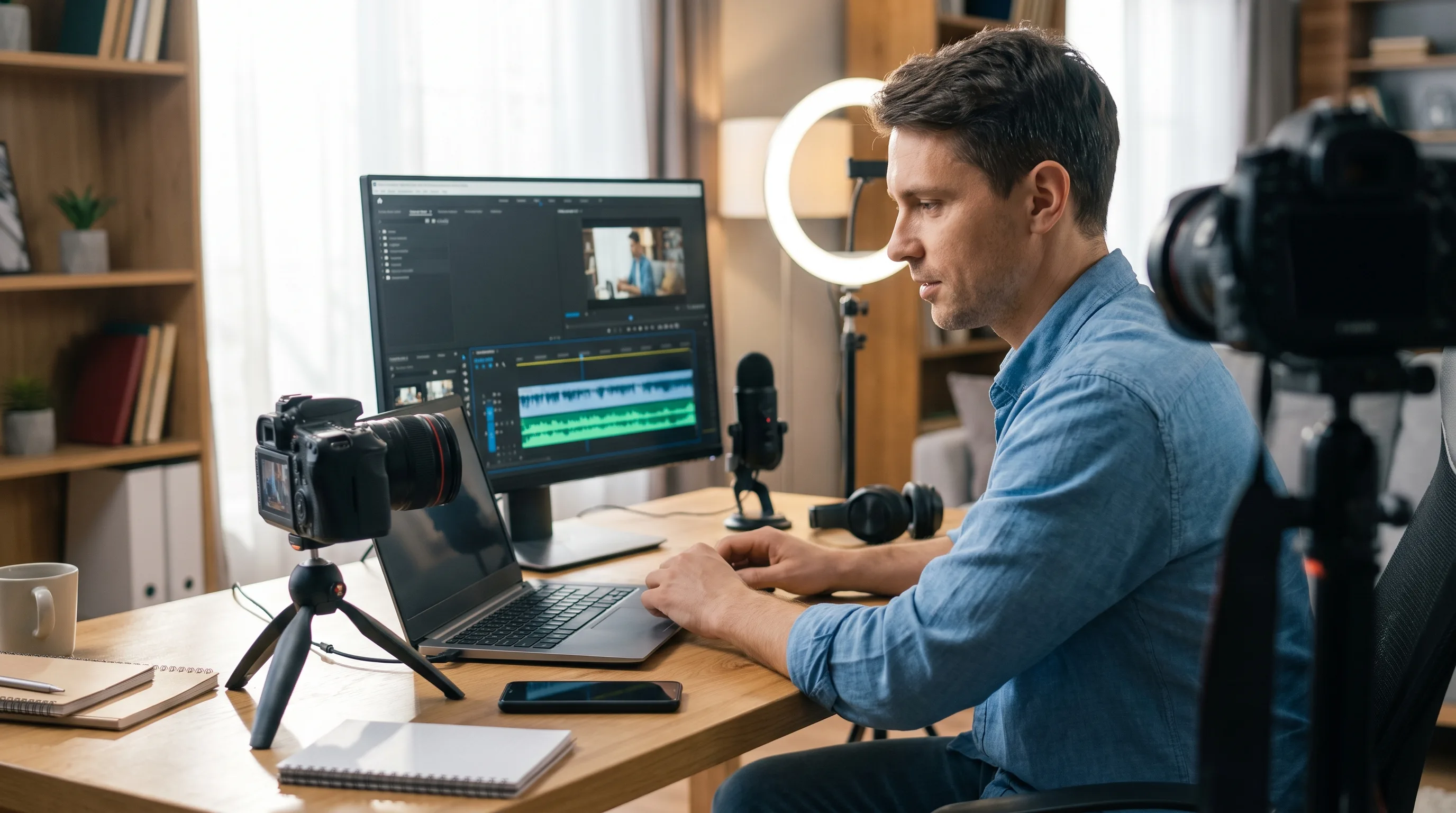
ShareRec is the best tool for making quick screen-recorded training walkthroughs — record your screen, add voiceover, and share an instant link in under 60 seconds, with a free browser-based tier that keeps your 25 most recent videos, adds no watermark, and needs no software install.
Five tools cover every training video format in 2026:
- ShareRec — Best for browser-based screen walkthroughs with instant shareable links; free tier keeps your 25 most recent videos with no watermark (account required)
- Loom — Best for teams that need AI-powered transcripts, auto-summaries, and a shared video library
- Synthesia — Best for AI avatar videos in 160+ languages with no camera or microphone needed
- Camtasia — Best for professional L&D production with built-in quizzes, zoom effects, and callout annotations
- Canva — Best for animated, template-based compliance and onboarding content
The process works in eight steps: from defining a single learning objective to sharing the final video with your team.
How to Make a Training Video in 8 Steps
Employee training videos follow a repeatable eight-step process — define one learning objective, record in short segments, and share a direct link.
-
Define one learning objective. Each video teaches one task. "How to submit an expense report in Concur" is a workable objective; "HR onboarding overview" covers too much ground for a single video.
-
Write a script at 130–150 words per minute. A 3-minute video needs roughly 400–450 words. Read it aloud before recording — anything that sounds awkward in speech will sound worse on screen.
-
Choose your recording format. Screen recording for software walkthroughs. AI avatars for policy updates. Animated slides for soft-skills or compliance content. Format follows content type, not preference.
-
Set up your recording environment. Close notification apps, set screen resolution to 1080p minimum, and test your microphone before starting.
-
Record in short segments, not one continuous take. Capture each step as a separate clip. A mistake in step 4 only requires re-recording that segment, not the entire video.
-
Edit for length and accessibility. Cut dead air and filler words. Target 3–6 minutes total. Add captions — they improve accessibility and meet compliance requirements.
-
Add context elements. Open with a title card showing the topic and date. Use callouts or arrows to highlight key UI elements in software demos. Close with a 3-point summary slide.
-
Test before publishing. Share the video with 2–3 employees before a full rollout. Their points of confusion become your edit list for version 2. Publish via direct link or LMS embed.
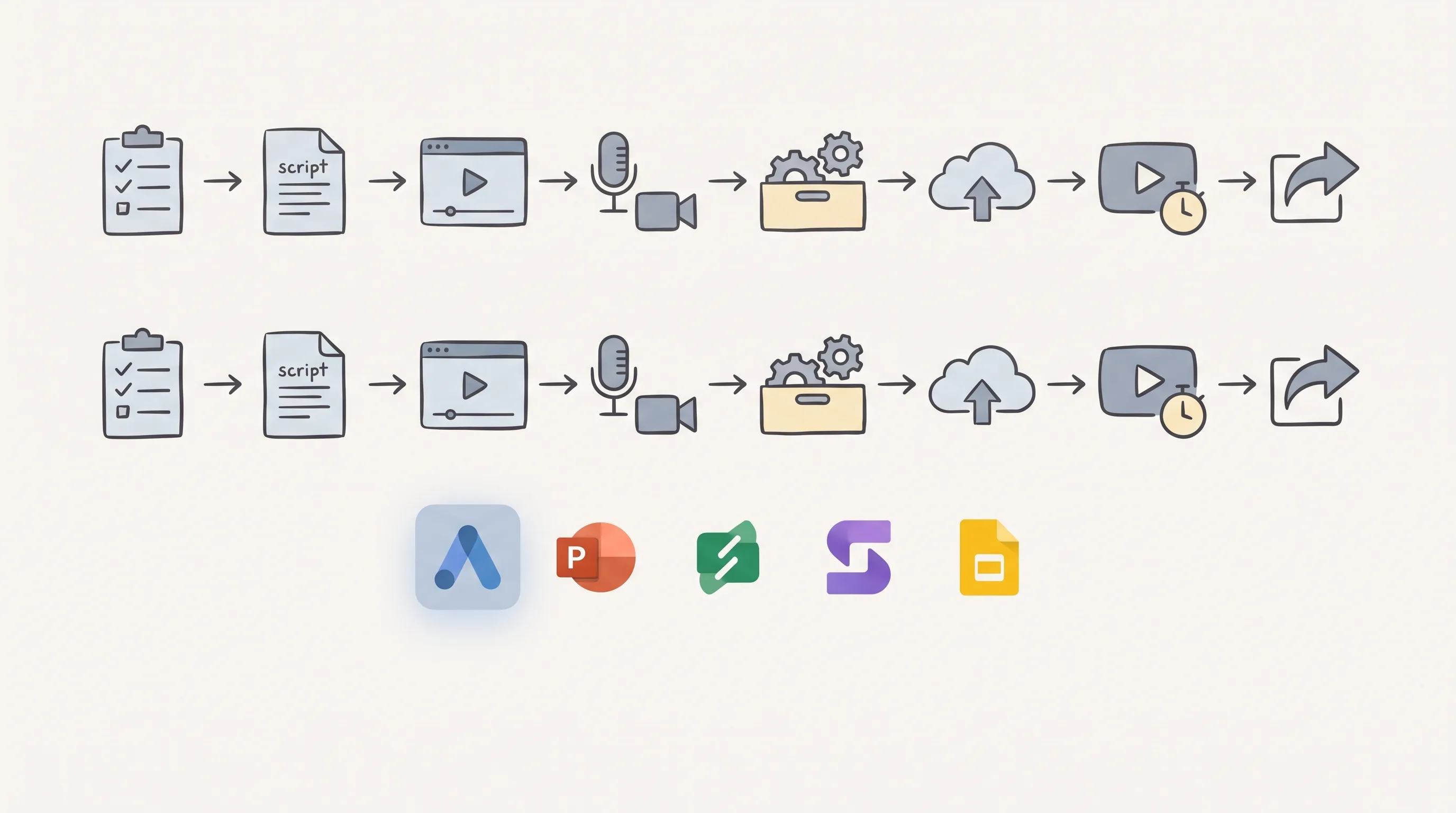
Training Video Tool Comparison (2026)
ShareRec, Loom, Synthesia, Camtasia, and Canva each win a distinct use case — no single tool covers every employee training video format.
| Tool | Best For | Free Tier | Starting Paid Price |
|---|---|---|---|
| ShareRec | Screen walkthroughs, instant shareable links | 25 most recent videos, 5-min cap, 720p, no watermark | $8/mo |
| Loom | AI transcripts, team video library | 25 videos max, 5-min cap | ~$15–18/user/mo |
| Synthesia | AI avatar videos, 160+ languages | Free Basic: 10 min/mo | $18/mo (annual) |
| Camtasia | Professional editing, built-in quizzes | 30-day trial only | ~$15/mo (annual) |
| Canva | Animated slides, template-based content | Limited templates | $15/mo |
ShareRec — Best for Quick Screen-Recorded Training Walkthroughs
ShareRec's free tier keeps your 25 most recent videos, adds no watermark, and includes trim-and-clip editing — with an instant shareable link generated the moment recording stops, no upload step required.
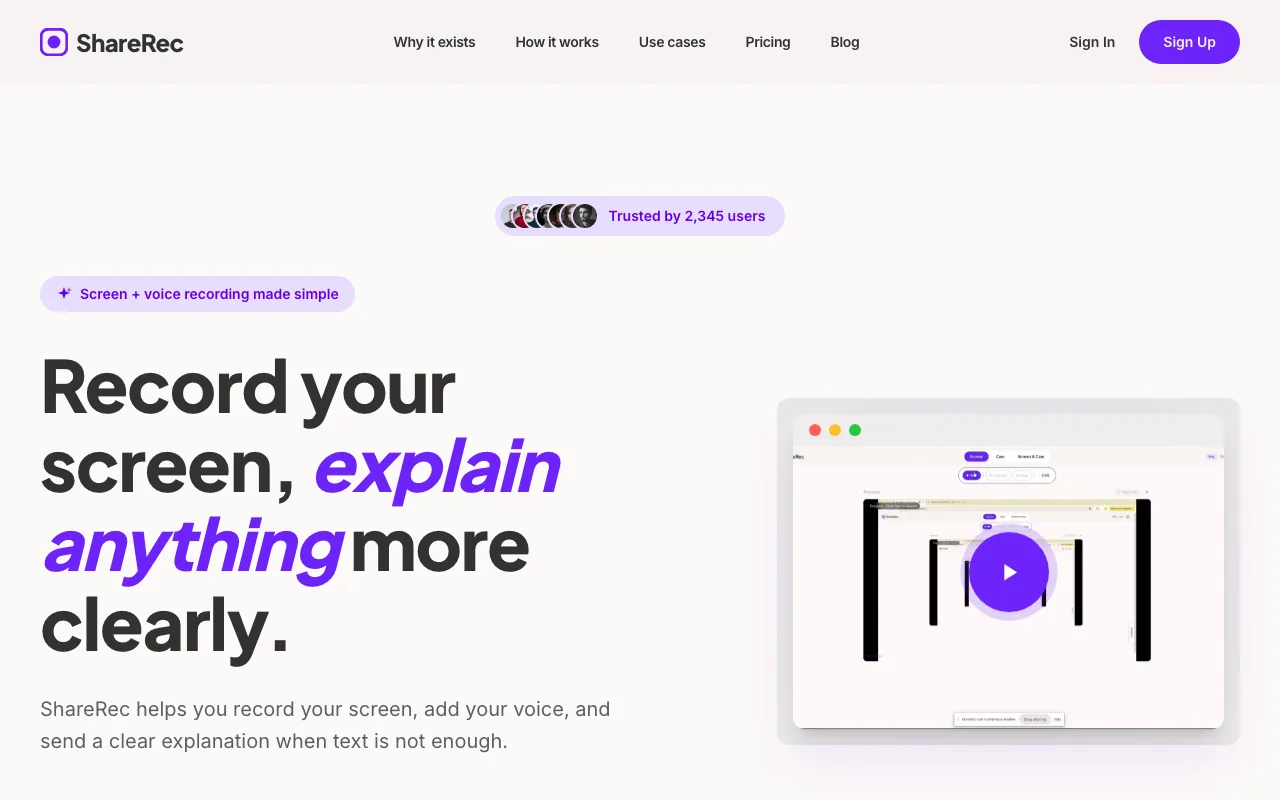
Best for: Employees and team leads recording software walkthroughs or process explanations from a browser, including on locked-down corporate Windows laptops where desktop app installs require IT approval.
The workflow is three steps: Record, Explain, Send. Open ShareRec in any browser, click record, narrate your screen, and stop. The shareable link is ready immediately.
Free tier details: account required, keeps your 25 most recent videos, 5-minute recording cap, 720p output, 30-day default expiry (keep any video forever in one click), no watermark, trim and clip editing included. Pro ($8/mo) raises the cap to 30 minutes, upgrades output to 1080p, and unlocks unlimited videos. Business ($12/mo) sets a 2-hour recording cap, 1080p output, and unlimited videos. Videos auto-expire in 30 days by default on every tier — and you keep any one forever in one click, with a 3-day email warning before anything is deleted. At $8/mo, ShareRec's Pro tier runs roughly half Loom's per-seat price.
A team lead records a 2-minute walkthrough showing a new hire how to submit a Jira ticket, drops the link in Slack, and the new hire watches it on day one without installing anything.
Limitations: 5-minute cap on the free tier rules out longer walkthroughs without upgrading, and the free tier keeps only your 25 most recent videos (Pro and Business unlock unlimited). No AI transcripts, no annotations or drawing tools, no webcam bubble overlay, no team workspace. Account required on all tiers including Free.
Loom — Best for Teams That Need AI Transcripts and a Shared Video Hub
Loom's Business plan at $15–18/user/month includes AI-generated transcripts, auto-chapter summaries, timestamped commenting, and a shared team workspace — the strongest collaboration feature set in this comparison.
Best for: L&D teams building a searchable async video library for compliance training or multi-department onboarding where content needs to be reviewed and tracked over time.
The free tier supports up to 50 workspace members with a 25-video cap and a 5-minute recording limit per video. Business tier (billed annually at ~$15/user/mo, or monthly at $18/user/mo) removes both caps and adds AI features. Loom Business+AI costs $24/mo. There is no "Loom Pro" tier — the step up from free goes directly to Business.
Employees can leave timestamped comments, react with emoji, and search transcripts for specific terms. For compliance training where managers need to confirm engagement with specific content, those features have direct operational value.
Limitations: Free tier's 25-video cap fills quickly for teams producing regular content. At $15–18/user/month, Loom carries the highest per-seat cost in this comparison.
Synthesia — Best for AI Avatar Training Videos Without On-Camera Talent
Synthesia generates presenter-led training videos from a typed script using AI avatars in 160+ languages — no camera, microphone, studio, or on-screen talent required.
Best for: Global organizations rolling out compliance updates, safety training, or policy content across regions where producing live-camera video at scale is impractical.
Type a script, select an avatar, choose a language, and Synthesia renders a training video with a speaking presenter. The template library includes L&D-specific formats: onboarding modules, safety procedures, product knowledge, and policy updates. One script becomes 12 localized videos for a company operating across 12 countries — no re-recording, no dubbing.
Synthesia offers a free Basic plan (10 minutes of video per month, 9 AI avatars). Starter is $18/month billed annually ($29 month-to-month); Creator is $64/month billed annually ($89 month-to-month); Enterprise is custom.
Limitations: Synthesia cannot capture live screen activity — it is not suitable for software walkthrough training. Entry price is higher than screen-recording alternatives. Avatar delivery can feel scripted for some content types.
Camtasia — Best for Professional Training Video Production
Camtasia is the only tool in this comparison with built-in quiz and interaction features that embed knowledge checks directly into the video timeline — used by L&D teams and instructional designers for assessments and interactive training content.
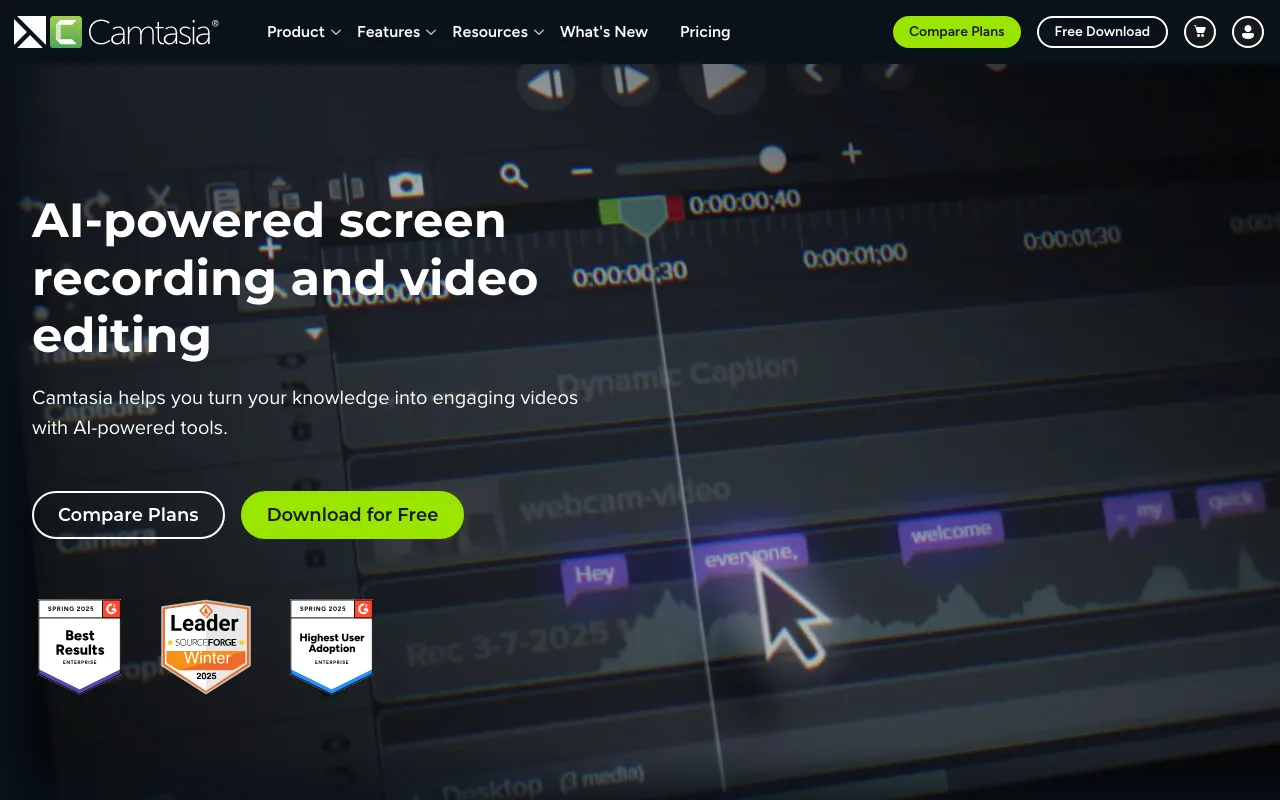
Best for: Instructional designers and L&D teams producing polished interactive training content with zoom-and-pan transitions, callout annotations, and embedded assessments.
The quiz builder embeds multiple-choice questions into the video timeline — playback pauses until the learner answers. Zoom-and-pan transitions and callout overlays let instructional designers highlight specific UI elements and guide viewer attention. L&D practitioners on Reddit cite it as the go-to for corporate instructional design work.
Essentials plan runs approximately $179.88/year (~$15/month equivalent); Create runs approximately $249/year. A 30-day free trial is available with no ongoing free tier. Verify current pricing at techsmith.com. Desktop install on Windows or Mac is required.
Limitations: Steeper learning curve than browser-based tools. Desktop installation requires admin rights — will not run on locked-down corporate devices without IT setup.
Canva — Best for Animated, Template-Based Training Content
Canva's video editor includes the largest template library of any tool in this comparison for training formats — compliance decks, onboarding slides, and soft-skills modules — with a drag-and-drop timeline that requires no editing experience.
Best for: HR generalists and team managers who need to produce slide-format training content quickly without a production or editing background.
The free tier includes limited templates and video exports. Pro ($15/mo, or $120/year) unlocks the full template library, brand kit, and premium stock footage. Teams pricing runs $10/user/month with a 3-user minimum.
Canva's stock footage library, music tracks, and animation presets cover most presentation-style training formats. A compliance training module — policy overview, key rules, LMS quiz prompt — can be assembled from a template in under 30 minutes.
Limitations: No live screen recording — unsuitable for software walkthrough or process demonstration videos. Output quality depends heavily on template selection.
Key Takeaways
- ShareRec — free browser-based recording; keeps your 25 most recent videos, 30-day default expiry (keep any forever in one click), no watermark; account required; $8/mo Pro.
- Loom — AI transcripts and team workspace; free: 25 videos, 5-min cap; $15–18/user/mo paid.
- Synthesia — AI avatars in 160+ languages; free Basic plan (10 min/mo); Starter $18/mo annual ($29 monthly).
- Camtasia — built-in quizzes; desktop only; Essentials at $179.88/year (~$15/mo).
- Canva — templates for slide-format training; no screen recording; Pro at $15/mo.
- Videos 3–6 minutes achieve the best completion rates; restructure anything over 20 minutes as a series.
- One learning objective per video produces better retention than multi-topic overviews.
Frequently Asked Questions
What is the best way to create training videos?
Define one learning objective per video, write a script at 130–150 words per minute, and record in short segments. Add captions for accessibility and test with 2–3 employees before publishing. Use ShareRec for screen walkthroughs, Canva for animated content, and Synthesia for AI-narrated global training.
What are the best free tools for making employee training videos?
ShareRec keeps your 25 most recent videos with no watermark on its free tier — videos auto-expire after 30 days by default, but you keep any one forever in one click (with a 3-day email warning), a 5-minute recording cap applies, and an account is required. Loom's free tier allows 25 videos with a 5-minute cap. Canva has a free tier with limited templates and video exports. OBS Studio is fully free and open-source but requires a desktop install with no built-in shareable link.
How long should an employee training video be?
Three to six minutes is the target range for optimal completion and retention. Onboarding or compliance videos covering a full multi-step process can run 10–15 minutes if structured into chapters. Any video exceeding 20 minutes should be split into a series with individual videos per topic.
Can ChatGPT help create training videos?
Yes — use ChatGPT to draft the script: prompt "Write a 3-minute training video script teaching [specific task] for [employee role]." Paste the output into a screen recorder with voiceover or an AI avatar tool like Synthesia. ChatGPT does not generate video files directly.
Try it free
Record your first walkthrough free in 30 seconds
No install, no watermark — share a link instantly.
Start Recording Free