How to Screen Record on a Mac: 5 Best Tools (2026)

ShareRec is the best tool for quickly sharing a Mac screen recording without an upload step, but if you just want to record for free, macOS has two built-in options: the Screenshot app (Shift-Command-5) and QuickTime Player (File > New Screen Recording). Both are free, need no download, and save .mov files to the Desktop by default.
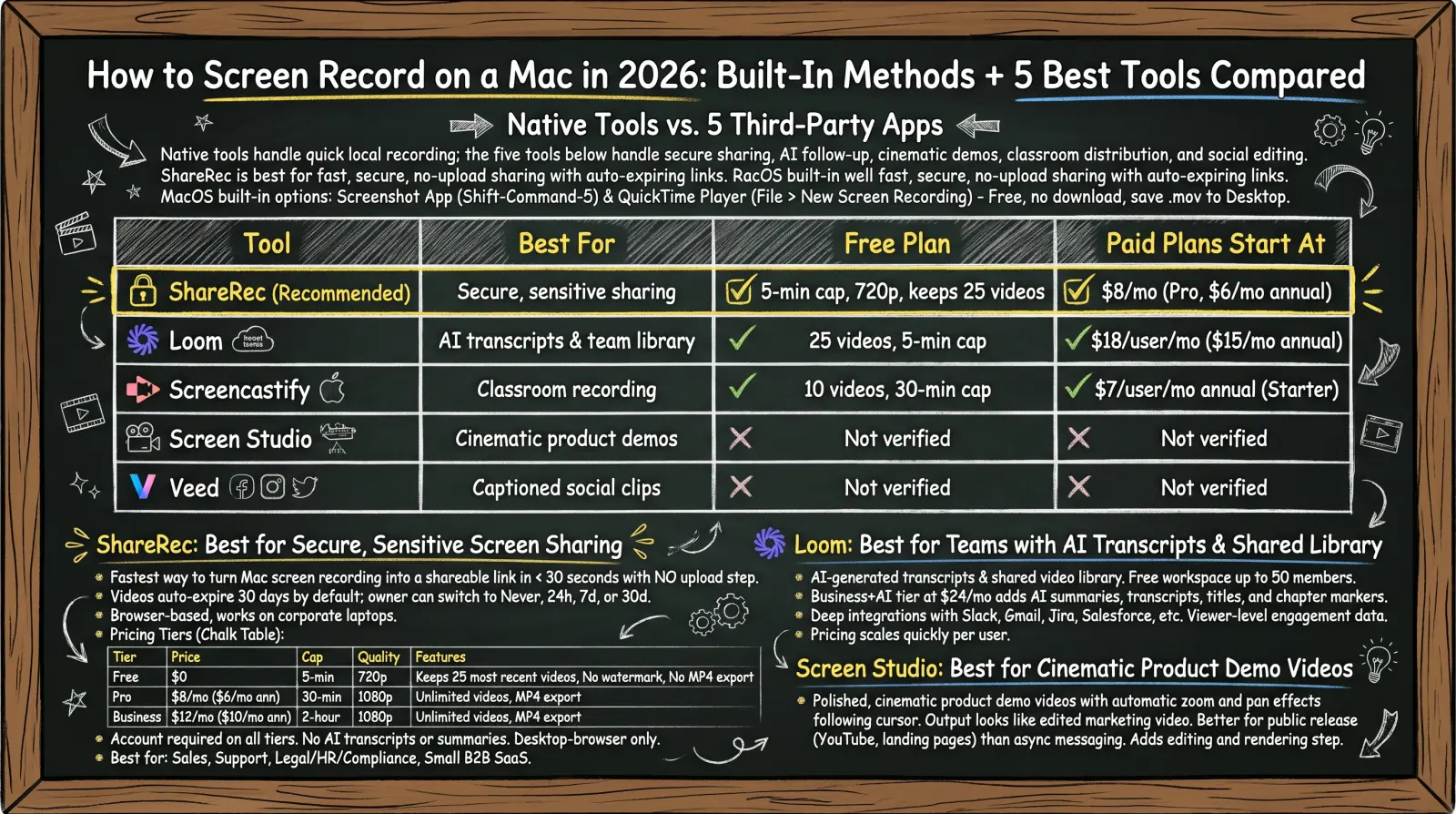
Beyond basic recording, five tools each solve a different job: ShareRec for quick share links that expire on their own — sales demos, support walkthroughs, internal workflow docs — with auto-expiring links; Loom for teams that want free transcripts and a shared video library; Screen Studio for a Mac-only recorder with built-in shareable links; Screencastify for classroom recording and bulk student video review; and Veed for captioned, social-ready clips.
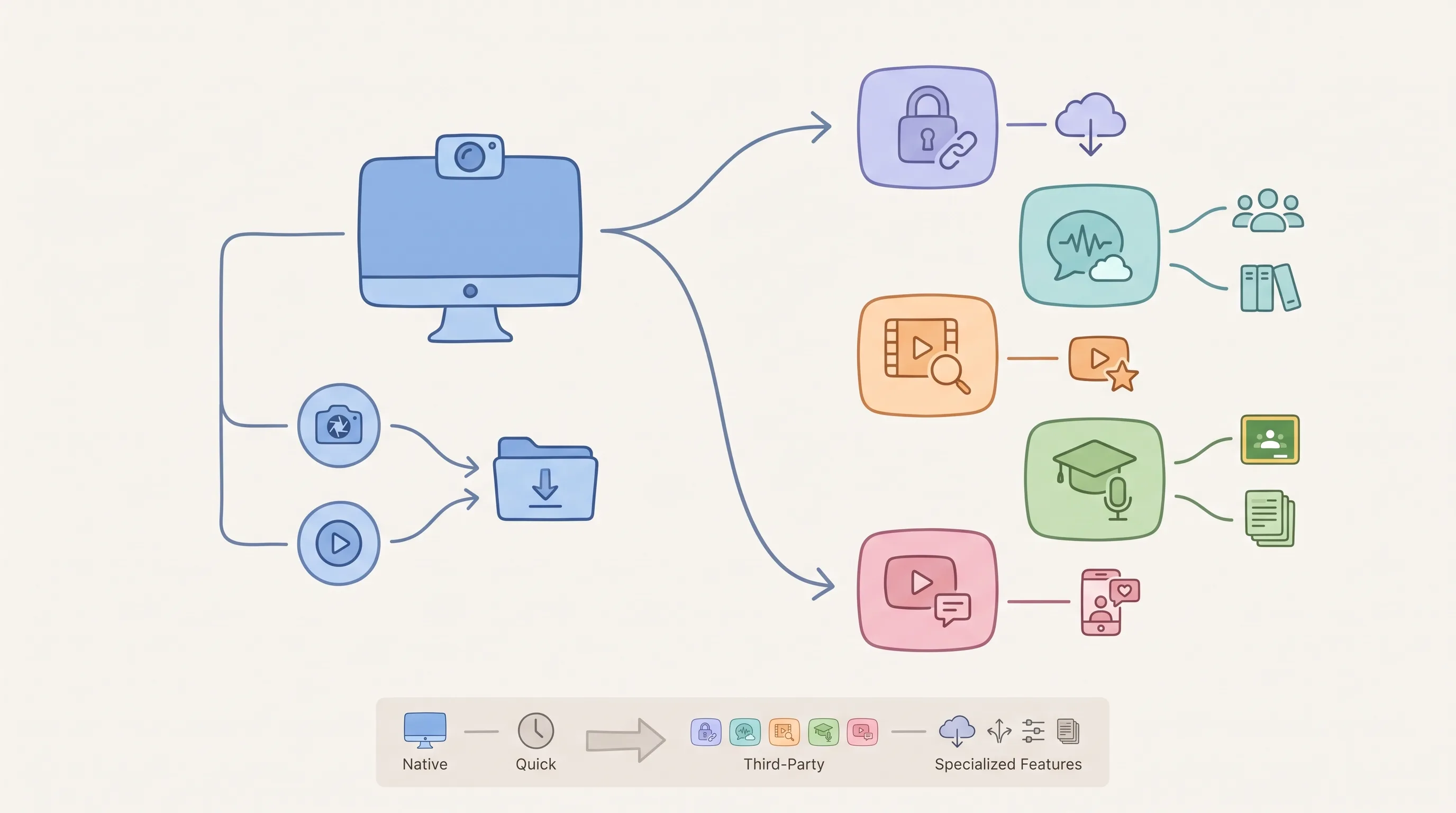
Native tools handle a quick local recording; the five tools below handle link sharing that expires on its own, AI follow-up, cinematic demos, classroom distribution, and social editing.
Ways to Screen Record on a Mac: Native Tools vs. 5 Third-Party Apps
The table below ranks all five tools by free-tier limits and starting price, with ShareRec listed first for its no-upload, auto-expiring link workflow. Prices and free-tier caps below reflect each tool's current published plans.
| Tool | Best For | Free Plan | Paid Plans Start At |
|---|---|---|---|
| ShareRec | Links that expire on their own | 5-min cap, 720p, keeps 25 most recent | $8/mo (Pro, $6/mo annual) |
| Loom | AI transcripts & team library | 25 videos, 5-min cap | $18/user/mo |
| Screencastify | Classroom recording | 10 videos, 30-min cap | $7/user/mo annual (Starter) |
| Screen Studio | Mac-only recording + shareable links | No free plan listed | $29/mo ($9/mo billed yearly), macOS only |
| Veed | Captioned social clips | Free plan available | Paid pricing not published on its pricing page |
ShareRec: Best for Links That Expire on Their Own
ShareRec is the fastest way to turn a Mac screen recording into a shareable link, with videos that auto-expire 30 days after recording by default. Record screen, webcam, or screen-plus-webcam — all three modes are available on every tier, including Free, with no tier gate on any of them.
Hitting record produces a shareable link the moment you stop, with no upload step; the tool is browser-based, so it works on locked-down corporate laptops that block software installs. Every new video defaults to a 30-day auto-expiry, and the owner can switch to Never, 24 hours, 7 days, or 30 days in one click, with a dashboard countdown and a warning email sent 3 days before deletion.
Share links are unlisted, not password-protected: anyone with the link can watch until it expires or you delete it. If you need passwords or viewer restrictions, use a tool that offers them.
Pricing: Free ($0, 5-minute cap, 720p, keeps the 25 most recent videos, no watermark), Pro ($8/mo or $6/mo billed annually, unlimited videos, 30-minute cap, 1080p), and Business ($12/mo or $10/mo annually, unlimited videos, 2-hour cap, 1080p). Pro at $8/mo costs less than half Loom's Business plan ($18/user/mo).
An account is required on every tier, including Free. The Free tier can't export MP4 — that's a Pro and Business feature. Editing is trim-and-clip only, with no drawing or annotation tool on any tier. It's desktop-browser only, with no mobile support, and there are no AI transcripts or summaries on any tier.
Best for: sales reps, customer support agents, and small B2B SaaS teams documenting internal workflows who want links that disappear on their own.
Loom: Best for Teams That Want Free Transcripts and a Shared Library
Loom is the strongest pick for teams that want transcripts on every plan and a shared video library, with a free plan capped at 25 videos and 5-minute recordings. The free workspace supports up to 50 members, making it viable for small teams before anyone pays.
The cheapest paid tier is Business, at $18/user/month, with up to 17% off for annual billing — Loom retired its old Pro tier. Transcripts are not a paid upgrade — Loom includes them in 50+ languages on every plan, including the free Starter tier. A Business+AI tier at $24/user/month is what adds AI-generated summaries and chapter markers (automatic titles are already included on the free Starter plan).
Loom's screen-recording quality is mature, and it has the largest ecosystem of integrations of any tool in this comparison — native connections to Slack, Gmail, Jira, Salesforce, Notion, and Microsoft Teams let a finished recording get shared or embedded without leaving the app someone is already using. A support rep can drop a link straight into a Salesforce case; a product team can embed one in a Jira ticket.
Loom's analytics and AI features sit at different tiers, which is worth checking before budgeting: transcripts and viewer insights come with the free Starter plan, engagement insights start on Business at $18/user/month, and AI-generated summaries require Business+AI at $24/user/month.
Per-user pricing scales quickly once a team grows past a handful of seats, unlike tools with flat per-account pricing.
Best for: larger teams that need workspace-wide video libraries, deep app integrations, and AI-assisted follow-up baked into every recording.
Screen Studio: Best for Mac-Only Recording With Shareable Links
Screen Studio is a Mac-only subscription with shareable links built in on both plans — up to 1080p at 60fps, videos up to 30 minutes. That's what separates it from native macOS tools, which have no built-in share-link feature.
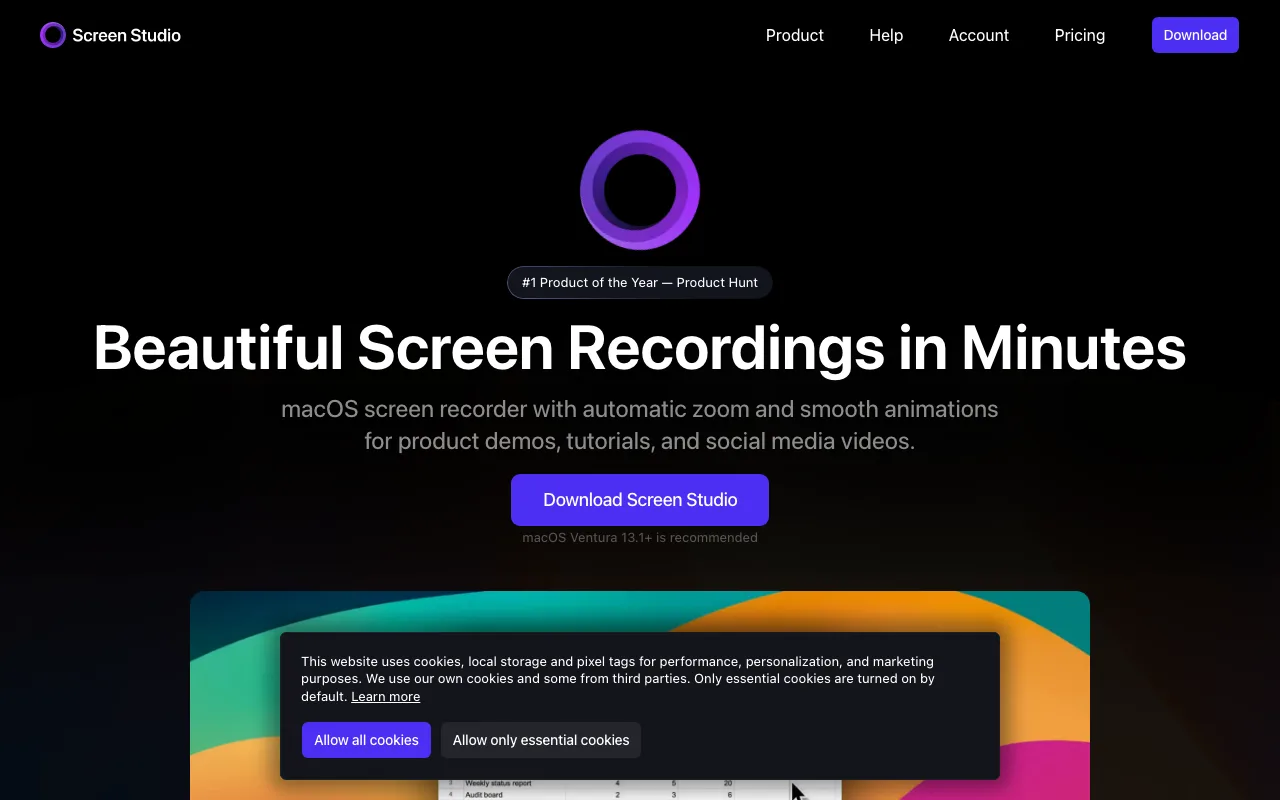
Both plans include a cloud transcript of the recording, with local transcription also available via Whisper or Apple's speech tools. Links can be set private so only the people you send them to can open them.
Screen Studio is macOS-only, with macOS Ventura 13.1 or later recommended, which makes it a Mac-native option but rules it out for anyone on Windows. There is no free plan listed: it costs $29/month billed monthly, or $9/month billed yearly. Whether pricing is per-seat, per-device, or flat isn't stated on Screen Studio's pricing page.
Best for: Mac users who want a native recorder with link sharing built in, without a free tier.
Screencastify: Best for Educators and Classroom Video
Screencastify is the strongest option for teachers, with a free plan that allows 10 videos and a 30-minute recording cap per video. That per-video cap is longer than Loom's free-tier limit, though the total number of free videos is smaller.
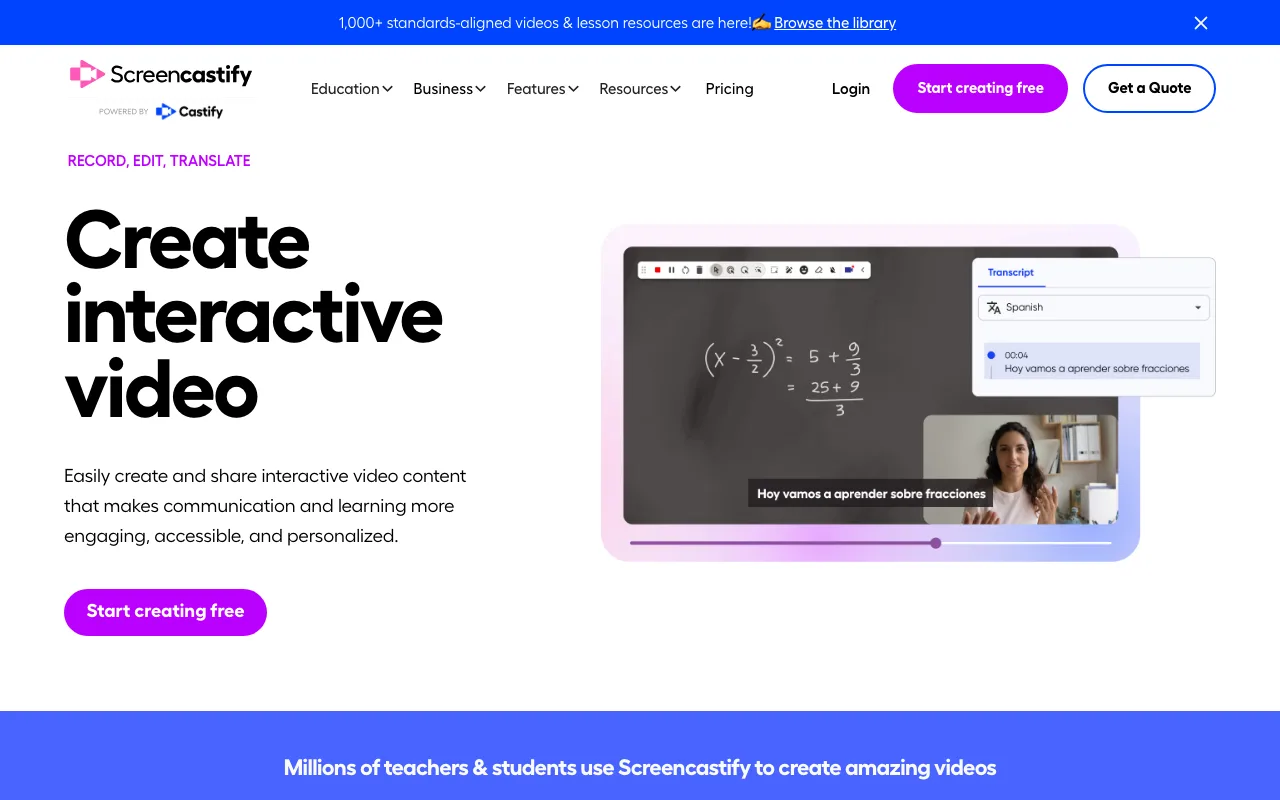
Paid tiers: Starter runs $7/user/month billed annually (or $19/month billed monthly), and Pro runs $10/month billed annually (or $25/month billed monthly). The annual-versus-monthly gap is steep on both tiers, so a school or district committing for a full year saves considerably over paying month to month.
The tool is built around a browser-extension workflow — it ships as an extension for Chrome and for Edge, with no desktop app — which fits a classroom setup where students and teachers already work inside the browser and Google Workspace rather than installing separate software. Recording starts from the extension toolbar without leaving the browser tab a student or teacher is already using.
Screencastify's standout feature is classroom management: bulk review of student-submitted videos, so a teacher can grade or give feedback on an entire class's assignments from one dashboard instead of opening each video individually — a workflow the general-purpose recorders here are not built around.
Its browser-extension-first design is less suited to sales or support teams who need a fast one-off share link outside Chrome or Edge.
Best for: teachers and school IT departments recording and distributing lesson videos at scale.
Veed: Best for Captioned, Social-Ready Screen Recordings
Veed is built primarily as a video editor, with screen recording as one input source, making it the strongest option here for adding captions and social-media formatting after recording. Auto-captioning and subtitle tools are core to the product, not an add-on bolted onto a recorder.
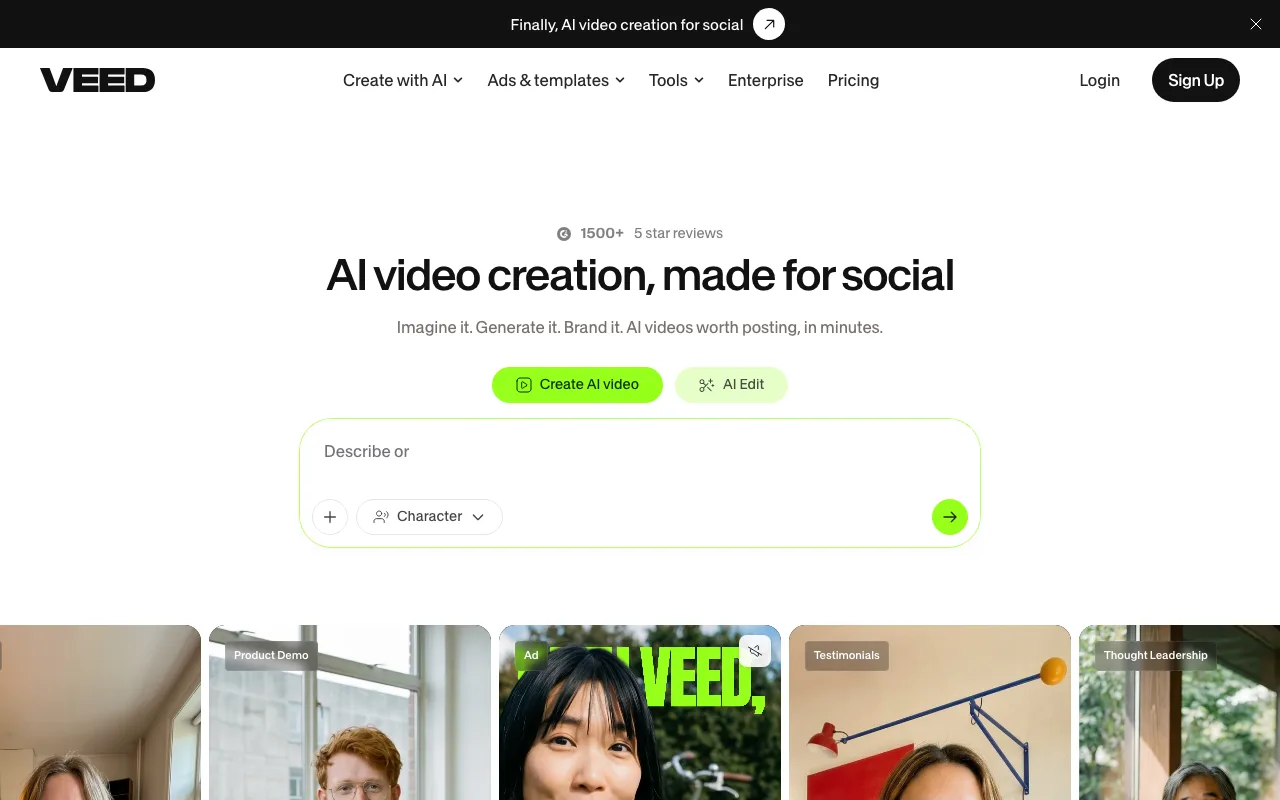
That editing-first design suits teams turning screen recordings into public-facing clips for TikTok, Instagram, or LinkedIn, where platform-specific formatting and burned-in captions matter more than how fast the raw capture gets shared. Recording is a starting point rather than the end product — the same clip typically gets cropped to a vertical aspect ratio, captioned, and trimmed before it ever gets published.
The trade-off is speed: because editing is the primary workflow, there are more steps between recording and sharing than with a link-first tool like ShareRec, and the interface is built around a timeline editor rather than a one-click record-and-send flow. Someone recording a quick internal walkthrough would find Veed's editing layer to be unnecessary overhead compared with a tool built for fast async sharing.
Veed runs in the browser and offers a free plan to start, but it does not publish its paid plan prices as readable text on its pricing page, so check the current numbers there directly before committing.
Best for: teams turning screen recordings into public-facing social or marketing clips that need captions and platform-specific formatting.
Key Takeaways
- ShareRec requires an account on every tier but delivers a shareable link the moment recording stops, with Pro at $8/month costing less than half Loom's Business plan ($18/user/mo).
- Loom caps its free plan at 25 videos and 5-minute recordings; paid plans start at $18/user/month.
- Screencastify limits free accounts to 10 videos with a 30-minute cap; Starter costs $7/user/month annually.
- Screen Studio offers shareable links on both plans; it is macOS-only, has no free plan listed, and costs $29/month ($9/month billed yearly).
- Veed treats screen recording as one input into a caption-first, social-clip editing workflow.
- macOS records screen video free via Shift-Command-5 or QuickTime Player, with no download required.
Frequently Asked Questions
Does Mac have its own screen recorder, or do I need to download one?
Yes — macOS includes two free, built-in screen recorders. Open the Screenshot app with Shift-Command-5, or launch QuickTime Player and choose File > New Screen Recording. Both save finished recordings as .mov files to the Desktop by default, and both work immediately, with no download, install, or subscription required.
What's the difference between Command+Shift+5 and QuickTime Player for screen recording?
Shift-Command-5 opens the Screenshot toolbar directly, with recording controls built in. QuickTime Player's File > New Screen Recording opens the same toolbar on most current Macs, though Apple notes some Macs show QuickTime's own Screen Recording window instead. The Microphone option captures only your mic in both.
How do I record my screen with internal audio on Mac?
It depends on your macOS version. On macOS 27 Golden Gate or later, the Screenshot toolbar's Options menu includes an "Include System Audio" setting that records internal audio directly. On earlier versions, the Microphone option captures only your mic, so internal audio needs a separate virtual audio driver or a third-party recorder that lists system-audio capture on its own specs page.
Where does Mac save screen recordings by default?
Screen recordings save to the Desktop unless you change the location first. Before clicking Record, open the Options menu in the Screenshot toolbar and choose a different destination — a specific folder, Documents, or an external drive. This setting applies whether you opened the toolbar via Shift-Command-5 or through QuickTime Player's File menu.
Why can't I find my screen recording on my MacBook?
Check the Desktop first — that's the default save location. The file may have been moved or deleted, including by storage-cleanup apps. Try a Spotlight search for recent .mov files, and confirm the recording finished saving rather than being interrupted mid-capture.
How long can you continuously screen record on Mac before it stops?
Apple doesn't publish a fixed maximum recording duration. In practice, a recording stops when you run out of available disk space, not because of a hard time limit — so free storage, not a clock, is the real constraint. Longer recordings at higher resolution use up disk space faster.
Can I edit a screen recording directly on Mac?
Yes. Preview supports basic trimming, and QuickTime Player has a built-in Trim tool under its Edit menu. Both are free and handle simple cuts — shortening the start or end of a recording — without installing extra software. Neither tool supports multi-clip editing or adding text overlays.
How do I stop a screen recording if I can't find the toolbar?
Click the recording indicator in the menu bar — it appears automatically once recording starts and stops the capture in one click. If it's not visible, reopen the toolbar with Shift-Command-5 and click Stop. The same indicator works whether recording started from the Screenshot app or QuickTime Player.
Try it free
Record your first walkthrough free — no install needed
No install, no watermark — share a link instantly.
Start Recording Free