Can You Record on Google Slides? How-To + 4 Tools (2026)
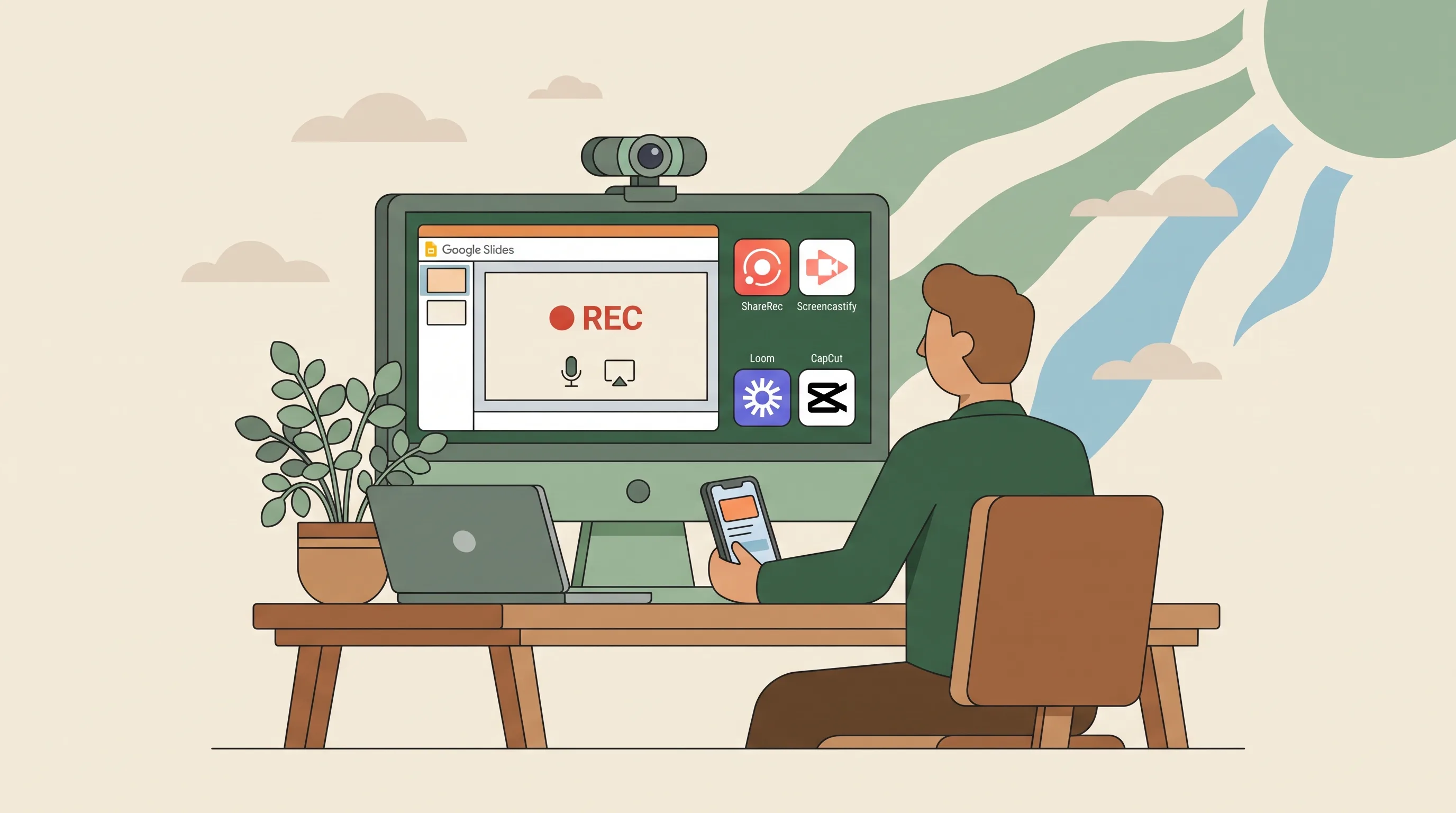
ShareRec records a live-presented Google Slides walkthrough with your screen and webcam together and gives you a shareable link moments after you stop recording, with no upload step. Yes, you can also record inside Google Slides itself in Chrome or Edge. Since August 2026, a Record option in Slides' right-hand panel captures you and your slides and hands the video to Google Vids for editing and link sharing. It is now available to Google Workspace customers, Workspace Individual subscribers, and personal Google accounts, though Google notes it may only be available on certain work or school accounts. Screencastify records the same deck through a Chrome or Edge extension common in classrooms; its free plan allows 10 videos of up to 30 minutes each. Loom adds a shared team library with free transcripts; its free plan caps recordings at 5 minutes and 25 videos, and AI summaries need its $24 Business + AI plan. CapCut records your screen or webcam inside its online editor, then lets you cut, caption, and polish the footage before you export it. Pick native Slides recording if the Record option is on your account and you want everything inside Google. Choose ShareRec for an instant link moments after you stop, Screencastify for classroom-standard extension recording, Loom for a team library, or CapCut when heavy editing matters most.
Google Slides Native Recording: How It Works in 2026
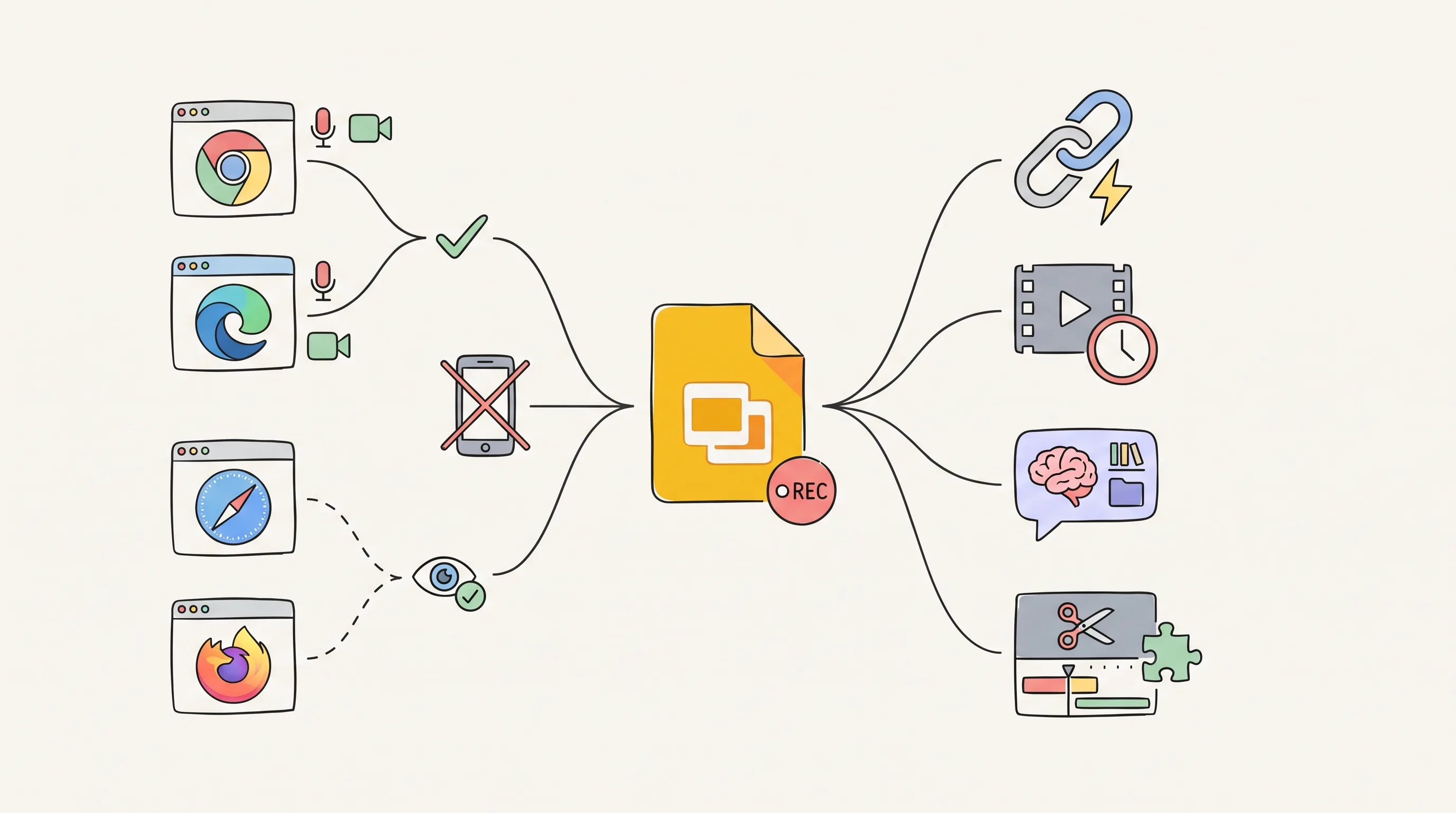
Google Slides records presentations in Chrome and Edge only, and since August 2026 the main recorder runs through Google Vids. Google announced the Vids-based Record option on August 20, 2026 and finished rolling it out in mid-September to Google Workspace customers, Workspace Individual subscribers, and personal Google accounts. Google's help page still notes the feature may only be available on certain work or school accounts, so availability can differ from account to account.
| Browser/Device | Record | View/Share/Delete |
|---|---|---|
| Chrome (desktop) | ✓ | ✓ |
| Edge (desktop) | ✓ | ✓ |
| Safari | ✗ | ✓ |
| Firefox | ✗ | ✓ |
| iPad/mobile | ✗ | Not documented by Google |
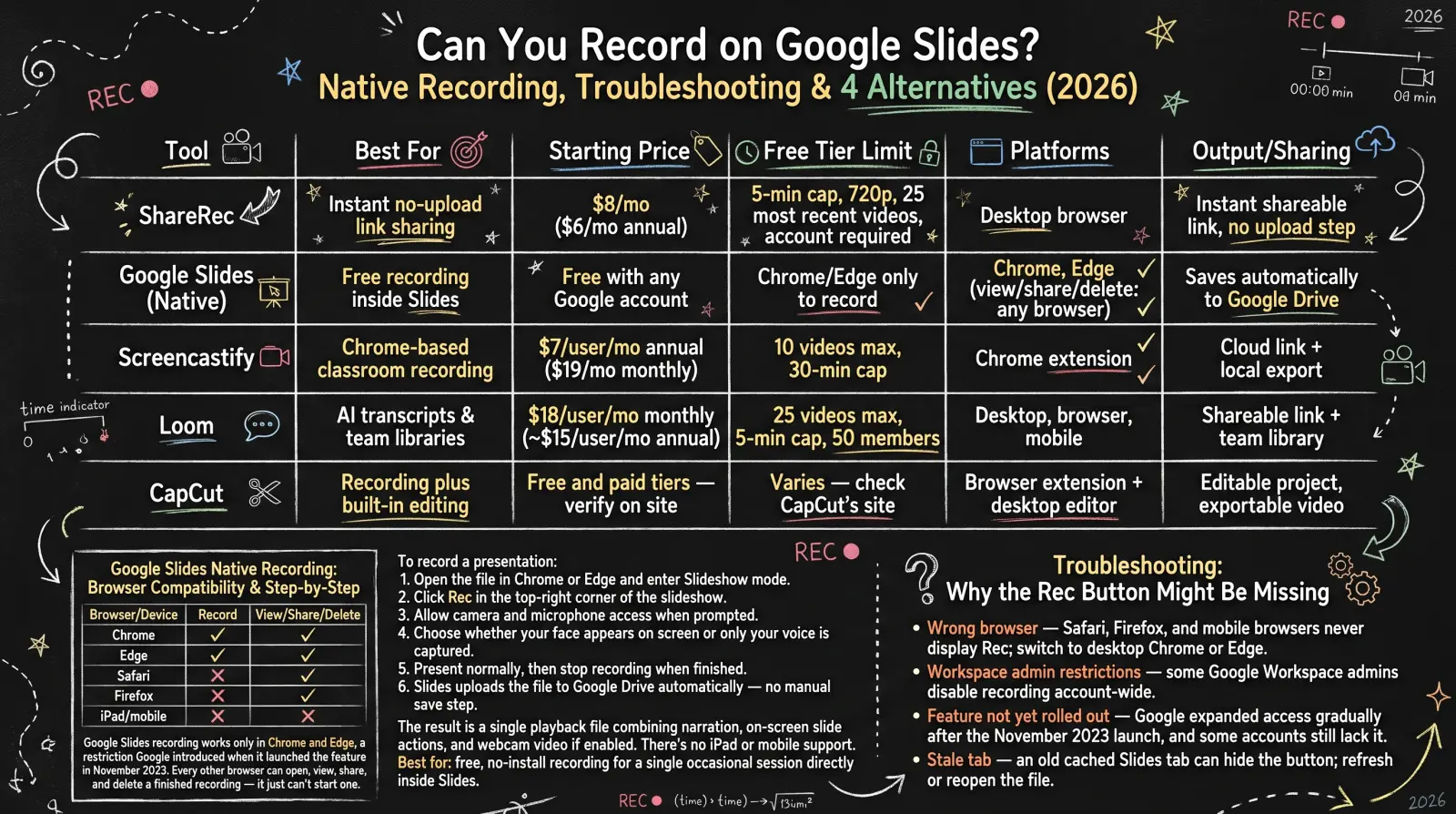
To record a presentation with the current recorder:
- Open the presentation in desktop Chrome or Edge.
- On the right side of Slides, click Record, then Record video.
- Pick a mode: Camera & Screen (you in picture-in-picture plus your slides), Audio (voice only), or Screen (slideshow only).
- Choose your camera and microphone from the dropdowns, then click Next and present.
- When you finish, the video opens in Google Vids, where you can edit it or click Share & copy link.
The older Slides recorder, launched in November 2023, still exists for organizations that used it and has moved to View > Slides Recording. It caps each recording at 30 minutes, needs edit access to the deck, and saves files to a Drive folder called "Slides recordings". Best for: free recording that stays inside Google's tools, if your account has the feature.
Why the Record Option Might Be Missing
- Wrong browser. Only desktop Chrome and Edge can record. Safari, Firefox, and mobile browsers can't.
- No edit access. The legacy Slides recorder needs edit rights on the presentation.
- Drive storage full. The legacy recorder can't save a new recording once your Drive storage quota is used up.
Recording Methods Comparison: Google Slides Native vs. ShareRec vs. Screencastify vs. Loom vs. CapCut
There are five ways to record a Google Slides presentation. They range from Google's built-in recorder to $18-per-user team plans, and ShareRec's Pro tier costs $8 a month.
| Tool | Best For | Starting Price | Free Tier Limit | Platforms | Output/Sharing |
|---|---|---|---|---|---|
| ShareRec | Instant no-upload link sharing | $8/mo ($6/mo annual) | 5-min cap, 720p, 25 most recent videos, account required | Desktop browser | Instant shareable link, no upload step |
| Google Slides (Native) | Recording without leaving Google | Included with Google Slides (availability varies by account) | Legacy recorder: 30 min per recording | Desktop Chrome or Edge to record | Google Vids video with a share link (legacy recorder: Drive file) |
| Screencastify | Classroom recording via an extension | $7/user/mo annual ($19/mo monthly) | 10 videos, 30-min cap | Chrome or Edge extension | Cloud link + local export |
| Loom | Team video libraries | $18/user/mo monthly | 25 videos, 5-min cap, 50 members | Desktop app, Chrome extension, mobile apps | Shareable link + team library |
| CapCut | Recording plus built-in editing | Free plan; paid tiers (check CapCut's site) | Check CapCut's site | Online editor + desktop app | Edited video you export |
ShareRec: Best for Instant Link Sharing of a Presented Slides Deck
ShareRec's Free plan costs $0 a month and gives you a shareable link moments after a screen-and-webcam recording stops, with no upload step. Best for: presenters who record a live Google Slides walkthrough and need a working link immediately.
ShareRec only records your screen, webcam, and audio live. It doesn't import .pptx files or existing videos, so you present the deck live. An account is required to record on every tier, including Free. Free caps recordings at 5 minutes in 720p, keeps the 25 most recent videos, and includes trim-and-clip editing with no watermark. MP4 download is Pro/Business only.
Pro costs $8/mo ($6/mo annual) for a 30-minute cap at 1080p with unlimited videos. Business costs $12/mo ($10/mo annual) for a 2-hour cap, also 1080p, with unlimited videos. All three modes (screen, webcam, and screen plus webcam) and trim editing work on every tier, Free included. The only paid-only feature is MP4 download.
There's no annotation tool and no transcripts, summaries, or chapters on any tier. Recordings auto-expire 30 days after capture by default. Owners can set Never, 24h, 7d, or 30d in one click, with a dashboard countdown and a warning email 3 days before deletion. ShareRec records in a desktop browser only; recipients can watch the link on any device.
Every link is an unlisted public URL with no password, login gate, or SSO. Pro's $8/mo is less than half of Loom's Business plan ($18/user/mo).
Screencastify: Best for Classroom Recording via an Extension
Screencastify's free plan allows 10 videos of up to 30 minutes each, recorded through a Chrome or Edge extension widely used in classrooms. Best for: teachers and schools already standardized on Screencastify.
To record a Google Slides deck with any tab or window recorder, including Screencastify, start the slideshow first and point the recorder at the slideshow itself. If you use Presenter View, Slides opens a second window with your speaker notes. Record the slideshow window, not the notes window, or viewers will see your notes instead of your slides. Screencastify publishes its own step-by-step guide for recording Google Slides.
Paid plans raise the limits. Starter costs $7 per user per month billed annually ($19/mo billed monthly) and allows unlimited videos up to 60 minutes each. Pro costs $10/mo billed annually ($25/mo billed monthly) and raises the cap to 180 minutes. Screencastify has no desktop app. It runs as a browser extension with a web-based editor.
Loom: Best for Team Video Libraries
Loom's free Starter plan allows up to 25 videos per person with a 5-minute cap per recording, in a workspace of up to 50 members. Best for: teams that want a shared library of recordings and will pay per user for longer videos.
Loom no longer offers a Pro tier. The cheapest paid plan is Business at $18 per user per month, with Loom advertising up to 17% off for annual billing. Transcripts in 50+ languages and auto titles are included on every plan, including free Starter. Business + AI costs $24 per user per month and adds auto-generated summaries and chapters.
Loom records through its desktop app, Chrome extension, or mobile apps. Inside the shared library, colleagues can leave timestamped comments on specific moments. A reviewer can flag slide four at the 1:20 mark instead of describing it in a separate message. The transcript makes each video's spoken content searchable across the workspace.
CapCut: Best for Recording Plus Built-In Video Editing
CapCut's online editor includes its own screen recorder that captures a single tab, your entire screen, or your webcam, and the footage goes straight onto an editing timeline. Best for: presenters who plan to heavily edit the recording, such as trimming, captioning, or adding effects, before sharing it.
CapCut is primarily a video editor with recording built in. To record a Slides deck, start a project, open the camera icon under Media, and capture the tab or screen where your slideshow runs. On the timeline you can trim slide transitions, cut dead air, and reorder clips without re-recording. Auto-captions generate a synced text track from your narration, which you can restyle or edit word by word. Text overlays, transitions, and background music come from the same editor.
The trade-off is speed to share. CapCut gives you an edited video to export, not an instant link the moment you stop. CapCut offers a free plan and paid tiers, but plan prices change often, so check CapCut's site for current pricing.
Key Takeaways
- ShareRec gives you a share link moments after you stop, with no upload step. Its $8/mo Pro plan costs less than half of Loom's Business plan ($18/user/mo), and an account is always required.
- Google Slides (Native) records in desktop Chrome or Edge. Since August 2026 the main recorder runs through Google Vids, and availability still varies by account.
- Screencastify allows 10 free recordings of up to 30 minutes each through its Chrome or Edge extension, a standard classroom tool.
- Loom dropped its Pro tier, and Business now starts at $18/user/mo. Transcripts are free on every plan, and AI summaries need Business + AI at $24.
- CapCut records a tab, your screen, or your webcam inside its online editor, and is the pick for heavy editing before you share.
Frequently Asked Questions
Can you record on Google Slides?
Yes. In desktop Chrome or Edge, click Record on the right side of Slides, then Record video. Choose Camera & Screen, Audio, or Screen, and present. The video opens in Google Vids, where you can edit it or copy a share link. Some accounts may not have the feature yet.
How do you record audio on Google Slides?
Click Record, then Record video, and choose the Audio mode to capture your voice without your camera. Allow microphone access when your browser asks. The finished recording opens in Google Vids for editing and sharing.
Why don't I have the record option on Google Slides?
First check that you're using desktop Chrome or Edge, because other browsers and mobile devices can't record. The Vids-based recorder rolled out from August 20, 2026, and Google says it may only be available on certain work or school accounts. On older setups, look under View > Slides Recording.
Where do Google Slides recordings go?
Recordings made with the current Record option open in Google Vids, which you can reach at docs.google.com/videos, and can be shared by link. Recordings made with the legacy recorder (View > Slides Recording) are saved to a Google Drive folder called "Slides recordings".
Can you record with your face/webcam on Google Slides?
Yes. After clicking Record and Record video, choose Camera & Screen. Slides records you in picture-in-picture over your slides, along with your narration.
How do I record a Google Slides presentation with audio and video simultaneously?
Use the Camera & Screen mode in Slides' Record option in Chrome or Edge, and allow camera and microphone access. To get a shareable link moments after you stop instead of editing in Vids first, a browser recorder like ShareRec records the slideshow and your webcam together and returns a link moments after you stop.
Can you record Google Slides on an iPad?
No. Google Slides recording works only in desktop Chrome or Edge. It isn't available on an iPad, Android tablet, or mobile browser.
Which browsers support Google Slides recording?
Only desktop Chrome and Edge can record in Google Slides. Safari and Firefox can view, share, and delete recordings already made, but they can't start one.
Try it free
Record your first walkthrough free — no install needed
No install, no watermark — share a link instantly.
Start Recording Free