5 Best Free Screen Recorders for Mac in 2026 (No Watermark)
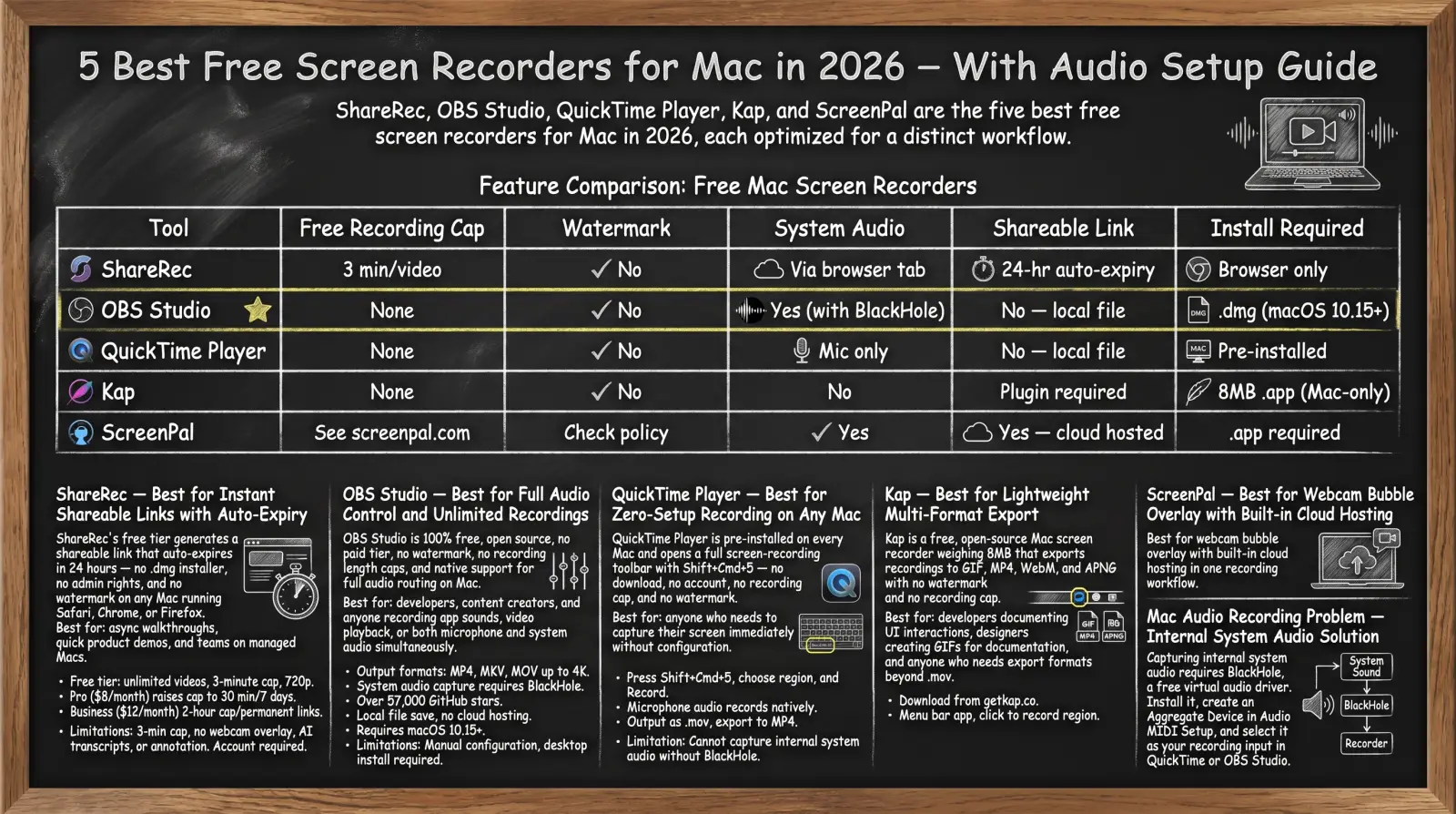
ShareRec, OBS Studio, QuickTime Player, Kap, and ScreenPal are the five best free screen recorders for Mac in 2026 — all five are watermark-free on their free tiers. ShareRec records in any Mac browser (Safari, Chrome, Firefox) with no
.dmginstaller and no admin rights; the free tier gives a 5-minute cap per recording, 720p, trim and clip editing, instant shareable links, and keeps your 25 most recent videos — videos auto-expire 30 days after recording by default, and you can keep any one forever in one click (account required on all tiers). OBS Studio is 100% free and open source under GPLv2 with no recording caps, no watermark, and native support for full system audio routing via BlackHole (desktop install required). QuickTime Player is pre-installed on every Mac: press Shift+Cmd+5 to open the recording toolbar in under 10 seconds — zero download, no cap, no watermark, microphone audio only without BlackHole. Kap is an 8MB Mac menu-bar app that exports to GIF, MP4, WebM, and APNG with no watermark or cap (shareable links require a third-party plugin). ScreenPal's free tier caps recordings at 15 minutes per video and 10 hosted videos, includes a webcam bubble overlay, and uploads to ScreenPal's cloud with an auto-generated shareable link.The #1 Mac recording pain point — capturing internal system audio — requires BlackHole, a free virtual audio driver from existential.audio/blackhole. Install it, create an Aggregate Device in Audio MIDI Setup, and select it as your recording input in QuickTime or OBS Studio.
Feature Comparison: Free Mac Screen Recorders at a Glance
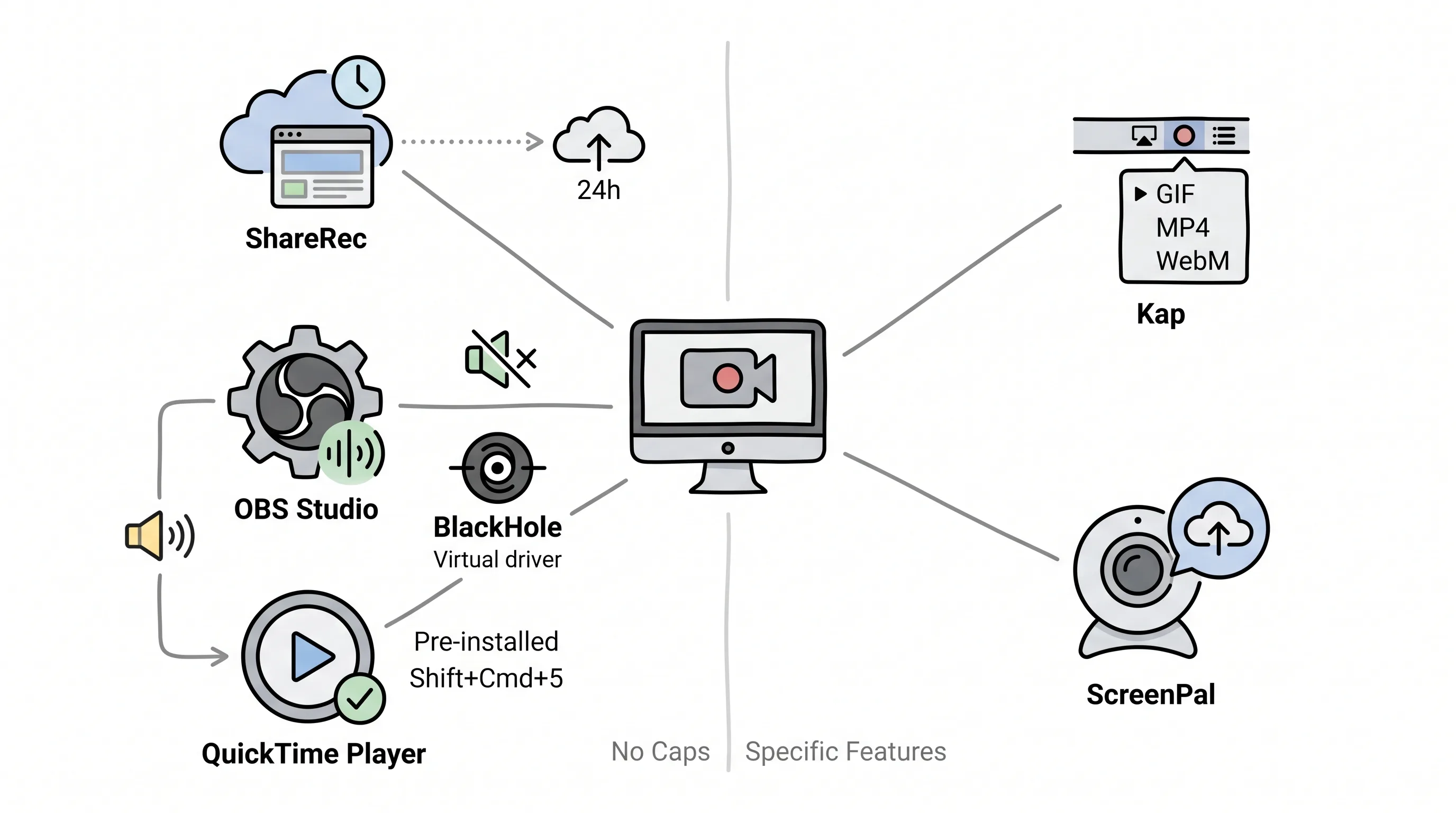
QuickTime Player and OBS Studio are the only two free Mac screen recorders with no recording caps — QuickTime is pre-installed and zero-setup, OBS requires a .dmg install but unlocks full system audio routing and 4K output. ShareRec, Kap, and ScreenPal each address specific gaps the two leaders don't cover.
| Tool | Free Recording Cap | Watermark | System Audio | Shareable Link | Install Required |
|---|---|---|---|---|---|
| ShareRec | 5 min/video | No | Via browser tab | Yes — instant | Browser only |
| OBS Studio | None | No | Yes (with BlackHole) | No — local file | .dmg (macOS 12+) |
| QuickTime Player | None | No | Mic only | No — local file | Pre-installed |
| Kap | None | No | Mic + optional audio | Plugin required | .app (macOS 12+) |
| ScreenPal | 15 min/video | No | Yes | Yes — cloud hosted | .app required |
ShareRec — Best for Instant Shareable Links
ShareRec generates a shareable link the moment recording ends — and on every tier, including Free, videos auto-expire 30 days after recording by default while you keep any single video forever in one click, with no watermark, no .dmg installer, and no admin rights required on any Mac running Safari, Chrome, or Firefox. Best for: async walkthroughs, quick product demos, and teams on locked-down or managed Macs where desktop app installation is gated by IT.
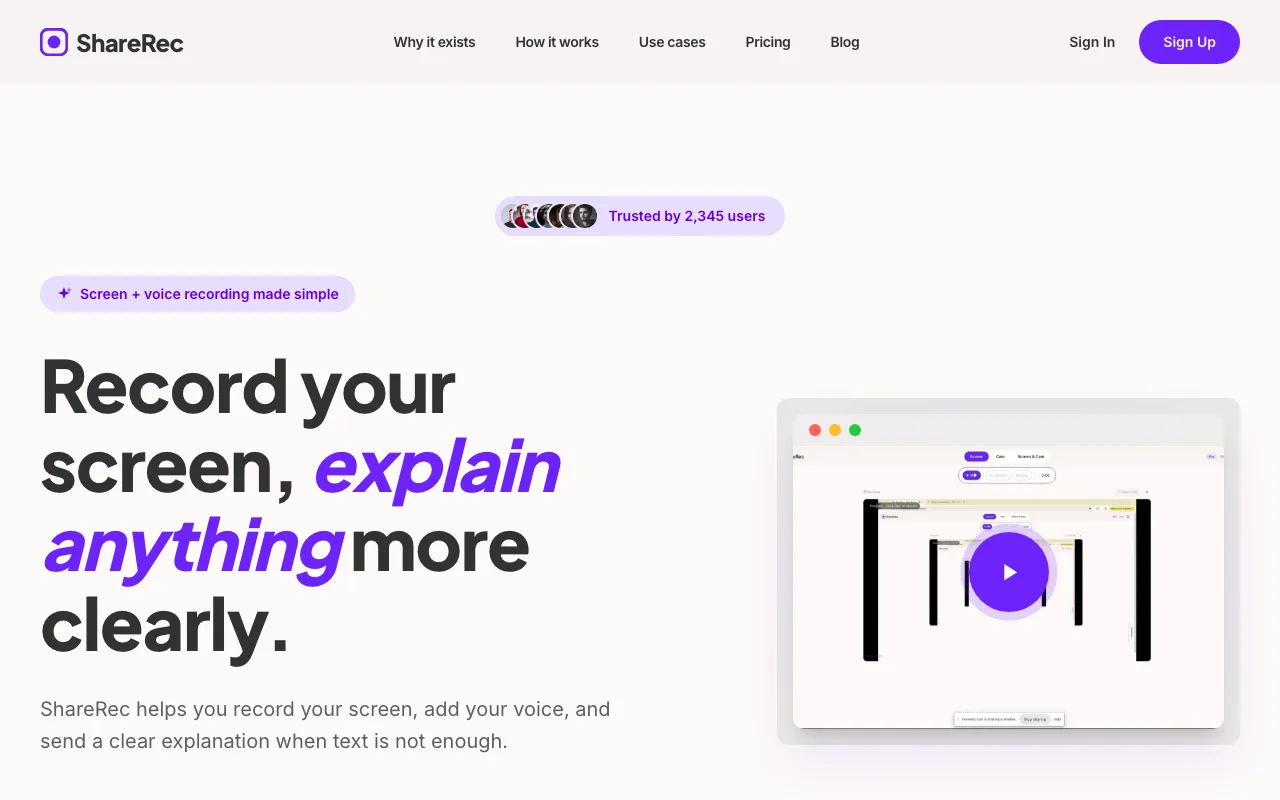
Sign in, click record, and ShareRec captures your screen directly in the browser. The free tier delivers 720p recordings, capped at 5 minutes per video, with basic trim and clip editing included and an instant shareable link on every recording. Videos auto-expire 30 days after recording by default, and you keep any one forever in one click — a countdown shows on each video and you're emailed 3 days before anything is deleted, so nothing important vanishes by surprise. The free tier keeps your 25 most recent videos. This flexibility — a clean 30-day default plus one-click keep-forever and a 3-day warning — lets recipients open a walkthrough weeks later while your library tidies itself, and is unusual in the free Mac screen recorder category.
Pro ($8/month) raises the cap to 30 minutes and unlocks unlimited videos at 1080p. Business ($12/month) offers a 2-hour recording cap with unlimited videos, also at 1080p. Videos auto-expire in 30 days by default on every tier — keep any video forever in one click. At $8/mo, Pro runs roughly half the price of Loom's $15+/mo starting plan.
Limitations: The 5-minute Free-tier cap rules out full meeting recordings, extended tutorials, and long sales calls. ShareRec does not include webcam overlay, AI transcripts, or annotation tools. An account is required on all tiers, including Free.
OBS Studio — Best for Full Audio Control and Unlimited Recordings
OBS Studio is 100% free, open source under GPLv2, with no paid tier, no watermark, no recording length caps, and native support for full audio routing on Mac. Best for: developers, streamers, and anyone recording app sounds, video playback, or both microphone and system audio simultaneously.
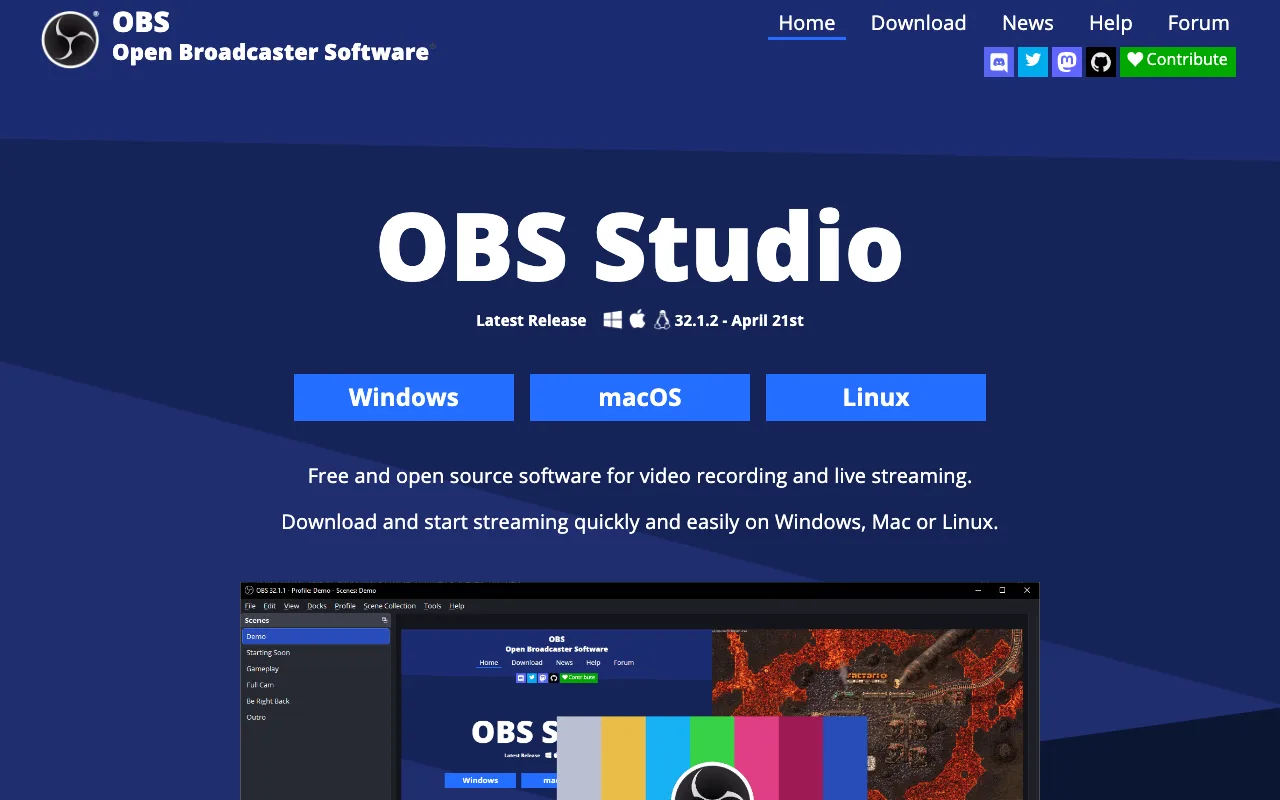
Output formats are MP4, MKV, and MOV at resolutions up to 4K. System audio capture requires BlackHole — install it, add it as an audio source in OBS, and it routes everything playing through Mac speakers into the recording. OBS has more than 57,000 GitHub stars and is the most-starred open-source screen recorder on GitHub as of 2026. No cloud hosting or auto-generated link — the recording saves as a local file to share via Dropbox, Google Drive, or direct upload.
Download the Mac .dmg from obsproject.com; macOS 12 or later is required for current versions.
Limitations: OBS requires manual configuration before the first recording — scene layout, audio sources, and encoder settings typically take 15–30 minutes for new users. Desktop install is required; OBS cannot run on locked-down corporate Macs without admin rights.
QuickTime Player — Best for Zero-Setup Recording on Any Mac
QuickTime Player is pre-installed on every Mac and opens a full screen-recording toolbar with Shift+Cmd+5 — no download, no account, no recording cap, and no watermark. Best for: anyone who needs to capture their screen immediately without configuration or software installation.
Press Shift+Cmd+5, choose full screen, a window, or a custom region, and click Record. Microphone audio records natively without additional software. Output saves as .mov; export to MP4 using File > Export As. MP4 files are smaller than .mov originals and compatible with all major platforms without additional conversion.
Limitation: QuickTime cannot capture internal system audio — app sounds, video playback, or music — without a third-party virtual audio driver such as BlackHole. QuickTime Player is a capable built-in screen recorder for straightforward captures, but system audio requires extra setup (see the audio section below).
Kap — Best for Lightweight Multi-Format Export
Kap is a free, open-source Mac menu-bar screen recorder that exports recordings to GIF, MP4, WebM, and APNG with optional audio, click highlights, and trimming — no watermark and no recording cap. Best for: developers documenting UI interactions, designers creating GIFs for documentation, and anyone who needs export formats beyond QuickTime's .mov output.
Download Kap from getkap.co (separate builds for Apple Silicon and Intel; macOS 12 or later required). After launch, the icon appears in the Mac menu bar — click it, drag to select a recording region, and export. GIF export with configurable frame rate and quality settings is Kap's primary differentiator among free Mac screen recorders. Kap is used by teams at Vercel, GitHub, Google, Sentry, and Circle CI.
Limitations: Generating a shareable cloud link requires a third-party plugin (such as the AWS S3 or Vimeo plugins in Kap's plugin directory) — Kap does not host recordings itself. No video editing tools are included beyond the built-in trim and format export options.
ScreenPal — Best for Webcam Overlay and Built-In Cloud Hosting
ScreenPal free tier records up to 15 minutes per video at no cost, includes a webcam bubble overlay, hosts up to 10 videos in ScreenPal's cloud with automatic shareable links, and exports without a watermark. Best for: educators, trainers, and anyone who needs face-cam context alongside screen content without managing a second tool.

ScreenPal captures both microphone and system audio on Mac and places a movable webcam bubble over the recording region. The desktop app has a simplified setup compared to OBS Studio. After recording, the video uploads to ScreenPal's cloud and a shareable link is generated automatically. Paid plans extend recording length and hosted-video caps: Deluxe ($4/mo billed annually) removes the 15-minute cap and adds the full video editor and AI speech-to-text captions; Max Solo ($10/mo billed annually) adds AI tools, text-to-speech narration, and premium stock; Max Team Business ($8/user/mo billed annually, 3+ users) adds collaboration, SAML SSO, and team management.
Limitations: Free-tier recordings are capped at 15 minutes per video and 10 hosted videos total — heavy use requires Deluxe or higher. Desktop install is required; ScreenPal is not browser-based.
How to Record Mac Screen With System Audio (3 Methods)
macOS blocks apps from capturing internal system audio by default — the fix is BlackHole, a free virtual audio driver that routes system sounds into any recording app as a standard input source. Each method below is self-contained.
Method 1 — Microphone only (no extra setup): QuickTime Player records microphone audio natively. Press Shift+Cmd+5, click Options, select your mic under Microphone, and record.
Method 2 — System audio only (BlackHole required):
- Download BlackHole (free) at existential.audio/blackhole
- Open Audio MIDI Setup (Applications > Utilities)
- Click "+" and select Create Aggregate Device
- Check BlackHole 2ch in the device list
- In QuickTime, select the Aggregate Device under Microphone in Options before recording
Method 3 — Microphone and system audio simultaneously:
In Audio MIDI Setup, create an Aggregate Device and check both BlackHole 2ch and your built-in microphone. Select this Aggregate Device as your recording input in QuickTime. In OBS Studio, add both as separate audio sources and mix them in the Audio Mixer panel.
Key Takeaways
- ShareRec: Free tier — 5-min cap, 720p, instant shareable links, 30-day default expiry (keep any video forever in one click), keeps your 25 most recent videos, no watermark, browser-based, account required on all tiers.
- OBS Studio: 100% free, GPLv2, no recording caps, full system audio routing via BlackHole — desktop install required.
- QuickTime Player: Pre-installed on every Mac, no cap, no watermark — no system audio without BlackHole.
- Kap: Exports GIF, MP4, WebM, APNG with optional audio from a Mac menu-bar app (macOS 12+) — shareable links need a third-party plugin.
- ScreenPal: Free tier — 15-min recording cap, 10 hosted videos, no watermark, webcam overlay, automatic cloud-hosted shareable links. Paid: Deluxe $4/mo, Max Solo $10/mo (both billed annually).
- BlackHole is the free virtual audio driver (existential.audio/blackhole) that enables system audio capture on Mac — required for QuickTime, Kap, and OBS Studio.
- OBS Studio and ScreenPal both support simultaneous screen and webcam recording on the free tier; QuickTime and Kap record screen only.
Frequently Asked Questions
What is the best free screen recorder for Mac in 2026?
QuickTime Player suits anyone who needs zero-setup recording — it's pre-installed and starts in seconds with no download. OBS Studio is the top choice for power users needing unlimited recordings and full audio control at no cost. ShareRec works best for anyone needing an instant shareable link without installing a desktop app.
How do I record my screen with audio on a Mac?
QuickTime Player records microphone audio natively — press Shift+Cmd+5, select a mic under Options, and record. To capture internal system audio, install BlackHole free from existential.audio/blackhole, create an Aggregate Device in Audio MIDI Setup combining BlackHole 2ch with your mic, then select it as your recording input.
Is OBS Studio free and safe to use on Mac?
Yes — OBS Studio is open source under GPLv2 with no paid tier, no watermark, and no recording limits. The Mac .dmg is available at obsproject.com and requires macOS 12 or later for current versions. The project has been maintained by an active open-source community since 2012; the source code is publicly auditable at github.com/obsproject/obs-studio.
Why doesn't my Mac record audio when screen recording?
macOS restricts apps from capturing internal audio by default for privacy. QuickTime records your microphone but not system sounds. Fix: install BlackHole (free) from existential.audio/blackhole, create an Aggregate Device in Audio MIDI Setup combining BlackHole 2ch with your mic, then select that Aggregate Device as your recording input in QuickTime or OBS Studio.
Can I record my screen and webcam at the same time on Mac for free?
OBS Studio supports simultaneous screen and webcam recording with no caps and no cost — add a Screen Capture source and a Video Capture Device source in the same OBS scene. ScreenPal's free tier includes a webcam bubble overlay. QuickTime records one source at a time only.
Try it free
Record your first walkthrough free in 30 seconds
No install, no watermark — share a link instantly.
Start Recording Free