5 Best Screen Recorders for Remote Teams in 2026
Quick Answer
ShareRec is the best screen recorder for remote teams who need instant shareable links from a browser — no desktop install, no admin rights, and no watermark on the free tier.
- ShareRec — Best for browser-based async recording on locked-down corporate Windows laptops
- Loom — Best for AI-powered async communication with team workspace and Slack integration
- OBS Studio — Best for free unlimited recording with no watermark or video cap
- Zoom Clips — Best for teams already subscribed to Zoom who want zero extra tooling
- Screencastify — Best for Chrome-based training and onboarding videos with annotation tools
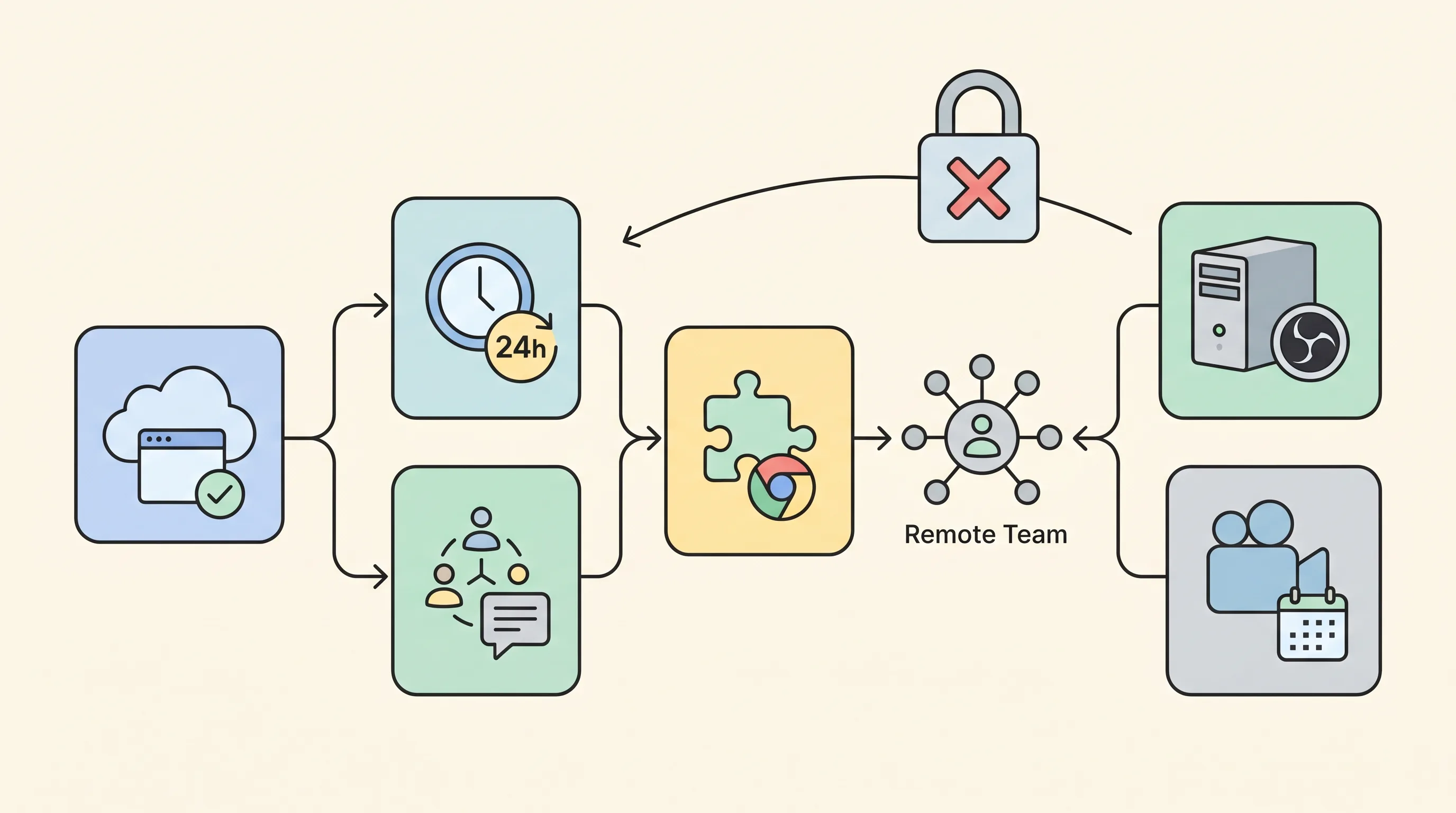
Corporate laptop restrictions are the most common blocker when remote teams choose a screen recorder for remote teams. ShareRec and Loom run in any modern browser — no .exe, no admin rights needed. OBS Studio and Zoom Clips require a full desktop install. Screencastify sits between them as a Chrome or Edge extension, permitted by many IT departments even on managed machines. For async screen recording with zero setup friction, ShareRec's free tier — a 5-minute cap, no watermark, and an instant shareable link that keeps your 25 most recent videos (videos auto-expire in 30 days by default; keep any forever in one click) — requires only a browser and an account (account required on all tiers including Free).
Comparison Table: Screen Recorders for Remote Teams
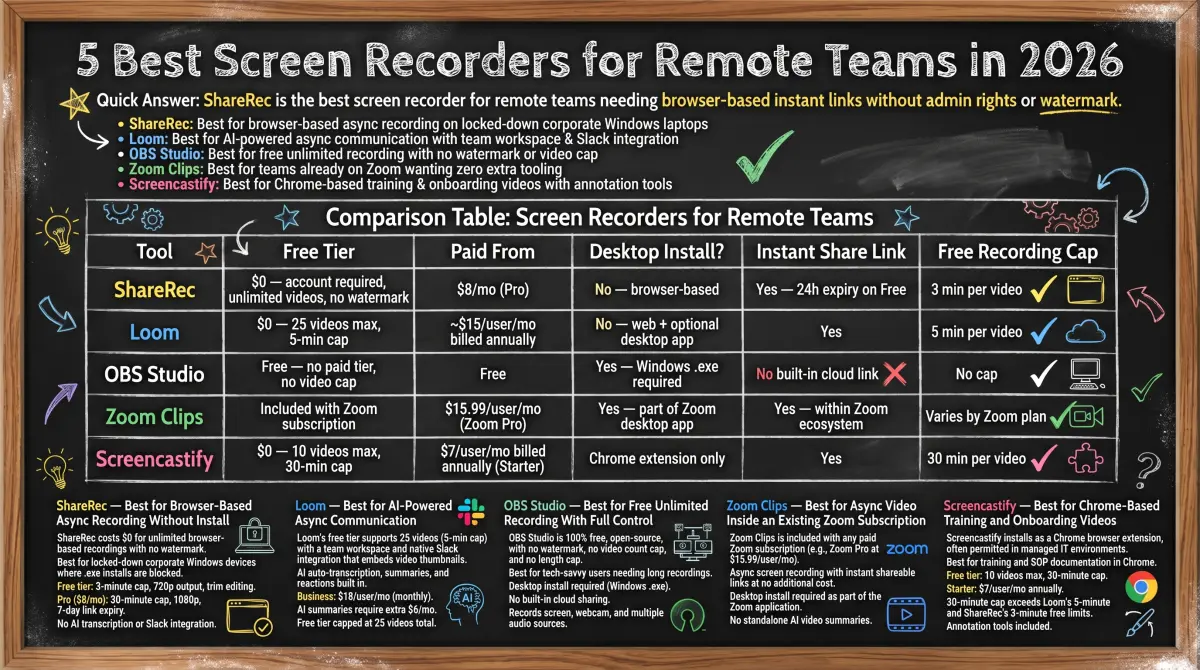
ShareRec and Loom are the only tools in this comparison requiring no desktop install; OBS Studio is the only option with no recording cap and no paid tier.
| Tool | Free Tier | Paid From | Desktop Install? | Instant Share Link | Free Recording Cap |
|---|---|---|---|---|---|
| ShareRec | $0 — account required, keeps 25 most recent, no watermark | $8/mo (Pro) | No — browser-based | Yes — instant | 5 min per video |
| Loom | $0 — 25 videos max, 5-min cap | ~$15/user/mo billed annually | No — web + optional desktop app | Yes | 5 min per video |
| OBS Studio | Free — no paid tier, no video cap | Free | Yes — Windows .exe required | No built-in cloud link | No cap |
| Zoom Clips | Free Zoom Basic: 5 Clips, 2-min cap | $16.99/user/mo monthly (Zoom Pro) | Yes — part of Zoom desktop app | Yes — within Zoom ecosystem | 2 min on free; varies by plan |
| Screencastify | $0 — 10 videos max, 30-min cap | $7/user/mo billed annually (Starter) | Chrome + Edge extension | Yes | 30 min per video |
ShareRec — Best for Browser-Based Async Recording Without Install
ShareRec costs $0 for browser-based recordings with no watermark — each free recording generates an instant shareable link with no upload step, no desktop install, and no admin rights required. Best for: remote team members on locked-down corporate Windows devices where .exe installs are blocked.
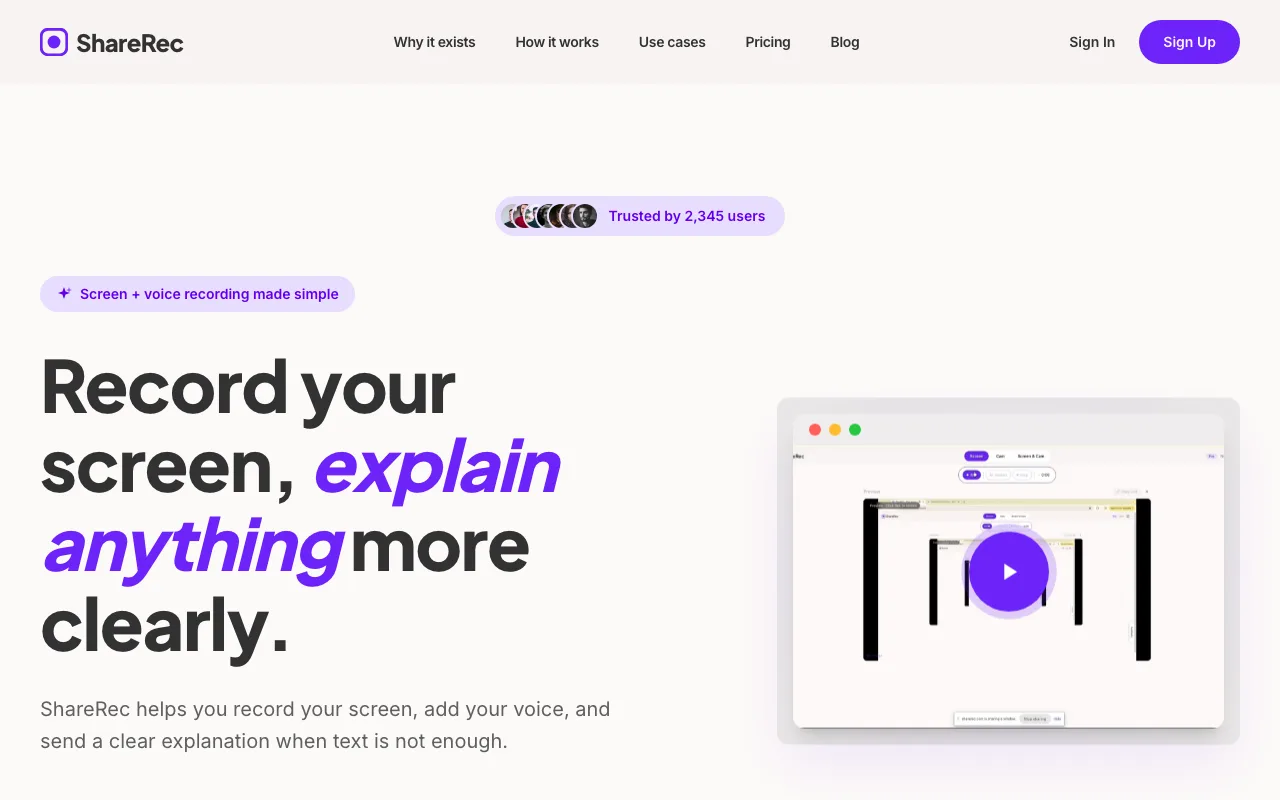
Record from any modern browser — account required on all tiers including Free. Free tier: 5-minute cap per video, 720p output, trim and clip editing at no cost, and it keeps your 25 most recent videos. Pro ($8/mo): 30-minute cap, 1080p, unlimited videos. Business ($12/mo): 2-hour cap, unlimited videos. Videos auto-expire 30 days after recording by default on every tier — but you keep any video forever in one click (or set a custom Never / 24 hours / 7 days / 30 days window), a countdown shows on each video, and you're emailed 3 days before anything is deleted, so your library tidies itself without risking anything you need. No AI transcription, team workspace, Slack integration, webcam overlay, or annotation tools.
Loom — Best for AI-Powered Async Communication
Loom's free tier supports 25 videos at up to 5 minutes each, with a team workspace for up to 50 members and native Slack integration that embeds video thumbnails directly inside Slack messages. Best for: teams producing frequent async updates who need AI summaries, viewer reactions, and Slack integration.
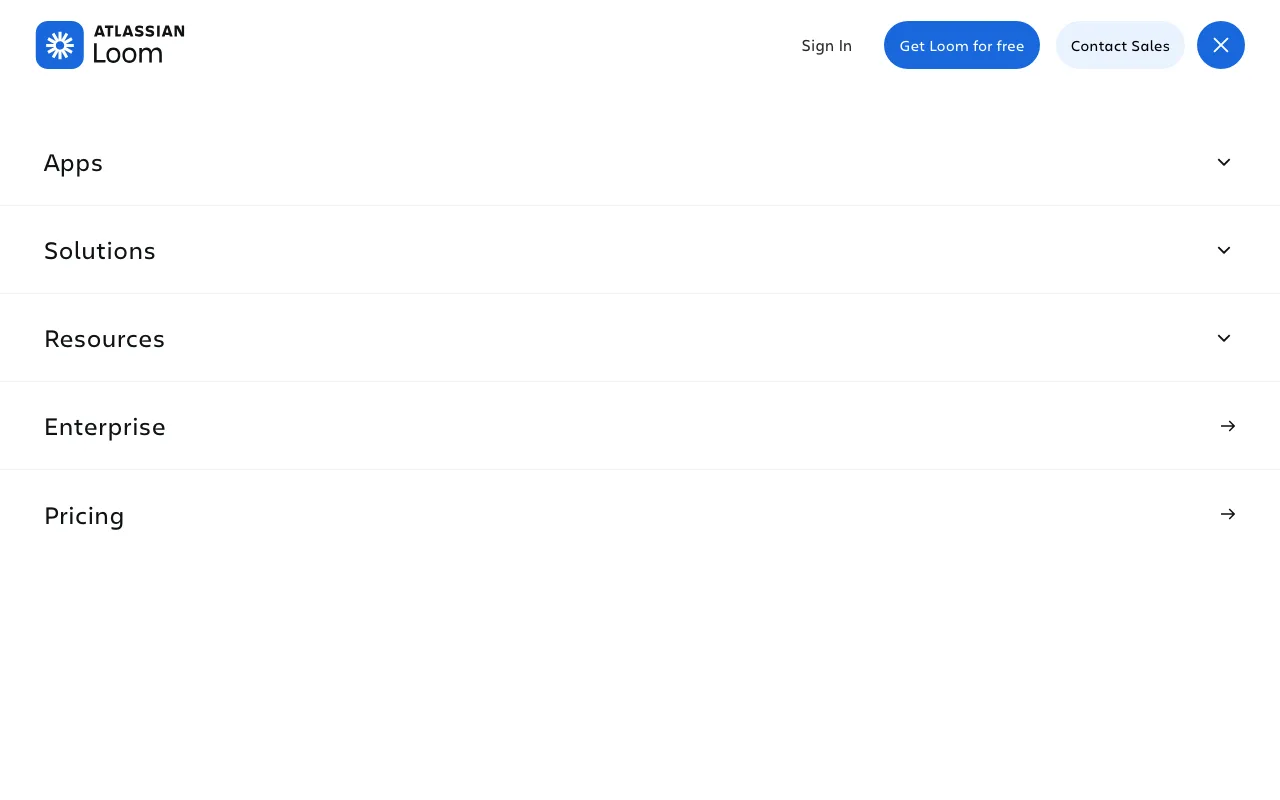
AI auto-transcription, video summaries, chapter markers, and emoji reactions built in; Slack integration embeds Loom videos inline — recipients watch without leaving Slack. Business: $18/user/mo billed monthly or ~$15/user/mo annually — no "Loom Pro" tier. AI summaries require Business+AI at $24/mo per user ($6/mo above Business base). Free tier caps at 25 videos total.
OBS Studio — Best for Free Unlimited Recording With Full Control
OBS Studio is 100% free, open-source, with no watermark, no video count cap, no recording length cap, and no paid tier. Best for: tech-savvy remote team members needing long, unlimited recordings who are comfortable with a desktop install.
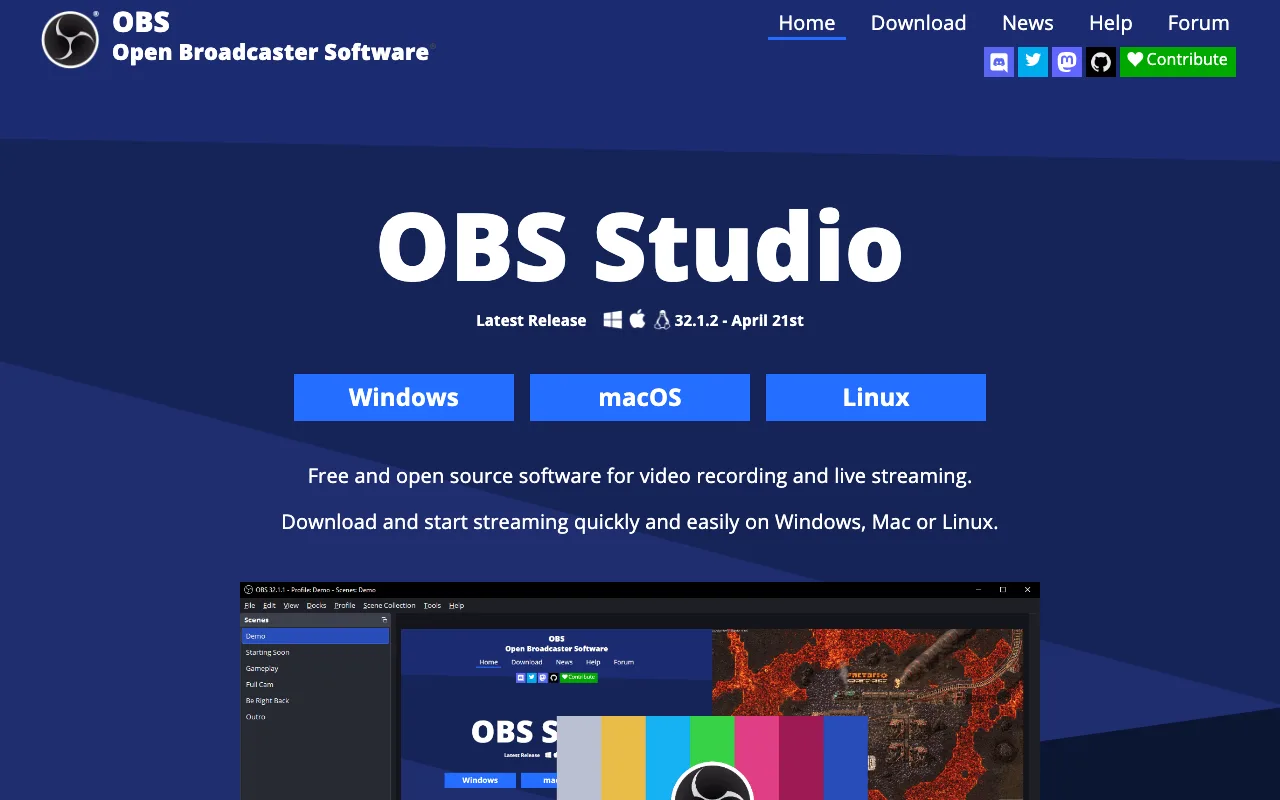
Desktop install required: Windows .exe, admin rights typically needed. Records screen, webcam, and multiple audio sources simultaneously; outputs MP4, MKV, and FLV; live streaming to Twitch and YouTube built in with active open-source plugin community. No built-in cloud sharing — distribute recordings via Google Drive or email; setup requires manual scene and output configuration.
Zoom Clips — Best for Async Video Inside an Existing Zoom Subscription
Zoom Clips comes free with Zoom Basic — limited to 5 clips at a 2-minute cap each — and becomes unlimited on any paid plan like Zoom Pro ($16.99/user/mo monthly, $13.33/user/mo billed annually). Best for: remote teams already subscribed to Zoom who want async video without adding a new tool or vendor.
Zoom Clips records screen and camera, generates shareable links, and surfaces recordings inside the Zoom app alongside meetings and messages. Desktop install required as part of the Zoom desktop application; recording caps vary by Zoom plan; links work most reliably when recipients also use Zoom; no standalone AI video summaries.
Screencastify — Best for Chrome-Based Training and Onboarding Videos
Screencastify installs as a Chrome or Microsoft Edge browser extension — many managed IT environments permit Chromium extensions even when .exe desktop installs are blocked. Best for: remote teams producing training, onboarding, or SOP documentation in Chrome- or Edge-based environments.
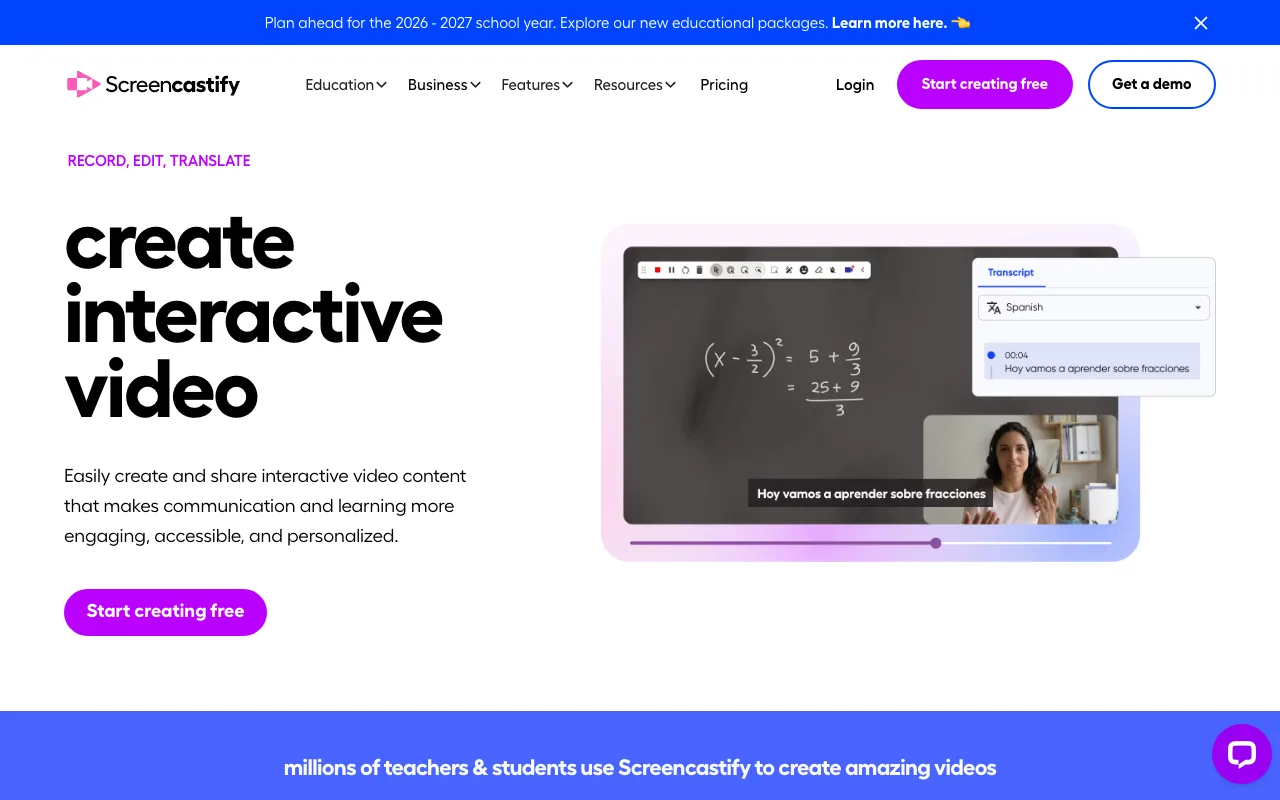
Free tier: 10 videos maximum, 30-minute cap per recording. Starter: $7/user/mo billed annually ($19/mo monthly); Pro: $10/user/mo annually ($25/mo monthly). Shareable links need no recipient Screencastify account. The 30-minute cap exceeds Loom's 5-minute and ShareRec's 5-minute free limits; annotation tools require a paid plan. Chrome and Microsoft Edge extension — no Firefox, Safari, or standalone desktop app; per-user pricing scales quickly for larger teams.
Key Takeaways
- ShareRec — browser-only recorder, no install, no watermark; 5-min cap; instant link; keeps your 25 most recent videos with a 30-day default expiry (keep any forever in one click); Pro $8/mo; account required.
- Loom — AI transcription and Slack integration; free: 25 videos, 5-min cap; Business ~$15/user/mo; AI summaries $24/mo.
- OBS Studio — 100% free, no watermark, no caps; Windows .exe and admin rights required; no built-in share links.
- Zoom Clips — free on Zoom Basic (5 clips, 2-min cap); unlimited on Zoom Pro ($16.99/user/mo monthly, $13.33 annual); limited outside the Zoom ecosystem.
- Screencastify — Chrome extension; 30-min free cap, 10-video limit; annotation tools from $7/user/mo.
- Install method drives the choice: ShareRec and Loom are browser-based; OBS and Zoom Clips require a desktop install.
Frequently Asked Questions
What is the best free screen recorder for remote teams?
ShareRec's free tier includes no watermark and a browser-based recorder requiring no install — account required on all tiers including Free, with a 5-minute cap per recording, and it keeps your 25 most recent videos (which auto-expire after 30 days unless you keep them forever in one click). Loom's free tier allows 25 videos at 5 minutes each. OBS Studio is fully unlimited but requires a Windows desktop install and has no built-in shareable links.
Do I need to install software to record my screen for remote team sharing?
ShareRec runs in any modern browser — no install, no admin rights, making it suitable for locked-down corporate Windows laptops. OBS Studio requires a Windows .exe installer with admin rights typically needed. Zoom Clips requires the Zoom desktop app. Screencastify requires a Chrome or Microsoft Edge extension. Loom offers both a web recorder and an optional desktop app.
Which screen recorder has the best Slack integration for remote teams?
Loom has native Slack integration — Loom video links preview inline inside Slack messages so recipients see a thumbnail and can play the video without leaving Slack. ShareRec links can be pasted into Slack messages but are not natively embedded. OBS recordings must be uploaded as files manually before sharing.
Is OBS Studio good for remote team screen recording?
OBS is powerful and free with no recording caps or watermarks, but requires a desktop install and provides no built-in cloud sharing or link generation. Remote teams must distribute recordings manually via Google Drive or email. ShareRec and Loom are the faster options for remote teams who need async screen recording with instant shareable links.
Try it free
Record your first walkthrough free in 30 seconds
No install, no watermark — share a link instantly.
Start Recording Free