Best Chrome Screen Recorder 2026: 5 Top Tools by Use Case

The best chrome screen recorder 2026 picks come down to workflow. ShareRec, Loom, Screencastify, Vidyard, and Awesome Screenshot are the five strongest Chrome screen recorder extensions in 2026.
ShareRec ($0 Free / $8/mo Pro) delivers an instant shareable link the moment you stop recording — no upload step — on every tier, including Free. Videos auto-expire 30 days after recording by default on every tier, and you can keep any video forever in one click. No watermark on any tier. Free recordings cap at 5 minutes per clip and keep your 25 most recent videos; Pro and Business ($12/mo) add unlimited videos.
Loom ($0 Starter / $15/mo Business billed annually, $18/mo monthly) auto-generates AI transcripts, chapter markers, and summaries on every upload. Starter (free) caps at 25 videos per person.
Screencastify ($0 Free / $7/mo Starter billed annually) saves recordings directly to Google Drive and submits to Google Classroom assignments — no download step required.
Vidyard ($0 Free / paid pricing on request) attaches video links to Salesforce and HubSpot contact records with per-second viewer heatmaps. Free tier: 5 videos per month.
Awesome Screenshot ($0 Free / paid plans available) pairs annotated screenshot capture with 5-minute recording — annotation tools free on every tier, 4M+ Chrome installs.
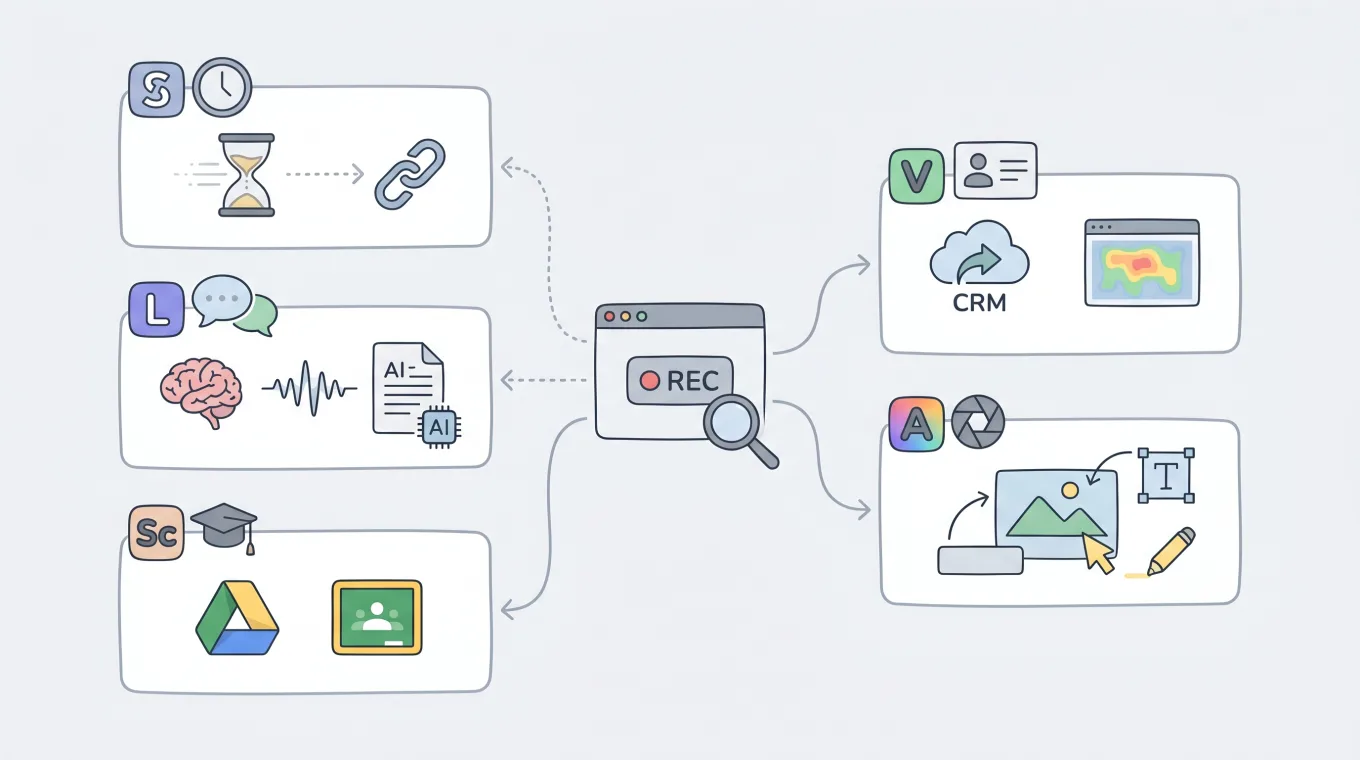
Choose by workflow: ShareRec for instant-link sales demos, Loom for AI team communication, Screencastify for Google Classroom, Vidyard for CRM-integrated sales, Awesome Screenshot for annotated captures.
Comparison Table: 5 Chrome Screen Recorders at a Glance
ShareRec, Loom, Screencastify, Vidyard, and Awesome Screenshot differ most on recording caps, link permanence, pricing, and watermark policy — the table below shows all five variables side by side.
| Tool | Best For | Free Tier Cap | Starting Price | Link Expiry | Audio Support | Watermark-Free |
|---|---|---|---|---|---|---|
| ShareRec | Async sales demos | 5 min/video, keeps 25 most recent | $8/mo Pro | 30-day default (keep forever, 1 click) | Mic | Yes |
| Loom | AI transcripts + team collaboration | 5 min/video, 25/person | $15/mo Business (annual) | No expiry | Mic + system | Yes |
| Screencastify | Education + Google Classroom | 30 min/video, 10 total | $7/mo Starter (annual) | No expiry | Mic | No (free exports) |
| Vidyard | CRM-integrated enterprise sales | 30 min/video, 5/month | Custom (paid tiers) | No expiry | Mic + system | Yes |
| Awesome Screenshot | Screenshots + quick recordings | 5 min/video | Paid plans available | No expiry | Mic | Yes |
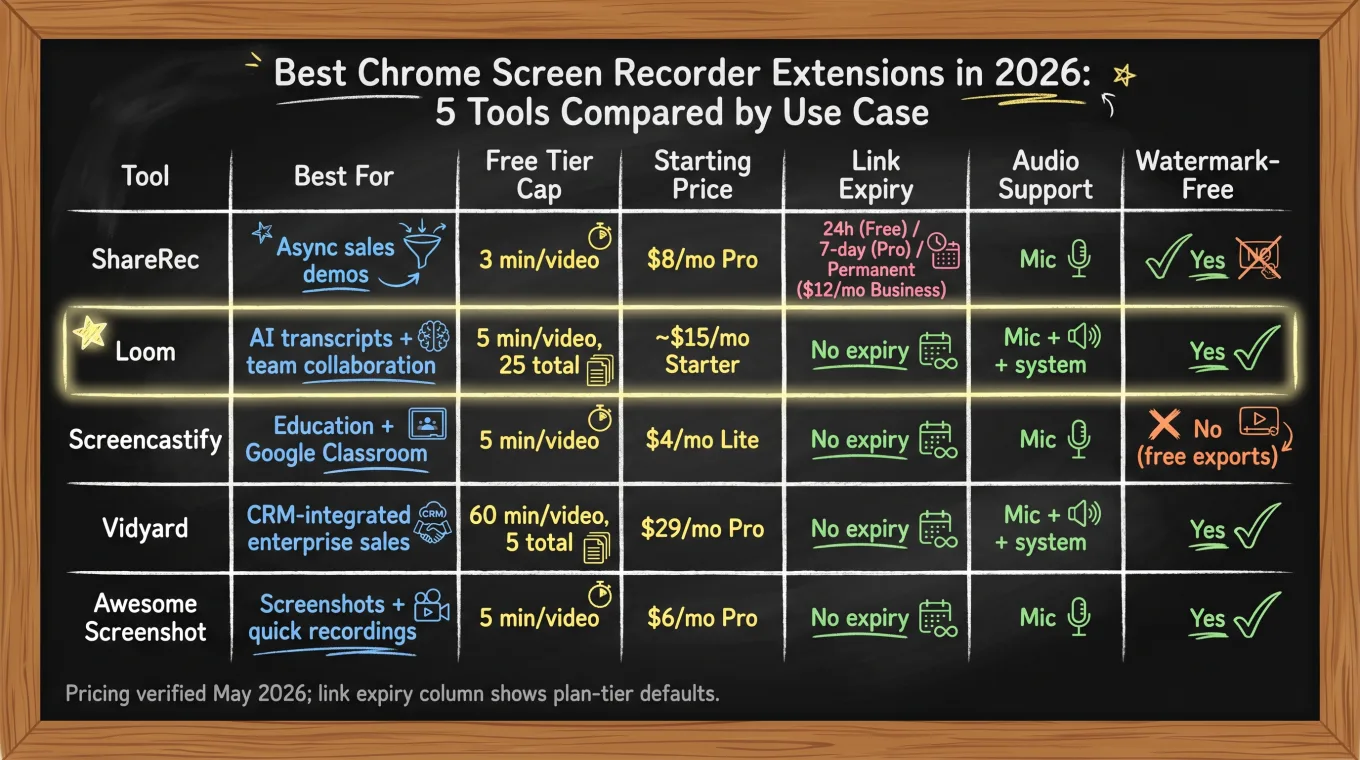
Pricing verified May 2026; link expiry column shows each tool's default hosted-link behavior.
ShareRec — Best for Sales Teams Sending Instant Async Walkthroughs
ShareRec is a Chrome screen recorder built for async sales demos — the Record → Explain → Send workflow generates an instant shareable link in under 30 seconds with no upload step, on every tier including Free. Best for: Sales reps, customer support agents, and freelancers who need an instant shareable link and an $8/mo Pro plan.
The instant shareable link distinguishes ShareRec from every other tool in this comparison — record, stop, and paste a link in under 30 seconds, with no upload step. Videos auto-expire 30 days after recording by default on every tier, including Free — and you can keep any single video forever in one click (or set a custom Never / 24 hours / 7 days / 30 days window). A countdown shows on each video, and you're emailed 3 days before anything is deleted, so demos and onboarding walkthroughs stay live exactly as long as you need while everything else tidies itself. See current pricing.
The Free tier requires an account — account creation is mandatory on all tiers including Free. Within that requirement, the plan delivers: a 5-minute recording limit per clip, 720p output, no watermark, trim and clip editing without any upgrade, and it keeps your 25 most recent videos with a 30-day default expiry (keep any forever in one click). The 5-minute cap suits concise product highlights but excludes full discovery calls or detailed onboarding walkthroughs.
Pro at $8/mo extends recordings to 30 minutes, output to 1080p, and adds unlimited videos. Business at $12/mo adds 2-hour recordings and unlimited videos. Loom's Business plan runs $15/mo billed annually — a $7/mo difference for teams that don't need AI transcripts or engagement analytics.
ShareRec has no AI transcripts or automated summaries, no webcam bubble overlay, no team workspace, and no shared video library. The Free tier's 5-minute cap rules out full-length sales calls.
Loom — Best for Team Collaboration with AI Transcripts and Engagement Analytics
Loom is an async video platform for team communication — every recording triggers automatic AI transcript generation, chapter markers, and a video summary without any manual editing step. Best for: Product, engineering, and remote teams who need AI transcripts, viewer engagement data, and integrations with Slack, Notion, or Jira.
Loom's AI feature stack activates on upload. Transcripts convert speech to searchable text. Chapter markers identify topic shifts in the recording automatically. A short summary condenses the video's content without requiring the sender to write one. All three run on paid plans without additional configuration.
Viewer analytics track who opened the video, how long they watched, which sections prompted rewinds, and the timestamp at which viewers dropped off. Sales and product teams use this heatmap data to identify which demo segments held attention — a capability absent from ShareRec, Screencastify, and Awesome Screenshot.
The Chrome extension records a browser tab, application window, or full screen, with a webcam bubble overlay available on all plans. Loom captures both microphone audio and system audio simultaneously — useful for software tutorials where in-app sounds are part of the content.
Loom's Starter (free) tier allows 25 videos per person with a 5-minute recording cap and up to 50 workspace members. Business at $15/mo billed annually ($18/mo monthly) removes the video cap, extends recording length, and unlocks up to 4K video quality. Business + AI at $20/mo annual ($24/mo monthly) layers on auto-generated meeting notes and advanced editing. Native integrations include Slack (one-click share to channels), Notion (embedded inline), Jira, and Asana.
Limitations: the 25-video-per-person free ceiling is a hard cutoff, not a rolling window. At $15/mo Business annual, Loom is the highest entry price in this comparison among tools with published pricing.
Screencastify — Best for Educators and Google Classroom Workflows
Screencastify is a browser-based screen recorder built for K-12 and higher education — it saves recordings directly to Google Drive and submits them to Google Classroom assignments without any download or re-upload step. Best for: Teachers, students, and Google Workspace users who need in-browser recording with direct Google Drive and Google Classroom integration.
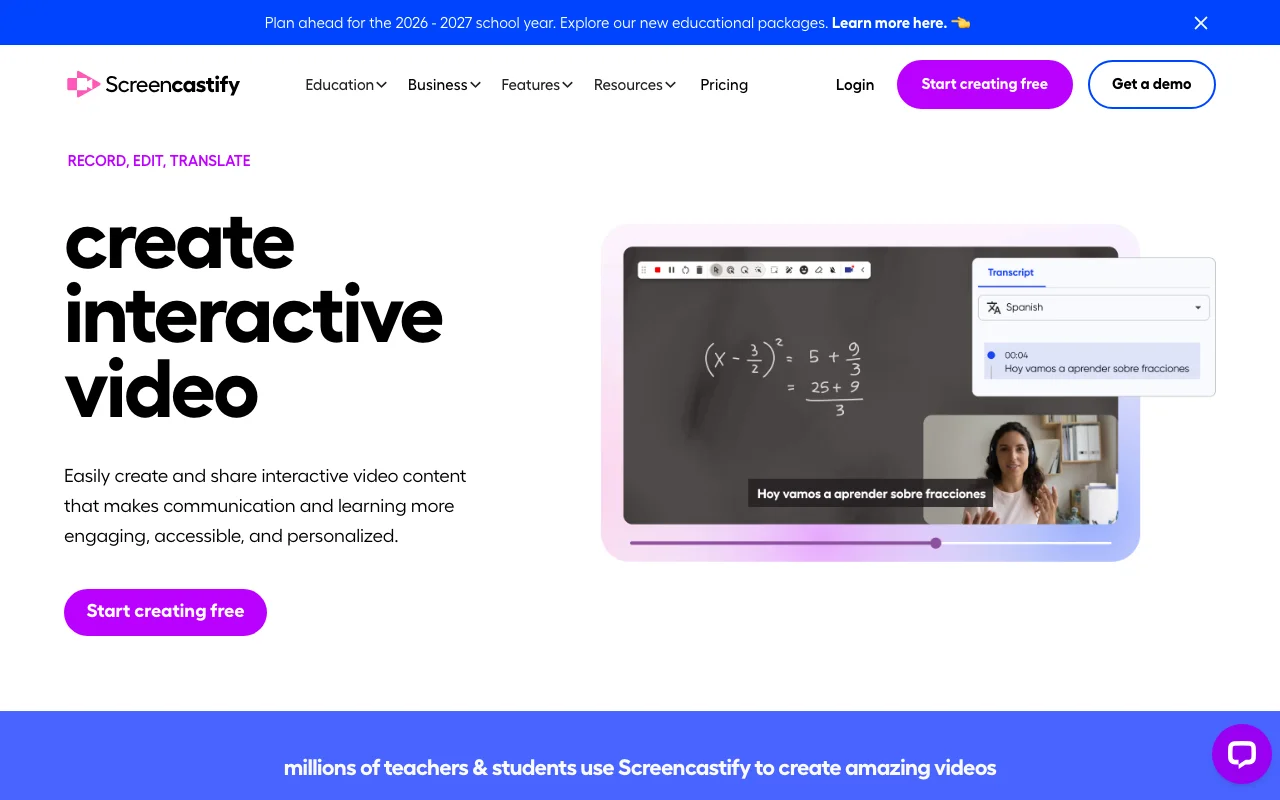
Recording modes include browser tab, desktop window, full screen, and webcam-only capture. Drawing tools — pen, shapes, and text boxes — are active during recording without pausing the capture. Teachers use these to annotate slides, circle key data points, or underline terms mid-explanation without stopping the video.
The Google integration is Screencastify's primary differentiator. Finished recordings land in Google Drive automatically after each session. A single click then attaches the video to a Google Classroom assignment as a submission — removing the download-then-re-upload step that trips up students using general-purpose recorders.
Screencastify runs entirely inside the browser with no desktop application required. This makes it fully compatible with Chromebook workflows, where student devices typically restrict non-browser software installs.
Pricing: the Free tier includes 10 videos with a 30-minute recording cap each; exports carry a visible watermark. Starter at $7/mo billed annually ($19/mo monthly) removes the watermark, unlocks unlimited videos with 60-minute recordings, and adds basic editing. Pro at $10/mo annual ($25/mo monthly) extends recordings to 180 minutes and adds AI enhancements, captions/transcripts, and 90+ language translations.
Limitations: the watermark on free tier exports is visible on all downloaded and shared video files. The 10-video free cap is account-wide and resets only on upgrade. The annotation and editing toolset is well-suited for education but simpler than dedicated desktop editors.
Vidyard — Best for Enterprise Sales Teams with CRM-Integrated Video Tracking
Vidyard is an enterprise video platform for sales and marketing teams — not a general-purpose recorder — with native Salesforce and HubSpot integrations that attach video links directly to contact records inside CRM pipeline views. Best for: Enterprise and mid-market sales teams who need CRM-integrated video tracking, engagement heatmaps, and embedded CTAs inside Salesforce or HubSpot.
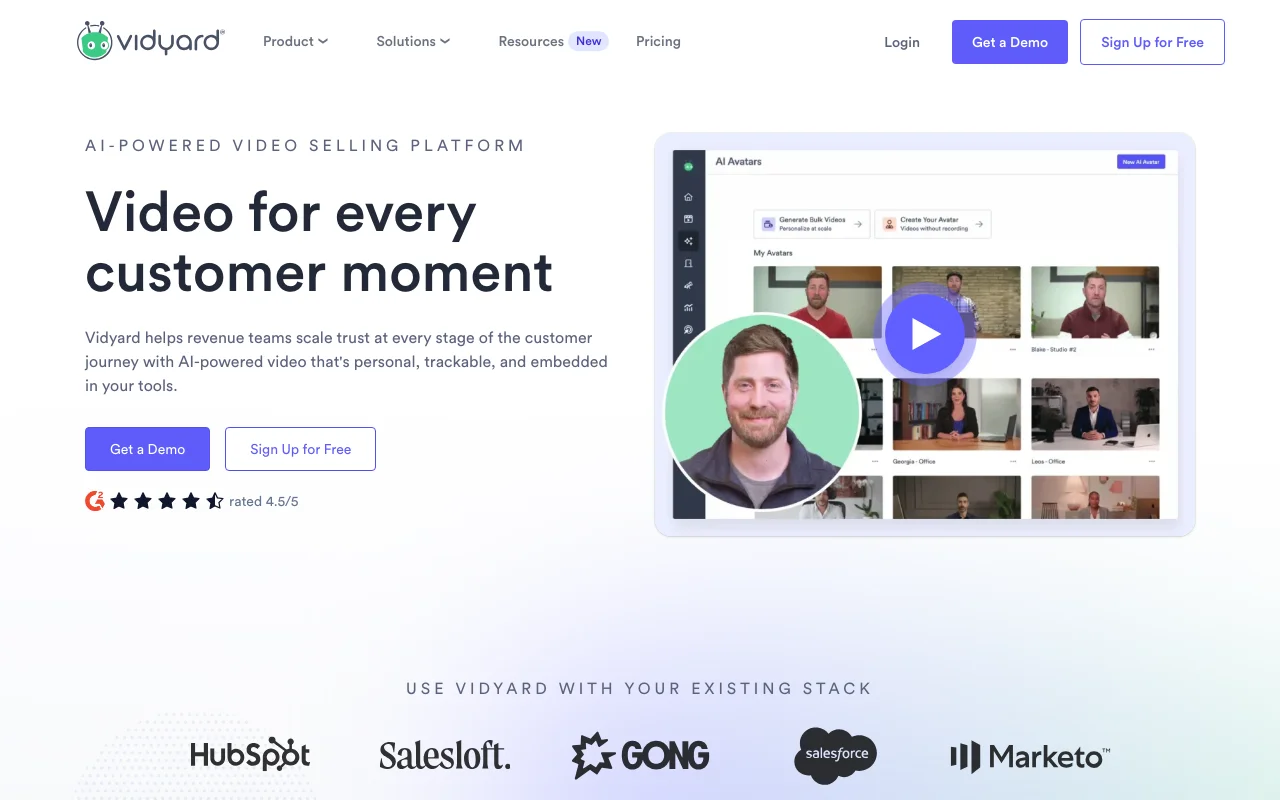
CRM integration operates at the contact level. When a Vidyard rep sends a video link, that link appears inside the prospect's Salesforce or HubSpot record. Sales managers can view video open rates, total watch time, and replay behavior without leaving the CRM — a reporting loop that no other tool in this comparison replicates.
Viewer engagement heatmaps display per-second watch data. Managers identify exactly which segments prospects replayed and at which timestamp they dropped off — a diagnostic tool for refining demo content across multiple prospect conversations.
Embedded CTAs and forms appear inside the Vidyard player. A prospect can click a "Book a Call" button or complete a contact form without leaving the video, reducing friction between watching a demo and scheduling a follow-up.
The Chrome extension records screen and webcam simultaneously. Webcam bubble overlay is available on all plans including Free.
Pricing: Free tier allows 5 videos per month with a 30-minute recording cap, 15 AI-generated videos, and limited integrations. Paid tiers — Starter (unlimited videos, two integrations), Teams (CRM/MAP integrations), and Enterprise (unlimited integrations) — require contacting Vidyard for current pricing; monthly USD figures are not publicly listed.
Limitations: the 5-videos-per-month free cap is restrictive for active reps. Paid pricing is not transparent — every prospect goes through sales. CRM integration and heatmap depth creates meaningful onboarding overhead for small teams or individuals without a structured sales process.
Awesome Screenshot — Best for Fast Annotated Captures Without Switching Tools
Awesome Screenshot combines annotated screenshot capture and 5-minute screen recording in a single Chrome extension with 4M+ installs — annotation tools including arrows, text boxes, blur, and shapes are available on the free tier without any upgrade. Best for: Developers, designers, and support teams who need fast annotated screenshots and short recordings without switching between separate tools.
The dual functionality separates Awesome Screenshot from dedicated recorders: full-page screenshot, region screenshot, and screen recording coexist in one extension. Switching between capture modes takes two clicks, with no separate screenshot app or annotation tool required.
Annotation tools activate immediately on the free tier — add an arrow pointing to a UI bug, blur out sensitive account data, or drop a text label onto a mockup before sharing. For support teams documenting issues and designers leaving visual feedback, this eliminates the screenshot-to-annotation-tool round trip that separate tools create.
Screen recordings on the free tier capture up to 5 minutes with microphone audio. Shared videos and screenshots generate a cloud link, though account creation is required for link generation.
Paid plans are available through Awesome Screenshot's web app for longer recording sessions, additional cloud storage, and team sharing features; monthly USD pricing is not published on the public marketing site.
Limitations: no auto-expiry on shared links, a 5-minute video cap on the free tier, no published monthly pricing, and limited video editing compared to dedicated recorders.
How to Install a Chrome Screen Recorder Extension (Including Chromebook)
All five Chrome screen recorder extensions install from the Chrome Web Store in under two minutes and run without a desktop application — making them fully compatible with Chromebooks where no OS-level software install is permitted.
Installing any of the five follows the same steps:
- Open the Chrome Web Store and search for the extension name: ShareRec, Loom, Screencastify, Vidyard, or Awesome Screenshot.
- Click "Add to Chrome" and accept the requested permissions — screen capture and microphone access are both required for recording to function.
- Pin the extension to the Chrome toolbar for one-click access during recording sessions.
- Create an account before your first recording — all five tools require account creation on every tier, including Free.
For Chromebook users: because all five tools run as browser extensions rather than installed applications, they operate on Chromebooks without administrator permissions or OS-level setup. Screencastify saves recordings directly to Google Drive, which maps to the default Chromebook file system — no additional configuration required for students or teachers already inside Google Workspace.
Microphone access: Chrome requests this permission on the first recording session. Declining it results in a recording that captures screen visuals only, with no audio track. For Loom and Vidyard, a second Chrome prompt may appear requesting system audio access from the active tab — accept this to capture in-app sounds alongside screen content.
Key Takeaways: Best Chrome Screen Recorder 2026
- ShareRec issues an instant shareable link on every tier with no upload step — videos auto-expire in 30 days by default, and you keep any forever in one click; Free keeps your 25 most recent videos at a 5-min cap; Pro ($8/mo) and Business ($12/mo) add unlimited videos.
- Loom caps the free Starter tier at 25 videos per person; AI transcripts, chapter markers, and summaries auto-generate on Business at $15/mo (billed annually) or $18/mo monthly.
- Screencastify submits recordings directly to Google Classroom without downloading; Starter is $7/mo (billed annually) and removes the free-tier watermark.
- Vidyard restricts free accounts to 5 videos/month and integrates with Salesforce and HubSpot contact records on paid tiers (custom pricing via sales).
- Awesome Screenshot includes annotation tools (arrows, blur, shapes) on the free tier with 4M+ Chrome installs; paid plans available, monthly pricing not publicly listed.
For async sales demos, use ShareRec. For AI-powered team video, use Loom. For Google Classroom, use Screencastify. For CRM-integrated enterprise video, use Vidyard. For fast annotated captures, use Awesome Screenshot.
Frequently Asked Questions
What is the best free Chrome screen recorder?
ShareRec offers a 5-minute cap, instant shareable links, no watermark, and trim editing on its free tier — it keeps your 25 most recent videos (which auto-expire after 30 days unless you keep them forever in one click), and an account is required. Screencastify allows 10 videos with 30-minute recordings saved to Google Drive, but free exports carry a watermark. Awesome Screenshot includes unlimited screenshots and 5-minute video recording with annotation tools at no cost.
Can I record audio with Chrome screen recorder extensions?
All five tools — ShareRec, Loom, Screencastify, Vidyard, and Awesome Screenshot — capture microphone audio. Loom and Vidyard additionally capture system audio from the active tab, useful for recording software where in-app sounds matter. Chrome requests microphone permission on the first recording session; declining the prompt results in a recording with no audio track.
Do Chrome screen recorders work on Chromebooks?
Yes. All five tools run as Chrome extensions and require no desktop application, making them fully compatible with Chromebooks. Screencastify is optimized for Chromebook workflows — recordings save automatically to Google Drive and submit directly to Google Classroom assignments without any file management step or additional configuration.
What is the difference between Loom and Screencastify?
Loom targets team communication with AI-generated transcripts, viewer engagement analytics, and Slack and Notion integrations on the Business plan at $15/mo (billed annually) or $18/mo monthly. Screencastify targets educators with direct Google Classroom submission, in-recording drawing tools, and a $7/mo Starter price (billed annually). Loom's free Starter caps at 5-min recordings and 25 videos per person; Screencastify's free tier caps at 30-min recordings but only 10 videos total.
Do Chrome screen recorders have a time limit?
Yes — limits vary by tool and plan tier. Free-tier per-video limits: ShareRec 5 minutes, Loom 5 minutes, Screencastify 30 minutes, Vidyard 30 minutes, Awesome Screenshot 5 minutes. Loom's free Starter caps at 25 videos per person; Screencastify's free tier caps at 10 videos total; Vidyard's free tier caps at 5 videos per month. Paid plans on all five tools extend or remove the per-video recording limit.
Can I export screen recordings as MP4 from a Chrome extension?
Loom, Vidyard, and Awesome Screenshot export recordings as MP4 files directly from the extension dashboard or web app. ShareRec and Screencastify share recordings via shareable link on free tiers; paid plans on both tools include direct MP4 download options. Check the export or download panel in each tool's web dashboard to confirm the available file formats.
Which Chrome screen recorder is best for teachers?
Screencastify is the strongest choice for teachers — it records with annotation tools active during capture, saves to Google Drive automatically, and submits recordings to Google Classroom assignments in one click without downloading. Loom is used in education for async video feedback but lacks direct Google Classroom integration. Screencastify's Starter plan starts at $7/mo (billed annually).
Try it free
Record your first walkthrough free in 30 seconds
No install, no watermark — share a link instantly.
Start Recording Free